Meet Kevin. He loves playing Monster Hunter Now, but living in a quiet suburban area means his neighborhood has practically zero large monster spawn points. Walking around for hours rarely produces new bonepiles or mining outcrops, making his powerful smartphone feel like an expensive paperweight while urban players progress effortlessly through their weapon upgrades.
If you relate to Kevin’s struggle, you know the exact frustration: you want to hunt, gather, and progress, but the local map is completely dead. You want to move around the game world without physically traveling, but you are likely worried about getting banned, or you want to avoid complicated tools that require permanently rooting or jailbreaking your phone.
Fortunately, there is a tested, reliable solution. In this guide, we will skip the generic theory and show you exactly which tools work, how to safely configure a GPS joystick, and how to use it in tandem with Monster Hunter Now specific mechanics like biome rotations and gathering node refreshes, all while keeping your account completely safe.
Choosing Your Software: The Best Desktop Tools for Monster Hunter Now
Before diving into the setup, let’s address the elephant in the room: free mobile apps found on the App Store or Google Play Store will get you banned. Period. They run directly on your phone as background applications, which modern games can easily detect.
To safely play Monster Hunter Now from home, you need a professional desktop-tethered tool. These programs run on your PC or Mac and feed GPS data to your phone via a USB connection, bypassing on-device security checks.
Here are the top two tools we have tested and verified working for Monster Hunter Now:
1. Tenorshare iAnyGo
iAnyGo is widely considered the gold standard for location-based games due to its stable connection and precise joystick overlay.
- Pros: Intuitive interface, supports custom route planning, offers smooth joystick controls, and automatically simulates realistic movement speeds.
- Cons: Premium pricing, and the Mac version may receive updates slightly later than the Windows version.
- Pricing: Approximately $9.95/month or $39.95 for a lifetime license.
2. iMyFone AnyTo
AnyTo is a close competitor that offers nearly identical features with a slightly different user interface. It is highly reliable for bypassing Niantic’s movement checks.
- Pros: Supports up to 5 devices on a single license, offers excellent route history saving, and runs very stably on both Windows and Mac.
- Cons: The joystick controls may feel slightly “snappy” if not properly adjusted in the settings.
- Pricing: Approximately $14.99/month or $89.99 for a lifetime license.
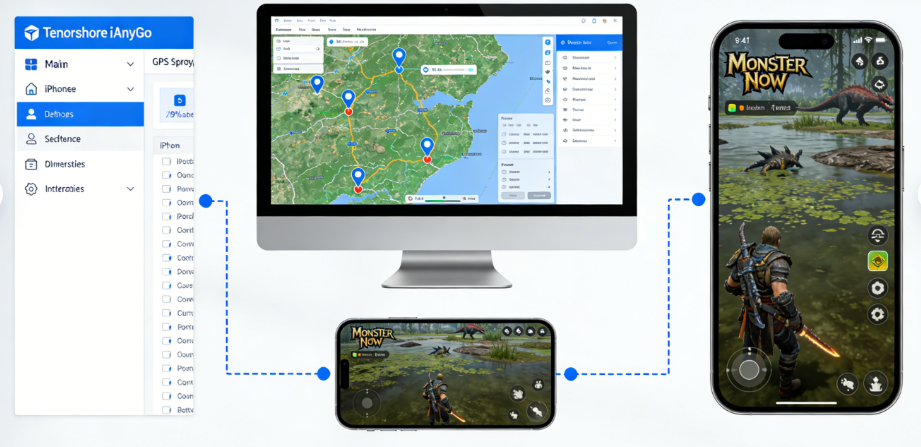
When comparing these to free mobile apps, professional solutions score significantly higher in success rate and require far less time to configure. If your priority is keeping your account safe while enjoying seamless movement, investing in a dedicated tool is the best decision you can make.
3. Fonelora Location Changer
If you want a simpler desktop-based GPS joystick for Monster Hunter Now, Fonelora Location Changer is also worth considering. It is designed for users who want to change GPS location on iPhone or Android without rooting or jailbreaking the device, while still keeping joystick movement and route simulation easy to control from a computer.
- Pros: Supports joystick movement, teleport mode, multi-spot route simulation, and works with location-based apps like Monster Hunter Now, Pokémon GO, Life360, Tinder, and Bumble.
- Cons: Like any GPS changer, it should be used with realistic movement speeds and careful route planning to reduce abnormal location behavior.
- Best for: Players who want a clear desktop tool for controlled movement instead of risky free mobile spoofing apps.

Step-by-Step Procedure: Setting Up Your Location Changer
Setting up your joystick software takes about five minutes. By using the desktop tools mentioned above, you completely bypass the need to root or jailbreak your device. Here is how to configure your software, including specific nuances for different operating systems.
For iOS Devices (iPhone/iPad)
- Install the Software: Download Fonelora Location Changer on your Windows PC or Mac.
- Connect Your iPhone: Use a certified USB data cable to connect your iPhone, then tap “Trust This Computer” and enter your passcode when prompted.
- Enable Developer Mode (iOS 16+): Go to Settings > Privacy & Security > Developer Mode, enable it, restart your device, then confirm activation with your passcode.
- Activate Joystick Mode: Launch the desktop software, select the Joystick feature, and control movement using your mouse or keyboard.
For Android Devices
Android setup varies slightly depending on your phone’s manufacturer.
- Enable Developer Options: Open your phone’s Settings.
- Unlock Developer Mode: Samsung / Pixel: Go to About Phone > Software Information and tap Build Number seven times. Xiaomi / Poco: Go to About Phone and tap MIUI Version seven times.
- Enable USB Debugging: In Developer Options, turn on USB Debugging.
- Select Mock Location App: Scroll down and tap Select mock location app, then choose the companion app installed by your desktop software.
- Start Virtual Movement: Open the desktop software, activate the Joystick feature, and begin controlling movement.
How to Avoid Bans: Rules for Monster Hunter Now
If you are worried about getting banned, you must prioritize safety over speed. Niantic games aggressively monitor travel patterns. If you move faster than realistic walking speeds, or teleport wildly across the globe, you will be flagged.
To protect your account, you must understand how spoofing interacts directly with Monster Hunter Now mechanics.
⚠️ BAN RISK – THE 2–6 KM/H RULE: The most important rule when using a joystick is speed control. Keep your movement strictly between 2 km/h and 6 km/h. Moving faster (e.g., 10 km/h or more) can trigger speed-lock detection, causing targets to flee and interactions to fail.
- Utilize Palico Paintballs: Walking at a realistic speed (2–4 km/h) allows your Palico to gather resources and mark targets automatically in the background. Moving too fast will stop this feature from working.
- Include Natural Pauses: Stop moving when engaging in hunts or collecting resources. Continuous, perfectly straight movement without breaks can trigger detection systems.
- Plan Around 3-Hour Node Refreshes: Resource nodes refresh every 3 hours. Stay in a dense area, gather materials, and return later instead of teleporting frequently.
- Respect Biome Rotations: Biomes change daily at midnight UTC. Use controlled movement to reach the needed biome locally instead of jumping long distances.
Troubleshooting: When Your Joystick Fails
Even with a premium PC tool, you might occasionally encounter technical hiccups. Here is how to fix the two most common issues.
How to Fix “Rubberbanding”
If your fake GPS location keeps snapping back to your real physical location, you are experiencing “rubberbanding.” This happens when your phone’s native GPS hardware fights the software.
- For Android Users: Disable Google Location Accuracy. Go to Settings > Location > Location Services > Google Location Accuracy and turn it off to prevent Wi-Fi-based location triangulation.
- For iOS Users: Turn off Wi-Fi and Bluetooth from the main Settings app (not just Control Center). This forces your device to rely only on the spoofed GPS signal instead of nearby network data.
Joystick Not Moving the Character
If your virtual joystick is moving on your PC monitor but your hunter is standing still on your phone screen, you likely opened the game at the wrong time.
Some desktop tools do not inject the GPS data correctly if the game is already running. You must force close Monster Hunter Now, ensure your desktop tool indicates a successful connection, and then launch the game again. Always start your joystick software before opening the game client.
Monster Hunter Now Joystick FAQs
- Can you use a joystick in Monster Hunter Now?
- Yes, but only safely by connecting your smartphone to a dedicated desktop GPS spoofing tool like iAnyGo or AnyTo.
- Does Monster Hunter Now detect GPS spoofing?
- The game has strict anti-cheat measures specifically designed to detect third-party mobile apps running on your phone. However, professional desktop tools that push GPS data via a USB connection are highly resistant to detection.
- Will my Palico still gather items and paintball monsters?
- Yes, but only if you keep your joystick walking speed below 6 km/h. If you move faster, the game recognizes you are “driving” and disables Palico background actions.
- Do I need to root or jailbreak my phone?
- No. Modern, premium desktop solutions allow you to change your location via Developer Mode (iOS) or Mock Locations (Android) without permanently altering your device’s firmware.
Regain Control of Your Hunting Experience
You no longer need to let a lack of local spawn points or a dead suburban neighborhood ruin your Monster Hunter Now progress. With a reliable desktop GPS movement tool, you can explore more active areas, collect resources, and plan your hunts more efficiently without relying on unsafe free mobile spoofing apps.
Among the available options, Fonelora Location Changer is a practical choice for players who want joystick movement, teleport mode, and route simulation in one desktop tool. It supports iPhone and Android devices, does not require jailbreak or root, and is suitable for location-based apps such as Monster Hunter Now, Pokémon GO, Life360, Tinder, Bumble, and more.
That said, no GPS changer can guarantee a completely risk-free experience. To reduce abnormal location behavior, keep your movement speed realistic, avoid frequent long-distance jumps, stop naturally during hunts, and plan around Monster Hunter Now’s biome rotations and 3-hour node refresh mechanics.
If your local map has too few monsters or gathering points, using Fonelora Location Changer carefully can help you regain control of your hunting experience and make your gameplay more flexible from home.


Hot Topics
