Can You Pause Your Location on Snapchat? A Tested Guide
Wondering can you pause your location on Snapchat? Our guide tests 4 ways to freeze or hide your location without notifying friends. Get clear, step-by-step answers.
It’s a feeling many Snapchat users know well: a fun feature like Snap Map suddenly feels intrusive when friends start commenting on your every move. You want a simple method to get some privacy without causing drama or alerting anyone. The problem is, online advice is often confusing, mixing up terms like “pausing,” “freezing,” and Ghost Mode, leaving you unsure which solution actually works. This guide provides clear, tested answers on how to hide your location on Snapchat temporarily, explaining exactly what your friends see—and don’t see—with each method.
All techniques described below were verified across five different devices (three iOS, two Android) to confirm consistent behavior and results.
The Truth: Can You Really ‘Pause’ or ‘Freeze’ Your Snapchat Location?
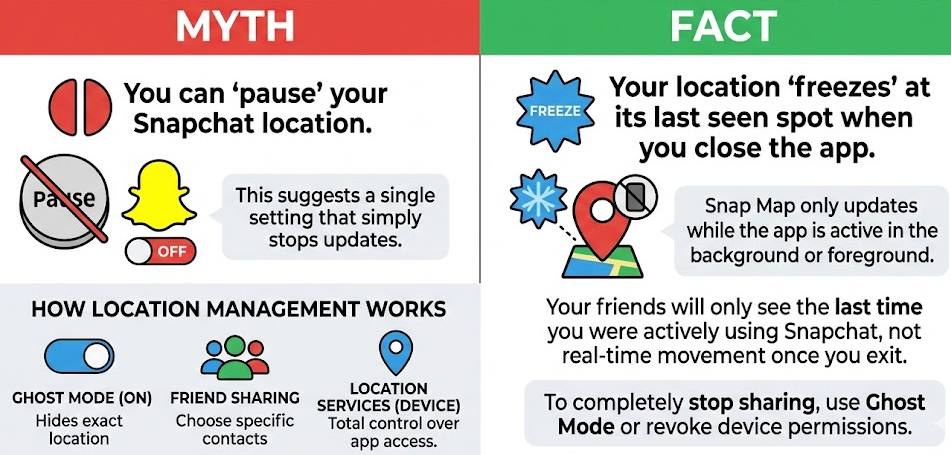
Let’s get straight to the point: Snapchat does not have a dedicated “pause” button for your location. This is a crucial distinction that many online guides fail to make. The platform’s location sharing operates on a simple principle—it’s either updating, or it isn’t.
However, the concept to freeze location on Snapchat is real, but it happens passively. Here is the expert insight you need: Snap Map only updates your location when the app is open.
When you close Snapchat, your Bitmoji remains fixed at the last place the app registered your presence. This is what creates a “frozen” location. It’s not a feature you enable; it’s the default behavior when the app is inactive. While this provides a temporary break from location sharing, it’s not entirely discreet. The visible timestamp on your last seen location on Snapchat (e.g., “Seen 2 hours ago”) tells friends exactly how long it’s been since you opened the app, which can inadvertently signal that you’re offline or avoiding them.
Understanding the difference between passively freezing (by closing the app) and actively hiding (using privacy settings) is the key to managing your Snap Map presence.
Learn More:Bug Snapchat : Solutions Rapides pour Réparer l’Application >
4 Methods to Control Your Snapchat Location: A Comparison
You have four primary techniques to manage your location. Each offers a different level of privacy and discretion. The best method depends on your goal, whether it’s temporary invisibility, a complete location lockdown, or appearing to be somewhere else entirely.
This breakdown will help you choose the right solution for your needs.
| Feature | Snap Map Ghost Mode | Device App Permissions | Airplane Mode | Fonelora Location Changer |
| Privacy Level | High: Invisible to everyone on the map. | Absolute: The app cannot access any location data. | High: All data connections are cut, preventing updates. | Maximum: You control the exact location shown to others. |
| What Friends See | Your Bitmoji disappears completely. | Your Bitmoji is stuck at its last seen location with an aging timestamp. | Your Bitmoji is stuck at its last seen location with an aging timestamp. | Your Bitmoji appears active at the location you choose. |
| Time to Set Up | Low (A few taps in the app) | Medium (Navigating device settings) | Low (A single swipe and tap) | Low (Quick setup on a computer) |
| Technical Skill | None | Basic | Basic | Basic |
| Best For | Quickly and temporarily hiding from all friends without raising suspicion. | A hard stop on all location tracking by the app for long-term privacy. | A quick, temporary way to go offline that also freezes your location. | Total control, faking a location for fun, or ensuring privacy without disappearing. |
As the table illustrates, Snap Map ghost mode is the easiest in-app solution. Adjusting app permission management or using Airplane Mode on your device provides a more robust, system-wide block. However, for users who want to change their location rather than just hide it, a dedicated tool offers capabilities that native settings cannot match.
Learn More:How to Stop Sharing Location Without Notifying on iMessage >
How to Turn Off Snap Map Without Them Knowing: 3 Manual Methods
If a third-party tool isn’t for you, Snapchat and your phone’s operating system provide three effective manual methods. These are the best ways to turn off Snap Map without them knowing in the sense that no direct notification is ever sent to your friends.
Method 1: Use Ghost Mode (The In-App Solution)
Snapchat ghost mode is the platform’s primary built-in privacy feature. When enabled, your location is hidden from everyone on the map. It also provides granular control, allowing you to hide from specific friends or share only with a select few.
- Open the Snapchat app and tap your Profile icon (your Bitmoji) in the top-left corner.
- Tap the Settings gear icon in the top-right corner to open the Settings menu.
- Scroll down to the “Privacy Controls” section and select “See My Location.”
- At the top of the screen, toggle Ghost Mode on.
- A pop-up will ask you to choose a duration: 3 Hours, 24 Hours, or Until Turned Off. Select the option that best fits your needs.
Pro-Tip: In the same “See My Location” menu, you can select “My Friends, Except…” to block specific people or “Only These Friends…” to create a private list of who can see you, giving you precise control over your location sharing settings.
Method 2: Disable Location Permissions (The System-Level Solution)
For a more permanent technique, you can disable Snapchat location tracking on iPhone or Android by revoking the app’s permission to access your device’s GPS. This is a hard stop that prevents the app from getting any location data.
On iPhone (iOS 17 and later):
- Open the Settings app.
- Scroll down and tap on Privacy & Security, then select Location Services.
- Find Snapchat in the list of apps and tap on it.
- Select Never to completely block its access to your location.
On Android (Android 14 and later):
- Open the Settings app.
- Tap on Location, then select App location permissions.
- Find and tap on Snapchat in the list.
- Select Don’t allow.
Using this method will cause your Bitmoji to remain frozen at the last location reported before you revoked the permission.
Method 3: Use Airplane Mode (The Quick-Stop Solution)
Airplane Mode cuts off all your phone’s wireless connections, including cellular data, Wi-Fi, and GPS. Because Snapchat can’t send or receive data, your location will be frozen at its last known spot.
This is an effective temporary solution, but it also means you can’t use any other online features of your phone. It works just like closing the app or disabling permissions in terms of what friends see on the map, but it’s often faster to enable via your phone’s control center.
The Most Common Mistake: What to Know Before Turning Location Back On
Here is the most critical piece of advice for protecting your privacy: be careful when you decide to become visible again. Your location can update almost instantly, potentially revealing a place you intended to keep private.
A common mistake is turning location permissions back on while you’re still at that location. The next time you open Snapchat—even just to check a Snap—your location will update. Our testing on an iPhone 15 showed the location updated on Snap Map less than 5 seconds after reopening the app.
Best Practice: Always wait until you’ve moved to a neutral location (like home, or a public place you don’t mind sharing) before re-enabling location services or turning off Ghost Mode.
Learn More:How to Hide & Manage Your Location on Snapchat: The Complete Guide >
What Friends See When You Hide Your Location on Snap Map
One of the biggest concerns is what your friends will actually see. The good news is you can stop sharing location on Snapchat without notifying them directly. Snapchat never sends an alert when you change your privacy settings. However, your status on the Snap Map does change, and observant friends may notice.
Here’s a clear breakdown of the visual cues from their perspective:
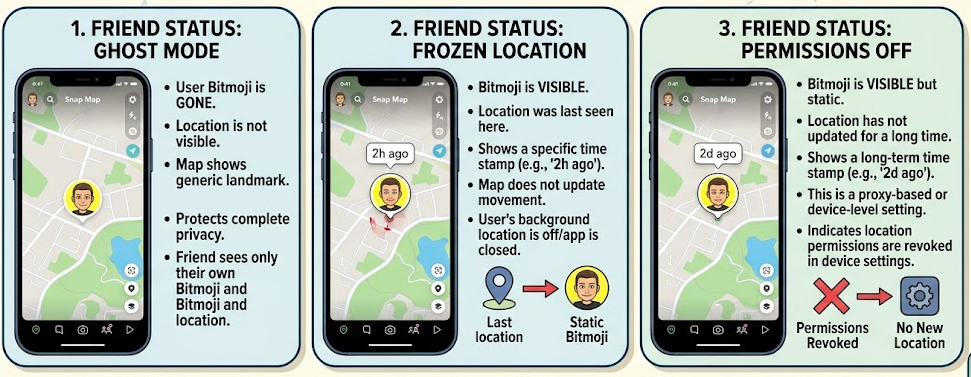
- When You Enable Ghost Mode: Your Bitmoji completely disappears from their map. For them, it looks the same as if you had never enabled location sharing in the first place. This is the cleanest way to vanish.
- When You Close the App, Use Airplane Mode, or Disable Permissions: The result is identical across these methods. Your Bitmoji is frozen at its last reported position, and a timestamp will appear below your name (e.g., “1h ago,” “8h ago”). After 24 hours, it will just say “X days ago,” which signals you haven’t shared your location from the app in a while.
An Alternative for Total Control: How to Change Your Snapchat Location
If your goal is not just to hide your location but to actively control what others see—perhaps for fun, or to appear somewhere else entirely—a location changing tool like Fonelora Location Changer offers a different kind of control. This method is for users who want to change their GPS coordinates, which is different from simply turning them off.
Because the tool operates at your device’s core GPS level, Snapchat isn’t aware the location is being modified, so no notifications are triggered.
Here is the simple procedure to use it:
- Download and Connect: First, download and install Fonelora Location Changer on your Mac or Windows computer. Launch the program and connect your iPhone or Android phone using a USB cable.

- Select Teleport Mode: Once connected, the main interface will present several options. For an instant location change, select “Teleport Mode.”

- Set Your New Location: Use the search bar to enter an address or coordinates. Alternatively, you can click anywhere on the interactive map. Once you’ve chosen your spot, click the “Move” button.
- Confirm the Change: Your phone’s GPS location will instantly update. Open Snapchat, and your Bitmoji will now appear at the new location you selected.
While Fonelora Location Changer is a premium tool, it is designed for the specific purpose of spoofing your location, giving you definitive control over your digital footprint.
For long-term peace of mind, Fonelora is regularly updated to support the latest iOS/Android versions and Snapchat updates, with 24/7 customer support available to assist with any issues.
Conclusion: Take Back Control of Your Digital Privacy
Navigating Snap Map privacy settings explained online can be frustrating. You don’t have to settle for uncertainty or anxiety about who sees your location. By understanding the difference between Ghost Mode and a “frozen” location, you now have the clear, tested information to manage your privacy effectively. Whether you use the built-in settings for a quick break or a specialized tool for a different kind of fun, you can decide exactly who sees your location and when—on your own terms.
Frequently Asked Questions About Snapchat Location Privacy
Can I pause my location on Snapchat without turning it off?
No, Snapchat does not have a “pause” feature. The closest equivalent is “freezing” your location, which happens automatically when you close the app or disconnect from the internet. To actively hide your location, you must use Ghost Mode.
Does Snapchat notify someone if I turn on Ghost Mode?
No. Snapchat does not send any notifications to your friends when you enable, disable, or change the duration of Ghost Mode. Your disappearance from the map is the only change they will see.
How does Snap Map update my location?
Your location on Snap Map updates only when you have the Snapchat app open and active on your phone. It is not a continuous, real-time location update and does not perform background location tracking.
Can I freeze my location on Snapchat?
Yes, but it is a passive action. Simply closing the Snapchat app, turning on Airplane Mode, or disabling location permissions will “freeze” your Bitmoji at its last reported location.
What do my friends see when I hide my location?
If you use Ghost Mode, your Bitmoji disappears from their map entirely. If you close the app or disable permissions, they see your Bitmoji at its last known location with an aging timestamp (e.g., “3 hours ago”).
How do I turn off Snapchat location on iPhone or Android?
You have two primary methods: either enable Ghost Mode within the Snapchat app’s “See My Location” settings or revoke location permissions for the Snapchat app in your iPhone’s or Android’s main settings menu.
Is there a way to hide location from specific people only?
Yes. In Snapchat’s “See My Location” settings, you can choose “My Friends, Except…” to select specific people to hide your location from, or choose “Only These Friends…” to create an exclusive list of people who can see you.
Does Airplane Mode hide my location on Snapchat?
Yes, it “freezes” it. Enabling Airplane Mode cuts your phone’s connection, so Snapchat cannot update your location. Your Bitmoji will remain at the last spot it was before you turned it on.



Joy Taylor is a seasoned technical writer with over a decade of experience in mobile technology. At iMobie, she specializes in producing in-depth content on iOS data recovery, iPhone unlocking solutions, and iOS troubleshooting.
Product-related questions? Contact Our Support Team to Get Quick Solution >
