Mastering the PGSharp Cooldown: Safe Teleporting Rules
Struggling with soft bans? Master the PGSharp cooldown rules with our guide. Discover the verified distance chart and trigger actions to teleport safely.
Facing a sudden restriction when you just want to play can be incredibly stressful. If you recently jumped across the globe—say, from Los Angeles to Tokyo—only to find that every rare Pokémon instantly flees and PokéStops refuse to drop items, you are likely experiencing a soft ban. The confusion and fear of a permanent account strike set in immediately, especially if you aren’t sure what triggered it.
If you are struggling to find a reliable cooldown chart or keep accidentally breaking the rules, you are not alone. Many players trigger bans because they rely on misleading guides that suggest outdated tricks (like clearing your app cache) or fail to explain the nuances of PGSharp’s built-in settings.
This guide provides a tested, straightforward solution. By following our verified method, you will learn exactly how to configure PGSharp’s settings, understand the hidden action triggers, and protect your account from unnecessary strikes.
Table of ContentsHide
The Essential PGSharp Cooldown Chart and Trigger Actions
Configuring PGSharp’s Built-In Timer: Last Location vs. Last Action
Decoding the Soft Ban: Penalties vs. Wait Times
Safe Teleport Walkthroughs
Troubleshooting: What To Do If You Break Cooldown
Reduce Cooldown Mistakes with Fonelora Location Changer
The Essential PGSharp Cooldown Chart and Trigger Actions
To solve the immediate challenge of planning safe jumps, you need a dependable framework. Here is a critical expert insight that many new players learn the hard way: The cooldown timer does not start the moment you teleport. In reality, it is triggered exclusively by specific, server-logged in-game actions.
Simply opening the game, walking around your new area with the joystick, or even teleporting across the globe does not trigger the timer. Understanding exactly which actions interact with Niantic’s servers allows you to plan your gameplay strategically.
The Standard Distance-to-Time Solution
When calculating your wait time, you must rely on a proven distance metric. The server calculates the physical distance between your last recorded action and your next attempted action. Here is the standard distance-to-time chart:
| Distance Traveled | Required Wait Time |
| 1 to 5 km | 1 to 5 minutes |
| 10 to 25 km | 10 to 15 minutes |
| 50 to 100 km | 20 to 35 minutes |
| 250 to 500 km | 45 to 60 minutes |
| 750 to 1,000 km | 75 to 90 minutes |
| 1,000+ km | 2 hours (Maximum) |
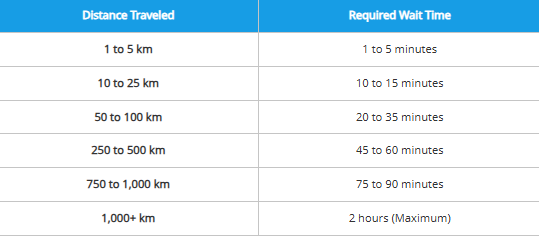
Pro-Tip: The maximum wait time required by the game’s server logic is always two hours. Whether you travel 1,100 kilometers or 10,000 kilometers, the wait caps at exactly 120 minutes.
The Safe vs. Trigger Checklist
Navigating your daily gameplay requires memorizing the actions that flag the server. Knowing exactly what affects your timer is the single most important technique for account safety.
Actions that TRIGGER the Cooldown (The Red Zone):
- Catching a wild Pokémon (including Raid Bosses and Shadow Pokémon).
- Accidentally dropping a Poké Ball on the catch screen.
- Spinning a PokéStop or a Gym photo disc.
- Feeding a berry to a wild Pokémon or a Gym defender.
- Battling in a Gym or placing a defender inside one.
- Using a Premium or Free Raid Pass to enter a Raid.
- Battling Team GO Rocket grunts or leaders.
Actions that DO NOT trigger the Cooldown (The Green Zone):
- Teleporting to a new location.
- Walking using the PGSharp on-screen joystick.
- Encountering a Pokémon to check if it is Shiny (Shiny checking), and then running away without throwing a ball or berry.
- Teleporting while currently on the catch screen (often called “sniping”—the server does not log your location until the Poké Ball is actually thrown).
- Evolving, powering up, or trading Pokémon.
- Opening gifts from friends or claiming quest rewards.
Learn More:Bladers Rebirth Codes: Your Guide to Free Rewards >
Configuring PGSharp’s Built-In Timer: Last Location vs. Last Action
Many generic guides tell you to “use a timer,” but fail to explain how to actually configure PGSharp’s interface. PGSharp includes a highly accurate, built-in digital overlay timer, but it must be set up correctly in the app’s settings menu to keep your account safe.
Step-by-Step Configuration
- Open the Menu: Tap the PGSharp star icon on your screen to open the main interface, then tap Settings.
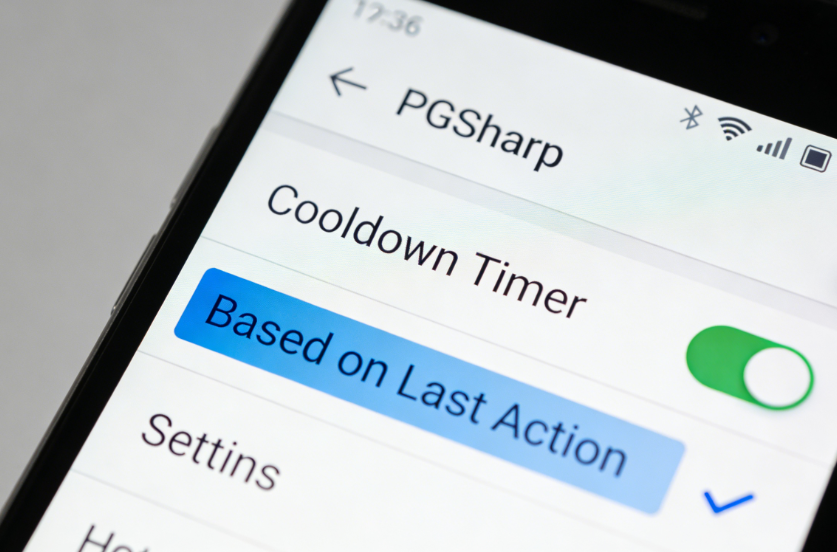
- Toggle the Timer: Scroll down until you see Cooldown Timer and toggle the switch to the ON position. A small timer overlay will appear on your screen.
- Choose Your Calculation Method (Crucial Step): Directly below the toggle, you will see a setting to calculate the timer based on either Last Location or Last Action.
Understanding Last Location vs. Last Action
This is the most confusing setting for new users, but mastering it is essential:
- Based on Last Location: This calculates your wait time based on the physical GPS coordinates you are currently standing on, regardless of whether you interacted with anything. This can be wildly inaccurate and lead to unnecessary waiting if you are just teleporting around to Shiny check.
- Based on Last Action (Highly Recommended): This calculates your wait time based on the exact moment and location of your last Red Zone trigger (like catching a Pokémon or spinning a stop). Because Niantic’s servers only care about your in-game interactions, Last Action is the most accurate and safe way to spoof.
By setting your timer to “Last Action,” the tool automatically reads your last server ping and counts down the required time to your next target location, completely removing the need for manual math.
Learn More:iTools Dongle Pokémon Go: The Complete User Guide >
Decoding the Soft Ban: Penalties vs. Wait Times
When you fail to wait the required time before interacting with the game environment, the server temporarily restricts your actions. A major source of anxiety for players is confusing a temporary mechanical lock with a permanent account penalty.
🚨 PANIC CHECK: Am I Permanently Banned?
If you are simply seeing Pokémon flee after one shake and PokéStops spinning endlessly without giving items, you are NOT permanently banned. This is a temporary Soft Ban caused by breaking the cooldown rules. An actual Niantic Account Strike results in a massive black-and-red warning screen upon logging in. Take a deep breath—your account is safe, and this temporary lock will lift in a maximum of two hours.
The Three Tiers of Server Restrictions
- Standard Wait Period: This is the routine wait required by the server’s distance logic. It is not a punishment; it is the physics of the game adjusting to your travel speed based on the 2-hour chart.
- The Soft Ban: This is the temporary restriction you trigger if you attempt an interaction (like throwing a Poké Ball) before the timer expires. During this state, a 100% flee rate is enforced, and stops will not yield items. This state automatically lifts once your maximum 2-hour wait time expires.
- Account Strike Penalty: This is a severe, account-level action (a 7-day, 30-day, or permanent ban). This happens due to the detection of unauthorized modifications or heavily repeated reckless behavior over months—not from a single, accidental soft ban.
Safe Teleport Walkthroughs
Translating these rules into actual gameplay procedures is vital. Here is how to execute safe jumps utilizing the “Last Action” timer setting.
Scenario 1: The Global Jump (Los Angeles to Tokyo)
To successfully navigate massive global distances:
- Stop All Interactions: Cease all Red Zone actions in Los Angeles.
- Teleport: Open the PGSharp map interface and input your Tokyo coordinates.
- Observe the Timer: Your overlay (set to Last Action) will immediately jump to 2:00:00. Because the distance vastly exceeds 1,000 km, the rules mandate the maximum wait time. You can safely close the app entirely during this period.
- Verify Safety: Once the timer hits 00:00, open the game and tap a PokéStop in Tokyo. If it spins and awards items, your wait has cleared, and you can play normally.
Scenario 2: The Local Jump (Across Town)
Local jumps require much less waiting but identical discipline.
- Check the Distance: Suppose you are teleporting 5 kilometers across your current city to reach an active Gym raid.
- Wait 5 Minutes: Your overlay timer will instantly display approximately 05:00.
- Engage: Once the timer reaches zero, you can safely drop your Premium Raid Pass and join the lobby.
Troubleshooting: What To Do If You Break Cooldown
Even with meticulous planning, accidental inputs happen. A common myth in the spoofing community is that you can bypass a soft ban by clearing your app data.
Let’s set the record straight: Cooldowns are tracked server-side by Niantic. Clearing your local Android app cache does absolutely nothing to fix a soft ban and just wastes your time. You cannot force-reset a server-side timer.
If you accidentally trigger an action—such as spinning a PokéStop or dropping a ball while the timer is still running—you must employ a strict, passive recovery procedure.
Learn More:The Working Master Ball Cheat in Pokémon Emerald >
The Real Emergency Recovery Procedure
If you realize you have broken the timer, execute this method immediately:
- Cease All Activity: Do not attempt to catch another target. Do not attempt to spin another stop just to “check” if it works. Repeatedly hammering the server with impossible location jumps leaves a massive data trail.
- Close the Application: Force close the game entirely. This severs your active server connection and stops you from making accidental inputs.
- Wait the Maximum Duration: Regardless of how far you teleported initially, wait a full 2 hours from the exact moment of your mistake.
- Restart and Verify: After the 2 hours have fully passed, open the game. Tap a single, low-value Pokémon. If it catches successfully, your timer has officially reset and your soft ban is lifted.
Reduce Cooldown Mistakes with Fonelora Location Changer
Many soft bans happen because players manually calculate jump distances incorrectly or accidentally trigger actions before cooldown timers fully expire. For trainers who frequently switch between raid hotspots, event cities, or shiny hunting locations, using a more controlled GPS management tool can make movement behavior far more predictable.
Some players now prefer Fonelora Location Changer because it offers built-in route simulation, adjustable movement speeds, and stable GPS handling for both iOS and Android devices without requiring jailbreak or root access.
Features that help reduce unsafe movement patterns include:
- Cooldown-aware teleport management
- Route simulation instead of repeated instant jumps
- Adjustable walking speeds
- Stable joystick navigation
- Multi-spot route planning
- Support for iOS and Android devices
Basic Setup Procedure
- Download and launch Fonelora Location Changer on your computer.
- Connect your iPhone or Android device using a USB cable.

- Select Teleport Mode for long-distance jumps or Joystick Mode for local movement.
- Enter your destination coordinates and confirm the location change.
- Wait for the proper cooldown timer before spinning stops, catching Pokémon, or joining raids.
- Use Route Mode to simulate gradual walking instead of excessive teleport chains.

While no spoofing setup can completely eliminate enforcement risks, maintaining realistic movement patterns and respecting cooldown timing significantly lowers the chance of triggering repeated soft bans or suspicious activity flags.
Frequently Asked Questions
To ensure complete clarity, we have compiled detailed answers to the community’s most pressing questions.
Q1: What exactly is the cooldown in PGSharp?
It is a mandatory waiting period based on the physical distance you travel virtually. It is a server-side mechanic designed by Niantic to prevent players from interacting with the game environment globally at physically impossible speeds.
Q2: How long should I wait after teleporting?
Wait times are strictly dictated by distance. They range from 1 minute for a 1 km jump, up to a maximum cap of 2 hours for any distance exceeding 1,000 km.
Q3: What happens if I break the timer?
You will incur a temporary soft ban. Pokémon will flee immediately upon attempting to catch them, and PokéStops will spin endlessly without yielding any items or experience points.
Q4: Does PGSharp show a timer automatically?
Yes, but you must enable it. Go into the PGSharp settings, toggle on the “Cooldown Timer,” and ensure it is set to “Based on Last Action” for the most accurate, server-safe tracking.
Q5: What actions trigger a cooldown?
Catching Pokémon, dropping a Poké Ball on the catch screen, spinning PokéStops, placing defenders in Gyms, participating in Gym or Team GO Rocket battles, and using Raid Passes all trigger the timer.
Q6: Does teleporting on the catch screen trigger the timer?
No. Teleporting while holding a Pokémon on the catch screen (sniping) does not log your location on the server. Your location is only logged the moment you drop or throw the Poké Ball.
Q7: Can breaking cooldown lead to a permanent ban?
A single accidental break causes a temporary 2-hour soft ban. However, repeatedly and intentionally breaking the rules over a short period leaves an undeniable data trail that can eventually flag your account for a Niantic strike.
Q8: How do I avoid mistakes when spoofing?
The best method is to use the built-in timer overlay set to “Last Action,” completely close the app when performing 2-hour global jumps, and strictly memorize the Red Zone trigger actions.
Conclusion
Managing cooldowns safely in Pokémon GO is less about memorizing random tricks and more about understanding how Niantic tracks server-side actions. Once you learn which interactions actually trigger cooldowns—and configure your tools correctly—you can avoid most accidental soft bans entirely.
Whether you use PGSharp’s built-in timer or a more structured GPS management solution like Fonelora Location Changer, the key is consistency: avoid aggressive teleport chains, respect cooldown timers, and maintain realistic movement behavior. Taking a few extra minutes to manage your jumps properly is far safer than constantly risking unnecessary account restrictions.



Joy Taylor is a seasoned technical writer with over a decade of experience in mobile technology. At iMobie, she specializes in producing in-depth content on iOS data recovery, iPhone unlocking solutions, and iOS troubleshooting.
Product-related questions? Contact Our Support Team to Get Quick Solution >
