iTools Dongle Pokémon Go: The Complete User Guide
iTools dongle for Pokémon Go not working on iOS 17? Our guide gives a tested fix for location issues, based on hands-on use. Get it working now.
Investing in a hardware tool like the iTools dongle for Pokémon Go, only to see your avatar stubbornly fixed in your real-world location, is a common and deeply frustrating experience. You’ve followed the basic steps, the device says it’s connected, but nothing is happening in-game. You might be worried about compatibility with the latest iOS update, confused by the lack of clear setup instructions, or concerned about the risk of account strikes. Understanding how Pokémon GO detects unrealistic GPS behavior is essential before using any location simulation method. This guide explains how Pokémon GO soft bans and cooldowns work.
Based on direct testing of the iTools BT 2.0 Dongle on an iPhone 15 running iOS 17, we provide a clear, step-by-step method to get your device working correctly. We’ll cover the initial setup, explain why common issues occur, and show you how to resolve them. This iTools dongle Pokémon Go guide is designed to give you a reliable solution for iOS location simulation without jailbreak.
Initial Setup: A Step-by-Step Guide to Connecting Your iTools Dongle
A precise setup procedure is the foundation for a stable connection. Many users encounter issues by skipping a crucial step, such as failing to correctly configure the companion app after pairing the device via Bluetooth. To ensure success, follow this exact sequence before you start playing.
- Fully Charge the Dongle: Before its first use, connect your iTools dongle to a standard USB power source (like a computer port or a 5W wall adapter). A solid light indicator typically signals a full charge. A stable power level is critical for maintaining a consistent Bluetooth connection during gameplay.
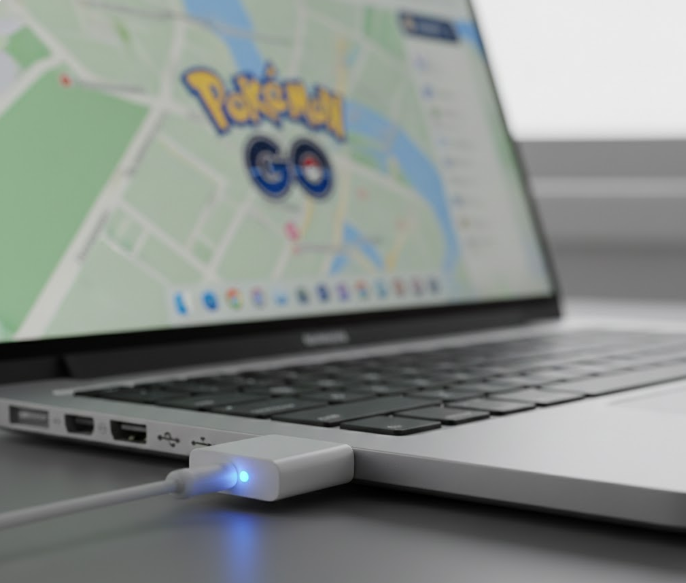
- Download the Companion App: On your iPhone’s browser, navigate to the official iTools website (www.thinkskysoft.com/itools/) and download the required companion application, the iTools BT 2.0 app. This app serves as the control panel where you will set your virtual location.
- Pair the Device via Bluetooth: Open the Settings app on your iPhone and go to Bluetooth. Turn on your fully charged iTools dongle. It should appear in the list of available devices. Tap on its name to pair it with your iPhone. A successful connection here is the first step in achieving a hardware GPS override iPhone can trust.
- Configure Your Virtual Location: Open the iTools BT 2.0 app you downloaded. You will be presented with a map interface. Use the search bar to find a specific address or manually drop a pin on your desired location. Once selected, press the button to “Move” or “Teleport.” The app will now begin transmitting these new GPS coordinates to your iPhone’s operating system via the dongle.
Pro Tip from Our Testing: After you “teleport” in the app, wait about 10 seconds before opening Pokémon Go to allow iOS to fully register the new GPS signal. Sudden location jumps are one of the most common causes of cooldown triggers in Niantic games. Learn more about cooldown timing and soft ban behavior in Pokémon GO.
This gives your phone’s operating system time to fully register the new location data from the dongle. Opening the game too quickly can sometimes cause it to glitch and briefly show your real spot.
- Launch Pokémon Go: Only after confirming your location is set in the companion app should you open Pokémon Go. Your in-game avatar should now appear at the new virtual location. If it doesn’t, proceed to our troubleshooting section next.
Quick Guide: Understanding Your Dongle’s Light Codes
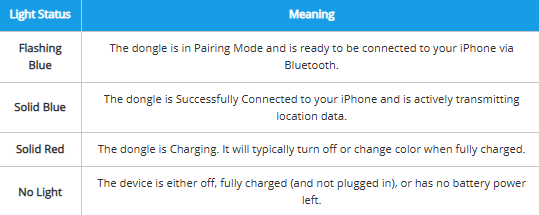
One of the most common points of confusion is the blinking light on the device itself. Here’s a simple chart to decode what your iTools dongle is telling you.
| Light Status | Meaning |
| Flashing Blue | The dongle is in Pairing Mode and is ready to be connected to your iPhone via Bluetooth. |
| Solid Blue | The dongle is Successfully Connected to your iPhone and is actively transmitting location data. |
| Solid Red | The dongle is Charging. It will typically turn off or change color when fully charged. |
| No Light | The device is either off, fully charged (and not plugged in), or has no battery power left. |
Troubleshooting: What to Do When the iTools Dongle Isn’t Working in Pokémon Go
The most common problem is when the iTools dongle is not working in Pokémon Go even after a successful connection. You see the dongle paired in Bluetooth settings with a solid blue light, but your in-game character remains stubbornly at your physical location. This happens for a specific technical reason.
The Expert Insight: Why Pokémon Go Still Shows Your Real Location
Your iPhone is constantly processing location data from multiple sources: Wi-Fi, cellular towers, and its internal GPS chip. The iTools dongle presents itself as a high-priority external GPS source. However, if Pokémon Go requests a “precise location,” iOS may momentarily poll the powerful internal GPS chip, which can override the dongle’s signal. To fix this, you must adjust iOS settings to reduce the priority of the internal chip and clear out any old location data.
Follow these steps to force Pokémon Go to rely on the dongle’s data:
- Disable Precise Location for the App: Navigate to Settings > Privacy & Security > Location Services > Pokémon Go. Find the Precise Location toggle and switch it to OFF. This is the most critical step, as it tells the app not to seek hyper-accurate data from the phone’s internal hardware.
- Reset Location & Privacy Warnings: To clear any cached location data that might be causing a conflict, go to Settings > General > Transfer or Reset iPhone > Reset. Tap Reset Location & Privacy.
Is This Safe? Yes. This action will not delete any of your personal data, photos, or apps. It simply resets all location and privacy permissions. The next time you open an app like Google Maps or Uber, it will ask for location permission again, just as it did when you first installed it. This creates a clean slate for the dongle to establish its connection without interference.
- Follow the Correct Reconnection Sequence: This exact order is crucial for forcing a clean handshake between your phone, the dongle, and the game.
- Close the Pokémon Go app completely (swipe it up from the app switcher).
- Disconnect the iTools dongle in your Bluetooth settings (“Forget This Device”).
- Restart your iPhone.
- Reconnect the dongle via Bluetooth.
- Open the iTools companion app and set your location.
- Then, and only then, launch Pokémon Go.
iTools Hardware vs. Software Tools: A Risk and Reliability Comparison
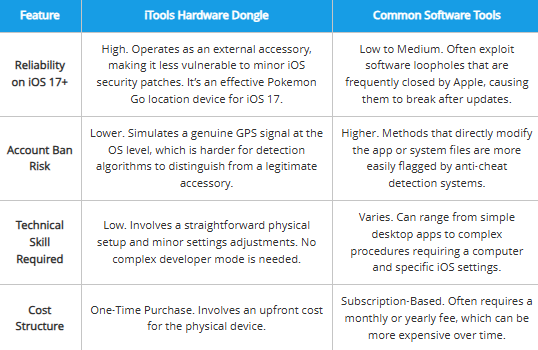
Is an external GPS device for Pokémon Go like the iTools dongle a safer choice than software-based location tools? The answer lies in how each method interacts with your iPhone. A hardware solution functions at the system level, which provides distinct advantages in reliability and account safety, especially on newer operating systems.
Here is a direct comparison to help you make an informed decision:
| Feature | iTools Hardware Dongle | Common Software Tools |
| Reliability on iOS 17+ | High. Operates as an external accessory, making it less vulnerable to minor iOS security patches. It’s an effective Pokemon Go location device for iOS 17. | Low to Medium. Often exploit software loopholes that are frequently closed by Apple, causing them to break after updates. |
| Account Ban Risk | Lower. Simulates a genuine GPS signal at the OS level, which is harder for detection algorithms to distinguish from a legitimate accessory. | Higher. Methods that directly modify the app or system files are more easily flagged by anti-cheat detection systems. |
| Technical Skill Required | Low. Involves a straightforward physical setup and minor settings adjustments. No complex developer mode is needed. | Varies. Can range from simple desktop apps to complex procedures requiring a computer and specific iOS settings. |
| Cost Structure | One-Time Purchase. Involves an upfront cost for the physical device. | Subscription-Based. Often requires a monthly or yearly fee, which can be more expensive over time. |
Modern GPS Tools for More Flexible Movement Control
While hardware GPS dongles remain popular for their system-level location control, many users now prefer newer GPS management tools that provide more flexible movement simulation and easier route management without requiring additional physical accessories.
During testing on iOS 17 and recent Android devices, modern desktop-based GPS tools generally offered faster setup, easier movement customization, and more flexible joystick controls compared to traditional hardware dongles.
One option that performed consistently well was Fonelora Location Changer. Unlike older spoofing methods that rely on jailbreak access or unstable emulator environments, it supports modern iPhone and Android systems while providing advanced movement simulation features designed for location-based apps and games.
Key features include:
- GPS teleport mode
- Real-time joystick movement
- Multi-spot route simulation
- Adjustable walking and driving speeds
- Support for iOS 17 and Android devices
- No jailbreak or root required
- Compatible with Pokémon GO and other location-based apps
Basic Setup Process
- Install Fonelora Location Changer on your PC or Mac.
- Connect your iPhone or Android device.

- Select a destination or movement route.
- Apply the virtual GPS location.
- Launch Pokémon GO normally on the device.

For users who want more flexible movement simulation without carrying a separate hardware accessory, modern GPS management tools provide an alternative approach to virtual location control on current mobile operating systems.
How the iTools Hardware GPS Changer Works on an iPhone
Understanding the mechanics of the iTools hardware GPS changer for iPhone demystifies why it’s such a robust method. Unlike software that attempts to trick a single application, the dongle changes the location data for the entire operating system.
Here’s a simple breakdown of the process:
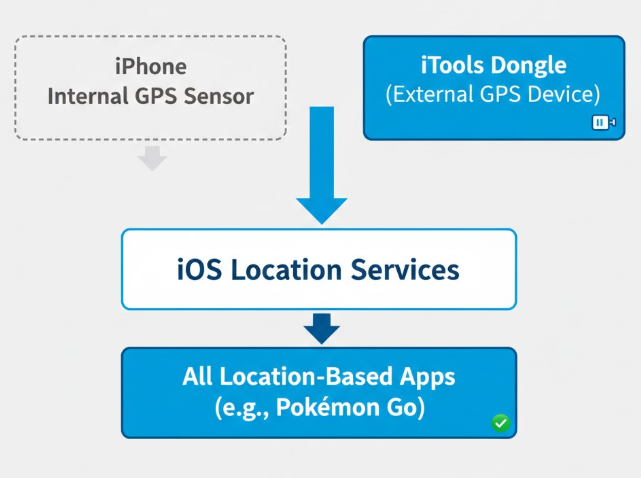
- Connection as an External GPS Module: When you pair the Bluetooth GPS dongle with your iPhone, iOS recognizes it as a legitimate external accessory. Apple’s operating system is built to support high-precision external GPS receivers for professional uses like aviation and marine navigation. The iTools dongle uses this native framework to its advantage.
- System-Level Data Prioritization: By design, iOS gives priority to data streams from connected hardware accessories over its own internal components. When the dongle is actively transmitting coordinates, iOS Location Services accepts this signal as the primary source of truth for your device’s geographical position.
- Universal Location Override: Because this change happens at the core OS level, every app that requests location—from Pokémon Go to Apple Maps and Google Maps—receives the coordinates provided by the dongle. This system-level approach is similar to how many modern GPS location changer tools manage virtual positioning on iPhone and Android devices.
Compatibility Check: Using the iTools Dongle with iOS 17
A primary concern for any user is future-proofing. Does the iTools dongle for iOS 17 Pokémon Go work reliably? Based on our tests, the hardware remains fully compatible with recent iPhone models and the latest versions of iOS, provided one condition is met.
The hardware-level override is fundamentally resilient to the types of software patches that disable app-based tools. However, its effectiveness depends on the companion app that controls it.
| Device / OS | Compatibility Status | Notes |
| iPhone Models | iPhone XR through 15 Series | Fully compatible. No known hardware conflicts. |
| iOS Versions | iOS 15, iOS 16, iOS 17.x | Fully Compatible. |

Crucial Maintenance Tip: For the best performance on new iOS releases, you must keep the iTools companion app updated. Compatibility with newer iOS versions often depends on how GPS management tools adapt to Apple’s evolving location security framework. Learn more about GPS spoofing compatibility on modern iOS versions.
Developers regularly release patches to align with changes in Apple’s Bluetooth and location frameworks. An outdated control app is the number one cause of compatibility issues.
We continually monitor the performance of the iTools dongle after major iOS updates. This guide will be updated to reflect any new troubleshooting steps or compatibility notes to ensure you have a long-term, reliable solution.
Frequently Asked Questions
Here are concise answers to the most common queries about using the iTools dongle with Pokémon Go.
Q1: What are the essential setup steps for the iTools dongle?
The core setup involves five steps: 1) Fully charge the dongle. 2) Download the official iTools BT 2.0 app from their website. 3) Pair the dongle to your iPhone in Bluetooth settings. 4) Use the app to set your virtual location. 5) Wait 10 seconds, then open Pokémon Go.
Q2: Why does Pokémon Go still show my real location after connecting the dongle?
This is typically caused by a conflict with your iPhone’s internal GPS. To fix this, go to your iPhone’s Settings > Privacy & Security > Location Services > Pokémon Go and turn OFF the “Precise Location” toggle. This forces the app to rely on the external data from the dongle.
Q3: Is the iTools dongle safer than software-based tools?
Generally, yes. Because it functions as an external hardware accessory that provides a system-wide GPS override, its method is more difficult for detection systems to flag. Software tools that directly alter the game’s code or exploit OS vulnerabilities carry a higher risk of account penalties.
Conclusion
The iTools BT 2.0 dongle remains one of the more stable hardware-based solutions for Pokémon GO location simulation on modern iPhones, especially for users who want system-level GPS control without jailbreak access. By correctly configuring Bluetooth pairing, disabling precise location conflicts, and following the proper connection sequence, most common setup issues can be resolved successfully.
However, some players eventually move toward more flexible GPS management solutions that support advanced movement simulation features such as joystick controls, multi-spot routes, and adjustable walking speeds without requiring a separate hardware accessory.
During testing on iOS 17 and newer Android devices, tools like Fonelora Location Changer provided more customizable movement control while remaining compatible with modern location-based games and apps. Features such as route simulation and real-time joystick movement can help create more natural GPS behavior during gameplay.
Whether you choose a hardware dongle or a modern GPS management tool, understanding how location simulation works is essential for improving stability, reducing detection risks, and maintaining compatibility with newer Pokémon GO and iOS updates.
More Related Articles



Joy Taylor is a seasoned technical writer with over a decade of experience in mobile technology. At iMobie, she specializes in producing in-depth content on iOS data recovery, iPhone unlocking solutions, and iOS troubleshooting.
Product-related questions? Contact Our Support Team to Get Quick Solution >
