Quick Answer: Snap Map usually updates when Snapchat can access your device location. If you open Snapchat and location sharing is enabled, your location can refresh based on your current device settings. If the app is closed, whether your location can keep updating depends on permissions, background location access, battery settings, and whether you are using regular Snap Map or Live Location.
If you are searching for when does Snap Map update, the short answer is: Snap Map is not a fixed timer that refreshes every few minutes for everyone. It depends on whether Snapchat is open, whether location permission is set to Always or Only while using, and whether Ghost Mode or other privacy settings are active.
This guide explains how Snap Map updates when the app is open, what happens in the background, whether Snapchat location updates without opening the app, and why a friend’s location may look old or stop updating.
Snap Map Update Rules at a Glance
Snap Map location updates depend mainly on app activity and location permission. The table below gives the clearest way to understand what usually happens.
| Situation | What Usually Happens | What It Means |
| Snapchat is open and location sharing is allowed | Your Snap Map location can refresh based on your current device location. | This is when updates are most likely to happen. |
| Snapchat is closed, but background location access is allowed | Your location may continue updating depending on device settings, battery status, and network conditions. | Background updates are possible, but not always predictable. |
| Location permission is set to Only While Using | Snapchat can access location while you use the app. Your Snap Map location may expire after 24 hours. | Opening Snapchat again can refresh your location. |
| Ghost Mode is on | Your location is hidden from friends on Snap Map. | Friends cannot see your Snap Map location. |
| Low Power Mode, Battery Saver, or restricted background activity is on | Location updates may be delayed or paused. | This can make a location look old or frozen. |
The main point is simple: Snap Map updates are not based on one universal refresh interval. They are controlled by Snapchat settings, your phone’s location permission, and whether the app can run in the background.
Does Snap Map Update Without Opening the App?
Snap Map can update without opening Snapchat only when your device and Snapchat settings allow background location access. If background location access is limited, Snapchat may only refresh your location when you open the app again.
This is why two people can see different behavior. One person’s location may continue updating in the background, while another person’s location may stay at the last place they opened Snapchat. The difference usually comes from location permission, background app settings, battery saver restrictions, and Ghost Mode.
Does Snapchat Only Update Location When You Open the App?
Not always. If your device allows Snapchat to use location in the background, Snap Map may keep updating after you close the app. But if permission is set to Only While Using, Snapchat mainly gets fresh location data while you are actively using the app.
Does Snap Map Update in the Background?
It can, but background updates are not guaranteed in every case. iPhone and Android both limit background activity to protect battery life. If Low Power Mode, Battery Saver, background restrictions, weak signal, or limited location access is active, Snap Map updates may slow down or stop.
If your problem is not update timing but a location that will not refresh at all, see our guide on how to fix Snapchat location not updating.
How Often Does Snapchat Location Update?
There is no single public refresh interval that applies to every Snapchat account, phone, and permission setting. In general, Snap Map updates fastest when Snapchat is open and location sharing is allowed. Background updates are more variable because they depend on your phone’s operating system and privacy settings.
Instead of thinking of Snap Map as updating every fixed number of minutes, it is more useful to think in three modes:
| Mode | Update Behavior | Common User Question |
| App open | Location can refresh based on your current device position. | Does Snap Map update when you open the app? |
| App closed with background access | Location may continue updating depending on permissions, network, and battery settings. | Does Snap Map update without opening the app? |
| App closed with limited access | Location may stay at the last known place or expire after a period of inactivity. | Does Snapchat location disappear after 24 hours? |
If you see an old timestamp under someone’s Bitmoji or Actionmoji, it usually means Snapchat has not received a fresh location update from that device recently. It does not automatically mean the person is ignoring messages or deliberately hiding their location.
Live Location vs Regular Snap Map Updates
Regular Snap Map sharing and Live Location are different. Regular Snap Map shows location based on the user’s normal Snap Map and device permission settings. Live Location is designed for more active sharing with selected friends for a chosen time period.
Use this comparison to understand the difference:
| Feature | Regular Snap Map | Live Location |
| Who can see it | Friends allowed by your Snap Map privacy settings | Specific friends you choose |
| Update behavior | Depends on app activity and device permissions | Designed for more active location sharing during the selected period |
| Best for | General location sharing | Temporary coordination or safety sharing with trusted friends |
| Privacy control | Controlled from Snap Map settings | Controlled from the friend/chat sharing flow |
To turn on Live Location, open a chat with the friend you want to share with, open their profile, and look for the Snap Map or location sharing option. Choose the duration Snapchat provides, then confirm the sharing prompt.

How Long Does Snap Map Location Stay?
How long your Snap Map location stays visible depends on your device permission settings. If location access is set to Always, your location may stay on Snap Map until you turn it off or it expires. If permission is set to Only While Using, your Snap Map location may expire after 24 hours.
This is why many users search for questions like “does Snap Map turn off after 24 hours” or “does Snapchat location disappear after 24 hours.” The 24-hour behavior is most relevant when Snapchat only has location access while you are using the app.
Does Snap Map Turn Off After 24 Hours?
Your Snap Map location may expire after 24 hours when Snapchat does not have ongoing background location access. Opening Snapchat again can refresh your location if location sharing is enabled and Snapchat has permission to use your device location.
Does Snap Location Disappear If You Do Not Open the App?
It can. If Snapchat cannot receive fresh location data, your location may show an older timestamp first and then disappear after a period of inactivity. The exact behavior depends on your device permissions and Snapchat location settings.
Why Someone’s Snap Map Location Looks Old
An old Snap Map timestamp usually means Snapchat has not received a recent location update. This can happen for normal reasons and does not always mean something is wrong.
Common reasons include:
- The app has not been opened recently: If Snapchat is not open and background access is limited, the map may not refresh.
- Location permission is limited: If permission is set to Only While Using, Snapchat may only update location while the app is active.
- Ghost Mode is on: The user may have hidden their location from Snap Map.
- Battery Saver or Low Power Mode is active: The phone may restrict background activity.
- Weak signal or no internet connection: Snapchat may not be able to send updated location data.
- The phone is off: Snap Map cannot receive fresh location information.
If the issue is your own Snapchat location not refreshing, go through a full troubleshooting checklist in our guide to Snapchat location not updating.
Ghost Mode, Permissions, and Background Settings
Snap Map update behavior is controlled by privacy settings as much as by app activity. If you want Snap Map to update normally, check both Snapchat settings and phone-level permissions.
Check Ghost Mode
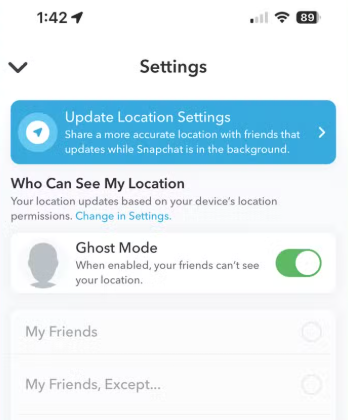
Ghost Mode hides your location from friends on Snap Map. To check it, open Snap Map, tap the gear icon, and look for the Ghost Mode toggle. Turn it off if you want your location to be visible again.
Check Location Permission on iPhone
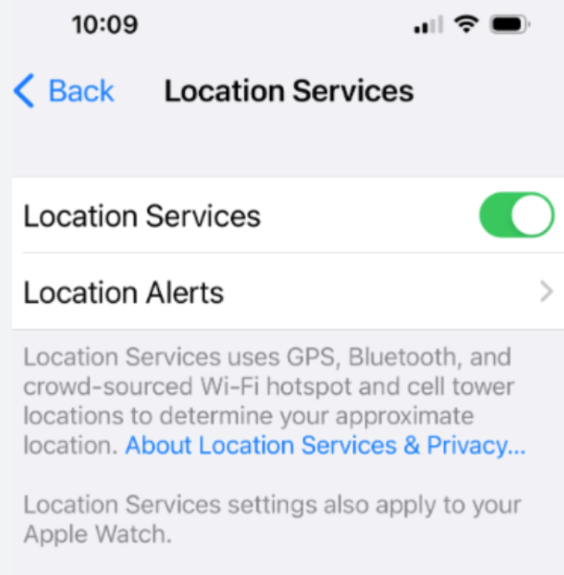
Go to Settings > Privacy & Security > Location Services > Snapchat. If you want Snapchat to update only while you use the app, choose While Using the App. If you want broader location sharing, check whether your device allows more continuous access.
Check Location Permission on Android
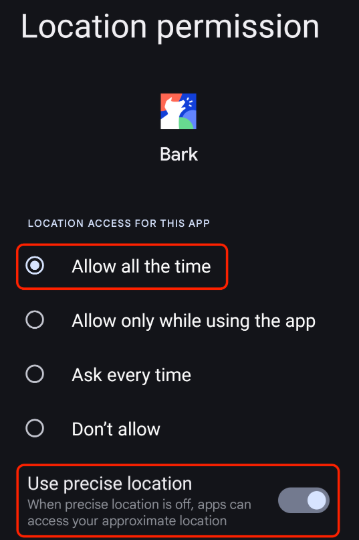
Go to Settings > Apps > Snapchat > Permissions > Location. Choose the permission level that matches how you want Snapchat to use location. Android wording may vary by device, but common options include allowing location only while using the app or allowing broader access.
Check Background App Refresh or Battery Restrictions
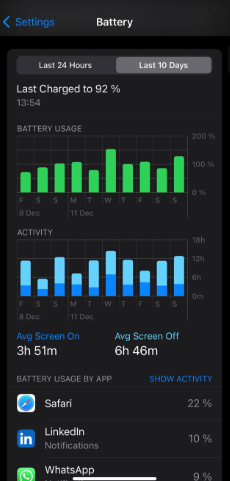
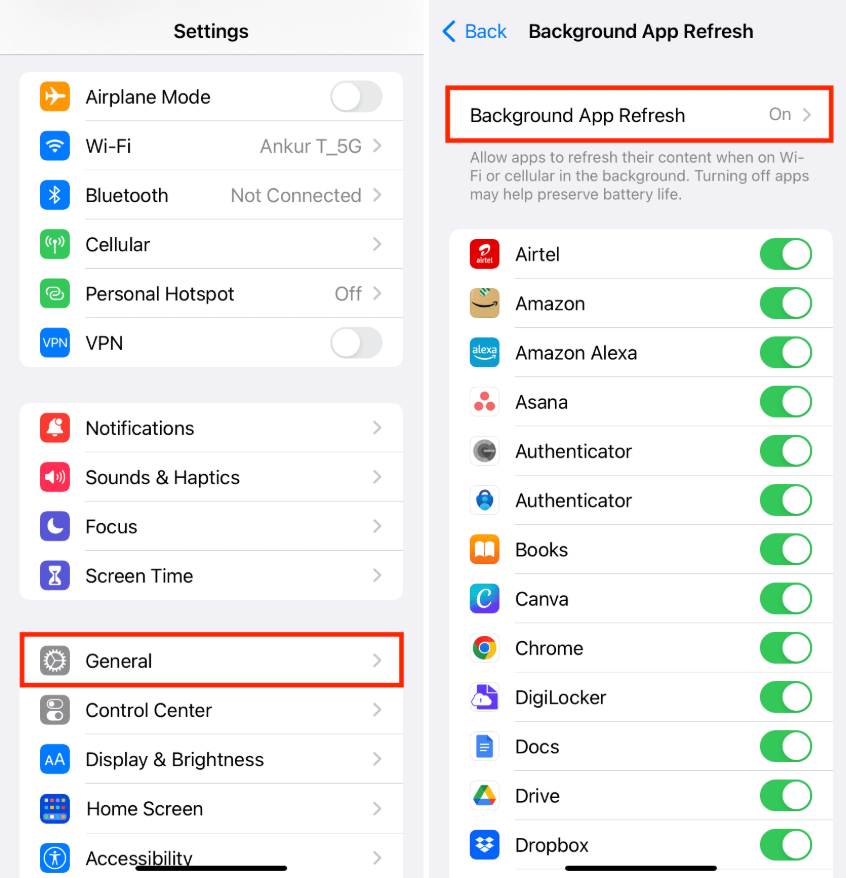
Background settings affect whether Snapchat can keep working when the app is not on screen. On iPhone, check Background App Refresh. On Android, check mobile data, background data, and battery optimization settings for Snapchat.
If Snapchat shows the wrong physical place rather than an old timestamp, that is a different issue. See how to fix Snap Map wrong location.
Optional: Test Your Phone Location with a Location Tool
For normal Snap Map update questions, start with Snapchat settings, device permissions, Ghost Mode, and battery restrictions. Those are the main factors that control whether Snapchat location updates when the app is open or in the background.
If your goal is to test how your phone reports location, check whether an app is reading GPS correctly, or temporarily use a selected device location, Fonelora Location Changer can be used as an optional location utility. It should be treated as a location-changing tool, not Snapchat’s native update feature.
A location tool does not change Snapchat’s update rules. It only changes the device location that apps may receive. For regular update problems, check Snapchat permissions and background settings first.
Frequently Asked Questions About Snap Map Updates
Here are direct answers to common questions about when Snap Map updates, whether it works in the background, and why a location may look old.
- When does Snap Map update?
- Snap Map updates when Snapchat can access your device location. It is most likely to refresh when the app is open and location sharing is enabled. Background updates depend on your device permissions and settings.
- Does Snap Map update without opening the app?
- It can update without opening the app if Snapchat has background location access and your device allows background activity. If permission is limited to Only While Using, location may mainly update when you open Snapchat.
- Does Snap Map update in the background?
- Background updates are possible, but they depend on location permissions, battery settings, network connection, and whether your phone restricts background activity.
- How often does Snapchat location update?
- There is no single refresh interval for every user. Snapchat location can refresh when the app is open, while background refresh behavior depends on permission, battery, and network conditions.
- Does Snapchat location only update when you open the app?
- Not always. If background location access is allowed, Snapchat may update location outside active app use. If permission is limited, opening the app is more likely to trigger a fresh update.
- Does Snap Map turn off after 24 hours?
- If Snapchat location permission is set to Only While Using, your location on Snap Map may expire after 24 hours. Opening Snapchat again can refresh it if location sharing is enabled.
- Why is someone’s Snap Map location not updating?
- Their phone may have limited location permissions, weak signal, battery restrictions, Ghost Mode enabled, or the app may not have been opened recently. It can also happen when the device is off or offline.
- Does Ghost Mode stop Snap Map updates?
- Ghost Mode hides your location from friends on Snap Map. It is the main Snapchat privacy setting for stopping others from seeing your location.
- Does airplane mode stop Snap Map updates?
- Airplane mode can stop Snapchat from sending fresh location data because it cuts off network access. Your last known location may remain visible for a period of time until it expires or updates again.
Conclusion
Snap Map does not update on one fixed timer for every user. It updates based on whether Snapchat can access your device location, whether the app is open or allowed to work in the background, and whether Ghost Mode or other privacy settings are active.
For most users, the most important rule is simple: if Snapchat is open and location sharing is enabled, your location can refresh. If the app is closed, background updates depend on location permission, battery settings, and network access. If permission is set to Only While Using, your Snap Map location may expire after 24 hours.
If you only want to understand normal Snap Map updates, start with Snapchat permissions, Ghost Mode, and Live Location settings. If you need to test how your phone reports location, Fonelora Location Changer can be used as an optional location utility, not Snapchat’s native update feature.

Fonelora Location Changer
- Bluetooth Hardware Simulation for Safer GPS Spoofing
- Realistic Movement & Route Simulation
- No Root or Jailbreak Required
- All-in-One Solution for Games, Social Apps & Privacy


Hot Topics