Quick Answer: If Snap Map is showing the wrong location, it usually means one of two things: Snapchat is showing an old last active location, or your phone is reporting an inaccurate GPS position. If it is your own location, check Precise Location, GPS signal, network connection, Snapchat cache, battery settings, and app updates. If it is a friend’s location, you may simply be seeing their last active location instead of their current position.
Snap Map can be wrong, delayed, or inaccurate for several reasons. It may show you somewhere else because of weak GPS signal, approximate location settings, unstable Wi-Fi or cellular data, outdated app data, or temporary Snapchat glitches. Before changing advanced settings, first identify whether the problem is your own location, a friend’s location, or an old timestamp.
This guide explains why Snapchat location may be wrong, how to tell the difference between old location and GPS error, and how to fix inaccurate Snap Map location on iPhone and Android.

Can Snap Map Be Wrong?
Yes, Snap Map can show the wrong location or an outdated location. This does not always mean Snapchat is broken. In many cases, the map is showing the last location Snapchat received, an approximate location from your phone, or a delayed position caused by weak signal or restricted permissions.
The important thing is to separate three situations:
| What You See | Most Likely Meaning | What to Do |
| Your own Snapchat location is wrong | Your phone may be sending inaccurate GPS data, approximate location, or old app data. | Check Precise Location, GPS signal, network, cache, and app updates. |
| Snap Map says you are somewhere else | Your device may be using weak GPS, Wi-Fi/cellular positioning, or an approximate location setting. | Restart location services and enable precise location access. |
| A friend’s Bitmoji is in the wrong place | You may be seeing their last active location, not their current live position. | Check the timestamp before assuming the location is wrong. |
| A friend disappeared from Snap Map | They may have enabled Ghost Mode, disabled location sharing, lost network, or changed privacy settings. | Do not treat disappearance as a GPS error. |
| Location jumps between places | The phone may be switching between GPS, Wi-Fi, and cellular positioning. | Improve GPS accuracy and use a stable network connection. |
Quick check: If your own location is wrong, start with phone settings. If someone else’s location looks wrong, first check whether it is simply an old Snap Map timestamp.
Old Location vs Wrong GPS Location
Many Snap Map problems are misread as “wrong location.” In reality, there is a difference between an old location and an inaccurate GPS location.
An old location means Snapchat has not received a fresh location update recently. You may see a friend’s Bitmoji at a school, café, office, or street they visited earlier. This can happen if they have not opened Snapchat recently, have weak signal, or have restricted location settings.
A wrong GPS location means Snapchat is receiving location data, but the position itself is inaccurate. This can make your Bitmoji appear on the wrong street, in a nearby building, across town, or in a different place from where you actually are.
| Problem | Main Cause | Best Fix |
| Location is old | Snapchat has not received a fresh update. | Open Snapchat, check permissions, and review update behavior. |
| Location is inaccurate | GPS, network, or precise location setting is unreliable. | Enable Precise Location, improve GPS signal, and restart location services. |
| Location is missing | Ghost Mode, disabled sharing, no network, or privacy setting. | Check Snap Map privacy settings. |
| Location updates but is still wrong | Phone-level GPS drift or approximate location. | Recalibrate GPS and check device location settings. |
If your problem is mainly that Snap Map is not refreshing or appears stuck, use the separate guide to fix Snapchat location not updating. This page focuses on locations that appear wrong, inaccurate, or somewhere else.
Why Does Snapchat Say I’m Somewhere Else?
If Snapchat says you are somewhere else, the cause is usually on the device side rather than the Snap Map interface itself. Snapchat depends on the location data your phone provides. If your phone reports a broad, delayed, or inaccurate location, Snap Map may display the wrong place.
Common reasons include:
- Precise Location is off: Snapchat may receive only an approximate area instead of your exact position.
- Weak GPS signal: Indoor areas, tall buildings, tunnels, or crowded places can reduce GPS accuracy.
- Unstable Wi-Fi or cellular data: Snapchat may not send or receive updated location data reliably.
- Battery optimization: Android battery restrictions can interfere with app activity and location refresh.
- Corrupted Snapchat cache: Temporary app data may cause map display glitches.
- Outdated Snapchat version: Older app versions may contain location-related bugs.
- VPN or network routing issues: A VPN usually does not change GPS directly, but it can affect app behavior and network-based location signals.
- Phone-level GPS drift: Your device may temporarily report a location that is nearby but not exact.
If the wrong location appears only once, it may be a temporary glitch. If it keeps happening, go through the fixes below.
How to Fix Snap Map Wrong Location on iPhone and Android
Use these fixes when your own Snapchat location is inaccurate, says you are somewhere else, or keeps jumping between nearby places.
1. Enable Precise Location for Snapchat
The most important setting is Precise Location. If it is off, Snapchat may only receive an approximate location, which can make Snap Map look inaccurate.
On iPhone:
- Open Settings.
- Scroll down and tap Snapchat.
- Tap Location.
- Select While Using the App.
- Turn on Precise Location.
On Android:
- Open Settings.
- Go to Apps > Snapchat > Permissions.
- Tap Location.
- Choose Allow only while using the app or the closest available option.
- Turn on Use precise location if your Android version provides it.
2. Restart Location Services
Restarting location services can help your phone refresh its GPS position and reduce location drift.
- On iPhone: Go to Settings > Privacy & Security > Location Services, turn Location Services off, wait a few seconds, then turn it back on.
- On Android: Open Settings > Location, turn location off, wait a few seconds, then turn it back on.
- You can also toggle Airplane Mode on for 10–15 seconds, then turn it off to refresh network and location signals.
3. Improve GPS Accuracy
If your Snapchat location is not accurate, your phone may be struggling to locate you precisely. Move outdoors or near a window, avoid underground areas, and make sure your phone has a stable network connection.
On Android, you can also check location accuracy settings:
- Open Settings > Location.
- Look for Location Services or Improve Accuracy.
- Enable Wi-Fi scanning and Bluetooth scanning if available.
4. Check Your Network Connection
Snapchat needs a stable internet connection to send updated location data. If Wi-Fi or cellular data is weak, Snap Map may keep showing an outdated or inaccurate position.
Try switching between Wi-Fi and cellular data. If Snap Map updates correctly after switching networks, the issue may be your connection rather than Snapchat location permission.
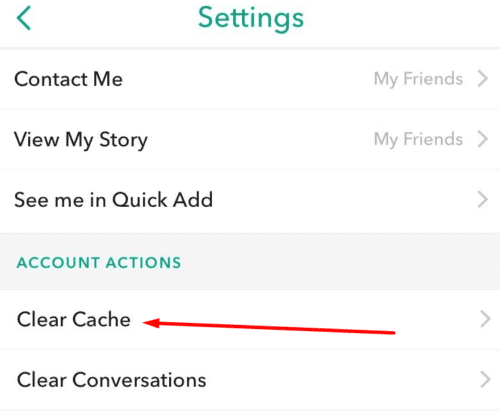
5. Clear Snapchat Cache
Snapchat cache stores temporary files. If those files are outdated or corrupted, Snap Map may behave incorrectly. Clearing cache is safe and does not delete your Memories, friends, or chats.
- Open Snapchat.
- Tap your profile icon.
- Tap the Settings gear icon.
- Scroll to Account Actions.
- Tap Clear Cache.
- Confirm the action, then restart Snapchat.
6. Disable Strict Battery Optimization
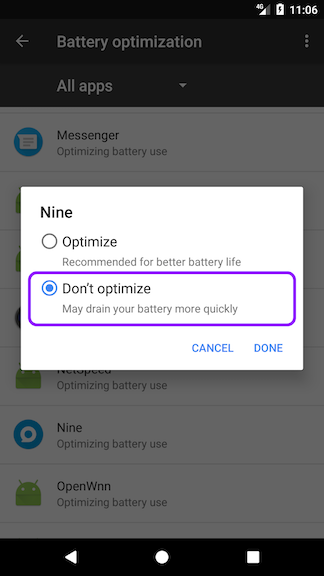
Battery optimization can restrict app activity, especially on Android. If Snapchat cannot work properly in the background or refresh when needed, Snap Map may appear delayed or inaccurate.
On Android:
- Open Settings > Apps > Snapchat.
- Tap Battery.
- Choose Unrestricted or disable strict optimization for Snapchat.
7. Update Snapchat and Restart Your Phone
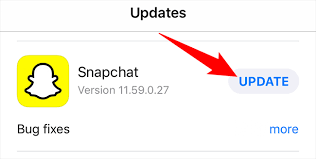
If the wrong location issue continues, update Snapchat and restart your phone. App updates can fix location bugs, while restarting the device can refresh GPS, network, and background services.
On iPhone:
- Open the App Store.
- Tap your profile icon.
- Find Snapchat under pending updates.
- Tap Update if available.
On Android:
- Open the Google Play Store.
- Tap your profile icon.
- Go to Manage apps & device.
- Update Snapchat if a new version is available.
Why Your Friend’s Snap Map Location Looks Wrong
If your own location is accurate but a friend’s location looks wrong, the issue may not be on your phone. Snap Map may be showing an old location, a hidden location, or limited location data from that person’s device.
Here are the most common explanations:
- They have not opened Snapchat recently: You may be seeing their last active location, not their current place.
- They enabled Ghost Mode: Their Bitmoji may disappear from Snap Map.
- They changed who can see their location: Snapchat allows users to share location with selected friends only.
- Their phone is offline or has weak signal: Snapchat may not receive fresh location data.
- They turned off location permission: Snapchat cannot update their location without access to device location.
- You may have been removed or blocked: If messages stay pending or you cannot see their Snap Score, this may affect what you see.
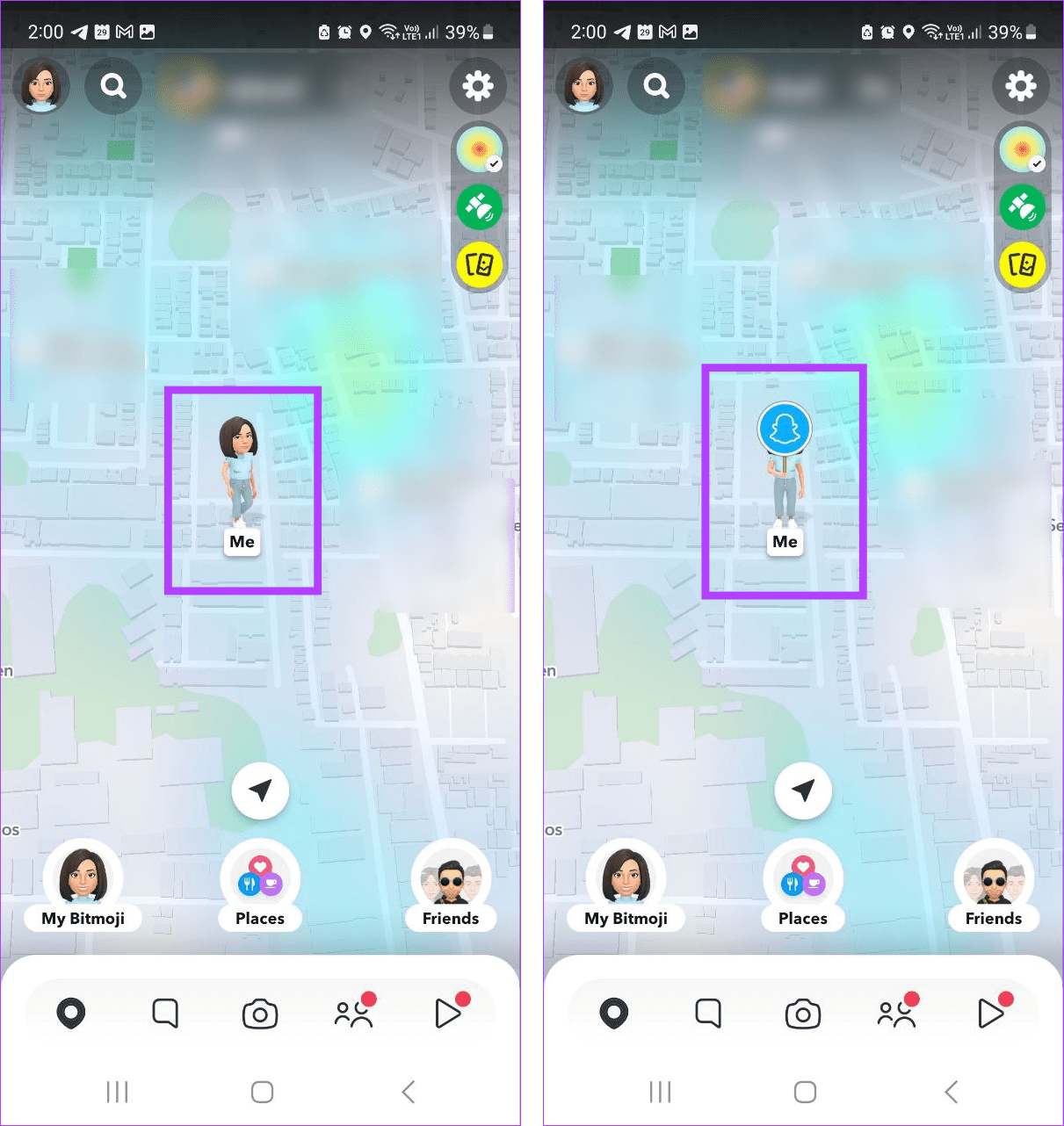
You cannot force another person’s Snap Map location to update. If someone’s location looks old or missing, it may be caused by their own privacy settings, device settings, or app activity.
To understand normal update timing, read when Snap Map updates. If the issue is that a location does not refresh at all, see the guide to fix Snapchat location not updating.
Optional: Test or Refresh Device Location with a Location Tool
For most Snap Map wrong location problems, start with Snapchat permissions, Precise Location, GPS signal, network connection, cache, and app updates. Those are the main fixes for inaccurate or outdated Snap Map behavior.
If you need to test how your phone reports GPS location, check whether Snapchat is reading device location correctly, or temporarily use a selected location for testing, Fonelora Location Changer can be used as an optional location utility. It should be treated as a device location tool, not Snapchat’s native Snap Map fix feature.
A location tool does not repair Snapchat servers or change Snap Map update rules. It only changes the device location that apps may receive, so use it only when your goal is device location testing or selected-location use.
Frequently Asked Questions About Snap Map Accuracy
Here are direct answers to common questions about Snap Map wrong location, inaccurate Snapchat location, and location glitches.
Can Snapchat location be wrong?
Yes. Snapchat location can be wrong if your phone reports inaccurate GPS data, Precise Location is off, the network is unstable, Snapchat cache is corrupted, or the map is showing an old last active location.
Why is my Snapchat location wrong?
Your Snapchat location may be wrong because of weak GPS signal, approximate location settings, unstable Wi-Fi or cellular data, outdated app data, battery restrictions, or a temporary Snapchat glitch.
Why does my Snap location say I’m somewhere else?
This usually happens when your phone sends inaccurate or approximate location data to Snapchat. Turn on Precise Location, restart location services, improve GPS signal, and clear Snapchat cache.
Why is Snap Map showing the wrong location for my friend?
You may be seeing your friend’s last active location rather than their current position. They may also have Ghost Mode enabled, limited location permission, weak signal, or restricted privacy settings.
Is Snap Map accurate?
Snap Map can be accurate when GPS, network, permissions, and app settings are working correctly. However, it is not always a live GPS tracker, and location may be delayed, approximate, or outdated.
Why is Snapchat location not accurate?
Snapchat location may not be accurate if Precise Location is disabled, GPS signal is weak, your phone is indoors, your network is unstable, or Snapchat is using approximate location data.
Can Snap Map glitch?
Yes. Snap Map can glitch because of app cache, temporary Snapchat bugs, network issues, weak GPS, or device-level location drift. Restarting the app and clearing cache can help.
Can clearing Snapchat cache fix Snap Map location errors?
Yes. Clearing Snapchat cache can fix some temporary map display issues and app glitches. It does not delete your Memories, chats, friends, or saved snaps.
Can a weak internet connection make Snap Map show the wrong location?
Yes. Snapchat needs a stable connection to send and receive updated location data. Weak Wi-Fi or cellular signal can make Snap Map show an older or inaccurate location.
What if Snap Map is still wrong after all basic fixes?
If Snap Map is still wrong after checking permissions, GPS, cache, network, and app updates, the issue may come from device-level GPS drift or a temporary Snapchat problem. You can test your device location with a location utility, or wait and check again later if Snapchat is having a temporary service issue.
Your Map, Demystified
Snap Map wrong location issues usually come from old location data, weak GPS signal, approximate location settings, unstable networks, cache glitches, or privacy settings. The first step is to decide whether the map is showing an outdated last active location or a truly inaccurate GPS position.
If your own Snapchat location is wrong, start by enabling Precise Location, restarting location services, improving GPS signal, clearing Snapchat cache, checking network stability, and updating the app. If a friend’s location looks wrong, remember that Snap Map may only be showing their last active location, Ghost Mode, or their own device settings.
If you only need to fix normal Snap Map accuracy problems, use Snapchat and device settings first. If you need to test how your phone reports GPS location or use a selected device location, Fonelora Location Changer can be used as an optional location utility, not Snapchat’s native map repair feature.
Fonelora Location Changer
Realistic GPS movement simulation, flexible route control, easy no-modification setup, and support for gaming, social, privacy, and location-based testing in one platform.
More Related Articles