Quick Answer: If your Snapchat location is not updating, the most common causes are limited location permission, Ghost Mode, battery restrictions, weak network, app cache issues, or confusion between regular Snap Map and Live Location. Start by reopening Snapchat, checking Snap Map visibility, confirming location permission, turning off battery restrictions, and clearing Snapchat cache.
If you are trying to fix Snap Map not updating, first decide whether this is a real problem or normal Snap Map behavior. Regular Snap Map does not always update like a live GPS tracker. A location can look old if Snapchat has not received fresh location data, if the app has not been opened, or if background activity is restricted.
This guide explains why Snapchat location may be stuck, how to refresh Snap Map on iPhone and Android, what to do when Live Location is not updating, and why someone can be active on Snapchat while their location does not move.
Quick Check: Is Snapchat Location Really Not Updating?
Before changing settings, check whether the location is actually broken or simply behaving normally. Snap Map location depends on app activity, device permissions, network access, and privacy settings. A location that looks old is not always a glitch.
| What You See | Most Likely Cause | What to Try First |
| Your own Snap Map location is stuck | Location permission, Ghost Mode, battery restriction, or app cache issue | Check Snapchat permission, Ghost Mode, battery settings, then clear cache |
| A friend is active but their location is not updating | They may be using Snapchat without sharing fresh location data | Do not assume it is a bug; check whether the timestamp is old |
| Live Location is not updating | Live Location session, battery saver, network, or permission issue | Restart Live Location sharing and disable battery restrictions |
| Snap Map shows the wrong place | GPS accuracy, weak signal, approximate location, VPN, or network issue | Check GPS accuracy or read the wrong-location guide |
| Location disappears after a while | Snapchat may no longer have fresh location data | Open Snapchat again and check location permission |
If the issue is that Snapchat shows the wrong city, street, or inaccurate position, that is slightly different from not updating. In that case, use the guide to fix Snap Map wrong location.

Why Is Snapchat Location Not Updating?
Snapchat location may stop updating for several reasons. The most common ones are location permission limits, Ghost Mode, background restrictions, weak signal, app cache, or Live Location ending.
- Location permission is limited: Snapchat cannot update your Snap Map location if it cannot access your device location when needed.
- Ghost Mode is on: Ghost Mode hides your location from friends on Snap Map.
- Battery Saver or Low Power Mode is active: Your phone may restrict background app activity and location updates.
- Background activity is restricted: iPhone or Android settings may stop Snapchat from refreshing properly.
- Network signal is weak: Snapchat may not be able to send updated location data.
- Snapchat cache is causing issues: Temporary app data can make Snap Map behave incorrectly.
- Live Location is not active: Regular Snap Map and Live Location do not work the same way.
If you mainly want to understand when Snapchat is supposed to update location, read the separate guide on when Snap Map updates. This page focuses on fixing location that is stuck, delayed, or not refreshing.
Fix 1: Refresh Snap Map and Check Ghost Mode
Start with the simplest fix: refresh Snapchat and check whether Ghost Mode is hiding your location. This is the fastest way to rule out a basic Snap Map visibility issue.
Refresh Snapchat Location
- Close Snapchat completely.
- Check that your phone has a working internet connection.
- Reopen Snapchat.
- Open Snap Map.
- Wait a few seconds to see whether your location updates.
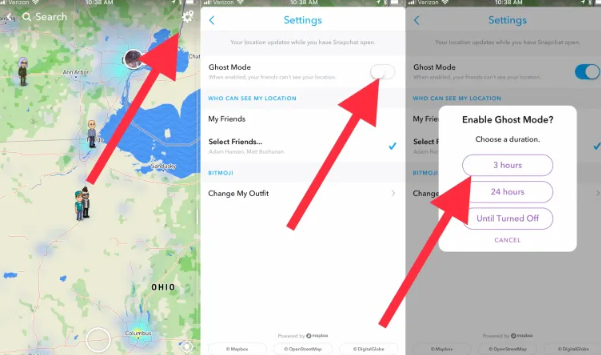
Check Ghost Mode
Ghost Mode hides your location from friends on Snap Map. If it is enabled, friends will not see your current location even if Snapchat can access your device location.
- Open Snapchat.
- Go to Snap Map.
- Tap the Settings gear icon.
- Check whether Ghost Mode is turned on.
- Turn Ghost Mode off if you want your location to appear on Snap Map.
If your goal is to pause or hide location instead of fixing it, see the guide on how to pause Snapchat location and freeze Snap Map.
Fix 2: Check Location Permissions on iPhone and Android
If Snapchat cannot access your device location, Snap Map may not update correctly. Check your phone-level location permission first.
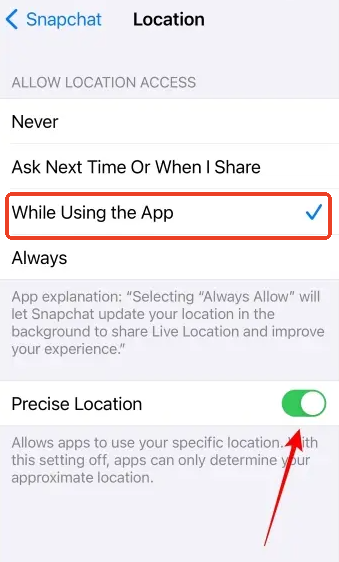
For iPhone
- Open the Settings app.
- Scroll down and tap Snapchat.
- Tap Location.
- Choose While Using the App.
- Turn on Precise Location.
- Open Snapchat again and check Snap Map.
Why this matters: If Precise Location is off, Snapchat may receive only an approximate location. If Snapchat has no location permission, Snap Map cannot refresh your real position.
For Android
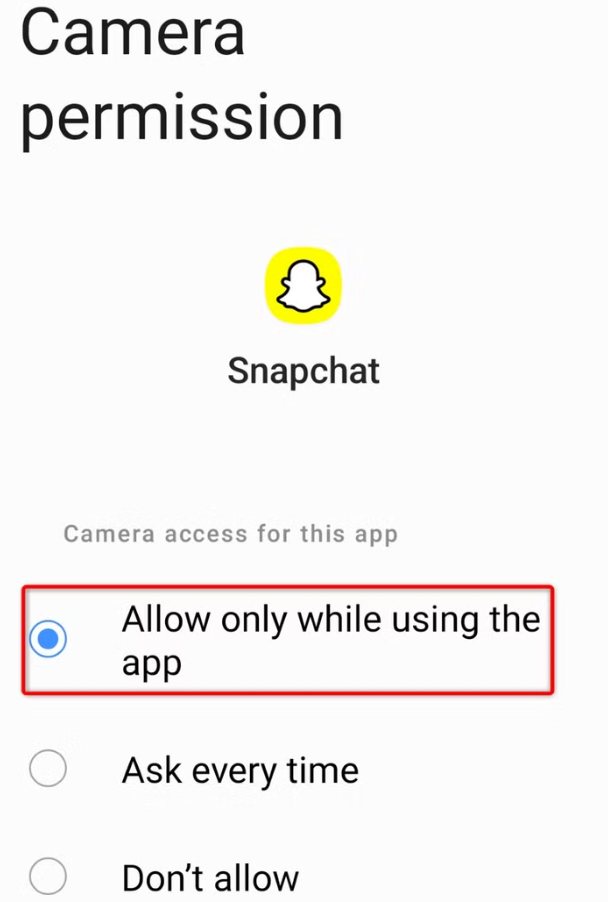
- Open Settings on your Android phone.
- Go to Apps or Apps & notifications.
- Select Snapchat.
- Tap Permissions.
- Tap Location.
- Choose Allow only while using the app or the closest option available on your device.
- Turn on Use precise location if your Android version provides this option.
Fix 3: Turn Off Battery Restrictions and Background Limits
Battery restrictions are a common reason why Snapchat location is not updating, especially on Android devices. Your phone may pause background activity to save power, which can make Snap Map look stuck or delayed.
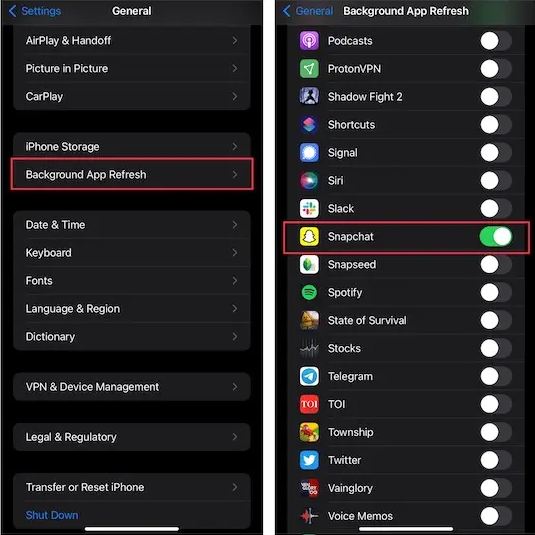
On iPhone
- Open Settings.
- Tap Battery.
- Turn off Low Power Mode.
- Go to Settings > General > Background App Refresh.
- Make sure Background App Refresh is enabled for Snapchat.
On Android
- Open Settings.
- Go to Apps > Snapchat.
- Open Battery.
- Choose Unrestricted or disable strict battery optimization for Snapchat.
- Check Mobile data & Wi-Fi and allow background data if available.
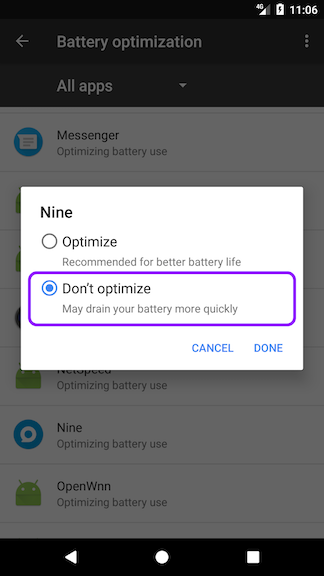
Battery and background settings do not guarantee constant Snap Map updates. They simply remove common restrictions that may prevent Snapchat from refreshing location properly.
Fix 4: Clear Snapchat Cache and Restart the App
If permissions and battery settings look correct, the next step is to clear Snapchat cache. Cache files are temporary app data. Clearing them can help when Snap Map is stuck, slow, or showing outdated information.
- Open Snapchat.
- Tap your profile icon.
- Tap the Settings gear icon.
- Scroll to Account Actions.
- Tap Clear Cache.
- Confirm the action.
- Close and reopen Snapchat.
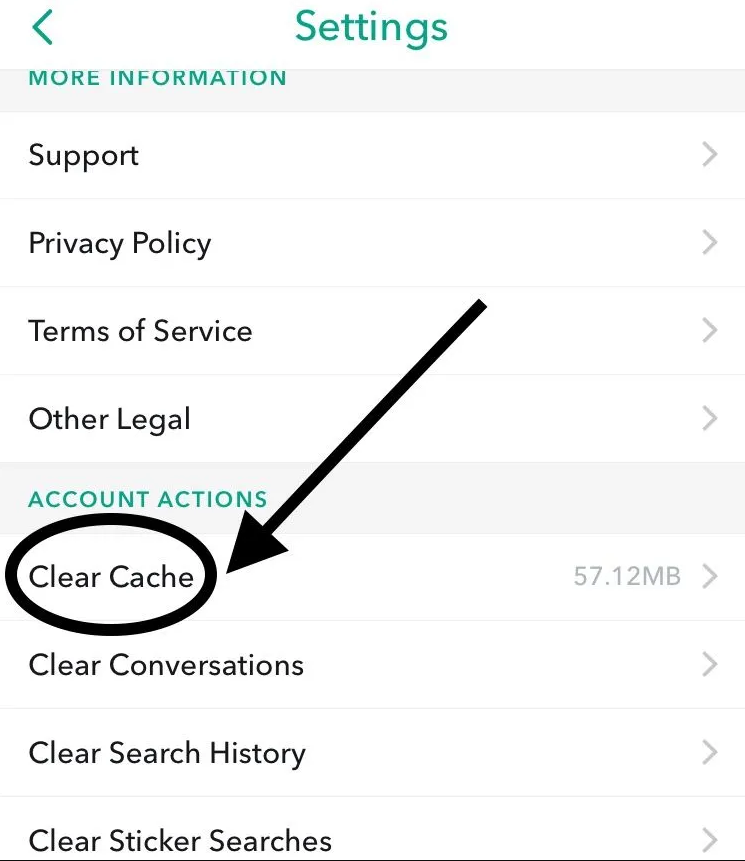
Clearing cache does not delete your Memories, chats, friends, or saved snaps. It only removes temporary files Snapchat can rebuild later.
Restart Your Phone
If clearing cache does not help, restart your iPhone or Android phone. This can refresh GPS, network, and app background services. After restarting, open Snapchat and check Snap Map again.
Update Snapchat
An outdated Snapchat app can also cause location glitches. Open the App Store or Google Play Store, check for Snapchat updates, and install the latest available version.
Fix 5: Check Live Location Not Updating
Live Location and regular Snap Map do not behave the same way. Regular Snap Map depends on normal app and location settings. Live Location is a more active sharing feature with selected friends for a set period.
If Snapchat Live Location is not updating or not working, check these items:
- Make sure the Live Location session is still active.
- Check that you are sharing with the correct friend.
- Turn off Low Power Mode or Battery Saver.
- Make sure Snapchat has location permission.
- Check network signal and internet connection.
- Stop and restart the Live Location session if needed.
If only Live Location is failing but regular Snap Map works, the issue may be related to the live sharing session rather than your whole Snapchat location system.
Why Is Someone Active but Their Snapchat Location Not Updating?
This is one of the most common questions: someone is snapping, chatting, or active, but their Snap Map location is not moving. This does not always mean they are hiding something or that Snapchat is broken.
Possible reasons include:
- They opened Snapchat but did not trigger a fresh map update: App activity and location refresh are related, but not always identical.
- Their location permission is limited: Snapchat may not have the right permission to update location in the way you expect.
- They are using Ghost Mode: Their location may be hidden from Snap Map.
- Their phone is restricting background activity: Battery settings can make location appear old.
- They have weak signal: Snapchat may not send fresh location data immediately.
- You are seeing an old timestamp: Snap Map may show when the location was last updated.
If you want to understand normal update timing, check the guide on when Snapchat location updates. If the location is wrong rather than simply old, use the Snap Map wrong location fix guide.
Why Is Snap Map Not Updating for One Person?
If Snap Map is not updating for one person only, it may be related to that person’s privacy settings, Ghost Mode, device permission, network condition, or Live Location session. You cannot force another person’s Snap Map location to update from your device.
Optional: Test Your Phone Location with a Location Tool
For normal Snapchat location not updating problems, start with the fixes above: permissions, Ghost Mode, battery settings, cache, network, and app updates. These are the main causes of Snap Map not refreshing.
If your goal is to test how your phone reports GPS location, check whether Snapchat reads a selected device location, or temporarily use a different location for testing, Fonelora Location Changer can be used as an optional location utility. It should be treated as a device location tool, not Snapchat’s native fix feature.
A location changer does not repair Snapchat servers or change Snap Map update rules. Use it only when you need to test or change the device location that apps receive.
Frequently Asked Questions About Snapchat Location Not Updating
Here are direct answers to common questions about Snap Map not updating, Live Location issues, and Snapchat location glitches.
Why is my Snapchat location not updating?
Your Snapchat location may not update because of limited location permission, Ghost Mode, Low Power Mode, Battery Saver, weak network, app cache, or outdated Snapchat app. Start by checking permissions and reopening Snapchat.
How do I fix Snapchat location not updating?
Close and reopen Snapchat, check Ghost Mode, allow location permission, turn on Precise Location, disable battery restrictions, clear Snapchat cache, restart your phone, and update the Snapchat app.
Why is Snap Map not updating?
Snap Map may not update if Snapchat cannot access fresh location data. This can happen when the app is closed, location permission is limited, background activity is restricted, or the device has poor signal.
Why is Snapchat Live Location not updating?
Live Location may stop updating if the sharing session ended, the phone has battery restrictions, location permission is limited, or the device has a weak network connection. Restart the Live Location session and check permissions.
Why is someone’s Snap location not updating but they are active?
Being active on Snapchat does not always mean Snap Map will show a new location immediately. Their permission settings, Ghost Mode, background restrictions, network condition, or last location timestamp may affect what you see.
Why is Snap Map not updating for one person?
If the issue affects one person only, it is likely related to that person’s device, privacy settings, Ghost Mode, or location permission. You cannot refresh another person’s Snap Map location from your phone.
How do I refresh my location on Snapchat?
Open Snapchat, go to Snap Map, check Ghost Mode, confirm location permission, and make sure your phone has a strong internet connection. Closing and reopening Snapchat can also help refresh location.
Does Snapchat location update when the app is closed?
It depends on device permissions, background location access, Live Location settings, and battery restrictions. If Snapchat has limited access, location may mainly update when the app is open.
Why does Snap Map show my location from hours ago?
Snap Map may show an old location if Snapchat has not received fresh location data recently. This can happen when the app has not been opened, the phone is offline, Ghost Mode is active, or background activity is restricted.
Does Ghost Mode affect Snap Map updates?
Ghost Mode hides your location from friends on Snap Map. When it is on, friends cannot see your Snap Map location, even if Snapchat can still access your device location.
Can Snapchat location glitch?
Yes. Snapchat location can appear delayed, stuck, or inaccurate because of GPS signal, network issues, app cache, device permissions, or temporary Snapchat service problems.
Conclusion
If your Snapchat location is not updating, start with the basics: reopen Snapchat, check Ghost Mode, allow location permission, turn on Precise Location, disable battery restrictions, and clear the Snapchat cache. These fixes solve most Snap Map not updating or location not refreshing problems.
If the issue is with Live Location, make sure the session is still active, location permission is enabled, the network is stable, and battery-saving settings are not interrupting background activity. If someone else’s location is not updating, remember that you may be seeing an old timestamp or their own privacy and device settings.
If you only need to fix normal Snapchat location issues, use Snapchat and device settings first. If you need to test how your phone reports location or use a selected device location, Fonelora Location Changer can be used as an optional location utility, not Snapchat’s native repair feature.


Hot Topics