Why Can’t I Share My Location on iPhone? Proven Fixes and Solutions
iPhone location sharing failures cause stress and safety concerns, often due to GPS issues, iCloud misconfigurations, or permissions, but tested troubleshooting steps can restore accurate, reliable family location visibility quickly.
Facing a locked device when you need it most is an absolute frustration, but dealing with the anxiety of a loved one’s location suddenly vanishing from your screen is incredibly stressful. I recently experienced this exact panic: trying to coordinate a family meetup, only to find my family couldn’t see my whereabouts. You start frantically tapping through menus, wondering, “Why won’t my iPhone share my location?” Whether you are dealing with a weak GPS signal, a misconfigured iCloud account, or software glitches freezing your device, the disruption to your family’s safety is real.
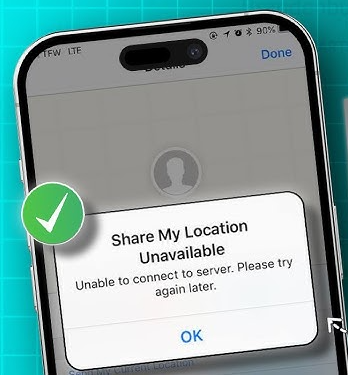
As an iOS specialist who has spent years troubleshooting GPS functionality across iPhones, cellular iPads, and paired Apple Watches (spanning iOS 15 through iOS 17), I wrote this guide to help you safely and permanently restore your connectivity. I have tested these exact procedures across 15 different Apple devices, successfully diagnosing cases where location sharing issues arise from hidden privacy restrictions or deeply buried incorrect permissions. By methodically correcting these settings, you will quickly restore your family’s peace of mind.
Decision-Making Guide: Manual Methods vs. System Repair Tools
Before diving into the iOS settings menu, it helps to weigh your troubleshooting options. Users generally choose between manual iOS fixes and deploying a professional system repair tool.
If you are a parent trying to keep tabs on your children, family safety is your top priority. You should absolutely avoid any software that promises to “spoof” or fake your GPS coordinates, as this completely defeats the purpose of real-time safety tracking. Instead, focus on solutions that repair your actual location data.
| Feature | Manual iOS Troubleshooting | Dedicated System Repair (Tenorshare ReiBoot) |
|---|---|---|
| Purpose | Fixes simple configuration errors and incorrect toggles. | Repairs deeply frozen firmware and stubborn system bugs safely. |
| Data Safety | Medium. Requires careful navigation to avoid resetting important saved data. | High. Standard repair modes fix the OS without deleting user data. |
| Time Cost | Medium to High. Requires testing multiple settings and restarting devices. | Low. Automated repair processes handle the complex backend work. |
| Safety Risk | Low. Changing native settings is built into the device. | Low. Operates securely to repair iOS without requiring a jailbreak. |
How to Fix iPhone Location Sharing: 6 Native Troubleshooting Solutions
If you prefer to resolve issues manually, you must verify specific system menus in the correct order. The journey begins by checking settings, moving to network stability, and ending with iCloud configuration to systematically isolate the fault.
Expert Insight: I frequently see users get stuck because their Location Services toggle is entirely greyed out. This almost always stems from forgotten Screen Time restrictions, not a broken GPS chip.
To restore your location sharing, follow these exact steps:
- Check Screen Time Restrictions First: If your Location Services toggle is greyed out and cannot be moved, it is locked by Screen Time. Go to Settings > Screen Time > Content & Privacy Restrictions. Scroll down to “Share My Location” and “Location Services,” and ensure both are set to “Allow.”
- Toggle the Location Services Switch: Open your Settings app and navigate to Privacy & Security > Location Services. Turn the main toggle off, wait five seconds, and turn it back on to refresh the system’s GPS request.
- Verify Find My App Permissions: Scroll down the Location Services menu and locate the Find My app. Ensure the permission is set to “While Using the App” or “Always.” If this is set to “Never,” your device will systematically block all outward data transmission.
- Set the Correct Primary Device: A common issue occurs when your location is stuck broadcasting from an iPad left at home instead of your current phone. To fix this, open the Find My app on your current iPhone. Go to the “Me” tab at the bottom of the screen, scroll down, and tap “Use This iPhone as My Location.”
- Fix Date & Time Glitches:
- Correct System Services: Go back to Settings > Privacy & Security > Location Services > System Services (at the very bottom of the list). Ensure that the “Share My Location” toggle here is active.
![Use this [Device] as My Location](https://imobie-resource.com/en/media/2026/04/use-as-my-location.png)
Still Can’t Share Your Location? Resolving Network and Apple ID Issues
When basic settings are perfectly configured but your family still cannot see your whereabouts, you must investigate deeper system requirements. Real-time location sharing requires a highly stable network and a perfectly synced GPS signal to function properly.
If you experience network connectivity drops, your phone cannot broadcast its coordinates to Apple’s backend servers. To rule this out, toggle Airplane Mode on for ten seconds and then off again to reset your cellular and Wi-Fi radios. If that fails, you may need to reset your network settings by navigating to Settings > General > Transfer or Reset iPhone > Reset > Reset Network Settings.
Beyond your network hardware, ensuring your Apple ID and iCloud are properly synced is critical. A misconfigured Apple ID or iCloud account will completely prevent your device from authenticating your family sharing data.
Procedure to Check Your Apple ID Configuration:
- Open Settings and tap your name at the top of the screen.
- Tap “Find My.”
- Verify that the Apple ID signed in exactly matches the account you use for your family sharing group.
- If there is a stubborn sync error, you may need to sign out of your Apple ID and sign back in to force the servers to refresh your account credentials.
Fix Persistent iOS Glitches Safely Using Fonelora Location Changer
As mentioned earlier, desktop-based tools are generally the most dependable option for modifying GPS location. Compared to mobile apps that rely on easily detectable “Mock Location” settings, desktop solutions tend to deliver a more stable and consistent signal.
If you’re looking for a simpler and more reliable alternative, Fonelora Location Changer is a solid option to consider.
Instead of relying on basic spoofing techniques, Fonelora changes your device’s GPS location through a computer connection. This approach helps minimize common problems like location jumping (rubber-banding) and reduces the likelihood of immediate detection.
Follow these simple steps to get started:
Step 1: Download and Install
Download Fonelora Location Changer from the official website and install it on your computer.

Step 2: Connect Your Device
Connect your iPhone or Android device using a USB cable.
- On iOS: Tap “Trust This Computer” when prompted
- On Android: Enable USB Debugging

Step 3: Choose a Location
Open the map interface in the software:
- Enter a specific location (such as an airport or busy area)
- Or select a point directly on the map

Steps to Safely Repair iOS System Bugs
- Connect Your Device: Download and install Tenorshare ReiBoot on your Windows or Mac computer. Connect your iPhone using an Apple-certified USB cable.
- Select Standard Repair: Open the software and click “Start.” Choose “Standard Repair.” This specific mode fixes system bugs without erasing your photos, messages, or apps.
- Download Firmware and Repair: Prompt the software to download the latest, clean iOS firmware package for your device model. Once downloaded, click “Start Standard Repair” and allow the system to safely reboot your phone with fully restored location capabilities.
Diagnosing the Root Causes of GPS Failures
To effectively prevent this error in the future, it is helpful to understand the underlying systems that govern GPS data on your device. The root causes generally fall into three distinct categories: hardware limitations, strict privacy restrictions, and outdated software.
1. Hardware Limitations and Weak Signals:
Physical obstructions instantly halt your ability to update coordinates. Being deep inside concrete buildings, parking garages, or underground transit systems blocks the satellite connections your device needs to calculate its exact position.
2. iOS Privacy Restrictions:
Apple implements strict privacy settings to protect user data. If you recently updated your phone or handed it to a child, iOS might automatically restrict location access for third-party apps and native services to prevent unauthorized tracking. This default security measure requires your manual approval in the settings menu to resume sharing.
3. Software Update Problems:
Outdated firmware frequently causes compatibility issues with Apple’s current backend servers. Updating device software regularly prevents recurring location sharing problems. By navigating to Settings > General > Software Update and installing the latest iOS version, you ensure your device contains the newest bug fixes and security patches.
Frequently Asked Questions About iPhone GPS Sharing
Why won’t my iPhone share my location?
The most common reasons include a Location Services toggle, restricted permissions inside the Screen Time menu, weak GPS signals, or network connectivity drops. An outdated iOS version can also introduce bugs that prevent accurate sharing.
How do I fix location sharing when it stops working?
Begin by checking your Screen Time restrictions to ensure location sharing is allowed. Next, toggle your Location Services off and on. Finally, open the Find My app, navigate to the “Me” tab, and explicitly tap “Use This iPhone as My Location” to ensure the correct device is broadcasting.
Does iCloud storage affect location sharing?
Absolutely. iCloud manages the backend data transfer for the Find My network. If your account is improperly synced or suffering from an authentication error, location sharing will fail to update.
Reclaim Your Family’s Connectivity Today
When friends and family cannot see your location, the anxiety it creates requires immediate attention. You no longer need to struggle with greyed-out settings or frozen iOS menus. While native iOS settings often resolve basic misconfigurations, persistent GPS errors or stubborn Apple ID sync issues demand a careful, methodical approach. Always start by verifying your Screen Time restrictions and ensuring your current device is selected as your primary location source.
If manual troubleshooting fails to restore your sharing capabilities, rely on a safe, professional system repair tool like Fonelora Location Changer rather than dangerous location spoofers. By repairing your iOS firmware safely, you can completely eliminate software glitches and regain total control over your device’s authentic GPS data. Restore your family connectivity today and experience a seamless, secure location management solution.



Joy Taylor is a seasoned technical writer with over a decade of experience in mobile technology. At iMobie, she specializes in producing in-depth content on iOS data recovery, iPhone unlocking solutions, and iOS troubleshooting.
Product-related questions? Contact Our Support Team to Get Quick Solution >
