That feeling of unease when you see your phone’s battery draining too fast or notice an app tracking your location for no clear reason is a common frustration. For many, like Lisa, it sparks a search for control over their device’s settings. You want to manage your Android privacy settings, but the menus on different brands can be confusing, and it’s often unclear what you’re actually turning off. This guide cuts through that confusion. It provides clear, tested solutions to help you disable location on Android completely, manage it on a per-app basis, and even check your Google Account settings, giving you full control over your digital footprint and device performance.
Table of ContentsHide
The Quickest Way to Turn Off GPS on Android
For a fast, system-wide solution, the most direct method to turn off GPS on an Android device is through the Quick Settings panel. This instantly disables all location services on Android, addressing the core need for immediate privacy or battery conservation. The Android GPS toggle is designed for rapid access, putting primary control at your fingertips.
Following these steps will immediately stop your phone from using its GPS chip, Wi-Fi, and mobile networks to determine its location.
Step 1. Swipe down from the top of your screen. This opens the notification shade. You may need to swipe down a second time to reveal the full grid of Quick Settings icons.
Step 2. Locate the ‘Location’ icon. It typically resembles a map pin or a teardrop shape. On some older devices or custom interfaces, it might be labeled ‘GPS’.
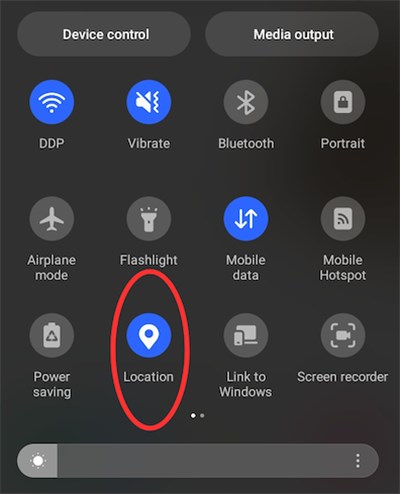
Step 3. Tap the ‘Location’ icon to disable it. The icon will dim or change color, usually to gray, to confirm that all location services are now off.
Once disabled, no app can receive new location updates until you re-enable it. This is an effective “all-or-nothing” approach that immediately secures your location privacy and reduces significant battery consumption from the GPS radio.
What Are You Actually Disabling? GPS vs. Location Services Explained
To truly manage your privacy, it’s crucial to understand what you’re controlling. A common misconception is that the Location toggle only affects the GPS chip, but in reality, it manages Android’s broader location services—an important distinction for users concerned about tracking, battery use, or tasks like fake Snapchat location setup and location control.
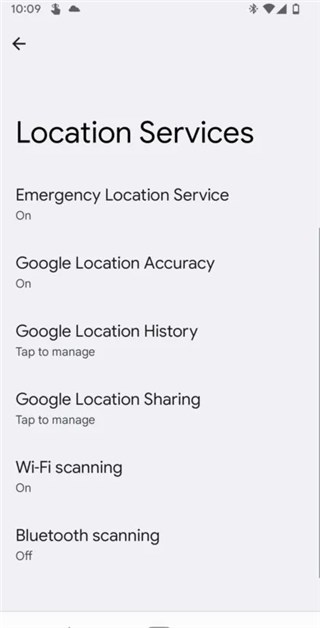
Modern Android devices use a hybrid system to determine your position, combining multiple data sources for speed and accuracy:
- GPS (Global Positioning System): The most accurate source, using signals from satellites. It works best outdoors with a clear line of sight to the sky, but is also the most power-intensive component.
- Wi-Fi Scanning: Your phone can determine an approximate location based on which Wi-Fi networks are nearby, even if you aren’t connected to them. This is highly effective in urban areas.
- Mobile Networks (Cell Tower Triangulation): Your device can estimate its position based on its proximity to nearby cellular towers. This is less accurate but provides a baseline location with very low power usage.
When you disable location on your Android phone using the main toggle, you are deactivating all of these methods simultaneously. This is why the system is called “Location Services” and not just “GPS.” Understanding this distinction clarifies why complete control involves both the system toggle for total privacy and the individual Android location permissions for practical, everyday use.
When Turning Off GPS Is Not Enough
Disabling location services is the best choice when you want to stop apps from accessing your real-time location. However, some users need a different type of control: instead of turning location off completely, they may want to use a virtual GPS location in supported location-based apps while keeping the phone functional.
In that case, Fonelora Location Changer can be a practical option. It lets you change GPS location on Android or iPhone from a Windows PC or Mac, without root or jailbreak. This can be useful for location-based apps where you need GPS-level location control rather than simply blocking all location access.
The key difference is simple: use Android’s built-in Location toggle when you want to stop apps from seeing your location, and use Fonelora Location Changer only when your goal is to manage or simulate GPS location in supported apps. Always use virtual location tools responsibly and restore your real location when needed.
How to Manage Location Permissions for Specific Apps
Turning off all location services isn’t always practical. You might need Google Maps for navigation, but you want to prevent a social media app from tracking you in the background. This is where managing individual Android location permissions is essential. Here’s how to find the right menu and take control.
Step 1: Find Your Main Location Settings
One of the most common obstacles is the variation in menu layouts between manufacturers. While the Quick Settings toggle is nearly universal, accessing the detailed menu requires navigating through the main Settings app.
The Universal Shortcut: The fastest way to find location settings on any Android phone is to open the Settings app and use the search bar at the top. Simply type “Location” and tap the corresponding result.
For manual navigation, here are the common sequences for major Android brands:
- Google Pixel (Stock Android): Go to Settings > Location.
- Samsung (One UI): Go to Settings > Location.
- Xiaomi (MIUI): Go to Settings > Privacy protection > Protection > Location.
Step 2: Adjust Permissions for Each App
Once you are on the main Location screen, tap on App location permissions (or a similarly named option) to see a list of all the apps that have requested access to your location. Tapping on an individual app will give you several choices:
- Allow only while using the app: The app can access your location only when it is open and active on your screen. This is the most secure and practical choice for apps that require location to function, like navigation or ride-sharing services.
- Ask every time: The app must present a pop-up prompt and get your explicit permission each time it wants to access your location. This option offers maximum control and transparency.
- Don’t allow: This completely revokes the app’s ability to access your location data at any time.
Step 3: Use a Deeper Layer of Control: Precise vs. Approximate Location
For even more privacy, modern Android versions offer another critical setting within each app’s permission screen: the “Use precise location” toggle. This is especially useful for users looking to stop sharing location without a notification, reduce unnecessary tracking, or simply limit how accurately apps can monitor their movements.
When this setting is on, an app gets your exact coordinates. When it’s off, the app only gets your general area—your city or neighborhood, for example. This is perfect for apps like a weather service that needs your general city to give you a forecast, but has no business knowing your street address. Disabling it for apps that don’t require pinpoint accuracy is a simple but powerful privacy-enhancing step.
Periodically audit your app permissions. A good practice is to review these settings every few months or after installing new apps to ensure no application has more access than it needs. You can learn more about managing your phone’s data by understanding the best ways to back up your device.
Beyond Your Phone: Disabling Google’s Location History
Turning off location services on your device is only half the battle. If you’re signed into a Google Account, your location data may still be saved to Google’s servers. This is called Location History, and it’s an account-level setting, not a device-level one.
A real commitment to privacy includes checking this setting. To do so:
Step 1. Open your phone’s Settings app.
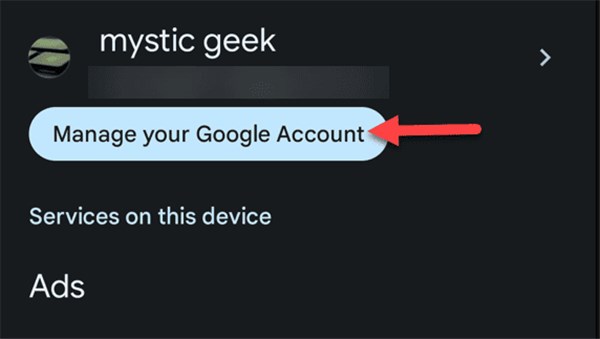
Step 2. Scroll down and tap on Google > Manage your Google Account.
Step 3. Go to the Data & privacy tab.
Step 4. Under “History settings,” tap on Location History.
Step 5. Here, you can turn the setting off completely and manage or delete any history that has already been saved.
Taking this extra step ensures that your location data isn’t just blocked on your phone but also isn’t being compiled in your personal account history. If you’re managing multiple devices for your family, consider exploring parental control options to manage these settings across accounts.
The Two Main Benefits: Better Battery Life and Stronger Privacy
Taking control of your Android privacy settings offers two significant and immediate rewards: longer battery life and enhanced personal security.
1. Extend Your Phone’s Battery Life
For the battery-conscious user, the impact is tangible. The GPS radio is one of the most power-hungry components in a smartphone. When apps continuously request location updates in the background, the GPS is activated frequently, causing noticeable battery drain. By turning off location services or restricting background access, you drastically reduce how often these high-power sensors are used. This simple change can add hours of standby time to your device.
2. Strengthen Your Personal Privacy
For the privacy-conscious user, the reward is peace of mind. Unchecked Android location tracking can build a detailed history of your movements, habits, and daily routines. By actively managing which apps can see your location and when—and by turning off server-side tracking like Google Location History—you take a crucial step in protecting your personal data. You are making a deliberate choice about what information to share, transforming your phone from a passive tracking device into a tool that you fully control.
By following the methods in this guide, you have successfully addressed location privacy at every level—from the quick system toggle to granular app permissions and even your personal Google Account. You’ve moved from a position of uncertainty to one of informed control, ensuring your smartphone operates on your terms.
Frequently Asked Questions
- How do you disable GPS on Android?
- The quickest method is to swipe down from the top of the screen to open the Quick Settings panel and tap the ‘Location’ icon to turn it off. This disables all location services, including GPS.
- Where are GPS settings located on Android?
- Detailed settings are in the Settings app, typically under Settings > Location. You can tap on “App location permissions” from that screen to manage individual apps.
- Does turning off location stop apps from tracking you?
- Yes, turning off the main ‘Location’ toggle prevents apps from getting new, real-time location data from your device’s hardware. However, for full privacy, you should also check your Google Account’s “Location History” setting to stop server-side tracking.
- Can you disable location for specific apps?
- Absolutely. Go to Settings > Location > App location permissions. From there, you can select any app and choose to “Allow only while using the app,” “Ask every time,” or “Don’t allow” access. You can also disable “Use precise location” for most apps.
Conclusion
Managing location on Android does not have to be complicated. By understanding the difference between GPS and broader location services, using the Quick Settings toggle for instant control, adjusting app-by-app permissions, and reviewing your Google Account’s Location History, you can take a much more complete approach to privacy, battery management, and broader anti-tracking software strategies.
The key is choosing the level of control that fits your needs. If you want to stop apps from accessing your real location, turn off Android location services or restrict permissions for specific apps. If you only want to reduce tracking accuracy, disable “Use precise location” for apps that do not need exact coordinates.
If your goal is not to disable GPS but to use a virtual GPS location in supported location-based apps, Fonelora Location Changer can be a practical companion. It allows you to change GPS location on Android or iPhone from a Windows PC or Mac, without root or jailbreak.
Use Android’s built-in privacy settings for everyday protection, battery saving, and permission control. Use Fonelora Location Changer only when you specifically need GPS-level location control. With the right combination of settings and tools, you can protect your privacy, reduce unnecessary battery drain, and keep better control over your digital footprint.


Hot Topics
