What is the Difference Between an Android Work Profile and an MDM Lock?
Quick Answer:
An Android Work Profile creates a secure, separate container for corporate data on your personal device, keeping your personal apps and messages completely private. An MDM (Mobile Device Management) lock—specifically operating in Device Owner mode—gives an organization full administrative control over a company-owned device, allowing them to track, restrict, or remotely wipe the entire phone.
To put it simply: a Work Profile is designed for BYOD (Bring Your Own Device) setups and is relatively easy for the user to remove. An MDM Device Owner lock is built for corporate-owned hardware and is highly restricted, often surviving standard factory resets.
Both mechanisms are part of Android Enterprise and exist to protect sensitive corporate data from leaks, malware, or unauthorized access. However, before you search for Android phone unlocking software to force a removal or attempt to reset the device, understanding which system is active on your phone is crucial.
Work Profile vs. MDM Device Owner: A Side-by-Side Comparison
How do you know if your phone simply has a Work Profile or is completely locked down by an MDM profile? The limitations you face on the device usually reveal the answer.
Review this side-by-side comparison to check whether your situation involves a BYOD Work Profile or a full Corporate Owned MDM lock:
| Feature | Android Work Profile (BYOD) | MDM Lock (Device Owner) |
|---|---|---|
| Device Ownership | Personal (Bring Your Own Device) | Corporate Owned |
| IT Control Level | Limited to the specific work profile container. | Full device control (can restrict cameras, Wi-Fi, etc.). |
| Data Separation | High. Personal apps, photos, and texts are sandboxed and untouched. | None. The entire device interface can be locked down (Kiosk mode). |
| Removal Difficulty | Easy. Users can usually delete the profile from standard Settings. | Hard. Often blocks standard factory resets and requires IT authorization. |
If you can freely download personal apps and only see a briefcase icon on certain work apps, you have a Work Profile. If you are locked out of basic settings menus, cannot factory reset the device, or are stuck on a corporate enrollment screen during setup, you are dealing with a Device Owner MDM lock.
Privacy Check: What Can Your Employer Actually See?
The primary fear most users have when installing a Work Profile on their personal phone is employer surveillance. Can your boss read your private text messages? Can the IT department view your camera roll?
Because Android utilizes a strict sandboxing architecture, the Work Profile is entirely isolated from your personal profile.
What IT Admins CANNOT See on a Work Profile:
- Personal Text Messages: Your private SMS, iMessage, and WhatsApp chats remain totally hidden.
- Personal Photos & Videos: Your personal gallery is completely off-limits to the corporate server.
- Personal Browsing History: Web searches made on your personal browser are not tracked.
- Personal App Data: The apps you download for personal use cannot be monitored or controlled.
- Device Location: Unless explicitly permitted by a specific app inside the work container, your personal location is private.
What IT Admins CAN See:
- Work App Usage: Activity strictly within the apps that have the briefcase icon.
- Corporate Email & Calendars: Any data synced to the corporate server.
- Basic Device Details: Phone model, operating system version, and whether the device has a secure screen lock enabled (to enforce basic security policies).
If your device is purely BYOD with a standard Work Profile, you can rest easy knowing your personal life remains private.
How to Remove an Android Work Profile Officially
If you are leaving your job, switching roles, or simply no longer want company data on your personal phone, removing an Android Work Profile is usually straightforward. Because it is a BYOD setup, you generally have the administrative right to delete the container yourself.
Here is how to remove a Work Profile officially via Android Settings:
- Open your device Settings.
- Navigate to “Accounts” or “Passwords & accounts” (on some devices, you may need to look for “Work Profile” directly in the main Settings menu).
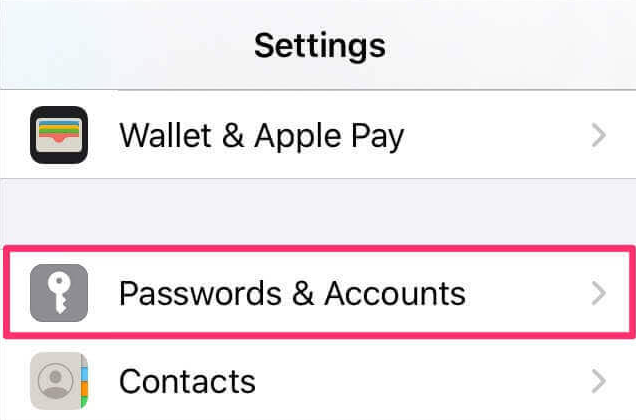
- Locate the Work section. Tap on the “Work Profile” tab to view your enterprise settings.
- Select “Remove Work Profile” or “Uninstall Work Profile.”
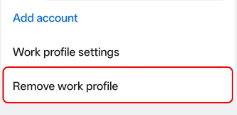
- Confirm the deletion.
This officially wipes all corporate data, work apps, and enterprise policies from your phone. It does not erase your personal photos, messages, or personal apps.
IT departments also have the ability to remotely wipe the Work Profile container. If you have already left the company and handed in your notice, they may have automatically initiated this removal for you.
The MDM Lock Dilemma: Why Standard Factory Resets Fail
While BYOD Work Profiles are easy to remove, company-owned devices present a completely different challenge. If you have purchased a secondhand Android phone and find it locked to an organization, you are facing a Device Owner MDM lock.
Many users assume a standard factory reset from the Android recovery menu will wipe the device clean and remove all locks. However, modern corporate devices are often enrolled in platforms like Samsung Knox or Android Enterprise Zero-Touch. These management profiles are tied to the device’s hardware identifiers (like the IMEI or serial number) at the manufacturer level.
When you factory reset one of these devices, it connects to the internet during the initial setup and immediately downloads the corporate MDM profile again. This creates a frustrating setup loop or Google login issue after factory reset for secondhand buyers who legally purchased the device but do not have corporate login credentials.
The first step is always legal and official: Contact the original seller or the IT department to have them release the device from their management portal. If they remove it from their database, a quick restart will free the phone.
Look closely at your device’s lock or setup screen. You will typically see a message stating “This device is managed by…” followed by an organization name or an IT support phone number. Use this visual clue to reach out to the correct department.
However, if they are unreachable and you are stuck with a locked device you rightfully own, bypassing an MDM lock requires specialized software and typically involves completely wiping any existing data on the device.
How to Bypass an MDM Lock on a Secondhand Device (Authorized Fallback)
If you have legally purchased a secondhand Android device, cannot reach the seller or original IT department, and are stuck on an MDM setup screen, a standard reset will not work. In these supported authorized scenarios, a guided toolkit like iMobie DroidKit can act as a practical fallback to help you remove the MDM lock and regain access to the phone.
DroidKit is designed for supported Android workflows on owned or authorized devices. It should not be used to evade active corporate security policies without authorization. Furthermore, bypassing an MDM lock typically requires completely resetting the device, which will result in data loss. Support depends heavily on your specific device brand, model, and Android version.
If you have confirmed your ownership and are ready to proceed, here is how the guided workflow typically operates:
1. Download and Open DroidKit on your Windows or Mac computer.
2. Select the relevant module. Choose the FRP Bypass or Screen Unlocker module depending on the exact nature of the setup lock shown on your device. Make sure to check DroidKit’s official capability page first to confirm your specific MDM prompt or FRP screen is supported.
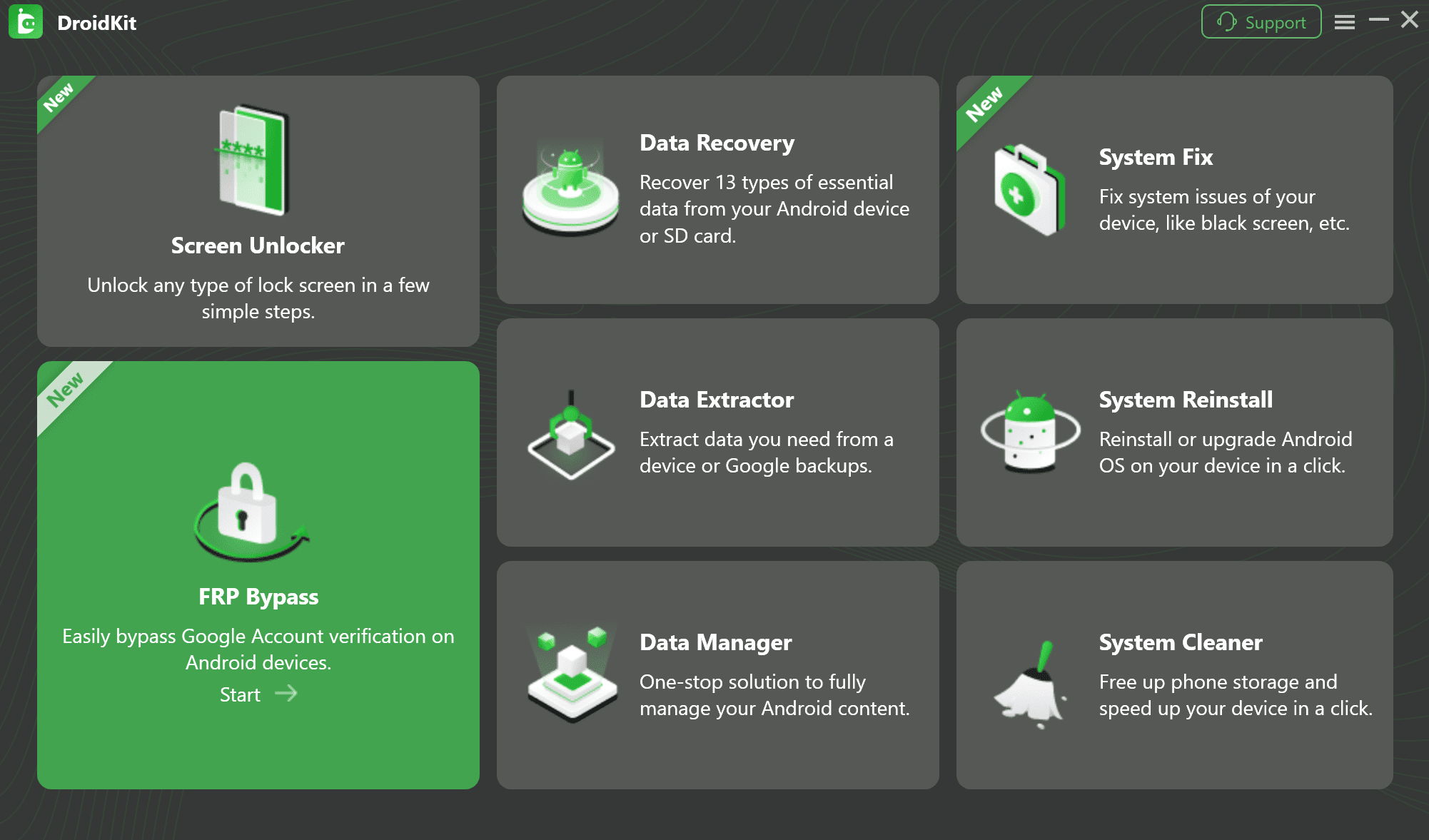
3. Connect your authorized Android device to the computer via USB.
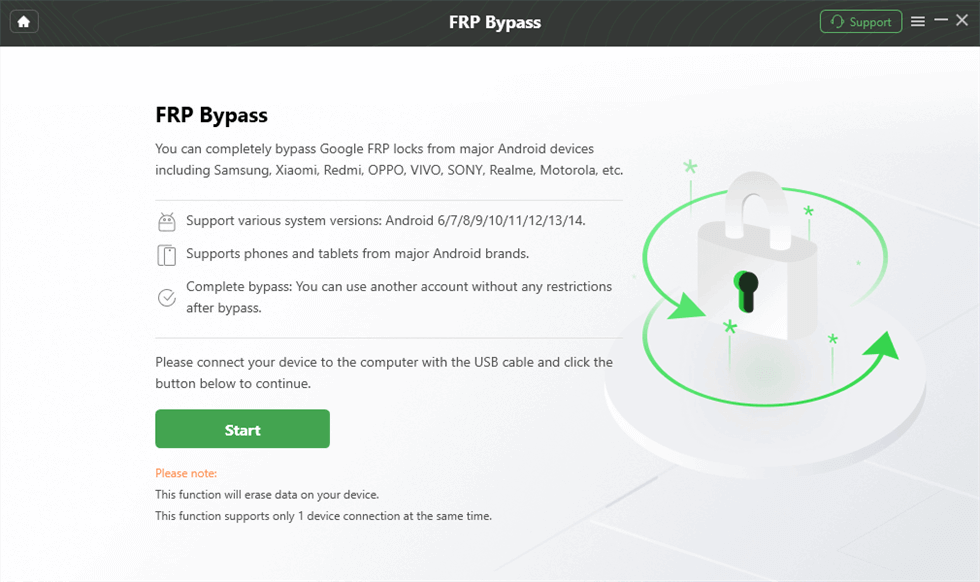
4. Review the on-screen compatibility and data-risk notes. DroidKit will verify if your specific device model and Android version are supported for this operation.
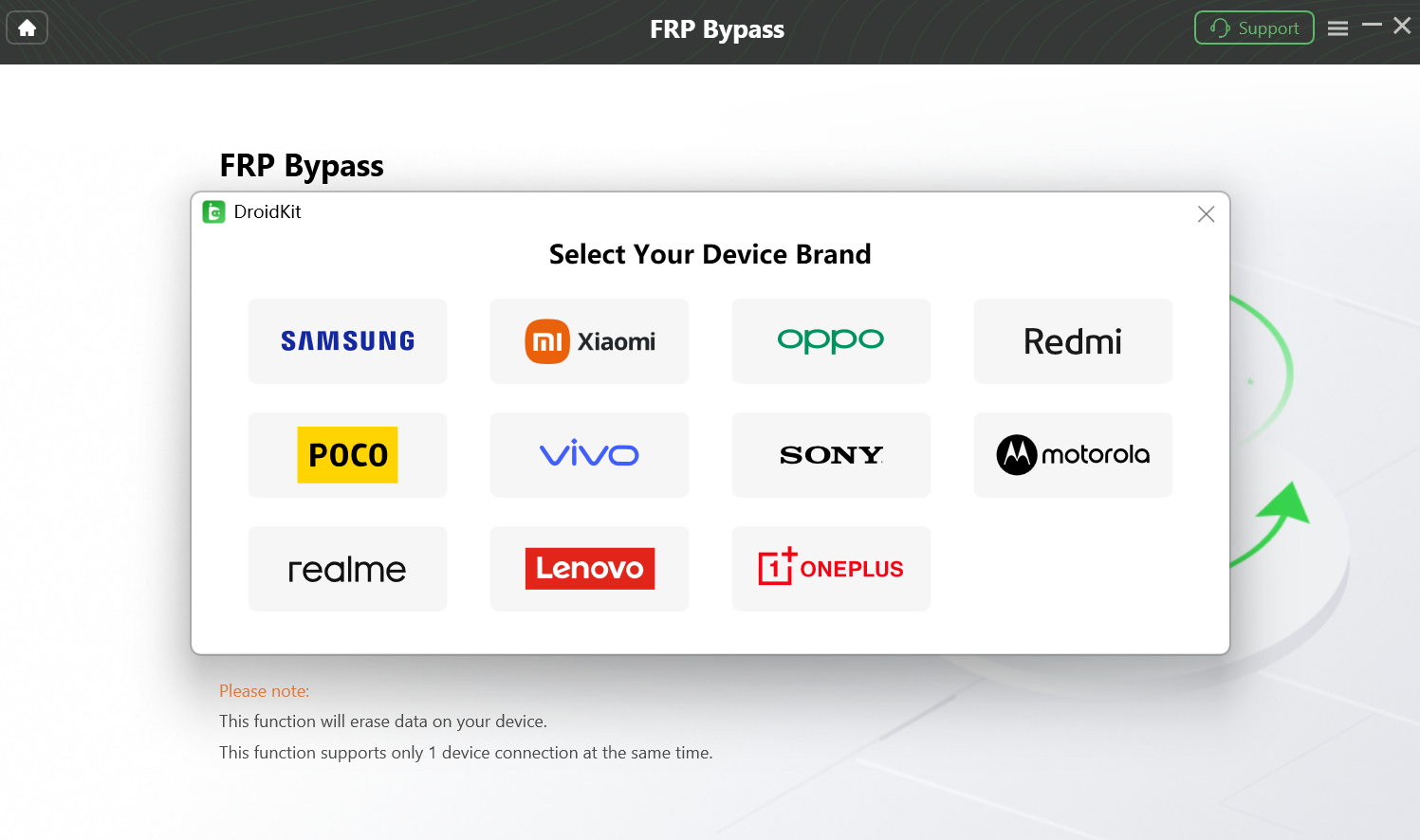
5. Follow the desktop guidance. The software will walk you through the necessary steps (like entering specific download modes) to safely bypass the management lock.
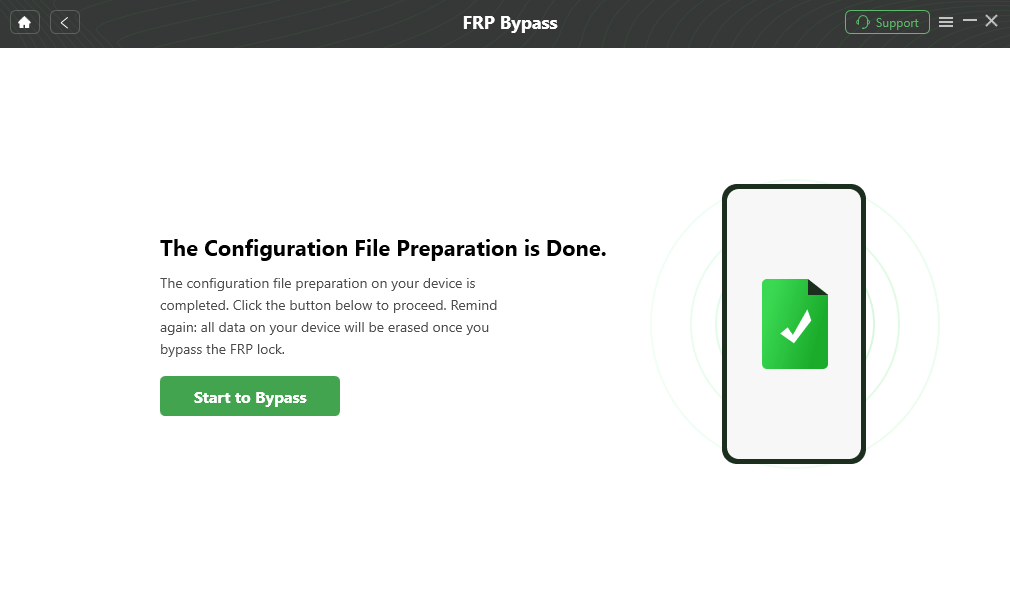
6. Set up your device. Once the process completes successfully, the phone will restart, allowing you to set it up as a personal device.
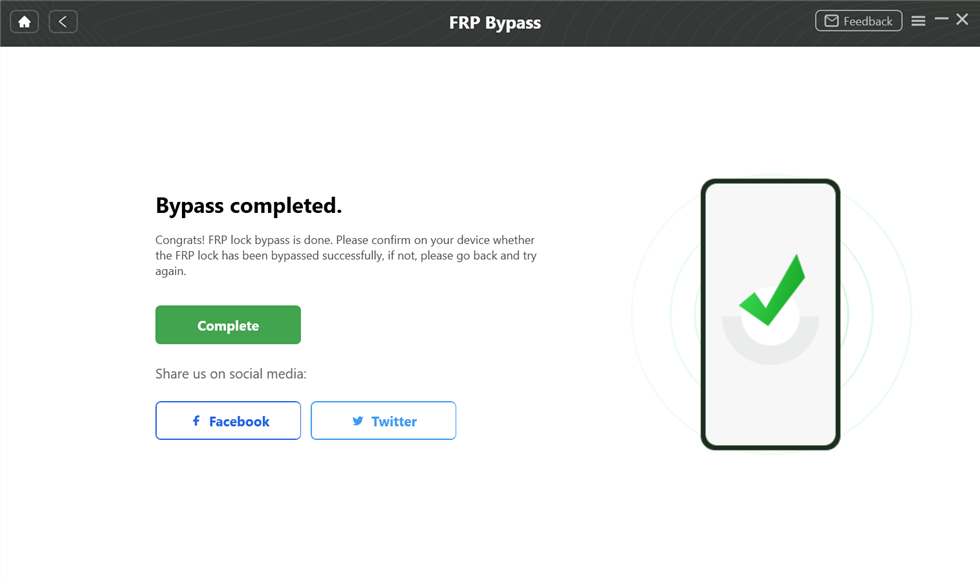
For non-technical users stuck with unusable hardware, DroidKit provides a much clearer, guided alternative to risky manual flashing methods.
FAQs About Android Work Profiles and MDM Locks
Q1:Does a factory reset remove the Android Work Profile?
Yes, if the device is a personal phone (BYOD) with a Work Profile, a factory reset will erase everything, including the work container. However, if the phone is a corporate-owned device with a Device Owner MDM lock, a factory reset will not remove the management profile.
Q2: Can I use DroidKit on any Android phone?
No. DroidKit supports many popular Android models, but compatibility is highly dependent on the device brand, exact model, Android OS version, and current security patch. You should always check the supported device list or let the software read your device before proceeding.
Q3:How do I know if my phone is monitored by IT?
You can check for management profiles by going to Settings > Security > Device admin apps (or similar, depending on your brand). If an app like Google Device Policy or a brand-specific MDM agent is listed and activated here, your device has some level of IT monitoring.
Final Thoughts: Choosing the Right Removal Path
Understanding the difference between a simple Android Work Profile and a strict MDM lock is the key to safely managing your device and protecting your privacy. How you move forward depends entirely on who owns the hardware and what state the device is in.
To summarize your best next steps:
- If it is a personal BYOD phone: You have full control. Simply use the Android Settings menu to delete the Work Profile container. Your personal data is untouched, and your privacy is secure.
- If it is a company-owned device and you are leaving your job: Do not try to hack or force a reset. Ask your IT department to properly unenroll and release the device from their management portal.
- If you are a legitimate secondhand buyer stuck with a locked device: First, attempt to contact the seller or original company for an official release using the contact info on the lock screen. If they are unresponsive and you are left with an unusable phone, check if a guided workflow like DroidKit supports your specific Android model to help you regain access legally.


 DroidKit