Quick Answer:
Supervised Mode is an Apple feature that gives schools, businesses, and institutions higher-level control over the iOS devices they own. Through Mobile Device Management (MDM), administrators can apply security restrictions, install specific apps, and manage web traffic on these institution-owned devices.
If you see the “This iPhone is supervised and managed” message on your screen, it typically means one of two things: either your employer or school issued this device to you, or you purchased a second-hand iPhone that is still tied to a previous organization’s management system. While the warning sounds alarming, it is a standard administrative tool, not illegal spyware.
Can a Supervised iPhone See My Texts and Photos?
The biggest anxiety users have when they see a supervision warning is whether their employer or a stranger can spy on their personal data. If you are worried that an administrator is reading your private messages or looking at your photos, you can relax. Apple strictly limits what an MDM profile can access to protect user privacy.
Supervised mode does not give administrators access to your personal iMessages, personal emails, or your private photo gallery.
Here is a clear breakdown of where the privacy boundaries lie:
| What Administrators CAN See | What Administrators CANNOT See |
|---|---|
| Device name, phone number, and serial number | Personal iMessages and standard SMS texts |
| Operating system version and compliance status | Personal emails (unless using a managed corporate account) |
| Apps installed via the MDM profile | Personal photo gallery and camera roll |
| Device location (if Lost Mode is activated by the organization) | Personal Apple ID data and passwords |
| Corporate web traffic (if routed through a mandatory corporate VPN or proxy) | Standard browsing history on personal Wi-Fi or cellular carrier data |
Unless you are browsing through a specifically configured corporate VPN, your standard daily usage remains highly private.
How to Check if Your iPhone Is Supervised
If you suspect your device might be heavily managed but aren’t entirely sure, Apple makes it very easy to verify your supervision status directly from the device.
How to check your supervision status:
- Open the Settings app on your iPhone.
- Look at the very top of the main Settings menu. On newer iOS versions, a message stating “This iPhone is supervised and managed by [Organization Name]” will appear prominently directly under your Apple ID.
- For older iOS versions, or to see more specific details about the restrictions, tap General, then tap About. Look for the supervision message near the top of the screen.
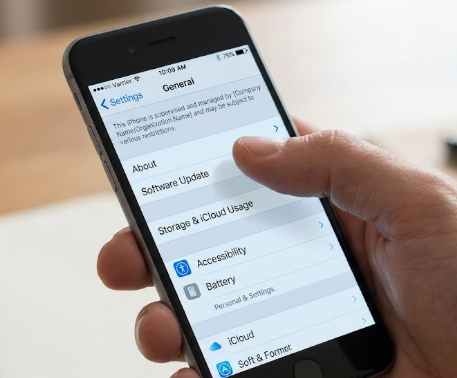
If you do not see this message in either of these locations, your device is not supervised and no MDM profile is actively managing your settings.
The Official Way to Remove Device Supervision
Because supervised mode is designed for organizational security, the intended and permanent way to remove it requires authorization from the organization that owns the profile.
Only the IT administrator of that organization can permanently remove device supervision. To do this, the administrator must log into their Apple Business Manager (ABM) or Apple School Manager (ASM) portal and officially release the device’s serial number from their MDM server. Once they do this, you can factory reset the iPhone, and it will set up as a completely normal, unrestricted device.
If you are a second-hand buyer who unknowingly purchased a supervised device, your first and best step is to contact the seller or the IT department of the previous organization to request this official release. Before reaching out, gather the following details to prove ownership and speed up the release process:
- Device Serial Number and IMEI: Found in Settings > General > About (or printed on the device’s SIM tray).
- Proof of Purchase: A receipt, invoice, or email confirmation showing you lawfully acquired the device.
- Device Details: The specific model of the iPhone and the current iOS version.
Unfortunately, many second-hand buyers find that they cannot reach the previous IT admin, which requires looking into alternative troubleshooting steps.
Will a Factory Reset Remove Supervised Mode?
A common misconception is that a simple factory reset will delete the supervised mode lock. Unfortunately, this is rarely true, and it helps to understand the difference between local settings and server-side enrollment.
If an iPhone is enrolled in Apple’s server-side Device Enrollment Program (DEP), the supervision status is permanently tied to the device’s serial number on Apple’s end. When you perform a standard factory reset or an iTunes restore, all local data is wiped. However, the moment the iPhone connects to Wi-Fi during the initial setup phase, it pings Apple’s servers, recognizes its serial number, and is forced to re-download the MDM profile.
Because of this server-level persistence, standard resets or manual restores will leave second-hand buyers trapped on the “Remote Management” login screen, completely unable to use the device they purchased.
How to Bypass MDM on a Second-Hand iPhone
If you lawfully purchased a second-hand iPhone, cannot reach the original IT administrator, and are currently blocked by the Remote Management screen after a factory reset, you need a different approach. Because the official server-side release is unavailable, you can use a guided desktop toolkit like AnyUnlock to bypass the local MDM restriction so you can actually use your device.
AnyUnlock provides a specific “Bypass MDM” module designed to help authorized users and second-hand buyers skip the remote management login screen. If you are comparing solutions, AnyUnlock consistently ranks among the top MDM removal tools iPhone users rely on for accessible local bypass. Some users also investigate a 3uTools MDM bypass, but AnyUnlock focuses heavily on a guided, user-friendly workflow.

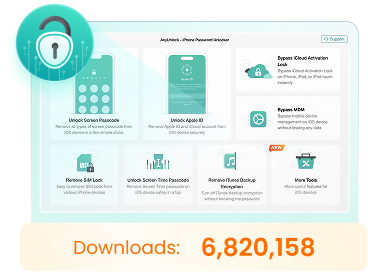
AnyUnlock – Unlock Any iOS Password
Quickly and easily unlock your iPhone/iPad/iPod touch from various locks such as screen lock, MDM lock, iCloud activation lock, Apple ID, iTunes backup password, and more.
Important Limitation: This is a local bypass. It allows you to enter and use the device normally, but it does not delete the device’s serial number from the organization’s Apple server. If you perform a factory reset in the future, the MDM screen may return, requiring you to run the bypass again.
How to bypass local MDM restrictions with AnyUnlock:
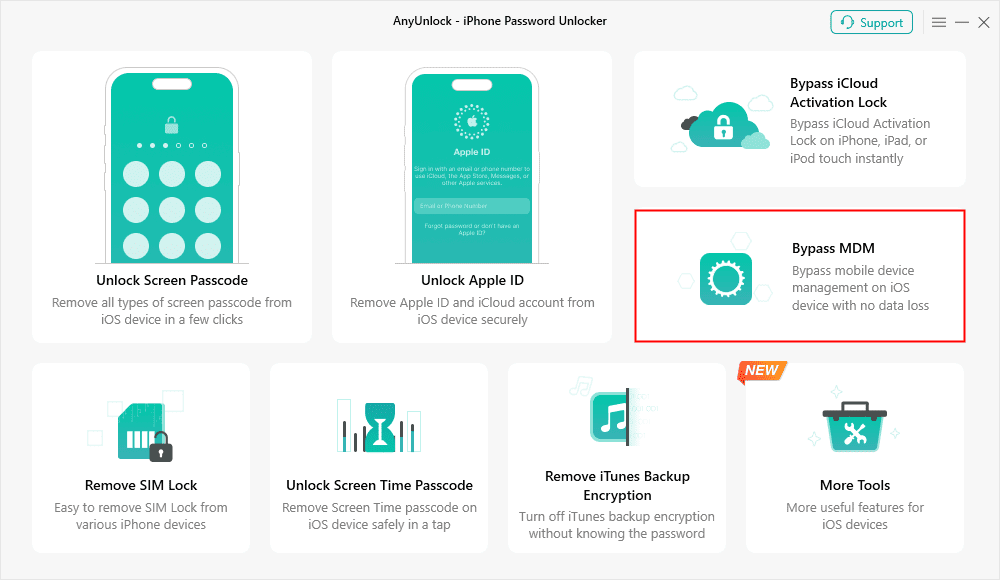
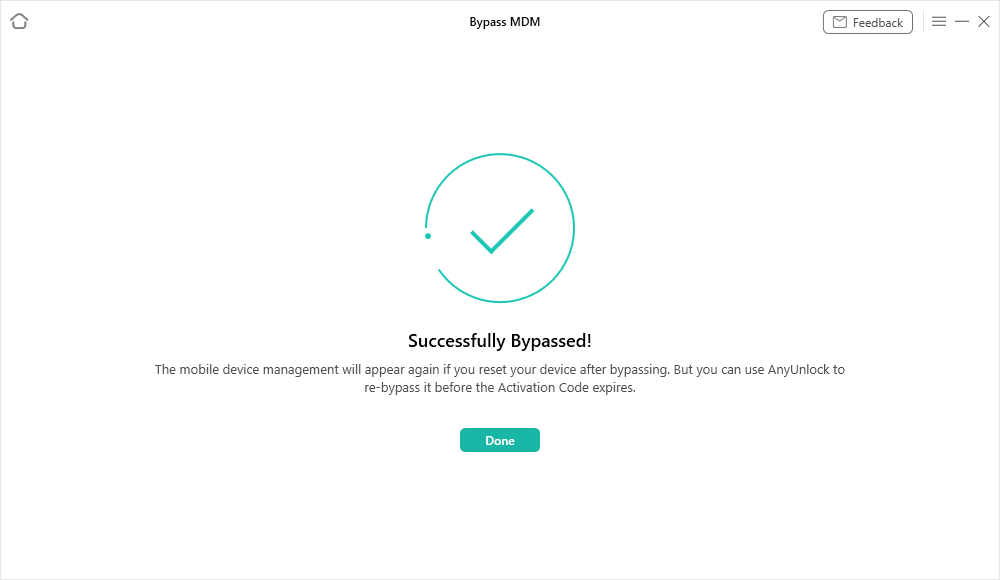
1. Download and install AnyUnlock from the official website onto your computer, launch the program, and select the Bypass MDM module.
2. Connect your lawfully owned iPhone to the computer using a USB cable.
3. Review the on-screen compatibility and limitation notes.
4. Follow the on-screen guided workflow to bypass the local restriction.
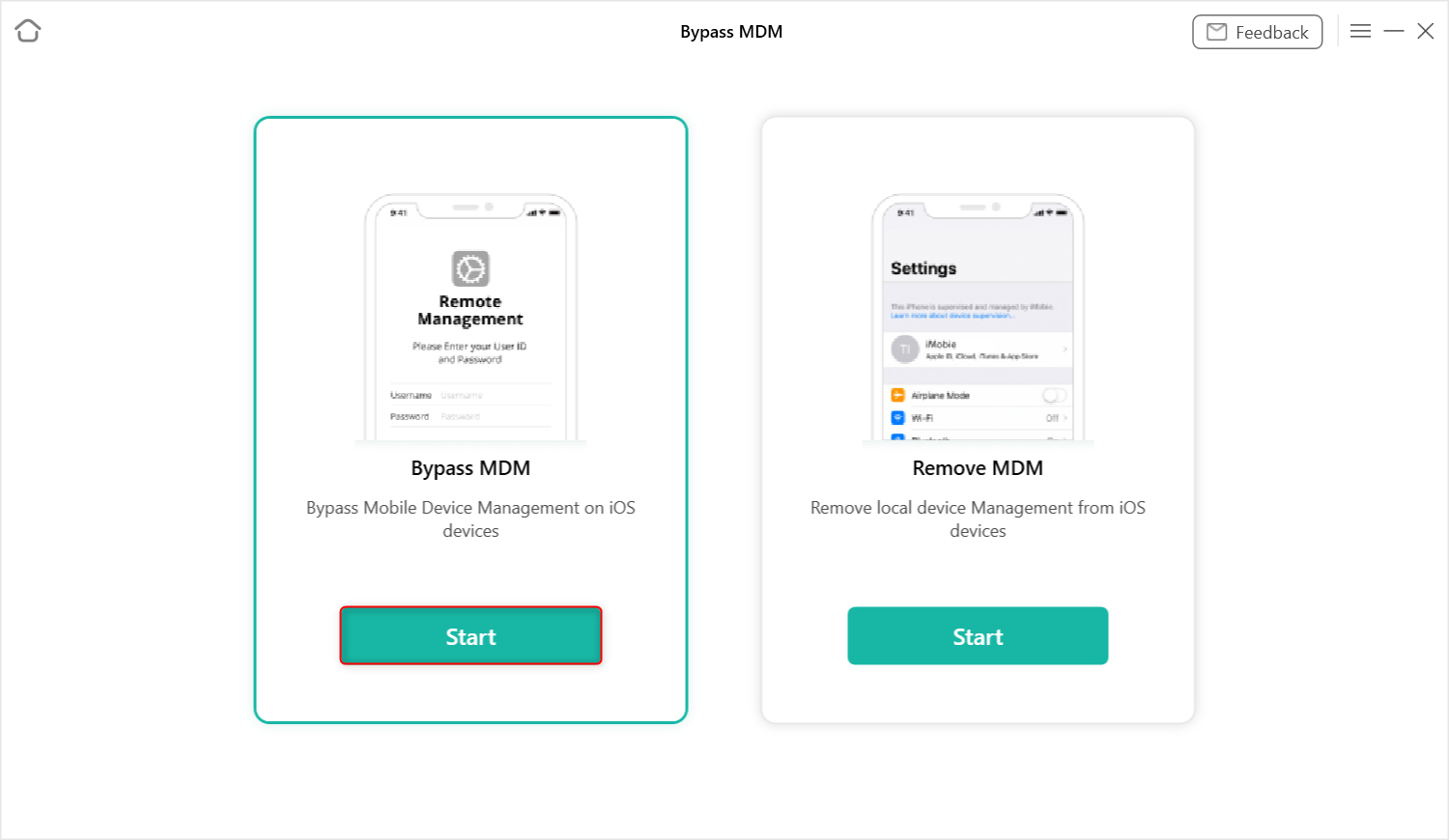
5. Once complete, your device will skip the Remote Management screen, allowing you to set it up and regain normal access
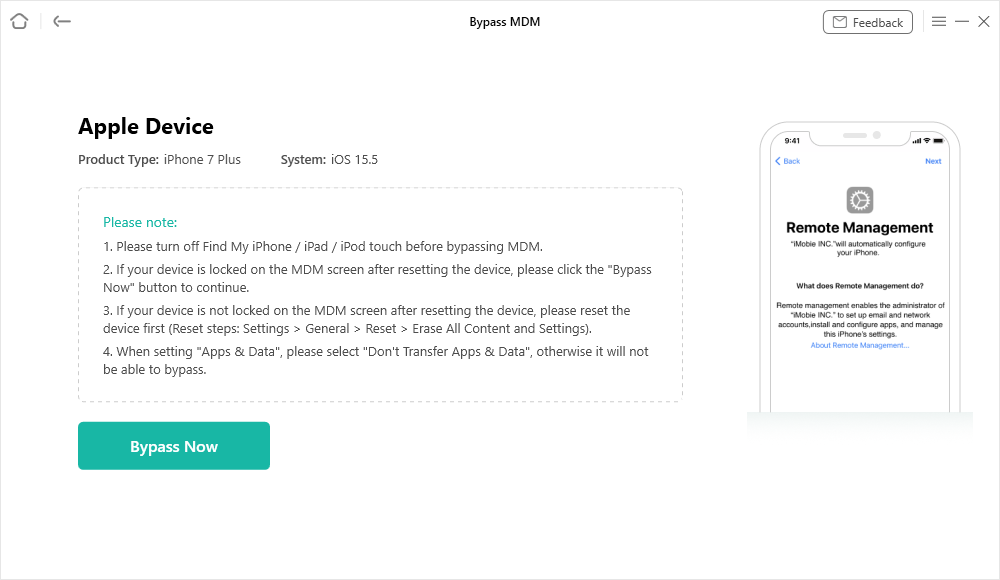
If you are stuck on the setup screen, check AnyUnlock’s compatibility to see if it supports your specific device and iOS version.
FAQs About iPhone Supervised Mode
Q1: Why does my second-hand iPhone say it is supervised?
When corporations or schools upgrade their technology, they often sell their old fleet of devices to third-party refurbishers or wholesalers. If the IT department forgets to release the devices from their Apple Business Manager servers before selling them, the device remains in supervised mode even after it reaches a new buyer.
Q2: Can a supervised iPhone see my browsing history?
Generally, no. An administrator cannot view your standard Safari browsing history on your personal Wi-Fi or cellular data. However, if the MDM profile forces your device to route its traffic through a mandatory corporate VPN or proxy server, the organization’s network administrators may be able to see the traffic passing through their servers.
Q3: How do I remove device supervision from my iPhone if I bought it used?
The best method is to contact the seller or previous organization and request that they remove the device from their Apple School or Business Manager account. If they are unresponsive, you will need to rely on a local MDM bypass tool to skip the Remote Management screen, keeping in mind that the supervision will return if you ever factory reset the phone.
Summary and Next Steps
Finding out your iPhone is in supervised mode can be stressful, but understanding what it actually means helps clear up the confusion. Supervised mode is simply a standard corporate device management feature, not illegal spyware, and Apple heavily restricts what administrators can monitor to protect your personal texts and photos.
If you want to permanently remove supervised mode, you will need the organization’s IT administrator to officially release the device from their servers. However, if you are a second-hand buyer blocked by the Remote Management screen and unable to reach the previous owner, you are not entirely out of options. You can use AnyUnlock’s guided desktop workflow to safely bypass the local MDM restriction and regain access to your iPhone, provided you understand that a future factory reset may cause the restriction to return.
Choose the path that fits your authorization level and enjoy using your device.
AnyUnlock – Unlock Any iOS Password
- Remove all types of screen locks and bypass Apple ID/iCloud Activation lock instantly.
- Disable “Find My” on iOS devices without password.
- Remove MDM restrictions and Screen Time passcodes securely.
- Recover, back up, and manage all iOS passwords in 1 handy place.


 AnyUnlock