How Long Do Hard Drives Last? A Data-Driven Guide for 2026
This guide explains how long hard drives typically last and how to check the real health of your own drive. Using reliability data and SMART analysis, it helps you understand drive lifespan and protect your data before failure happens.
Your most important files—family photos, critical work documents, personal records—live on a hard drive. The question that likely brought you here is a simple one, but it carries a heavy weight: how long will my data be safe? The fear of a sudden drive failure and the loss of irreplaceable information is a real source of anxiety. If you’re wondering how long do hard drives last, you need a clear, data-driven answer, not just a generic guess.
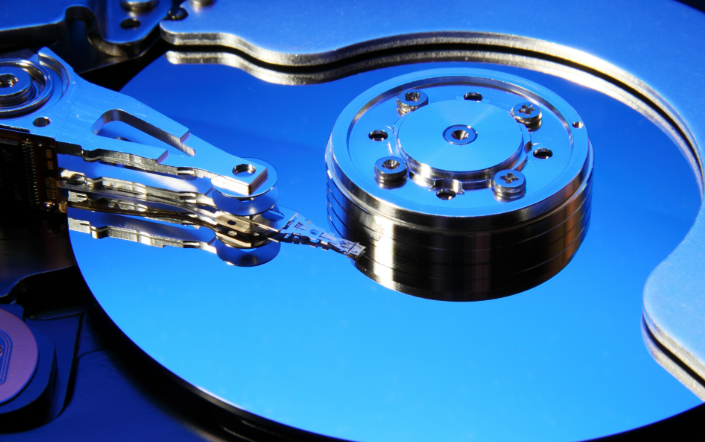
This guide is designed to give you that clarity. We’ll move beyond the simple averages and show you how to check the actual health of your specific drive. The information here is drawn from large-scale storage industry reliability reports and our own hands-on analysis of SMART data. We’ll provide you with the knowledge to not only understand your drive’s longevity but also to take practical steps to protect your data effectively.
The 3-to-5-Year Rule: A Starting Point, Not a Guarantee
To answer your primary question directly, the industry consensus for the average lifespan of a hard drive depends on its type.
- Hard Disk Drives (HDDs): For traditional spinning drives, the commonly cited lifespan is 3 to 5 years of regular use.
- Solid-State Drives (SSDs): For modern flash-based drives, the estimate is often higher, ranging from 5 to 10 years or more, depending on usage.
The key difference lies in their mechanics. An HDD contains spinning platters and a mechanical read/write arm that physically moves to access data. Over time, this constant motion leads to wear and tear. In contrast, an SSD uses flash memory with no moving parts, eliminating the risk of mechanical breakdown.
However, this 3-to-5-year window is just an average. It doesn’t tell you if your drive will fail in two years or last for seven. To get a clearer picture, we need to look at real-world data.
Beyond the Averages: What Real-World Data Shows
To live up to our “data-driven” promise, we can’t just stop at the general estimates. Cloud backup company Backblaze publishes quarterly reports on the failure rates of the hundreds of thousands of hard drives in their data centers. Their data consistently shows that the hard drive failure rate is not a simple curve.
While their drives operate under 24/7 server conditions, the insights are invaluable. Their studies reveal two key truths:
1. “Infant mortality” is real: A small percentage of drives fail within their first year due to manufacturing defects.
2. Failure rates vary wildly by model: Some drive models are exceptionally reliable, while others have significantly higher annualized failure rates (AFR).
Here’s a simplified look at how different drive models can perform under the same workload, based on their data:
| Drive Model (Example) | Size | Annualized Failure Rate (AFR) |
| Seagate ST12000NM0007 | 12TB | 0.65% |
| Toshiba MG07ACA14TA | 14TB | 1.05% |
| WDC WUH721816ALE6L0 | 16TB | 0.14% |
Source: Example data illustrative of Backblaze’s Q2 2023 report.
This shows that manufacturer quality and specific model lines play a massive role. Your drive’s lifespan isn’t just a generic number; it’s tied to its specific design and build quality.
Key Factors That Influence Hard Drive Longevity
A drive’s age in years is less important than how it has been treated. The actual lifespan of any drive is determined by a specific set of hdd reliability factors.
- Usage Patterns & Power-On Hours: A drive’s life is best measured in power-on hours. A drive in a server that runs 24/7 will age far more quickly than one in a personal laptop used a few hours a day. Likewise, the solid state drive lifespan is directly related to the total volume of data written to it over time (known as write endurance or TBW – Terabytes Written).
- Environmental Conditions: Heat is the primary enemy of electronics. A drive operating consistently above its recommended temperature range (typically 0°C to 60°C or 32°F to 140°F) will have a shorter life.
- Drive Type and Form Factor: Where your drive lives matters.
- Internal Desktop HDDs: Generally live in a stable, well-ventilated environment, giving them the best chance at a long life.
- Laptop HDDs/SSDs: Are subject to more movement, vibrations, and potential shocks, which increases the risk for mechanical HDDs.
- External Hard Drives: Face the most risk. They are frequently plugged in and out, transported, and are more susceptible to being dropped or knocked over, making physical damage a primary concern.
A Practical Guide: How to Really Check Your Hard Drive’s Health
You don’t have to guess about your drive’s health. Modern drives have a built-in monitoring system called SMART (Self-Monitoring, Analysis and Reporting Technology). While your operating system can give you a basic “OK” status, this often fails to warn you about developing problems. To get a real, predictive look, you need a dedicated tool.
For Windows 11 & 10 Users: Using CrystalDiskInfo
The basic Windows `wmic` command is not enough. For a deep, clear view of your drive’s health, we recommend a free tool called CrystalDiskInfo.
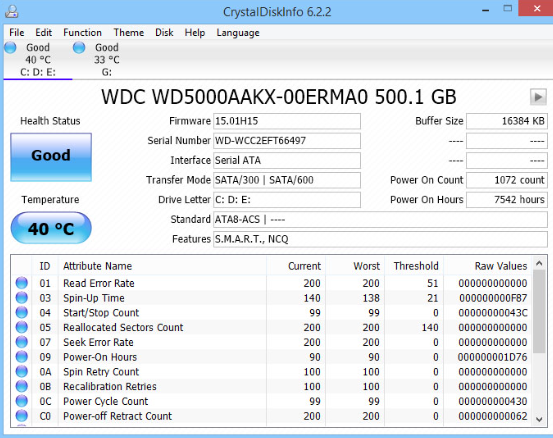
1. Download and install CrystalDiskInfo (the Standard Edition is free).
2. Run the application. It will immediately show you the health status of all connected drives.
3. Don’t just look at the overall “Health Status.” Pay close attention to the table of attributes below it.
Here are three critical SMART attributes to watch. A warning on any of these is a major red flag, even if the overall status says “Good.”
- (05) Reallocated Sectors Count: This is the number of bad sectors the drive has found and replaced with spares. A value greater than zero means the drive’s surface is physically degrading. This is often the first and most reliable sign of impending failure.
- (C5) Current Pending Sector Count: This tracks “unstable” sectors that the drive is having trouble reading. If the drive successfully reads them later, this number might go down. But if it keeps rising, it’s a strong indicator of a problem.
- (C6) Uncorrectable Sector Count: This is a count of errors that could not be fixed. A value above zero here is a serious warning that you are likely already experiencing data corruption.
For macOS Ventura & Monterey Users
While the built-in Disk Utility provides a basic “Verified” status, a more detailed tool like DriveDx (offers a free trial) can give you the same deep insights as CrystalDiskInfo. It translates the raw SMART data into an easy-to-understand health rating and highlights any attributes that are trending toward failure.
5 Proven Methods to Extend Your Hard Drive’s Lifespan
While every drive will eventually fail, you can take proactive steps to maximize its operational life. This turns anxiety into action.
1. Ensure Proper Cooling: Overheating is a primary cause of component degradation. Make sure your desktop or laptop has adequate ventilation, and clean out dust from fans and vents periodically.
2. Avoid Physical Shocks: This is especially critical for HDDs and any external hard drive. Always handle laptops and external drives gently. Avoid dropping or bumping them, particularly when they are powered on.
3. Manage Power Cycles: Turning your computer on and off frequently can cause more wear than leaving it on, especially for HDDs that have to spin up each time. If you use your computer throughout the day, leaving it on or in sleep mode is often a better option.
4. Run Meaningful Health Checks: As covered above, use a tool like CrystalDiskInfo or DriveDx to check your drive’s SMART status monthly. This allows you to catch the real warning signs before they cause data loss.
5. Create an Actionable Replacement Plan: Don’t just wait for failure. Be proactive. A smart replacement strategy gives you control. Here’s a simple framework to consider:
- For HDDs (especially for critical data): Plan to replace the drive after 3 years or 20,000 power-on hours, whichever comes first. You can find the Power-On Hours value directly in CrystalDiskInfo.
- For SSDs: The lifespan is based on data written. Check the “Percentage Used” or “Total Host Writes” SMART attribute. When it approaches 70-80%, it’s time to plan for a replacement.
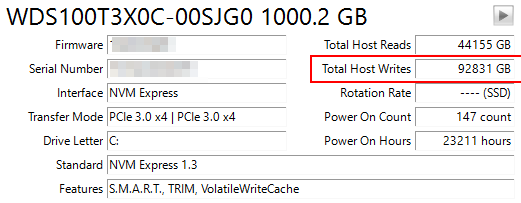
Jamie Patel, a small business owner, adopted this exact strategy. Instead of just worrying about the 3-5 year average, she now checks her external drives with CrystalDiskInfo quarterly. She has a calendar reminder to replace her primary backup drive every three years, regardless of its health status. This proactive schedule, combined with regular backups, has given her complete peace of mind.
Frequently Asked Questions About Hard Drive Failure
Here are direct answers to some of the most common questions about hard drive longevity.
What are the real warning signs of hard drive failure?
Beyond the SMART data, watch for these symptoms. For an HDD, this includes clicking or grinding noises, frequent freezes, and significantly slower file access. For an SSD, you might see files become read-only, frequent error messages when saving files, or your computer failing to boot.
Is a hard drive still good after 5 years of use?
An HDD over 5 years old is in a high-risk category. While it may still function, it should not be trusted with critical data that isn’t backed up elsewhere. An SSD’s health after 5 years depends entirely on its write endurance; check its SMART data for “Percentage Used” to know for sure.
Do external hard drives fail more often?
Yes, they often do. This isn’t usually due to lower manufacturing quality, but because their use case exposes them to more risk factors: frequent power cycles, transportation-related shocks, and the potential for being dropped.
How long does a hard drive last if not used?
If stored properly in a cool, dry, static-free environment, an unused HDD can retain data for a decade or more. However, when you eventually power it on, there’s a risk the mechanical parts may have seized. This is less of a concern for SSDs, though they can slowly lose their charge over many years in storage, which could potentially corrupt data.
Conclusion: Take Control of Your Data’s Future
Understanding your hard drive lifespan is the first step toward preventing catastrophic data loss. You no longer have to rely on generic 3-to-5-year averages or fear a sudden, unexpected failure. By learning what real-world data shows and how to interpret the critical health metrics of your own drive, you can move from a reactive to a proactive mindset.
The free tools available for Windows and macOS empower you to get a true diagnostic in minutes, giving you an early warning system that actually works. Instead of worrying, you now have a clear plan. Start by downloading a SMART utility and checking your drive’s key health attributes today. This one small action will give you immediate insight and help you regain control over the safety of your digital life.



Joy Taylor is a seasoned technical writer with over a decade of experience in mobile technology. At iMobie, she specializes in producing in-depth content on iOS data recovery, iPhone unlocking solutions, and iOS troubleshooting.
Product-related questions? Contact Our Support Team to Get Quick Solution >
