Samsung MCK Code Unlock Guide (2026): Fix Phone Freeze Error & Unlock Your Device
Got a “Phone Freeze” error on your Samsung? This guide explains what the MCK (Unfreeze) code is, how it differs from the NCK unlock code, and how to safely unlock your phone without risking permanent lock. Learn step-by-step how to fix a frozen Samsung using official methods or trusted third-party services—no scams, no guesswork.
That sinking feeling is real — your Samsung just showed the dreaded “Phone Freeze” screen after too many failed unlock attempts. You may feel frustrated, anxious, or even tricked by bad code sellers.
But take a breath — you’re not alone, and this is 100% fixable.
This guide was written to help you safely unfreeze your phone, understand precisely what the MCK (Unfreeze) code is, and how to unlock your Samsung permanently with confidence. Whether a fake unlock service has burned you or you’re just not sure what to do next, you’re in the right place. Let’s get your phone working again.
What Is an MCK Code and Why Is Your Samsung Phone Frozen?
The MCK, or Master Code Key, is a special code that unfreezes a Samsung phone that has been hard-locked after too many wrong unlock attempts. It removes the “Phone Freeze” block, allowing you to try the network unlock code (NCK) again.
Think of it like this:
- The NCK (Network Control Key): This is the standard 8-digit password needed to unlock your phone from its original carrier.
- Too Many Wrong Attempts: If you enter the wrong NCK code multiple times (usually 5 to 10 attempts), the phone assumes it’s a security threat. This often happens when using cheap, unreliable codes found online.
- The MCK (Master Code Key): To protect itself, the phone “freezes.” The MCK, also known as an Unfreeze Code or Defreeze Code, is an 8-digit master key. Its only job is to reset the failed attempt counter and unfreeze the phone, allowing you to enter the correct NCK code again.
NCK vs. MCK Code: What’s the Key Difference?
Understanding the difference between these two codes is critical. Many people get scammed into buying another NCK code when what they desperately need is the MCK. They are not interchangeable.
| Feature | NCK (Network Control Key) | MCK (Master Code Key / Unfreeze) |
| Primary Purpose | To unlock your phone from a specific carrier network. | To unfreeze your phone after too many wrong NCK attempts. |
| When You Need It | When you first insert a SIM from a new carrier. | Only when the phone shows a “Phone Freeze” message. |
| What It Does | Grants network freedom to use any SIM card. | Resets the lock counter and allows you to try unlocking again. |
| Can you bypass it? | No, you need the correct code to network unlock. | No, if the phone is frozen, the MCK is mandatory first. |
How to Safely Get a Samsung MCK Code (The Core Guide)
Your options for obtaining a legitimate MCK code are limited, so prioritizing safety is essential.
Method 1: Contact Your Original Network Carrier (Highly Recommended)
The ultimate source for your phone’s MCK and NCK codes is the carrier that originally sold the device (e.g., AT&T, Verizon, Vodafone). This is the safest and often free method.
Steps:
1. Find Your IMEI Number: Open your phone’s dialer and type *#06#. Your 15-digit IMEI will appear instantly.
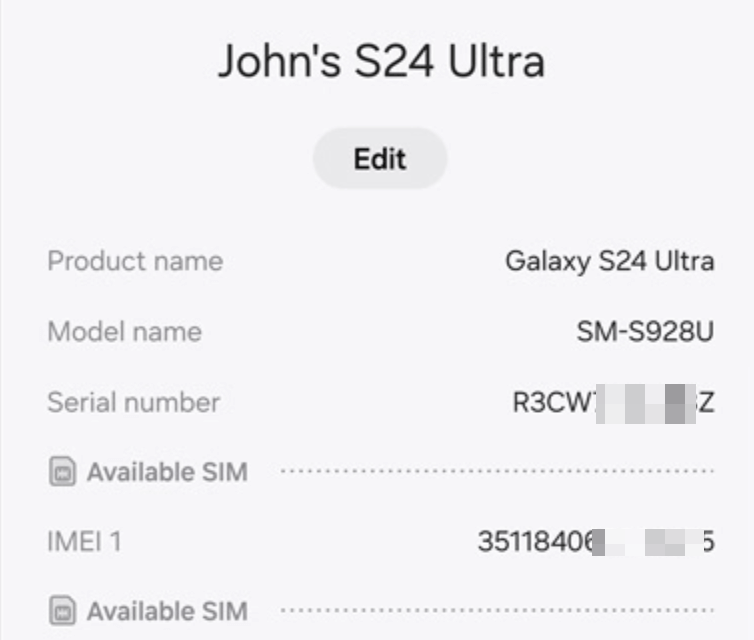
Dial to Find IMEI Number
2. Check Eligibility: Carriers typically have requirements for providing free unlock codes:
- The device must be fully paid off.
- Your account must be in good standing.
- The device must have been active on their network for a specific period (e.g., 60-90 days).
3. Contact Customer Support: Call your carrier’s customer service line or visit their official device unlocking page online.
4. Make a Clear Request: Tell the representative exactly what you need: “My Samsung phone is frozen after too many unlock attempts. I need the MCK (Unfreeze Code) and the NCK (Network Unlock Code).” Provide them with your IMEI and any account details they request.
5. Receive Your Codes: If you are eligible, the carrier will typically email you the codes within a few hours to a few days.
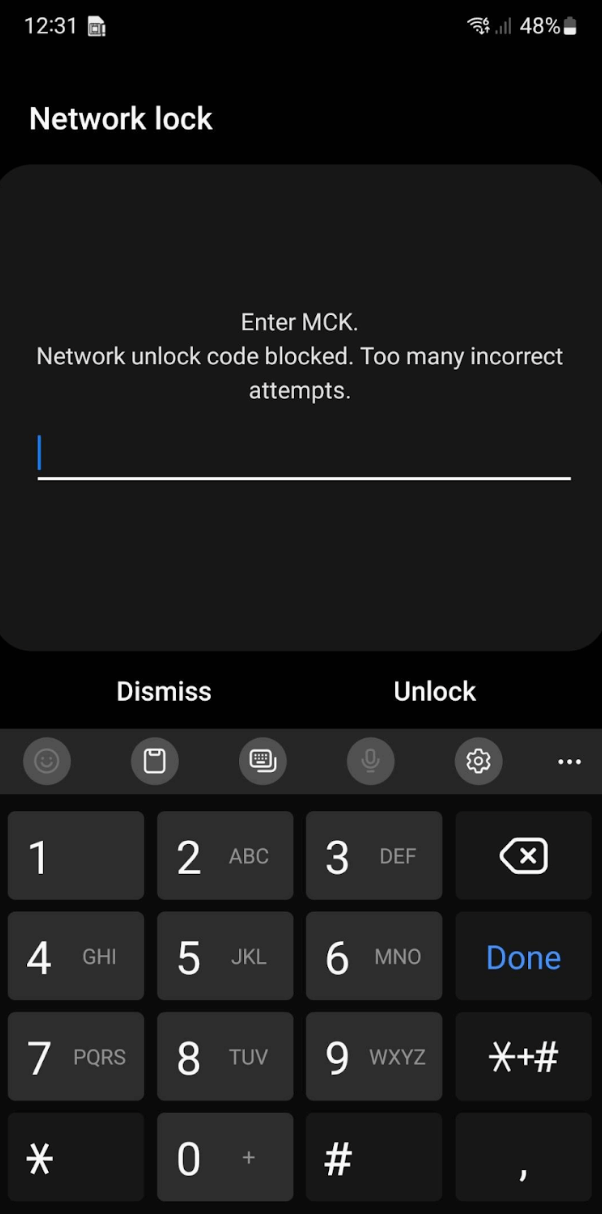
Samsung MCK Code Unlock Guide
Method 2: Use a Reputable Third-Party Unlocking Service
If your carrier is unable or unwilling to help (e.g., you’re not the original owner), a paid third-party unlocking service is your next best option.
How to Choose a Reputable Service:
- Check Reviews: Look for genuine customer reviews on independent sites like Trustpilot.
- Look for Guarantees: Choose a service that offers a “money-back guarantee” if they cannot unlock your device.
- Transparent Process: A trustworthy site will only ask for your phone’s IMEI number and payment. They will never ask you to download software.
These services use their industry access to retrieve the codes associated with your IMEI from global databases.
A Critical Warning: The Myth of “Free MCK Code Generators”
A quick search for “free Samsung MCK code” will yield countless sites and tools promising instant codes. AVOID THESE AT ALL COSTS.
- The Truth: MCK and NCK codes are unique to each phone’s IMEI and are stored in secure manufacturer/carrier databases. A public “generator” cannot possibly create them.
- The Risks: These fraudulent sites are designed to:
- Install malware or viruses on your computer.
- Phish for your personal and financial information.
- Trap you in endless surveys and ads.
Your Step-by-Step Guide to Using the MCK Code Correctly
Once you have the correct MCK (Unfreeze) and NCK (Network) codes from a reputable service, follow these steps with precision. You’re almost there.
Step 1: Turn off your phone and insert a SIM card from a different (non-accepted) carrier. If your phone is locked to Verizon, use an AT&T or T-Mobile SIM, for example.
Step 2: Turn the phone back on. It will display the “Phone Freeze” message and ask for a password.
Step 3: Carefully enter the MCK (Unfreeze Code) you received and press “Unlock” or “Confirm.”
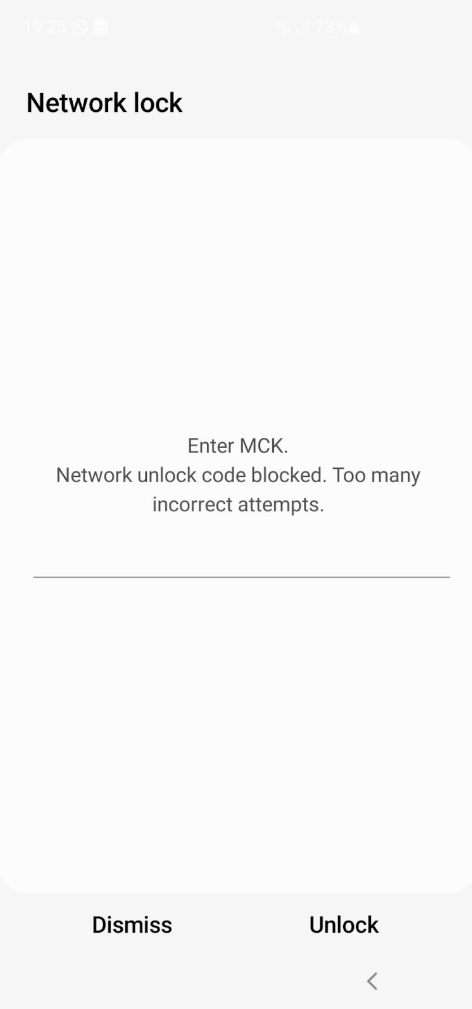
Enter MCK Code to Unlock
Step 4: The freeze screen will disappear, and the phone will likely show “Network unlock request unsuccessful.” Ignore this and do not panic. The pop-up will now change. It will no longer say “Phone Freeze.” Instead, it will ask for the “SIM network unlock PIN.”
Step 5: Now, enter the NCK (Network Unlock Code) you received and press “Unlock” or “Confirm.”
Step 6: Success! You should see a “Network Unlock Successful” message. Your phone will now restart or begin searching for the new network signal. It is now permanently unlocked.
Troubleshooting: What if the Correct Codes Still Fail?
You’ve followed the steps perfectly, used guaranteed codes from a trusted service, but the final NCK entry still results in an “unsuccessful” message. While rare, this can happen.
If both the correct MCK and NCK codes fail, the problem is almost certainly not the lock itself, but an issue with the phone’s software (firmware). This often happens if:
- The phone has custom software (a “ROM”) installed.
- A previous owner attempted to unlock it with patching software that damaged the security partition.
- The phone’s firmware is from a different region than the phone itself.
In this scenario, a simple code won’t work. Your next step is to immediately contact the support team of the unlocking service you used.
Frequently Asked Questions (FAQ) about the MCK Code
Q1: Will a factory reset remove the network lock or unfreeze my phone?
A: No. A factory reset erases all your personal data, but it does not affect the carrier’s SIM lock or a frozen state.
Q2: How many digits are the MCK and NCK codes?
A: Both codes are typically 8 digits long, though this can sometimes vary depending on the device model and original carrier.
Q3: What happens if I enter the wrong MCK code?
A: You have a very limited number of attempts to enter the MCK code. If you enter it incorrectly, you risk “hard locking” the phone, which may be irreversible without professional service. Always get your codes from a reliable source and enter them carefully.
Q4: I only received an MCK code. Is that enough?
A: No. The MCK code only solves the “frozen” state. You will still need the correct NCK code to perform the actual network unlock afterward. Ensure you receive both codes.
Conclusion
Facing a “Phone Freeze” on your Samsung is a frustrating issue, but it is not a permanent one. By understanding the critical difference between NCK and MCK codes, avoiding fraudulent “generator” scams, and selecting a professional unlock service with a money-back guarantee, you can confidently take the necessary steps to unfreeze your Samsung phone and enjoy the freedom of using any carrier you choose.
More Related Articles



Joy Taylor is a seasoned technical writer with over a decade of experience in mobile technology. At iMobie, she specializes in producing in-depth content on iOS data recovery, iPhone unlocking solutions, and iOS troubleshooting.
Product-related questions? Contact Our Support Team to Get Quick Solution >
