Essential Guide to Pen Drive Data Recovery Software (2026 Edition)
Lost files from a pen drive due to accidental deletion, formatting, or corruption? This 2026 essential guide breaks down how pen drive data recovery software really works and which solutions are worth using today. You’ll learn the safest recovery workflow, what to try before writing new data, and how to choose reliable tools to restore files from USB flash drives without making the damage worse.
Losing critical data feels instantaneous. One moment, your files are accessible; the next, an accidental click or a system error wipes them out. The panic—that cold pit in your stomach—is universal. Whether you are dealing with a pen drive formatted and data lost scenario or a device that suddenly demands formatting, the anxiety is valid.
However, your files are likely not erased, merely hidden from the operating system. If you act quickly and avoid using the drive, recovery is highly probable—starting with built-in options like Windows File Recovery before moving to third-party tools. This guide focuses on immediate solutions, helping you regain control and retrieve your data using the right pen drive data recovery software.
Quick Decision: Free Methods vs. Professional Recovery Software
Before you start downloading tools, you need to understand the landscape. Users often search for a “pen drive recovery tool free download,” hoping for a magic fix. It is vital to manage your expectations here to avoid wasting time.
There is a significant difference between “Freeware” and “Free Trial” software.
- Truly Free Tools (e.g., Recuva): These are 100% free but often lack the advanced algorithms needed to recover files from formatted or corrupted drives. They work best for simple accidental deletions.
- Professional Tools (e.g., Disk Drill, EaseUS): These offer “Free Downloads,” but they are usually trials. They allow you to scan and preview files for free, but often cap the actual recovery at 500MB or require a license to save the files.
The Reality Check:
If you are a student like Ava—who deleted a file by mistake but the drive works fine—a PC data recovery tool usually works. If your drive is corrupted, asks to be formatted, or the files are critical business data, professional software is safer and more effective.
| Feature | Manual Methods (CMD) | Truly Free Software (Recuva) | Professional Software (Disk Drill/EaseUS) |
| Primary Use | Unhiding files | Simple accidental deletion | Formatted, RAW, or Corrupted drives |
| Success Rate | Low (Access issues only) | Moderate | High (Deep scan recovery) |
| User Friendliness | Moderate (Command Line) | High | High (GUI + Support) |
| Cost | Free | Free | Free Scan / Paid Recovery |
If your files were permanently deleted (SHIFT+DELETE) or the drive was formatted, manual methods will not work. You need dedicated software.
Top Recommended Pen Drive Recovery Tools
To save you from searching blindly, here are the tools we recommend based on specific needs.
1. Disk Drill (Best Overall for Windows/Mac)
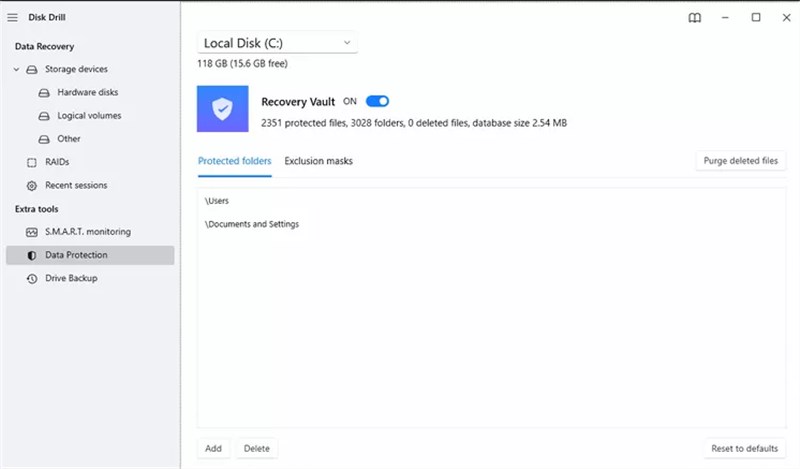
Disk Drill is widely considered the industry standard for its balance of power and ease of use. It excels at deep scan recovery, reconstructing files even when the file system is damaged.
- Best for: Corrupted drives, RAW partitions, and users who aren’t tech-savvy.
- Note: The free version allows you to scan and preview everything, ensuring your data is there before you pay.
2. Recuva (Best Free Option)
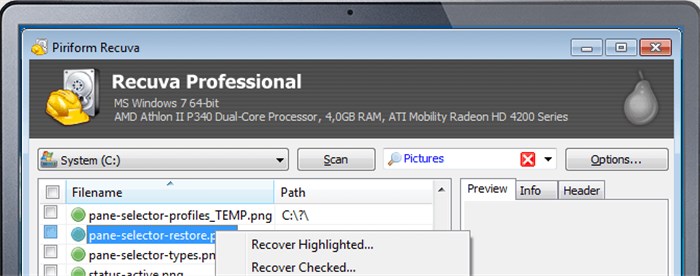
If you simply deleted a file and the drive is healthy, Recuva is a solid first step. It is lightweight and completely free.
- Best for: Students or users with zero budget dealing with simple accidental deletion.
- Limitation: It struggles with formatted usb recovery or complex directory structures.
3. EaseUS Data Recovery Wizard
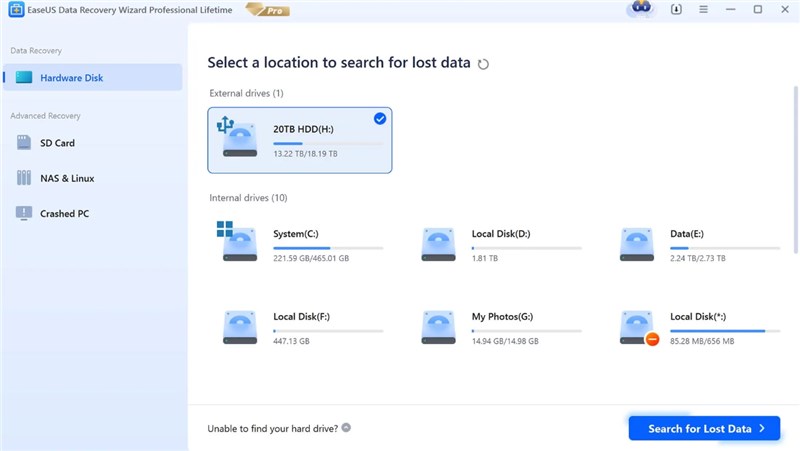
A strong alternative to Disk Drill, EaseUS is particularly fast at scanning large drives.
- Best for: Large video files and photo recovery.
How to Use Pen Drive Data Recovery Software (Step-by-Step)
Let’s look at the workflow. We will use the general process applicable to top-tier tools like Disk Drill or EaseUS.
The Golden Rule: Ava successfully restored her files because she followed one critical instruction: Stop using the drive. Every second the drive is plugged in and active, Windows might write temporary files to it, permanently overwriting your lost data.
Step 1: Install Safely
Download your chosen software. Install the software on your computer’s main hard drive (usually C:), never on the pen drive you are trying to rescue. Installing it on the USB drive will overwrite the files you lost.
Step 2: Select the Drive
Launch the software. You will see a list of connected storage devices. Select your USB drive.
If you are dealing with a partition recovery usb scenario where the drive letter (e.g., E:) is missing, look for the drive brand name or capacity (e.g., “Generic Flash Disk 16GB”).
Step 3: Initiate the Scan
Click the “Search for lost data” or “Scan” button.
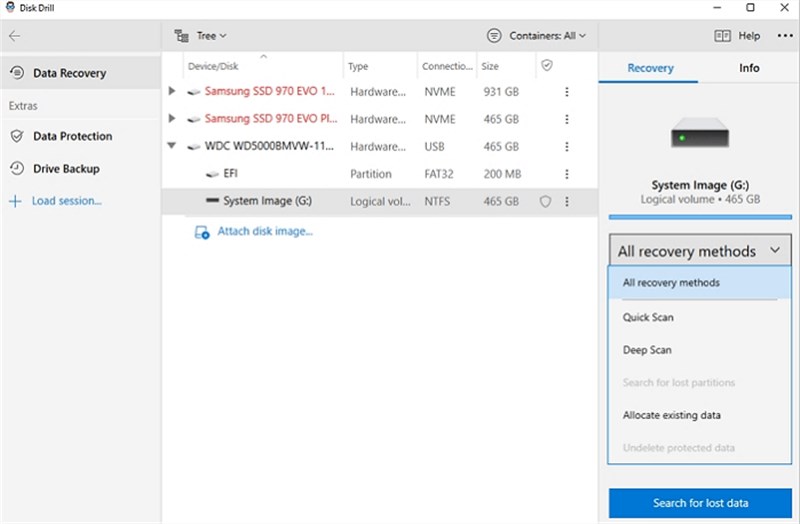
- Quick Scan: This finishes in seconds and finds recently deleted files.
- Deep Scan: Most professional tools run this automatically if the Quick Scan fails. It scours every sector for file signatures (like the header of a .JPG or .DOCX). This is necessary for formatted USB recovery but can take 20–40 minutes depending on drive speed.
Step 4: Preview and Restore
Once the scan finishes, do not just click “Recover All.” Browse the results.
- Preview: Double-click a file to preview it. If you can see the image or read the document in the preview window, the recovery is guaranteed to work.
- Recover: Select the files you need and click “Recover.”
Critical Expert Insight:
Never restore files to the same drive you are recovering from. If you save the rescued files back onto the USB drive during the process, you will corrupt the remaining data. Always save them to a folder on your Desktop first, then move them back to the USB only after you have formatted and verified the drive is working again.
Recovering from Formatted, RAW, or Undetected Drives
Sometimes the issue isn’t accidental deletion, but a system error asking you to “Format Disk” before you can use the drive. This indicates file system corruption, often resulting in a RAW USB drive or even unreadable drives. In this state, Windows cannot understand the file structure, but the actual data usually remains intact on the memory chips.
Can I recover data from a formatted pen drive?
Yes. When you format a drive (specifically a “Quick Format”), the data is not erased; the file system is simply reset, marking the space as “available.” High-quality pen drive data recovery software bypasses the confused Windows file system to read the binary data directly.
What if the pen drive is not detected?
For a pen drive not detected recovery, verify if the drive appears in Windows Disk Management (Right-click Start > Disk Management). If the drive appears here as “Unallocated” or “No Media,” software can still help.
- Do Not Format: If Windows prompts you to format, click “Cancel.” Formatting adds a layer of complexity.
- Run Recovery Software: Open your recovery tool (Disk Drill/EaseUS). Even if Windows Explorer doesn’t show the drive letter, these tools can often detect the RAW partition connected to the system.
- Deep Scan: A deep scan recovery is essential here to reconstruct files without a valid file table.
Manual Fixes: CMD and Driver Reinstallation
If you want to try a manual fix before downloading software, these methods are safe to try. They are effective for USB not recognized windows errors or files hidden by viruses, but they will not recover permanently deleted data.
Method 1: The Attrib Command (Unhiding Files)
Sometimes files are just hidden by malware.
1. Press Win + R, type cmd, and press Enter.
2. Type the following command (replace X with your USB drive letter): attrib -h -r -s /s /d X:\*.*
3. Press Enter. If the files were hidden, they should reappear in the folder immediately.
Method 2: Reinstall USB Drivers
If the USB light is on but the drive isn’t showing up, the driver might be glitching.
1. Open Device Manager.
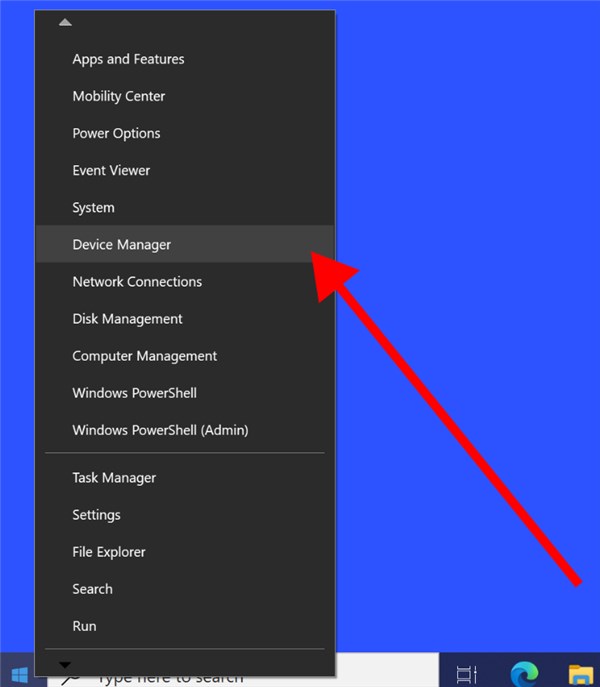
2. Expand Disk Drives and look for your USB brand.
3. Right-click it and select Uninstall device.
4. Restart your PC. Windows will automatically attempt to reinstall the driver upon reboot.
Diagnosis: Physical Damage vs. File System Corruption
Not all data loss can be solved with software. It is vital to distinguish between logical errors (software recoverable) and physical damage. Attempting to force software scans on a physically broken drive can destroy the data permanently.
Logical Failure (Software Safe)
- Symptoms: Accidental deletion, formatting, RAW usb drive status, “Format Disk” errors.
- Solution: Use the software recommended above immediately.
Physical Failure (Hardware Danger)
- Symptoms: The drive is bent or cracked, gets extremely hot when plugged in, makes clicking sounds, or shows absolutely no light/activity in Device Manager.
- Solution: Stop immediately. Software cannot fix broken hardware. You need a professional lab service.
Expert Insight on Safety:
If your drive is unstable—connecting and disconnecting intermittently—repeated scans can cause the memory chips to fail completely. In this scenario, use recovery software that includes a “Create Image” or “Byte-to-Byte Backup” feature (Disk Drill and EaseUS both have this). Create an image file of the USB drive first, save it to your PC, and then scan the image file rather than the physical drive. This minimizes stress on the failing hardware.
Pen Drive Data Recovery FAQs
Q1. Why are recovered files corrupted or missing names?
This happens when file system corruption is severe. The software recovers the binary data (the file content) but cannot retrieve the metadata (filename and folder path). You may need to rename files manually after recovery.
Q2. Why does my pen drive say it needs formatting?
This message usually indicates the drive has become RAW. The partition table is damaged, so Windows cannot read it. Do not format it until you have recovered your data.
Q3. Is there free pen drive recovery software that works without limits?
Most “completely free” tools like Recuva work well for simple deletions but lack the power for RAW recovery. Top-tier tools offer free previews but generally require payment for full recovery of large amounts of data.
Q4. Can I recover photos from usb specifically?
Yes. Recovery software is particularly effective with media files (JPG, PNG, MP4) because they have distinct file headers that are easy for deep scan algorithms to identify, even on a write protected usb or corrupted partition.
Conclusion
Data loss on a pen drive is alarming, but it is rarely the end of the road. By distinguishing between physical damage and logical errors, and by choosing the right recovery tool—whether that’s a free utility like Recuva for simple mistakes or a robust tool like Disk Drill for corrupted drives—you can reverse what seems like a disaster and even restore deleted videos on PC when they were stored on the USB.
The most critical factor is your reaction time. Stop using the drive immediately to prevent overwriting, run a scan using one of the recommended tools, and save your data to a secure location on your computer. Start your recovery scan now to restore your important files.



Joy Taylor is a seasoned technical writer with over a decade of experience in mobile technology. At iMobie, she specializes in producing in-depth content on iOS data recovery, iPhone unlocking solutions, and iOS troubleshooting.
Product-related questions? Contact Our Support Team to Get Quick Solution >
