How to Recover Data from Micro SD Card: The 2026 Field Guide
Lost files on a micro SD card due to deletion, formatting, or corruption? This 2026 field guide walks you through proven recovery steps, from safe first checks to reliable recovery software methods. You’ll also learn what to avoid to prevent overwriting data and reduce permanent loss.
The moment your dash cam or phone notifies you of an “SD Card Error,” a specific type of panic sets in. Whether it’s family vacation photos on a phone that suddenly asks to format, or critical dash cam footage that refuses to play, the fear of permanent loss is real. Like Tom, a dash cam owner we recently assisted, you might be staring at a “Format Required” message, knowing that a single incorrect click could wipe everything.
If you need to recover data from a micro SD card that has become unreadable, corrupted, or formatted, immediate action is required—but it must be the right action. This guide provides a tested workflow to handle micro sd card data recovery effectively. It addresses the common pain points of accidentally deleted audio files, RAW file systems, and cards that your PC refuses to recognize.
The Critical Rule: Stop Using the Card Immediately
Before downloading software or opening a command prompt, you must adhere to one non-negotiable rule regarding flash storage physics.
🛑 STOP: Do Not Write New Data
Remove the microSD card from your device immediately.
Expert Insight: Success rates for recovery drop sharply if the card continues to operate after data loss. This is because standard file deletion or formatting marks the space as “available,” but the magnetic data remains. However, if your phone takes a new photo, or your dash cam loops and records a new minute of video, it will overwrite the specific storage blocks where your lost files currently reside. The same “stop overwriting immediately” principle applies in content-loss scenarios like recover deleted YouTube videos: once new uploads, edits, or account actions replace or remove the original asset’s references, your practical recovery options can narrow quickly.
Once a sector is overwritten, the data is permanently destroyed. The safest approach is to eject the card and connect it to a PC only when you are ready to perform the recovery procedure.
Recovery Options Compared: Software vs. Manual Fixes
Before proceeding, you must choose the correct method based on your specific data loss scenario. There are generally two approaches: utilizing micro sd card recovery software (Deep Scan) or attempting manual system repairs via Windows Command Prompt.
Understanding which method applies to your situation is vital to avoid causing further damage.
The Decision Matrix
| Feature | Method A: Professional Recovery Software | Method B: Manual Windows Fixes (CHKDSK) |
| Primary Mechanism | Performs a read-only scan to find file signatures (photos, videos) on the storage blocks. | Attempts to repair the file system structure (FAT32/exFAT) and bad sectors. |
| Safety Level | High. It does not alter data on the card. | Moderate to Low. Can convert lost file fragments into unusable .chk files. |
| Best For | Recover deleted files from micro sd card, formatted cards, or “Format Required” errors. | Minor file system errors where files exist but the card acts glitchy. |
| Ideal User | Users with accidental format/deletion. | Tech-savvy users with a slightly corrupted file table. |
If your goal is SD card file recovery after a deletion or format, manual fixes often fail because the file system pointers are already gone. For these cases, a deep scan tool is the necessary solution.
Method 1: Recover Deleted Files from Micro SD Card (Deep Scan)
For most users, the most effective solution is a specialized deep scan tool. This method is particularly vital when you encounter errors suggesting the card is unrecognized or needs formatting.
Step 1: Connect via a Dedicated Card Reader
Do not attempt micro sd card recovery on PC by connecting your phone or camera via a USB cable.
The Problem: Devices like phones use MTP (Media Transfer Protocol), which abstracts the file system and blocks direct access to the storage sectors needed for recovery.
The Fix: Use a dedicated USB microSD card reader. This allows Windows to assign a drive letter and access the raw storage blocks directly.
Step 2: Choose Your Recovery Software
Many users get stuck here, fearful of downloading malware or ineffective PC recovery tools. You need software that can perform a “signature scan”—reading the raw data even if the file system is broken.
Here are three reliable tiers of software we have tested and verified:
- The Free Option (Recuva): Excellent for simple, recently deleted photos on cards that are physically healthy. It is basic but safe.
- The User-Friendly Choice (Disk Drill): This is the tool we recommend for most users. It has a modern interface, excellent visualization of recoverable files, and handles RAW partitions well. The free version typically allows you to preview files to guarantee they are recoverable before you pay.
- The Professional Open-Source Tool (PhotoRec): If you are comfortable with a text-only interface (no mouse support), this is a powerful, completely free engine. However, it is complex and not recommended for beginners.
Step 3: Select and Scan
- Launch your software (e.g., Disk Drill). You should see your card listed as a removable drive (e.g., “Drive E: 64GB”).
- Select the drive and start the “Deep Scan” or “Full Recovery.”
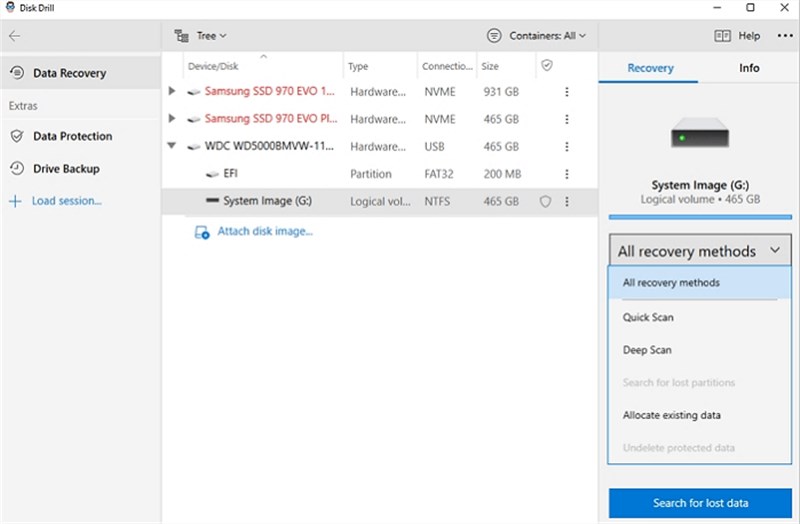
A deep scan may take 30 minutes to several hours depending on the card’s speed and size (e.g., a slow Class 10 card will take longer than a UHS-II card).
Step 4: Preview and Verify
Once the scan completes, the software will display a list of recoverable files.
- Recover photos from micro sd card: Look for .JPG or .RAW files. Most software allows you to preview the image to ensure it isn’t corrupted (half-grey images).
- Video Files: Look for .MP4 or .MOV files. (See the “Troubleshooting Video” section below if these do not play).
Step 5: Save to a Different Drive (Crucial)
- Select the files you wish to keep and click “Recover.”
Never save the recovered files back to the same microSD card you are scanning. Doing so will overwrite the very data you are trying to rescue.
- Save them to a folder on your computer’s desktop or an external hard drive.
Method 2: Fix a Corrupted or RAW Micro SD Card Without Formatting
If your card is technically readable but the file system has collapsed—often indicated by the card showing as “RAW” rather than FAT32 or exFAT—you may be able to repair the structure without professional software. This is often required for RAW microSD recovery.
Using the CHKDSK Command
1. Plug your microSD card into the card reader.
2. Press Windows + X and select Windows PowerShell (Admin) or Command Prompt (Admin).
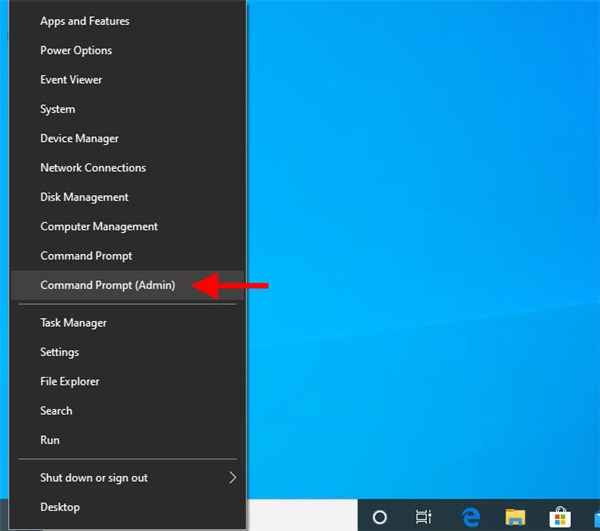
3. Type the following command, replacing “X” with your SD card’s drive letter: chkdsk X: /f
4. Press Enter. Windows will attempt to find logical errors and repair bad sectors.
⚠️ Critical Warning
Although effective for corrupted sd card data recovery, the CHKDSK utility is an aggressive repair tool. It essentially “snaps” the file system back into a grid. If data is in the wrong place, CHKDSK often converts these corrupted file fragments into .chk files, which are difficult to restore into usable photos or videos.
Recommendation: If your data is valuable, we strongly advise running the Deep Scan method (Method 1) before attempting this fix. Recover the files to a safe drive first, then use CHKDSK to repair the card for future use.
Troubleshooting: Micro SD Card Not Detected or “No Media”
A common obstacle users face is an SD card not detected by the computer at all. Before assuming the card is dead, you must determine if this is a connection issue, a driver error, or a physical failure.
The Disk Management Check
The most reliable way to diagnose this is through Windows Disk Management, as File Explorer often hides drives with file system errors.
1. Right-click the Start button and select Disk Management.
2. Scroll through the list of disks at the bottom of the window.
Scenario A: Card is Visible but ‘Unallocated’
If the card appears but the bar representing space is black and labeled “Unallocated,” the partition table is lost.
- Does software see this? Yes. You do not need to format the card or assign a drive letter first. Good recovery software (like Disk Drill mentioned above) detects the physical disk controller directly. It will scan the “Unallocated” black space as if it were a normal drive.
- The Verdict: This is good news; the memory chips are likely intact. Run micro sd card data recovery software immediately.
Scenario B: Card Shows ‘No Media’ or 0 Bytes
If the drive letter appears but states “No Media,” or if the card does not appear at all despite trying different card readers and USB ports, the card’s internal controller has likely failed.
- The Verdict: Software cannot help because the computer cannot physically communicate with the memory chip. Professional lab recovery is the only remaining option.
Why Recovered Videos Won’t Play (And How to Fix It)
One specific frustration hits users recovering high-definition video from drones or action cameras: the files are recovered, but they refuse to play. This is not necessarily a failure of the recovery software, but a result of how data is written to the card.
The Fragmentation Issue
Cameras often use the exFAT file system. When you record high-bitrate video (like 4K), the camera writes data to non-contiguous clusters (fragments) scattered across the SD card to keep up with the write speed.
Standard recovery tools typically locate the file header (the start of the video) and assume the rest of the data follows linearly. When it doesn’t, you end up with a file that has the correct name and size but contains mixed data from other files.
For recover photos from micro sd card tasks, this is rarely an issue because image files are small and usually contiguous. However, for large video files, you may need a tool with “Advanced Video Recovery” capabilities. These tools scan the card for specific video signatures (like the brand of camera used) and algorithmically stitch the fragments back together.
Frequently Asked Questions About SD Recovery
Q1. Can I recover files from a formatted microSD card?
Yes, in most cases. When you perform a standard format on a camera or PC, the file system is reset, but the actual data (the zeros and ones) remains on the card until it is overwritten by new data. As long as you have not performed a “Full Format” (which writes zeros to every sector) or used the card to record new footage, formatted SD card recovery has a high success rate.
Q2. Is there free micro sd card recovery software that works?
There are legitimate free options, but they typically come with limitations. Most “free” versions of professional tools allow you to scan and preview files but cap the recovery amount (often around 500MB to 2GB). Totally free open-source tools exist, but they often lack the user-friendly interface or the advanced algorithms needed for fragmented video files. For a few deleted photos, free micro sd card recovery software is sufficient. For a full 64GB card of lost data, a paid solution is usually necessary.
Q3. Can I recover data from a physically broken card?
If the card is cracked, chipped, or snapped, software cannot help. The circuitry is severed. In this scenario, you must send the media to a dedicated data recovery lab where engineers may attempt to read the memory chip directly.
Key Takeaways: Preventing Future Micro SD Data Loss
Data loss is stressful, but as this guide has shown, it is rarely permanent if you act correctly. The journey from panic to relief relies on following a strict protocol: stop using the card, scan with the right tools, and never overwrite your own data—especially in common real-life scenarios like recovering deleted Snapchat Memories, where new snaps, cached data refreshes, and automatic storage cleanup can quickly reduce your chances of restoring what was lost.
To prevent future anxiety, consider these healthy habits for your storage media:
- Buy High-Endurance Cards: For dash cams and drones, always use “High Endurance” or “Pro” rated cards designed for constant read/write cycles. Cheap generic cards are the leading cause of corruption.
- Format Regularly: Instead of just deleting files, format your card inside the camera or device periodically. This refreshes the file system.
- The 3-2-1 Backup Rule: Ensure your critical data exists in three places: the original card, a physical hard drive backup, and the cloud.
By treating your microSD card as a temporary storage vessel rather than a permanent archive, you can ensure your data remains safe regardless of hardware failure.



Joy Taylor is a seasoned technical writer with over a decade of experience in mobile technology. At iMobie, she specializes in producing in-depth content on iOS data recovery, iPhone unlocking solutions, and iOS troubleshooting.
Product-related questions? Contact Our Support Team to Get Quick Solution >
