How to Recover Permanently Deleted Files from Google Drive (2026 Guide)
Losing an important file from Google Drive—even after emptying the Trash—can feel overwhelming, but recovery is sometimes still possible. This SEO-focused guide outlines proven, time-sensitive methods to restore permanently deleted files from both personal and Google Workspace accounts, based on hands-on testing.
That sinking feeling when a critical file vanishes from Google Drive—especially after you’ve emptied the Trash—is a uniquely stressful experience. You’re not alone in feeling that important work might be lost forever. This guide provides a clear, tested procedure to recover permanently deleted files from Google Drive. While not every file is salvageable, we’ve found that recovery is often possible if you act quickly. The methods described here are based on hands-on verification with both personal and Google Workspace accounts, offering you actionable solutions instead of false hope.
First Step: Identify Your Google Account Type
Before attempting to recover your files, you must know which type of Google account you’re using. The methods and their success rates are entirely different for personal accounts versus those managed by a company, school, or other organization. This is the single most important factor in your recovery effort.
Personal Google Account: An account you created yourself, ending in `@gmail.com` or `@googlemail.com`.
Google Workspace Account: An account provided and managed by an organization, using a custom domain (e.g., `your.name@yourcompany.com`).
If you have a Workspace account, your fastest and most reliable option is to contact your administrator. If you have a personal account, you must contact Google Support directly. The table below outlines the key differences to help you choose the correct procedure.
| Feature | Google Workspace (via Admin) | Personal Google Account (via Support) |
| Success Rate | High (within the 25-day window) | Variable (case-by-case basis) |
| Time to Resolution | Fast (often under an hour) | Slower (can take 24-48 hours or more) |
| User Control | Direct (Admin performs the restoration) | Indirect (Dependent on a support agent) |
| Recovery Window | 25 days after deletion from Trash | Approx. 21 days after deletion from Trash |
A note on the different time windows: The longer 25-day period for Google Workspace is likely due to the service level agreements (SLAs) included with paid business plans, which guarantee a higher level of data management support.
For Google Workspace Users: Recover Files via the Admin Console
For users with a Google Workspace account, the most effective recovery method is through your organization’s administrator. When a marketing coordinator, Emily Robertson, accidentally deleted a folder containing weeks of campaign work, this was the exact solution that saved her project. She contacted her IT department, and the administrator used the Admin Console to restore the entire folder. This powerful tool allows admins to recover data for any user for up to 25 days after it’s been permanently removed from the Google Drive Trash.
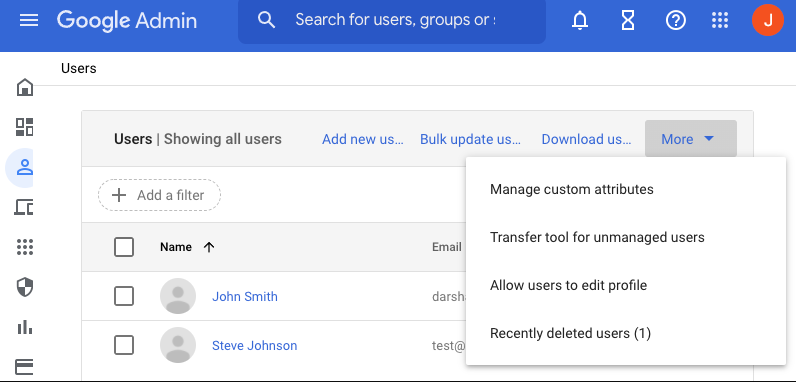
This procedure works for files in a user’s “My Drive” as well as for content in a shared drive. If you are the administrator, follow these steps to perform a Google Drive deleted files recovery.
1. Sign In to the Admin Console: Go to `admin.google.com` and sign in with your administrator credentials.
2. Navigate to Users: From the Admin Console home page, go to `Directory > Users`.
3. Find the User: Locate the user whose files you need to restore from the list. Hover over their name, click the More options button that appears on the right, and then select Restore data.
4. Define the Restore Parameters:
Date Range: Select the start and end dates for the restoration. You can only restore data deleted within the last 25 days. Be as precise as possible to avoid restoring unnecessary files.
Application: Open the dropdown menu and select Drive.
5. Start the Restoration: Click Restore.
The restoration process will begin immediately. Depending on the amount of data, it can take anywhere from a few minutes to several hours. The recovered files will reappear in the user’s Google Drive folder, right back in their original location.
This action restores all files deleted by that user within the selected date range. It is not possible to select individual files. We recommend informing the user before you begin and asking them to check their Drive for the restored files afterward.
For Personal Accounts: Contacting Google Support for File Recovery
If you have a personal Google account, your only option to recover files after the Trash has been emptied is to contact Google Drive support. It is crucial to set realistic expectations: success is not guaranteed and depends entirely on how recently the files were deleted.
As cloud storage specialists confirm, there is a very limited internal window where data might still exist on Google’s servers before it’s permanently overwritten. Acting immediately is your best chance. There is no self-service tool for this; you must rely on a Google support agent to attempt the recovery for you.
How to Contact Google Support: A Step-by-Step Guide
Navigating Google’s help system can be confusing, especially when you’re stressed. Follow these exact steps to get to the right place.
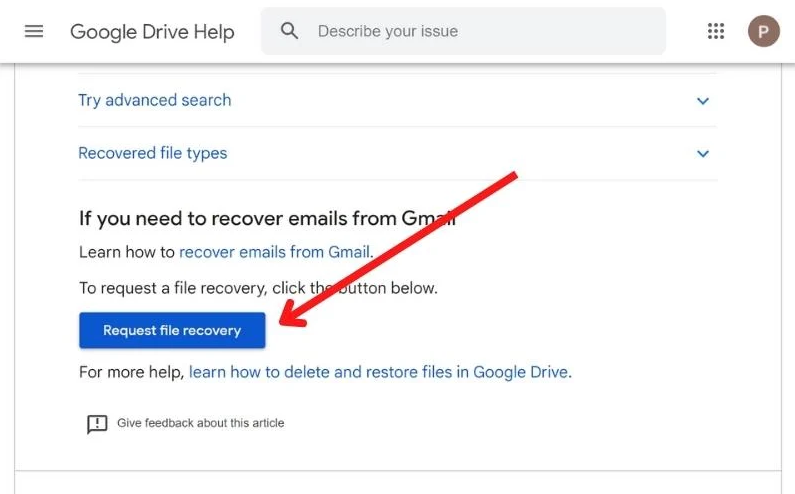
1. Go to the Google Drive Help Page: Open your browser and navigate to the [Google Drive Help page](https://support.google.com/drive/).
2. Find the Contact Button: Scroll all the way to the bottom of the page and click the Contact us button. It’s often the last link on the page.
3. Describe Your Issue: In the first text box, type “Recover permanently deleted files” and click Next.
4. Select the Best Match: In the next step, Google will suggest help topics. Choose the option that most closely matches your issue, such as Find or recover a file, and click Next step.
5. Bypass Resource Links: You will be shown links to help articles. Since you have already confirmed the file is not in your Trash, scroll past these and click Next step again.
6. Choose Your Contact Method: You will now see the available contact options, which are typically Chat and Email. We recommend choosing Live Chat for the fastest initial response.
What to Have Ready (and What to Say)
To make your request as smooth as possible, have this information prepared:
- Explicit Consent: The support agent must ask for your permission to access your account for a recovery attempt. Be ready to provide it.
- Approximate Deletion Date: Provide the most accurate date range you can for when the files were permanently deleted from the Trash.
- File Type/Name: If you remember anything about the files (e.g., “Photos from June 2024,” “Draft manuscript.docx”), share these details. It can help.
Pro-Tip from Our Testing: The first support agent you connect with may follow a script and send you a standard help article about checking your Trash. To save time, state your request clearly and firmly: “I have already checked my Trash, and it is empty. I understand the standard process. I need to request an escalation for a manual file recovery from your backend team.” Using this specific language shows you’ve done your homework and helps get your request to the right people faster.
The agent will file a request, and the process can take up to 48 hours. You will receive an email notifying you of the outcome, whether successful or not.
What “Permanently Deleted” Really Means in Google Drive
The term “permanently deleted” is a source of confusion because it doesn’t always mean your data is gone forever in that instant. Understanding the file deletion lifecycle clarifies why this short recovery window exists.
1. Initial Deletion: When you delete a file, it moves to the Google Drive Trash folder. It’s safe here and can be easily restored by you at any time.
2. The 30-Day Retention Period: The file remains in your Trash for 30 days. After this 30-day retention period, Google’s system automatically deletes it. You can also trigger the next step immediately by clicking “Empty Trash” or “Delete forever” on an item.
3. “Permanently Deleted” State: Once removed from the Trash, the file becomes inaccessible to you and is marked for deletion from Google’s active servers.
4. Limited Recovery Window: For a brief period (around 21-25 days), the file’s data may still reside on Google’s storage infrastructure before that space is overwritten. This is the critical window during which a Google Workspace admin or a Google Support agent can attempt a recovery. Once this window closes, the file is truly unrecoverable.
Frequently Asked Questions About Google Drive Recovery
Here are direct answers to the most common questions about recovering files from Google Drive.
Can permanently deleted files be recovered from Google Drive?
Yes, it is sometimes possible within a narrow time frame. For Google Workspace accounts, an administrator can restore files within 25 days of their deletion from the Trash. For personal accounts, you must contact Google Support to request a recovery, which may be successful if you act very quickly.
How do I recover Google Drive files deleted permanently after 30 days?
The 30-day clock refers to how long an item stays in the Trash before it’s permanently deleted. Once it is purged, the recovery method depends on your account type. Workspace users must contact their admin immediately. Personal account users must open a case with Google Drive support to request a manual restoration.
Is it possible to restore files deleted from Google Drive Trash?
Yes. If the files are still visible inside the Google Drive Trash folder, you can simply right-click the file or folder and select Restore. It will be returned to its original location. The methods in this guide are for when the Trash has already been emptied.
Does Google keep backups of permanently deleted files?
Google does not maintain long-term, user-accessible backups of deleted files. However, for disaster recovery and operational purposes, a temporary copy of the data may exist for a short period after permanent deletion. This is the internal window that allows administrators and support agents to attempt a recovery on your behalf.
Can Google support recover permanently deleted Drive files?
Yes, for personal account users, contacting Google support is the only official method for attempting to recover permanently deleted files. The success of this attempt is highly dependent on how much time has passed since the file was purged from the Trash.
Proactive Strategy: How to Prevent Permanent Data Loss
Once you’ve resolved your current issue—successfully or not—you’ll be much more motivated to prevent it from happening again. Prevention is always the best strategy. Implementing sound data management practices can save you from future stress.
- Schedule Regular Backups with Google Takeout: Google Takeout is a free service that lets you export an archive of your data from Google products, including Drive. You can download this archive to an external hard drive or another cloud service. Set a calendar reminder to perform a backup monthly or quarterly.
- Audit Third-Party App Permissions: Over time, you may grant various apps access to your Google Drive. A faulty or malicious app could potentially delete data. Periodically go to your Google Account’s security settings to review and revoke access for any services you no longer use or trust.
- Use Caution with “Delete Forever”: Before emptying the Google Drive Trash, take a moment to scan its contents one last time. That confirmation prompt is your final chance to prevent a file from entering the limited-recovery state.
- Establish Protocols for Shared Drives: If you collaborate with a team using a shared drive, create clear guidelines on file deletion. To prevent accidents, restrict delete permissions to a small number of trusted members.
Take the Right Steps to Reclaim Your Files
Facing the potential loss of your data is a significant obstacle, but a feeling of helplessness doesn’t have to be the final word. The key to a successful Google Drive file recovery is understanding your options and acting decisively. By first identifying whether you have a Workspace or Personal account, you can follow the correct procedure from the start and avoid wasting time on methods that won’t work. Whether that means contacting your administrator or preparing a clear, direct request for Google Support, you now have a reliable map to navigate the process. Take control of the situation by following the tested steps in this guide to maximize your chances of getting your files back.



Joy Taylor is a seasoned technical writer with over a decade of experience in mobile technology. At iMobie, she specializes in producing in-depth content on iOS data recovery, iPhone unlocking solutions, and iOS troubleshooting.
Product-related questions? Contact Our Support Team to Get Quick Solution >
