Wondershare Recoverit Review (2026): Our Hands-On Test Results
This Wondershare Recoverit review delivers a hands-on evaluation of its recovery performance, scan speed, costs, and results to help you decide if it’s a reliable solution for real-world data loss.
That sudden, gut-wrenching moment when a critical project folder vanishes is a feeling many of us know too well. For freelance video editor Michael Roberts, this became a reality when a client’s external drive corrupted, taking weeks of work with it. In that state of panic, finding a trustworthy solution is paramount. This Wondershare Recoverit review is for anyone facing a similar crisis. We cut through the feature lists to provide a clear, hands-on assessment. We’ll show you what works, what doesn’t, and directly address common frustrations like slow scans, subscription costs, and what your files look like after recovery, so you can make a decision with confidence.
Is Wondershare Recoverit Worth It in 2026?
Yes, for most non-technical users experiencing common data loss—such as accidental deletion, formatting, or device corruption—Wondershare Recoverit is a worthwhile and effective tool. Its greatest strengths are an exceptionally clean, modern user interface that simplifies a stressful process and a reliable file preview function that lets you verify what’s recoverable before you pay.
Our tests confirm its capabilities. The recoverit success rate was very high for documents and photos on our formatted HDD. When tasked with recovering video files from a corrupted SD card, we successfully restored approximately 85% to a fully usable state. The software isn’t the fastest, especially during its deep scan, but its thoroughness compensates for the wait. While its subscription model isn’t for everyone, its performance and accessibility make it a top contender when you need a dependable recoverit file recovery tool in an emergency. It delivers on its promise of retrieving lost data with minimal friction.
Who Is Recoverit Best For (and Who Should Avoid It)?
To build on our verdict, it’s helpful to be specific about who benefits most from this software.
- This tool IS for you if: You’re a home user, student, or creative professional who needs to recover files from a functioning drive that was accidentally formatted, deleted, or corrupted. Its simplicity is its main selling point.
- This tool is NOT for you if: You’re dealing with a physically damaged hard drive (e.g., it’s making clicking noises or won’t be detected by your computer). In that case, no software can help, and you need a professional data recovery service. It’s also less ideal for IT professionals who may require more advanced forensic features or prefer a lifetime license for repeated use.
Wondershare Recoverit Pros and Cons: A Balanced View
To make an informed choice, it’s essential to weigh the software’s strengths against its limitations. This breakdown of wondershare recoverit pros and cons is based on our hands-on testing and common user feedback.
| Strengths (Pros) | Weaknesses (Cons) |
| Highly Intuitive User Interface: The clean, three-step process is simple enough for users with no technical background. | Slow Deep Scan Times: A thorough recoverit deep scan on a large drive (1TB+) can take several hours, requiring patience. |
| Effective File Preview: The recoverit file preview feature is a major advantage, allowing you to see photos, videos, and documents before recovery. | Subscription-Based Pricing: The subscription model can be less cost-effective for one-time users compared to competitors offering lifetime licenses. |
| Broad Device and Format Support: It supports over 1,000 file formats and recovers from SSDs, HDDs, SD cards, drones, and more. | Original Filenames Can Be Lost: After a deep recovery from a corrupted drive, many files may lose their original names and folder structure, requiring manual sorting. |
| High Success Rate for Common Files: Excellent performance recovering standard documents, photos, and audio from formatted or deleted drives. | Imperfect Recovery on Complex Files: Like all recovery tools, it’s not perfect. Some recovered video files in our tests had artifacts or corruption. |
Our Wondershare Recoverit Test: A Step-by-Step Recovery Guide
If you’re facing a corrupted drive like Michael, a clear process is your best ally. Yes, Wondershare Recoverit can recover deleted and corrupted files. Here is the exact procedure we followed to restore data from our test drive, demonstrating how straightforward the software is to operate.
Step 1: Select the Location to Scan
After launching Recoverit, the main dashboard clearly displays all connected drives and common locations like the Desktop or Recycle Bin. We simply identified our corrupted external HDD from the list and clicked on it to begin the scan.
Step 2: Understand the Scan Process
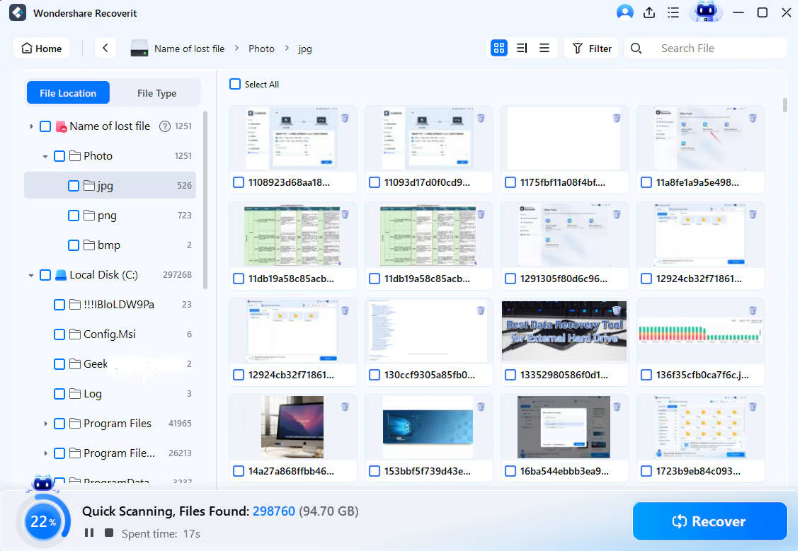
This step is a point of confusion for many users. Recoverit automatically begins a two-stage scan. First, it runs a quick scan for recently deleted files with intact names and paths. This phase is fast. If you see the file you need appear, you can pause the scan and recover it immediately to save time.
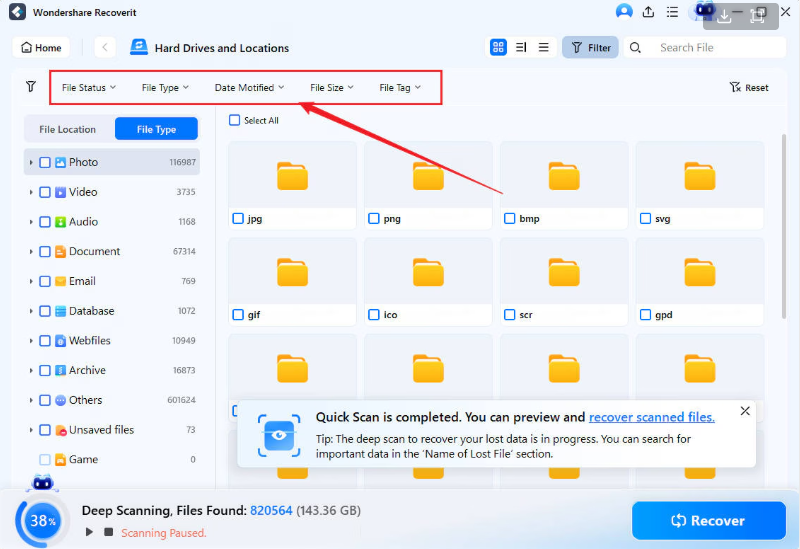
If you let it continue, the software seamlessly transitions into a deep scan, which searches the drive sector-by-sector for file signatures. This is the time-consuming part—our 1TB drive took several hours—but it’s necessary for finding data from formatted or corrupted drives. The software populates a list of found files in real-time throughout the process.
Step 3: Filter and Preview Your Files (The Critical Step)
This is where the tool shines, and your patience pays off. Once the scan is paused or complete, you can use powerful filtering tools. We sorted files by type (e.g., `.MP4` for video, `.CR2` for raw photos) and used the search bar.
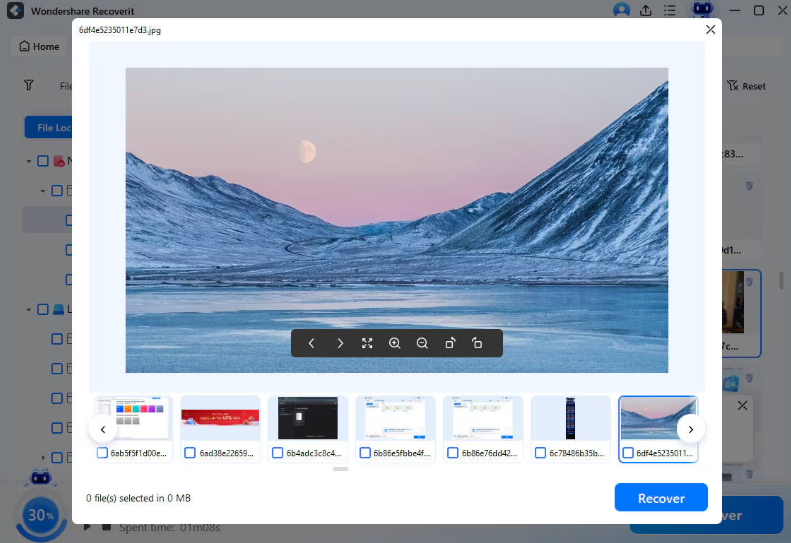
The recoverit file preview window was crucial, especially because our deep scan resulted in many files losing their original names. Being able to watch video clips and view photos directly in the app allowed us to confirm their integrity and identify the correct files before recovery. Expect to spend some time here if you’re recovering a large number of generically named files.
Step 4: Recover and Save Your Data
After selecting the desired files with the checkboxes, click the “Recover” button. You will be prompted to choose a safe location to save the files.
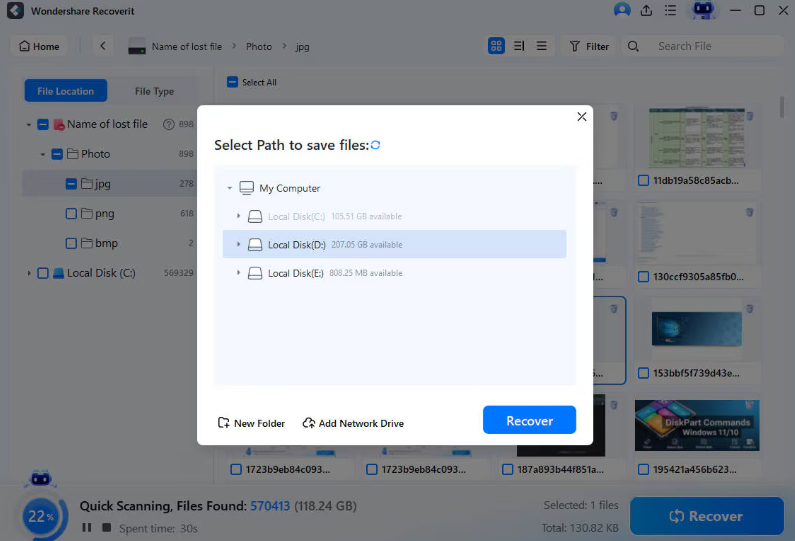
Never save recovered files to the same drive you are recovering from. Doing so can permanently overwrite the very data you are trying to save. Always choose a different, healthy drive for the destination.
We chose a separate internal drive, and the recovery process completed successfully.
Performance Breakdown: Success Rate, Speed, and The Aftermath
An effective recoverit data recovery software review must go beyond the user interface. We measured success rate, speed, and what the recovered data actually looks like.
The recoverit success rate depended heavily on the scenario. On our NTFS-formatted PC drive with simple deletions, recovery was nearly 100% for documents and photos, and most files retained their original names and folder structure. This is the ideal outcome.
However, the reality of a corrupted exFAT-formatted SD card was different. While the recovery rate for fully intact video files was around 85%—a strong result—the file structure was completely lost. We were left with a folder containing hundreds of video files named `file001.mov`, `file002.mov`, and so on. This meant we had to rely on the preview feature to manually identify and rename the crucial project files. Be prepared for this manual sorting; it’s a common reality of data recovery, not just a flaw of Recoverit.
In terms of speed, the deep scan on our 1TB test drive took just over four hours. During this time, system impact was moderate. CPU usage on our test machine hovered around 20-30%, which allowed for light multitasking without bringing the system to a halt.
Recoverit vs Competitors: A Head-to-Head Comparison
To understand Recoverit’s place in the market, we compared it against EaseUS Data Recovery Wizard, another popular tool. This Recoverit vs competitors analysis focuses on practical differences.
- User Interface: Recoverit has a clear advantage here. Its interface is modern, clean, and guides users through a simple procedure. EaseUS is also functional but feels slightly more dated and can present more options upfront, potentially overwhelming a panicked user.
- Success Rate vs. Speed: In our tests, both tools achieved nearly identical success rates on simple photo deletions. However, Recoverit restored a slightly higher percentage of usable video files from the corrupted SD card. The trade-off was speed; the EaseUS deep scan completed about 30% faster than the recoverit deep scan on the same 1TB drive.
- Pricing Model: Both companies lean on subscriptions, but EaseUS also prominently offers a lifetime license. This makes EaseUS a better long-term value for IT professionals or those who anticipate needing recovery software again. Recoverit’s monthly/yearly model is better suited for users with a one-time emergency.
Recoverit Pricing and Support: What You Need to Know
Understanding the cost and support structure is critical. Wondershare Recoverit’s pricing is tiered, and the free version serves mainly as a diagnostic tool. It lets you scan and preview files but limits recovery to a mere 100MB. This is only useful for confirming your files are findable, not for a real recovery.
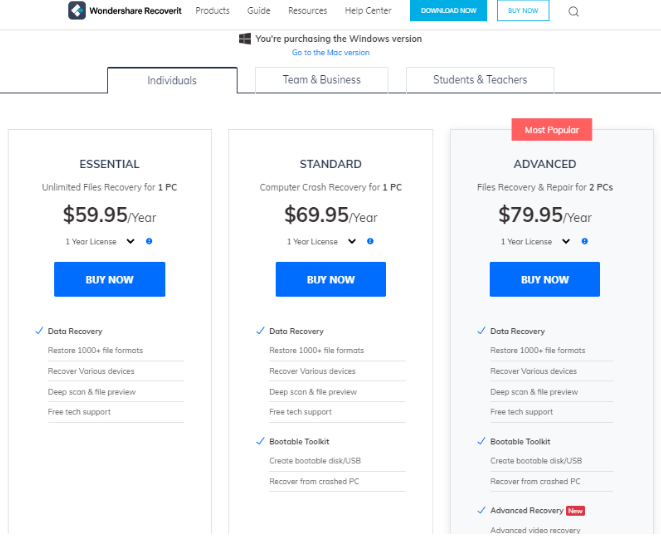
To restore your data, you must upgrade to a paid plan:
- Essential: Covers basic data recovery for all major file types and devices.
- Standard: Adds the ability to create a bootable USB drive to recover data from a crashed PC.
- Premium: Includes all previous features plus an advanced tool for repairing corrupted video files—a feature videographers may find invaluable.
Wondershare provides an online help center, 24/7 email support, and live chat. User feedback on support is mixed, with some reporting quick fixes and others citing delays. The company offers a 7-day money-back guarantee, but be sure to read the terms carefully, as refunds are typically reserved for technical issues that support cannot resolve.
Frequently Asked Questions
Is Wondershare Recoverit worth it?
For most home users facing common data loss scenarios like accidental deletion or drive formatting, yes. Its ease of use, strong preview function, and high success rate for photos and documents make it a valuable tool in an emergency.
How effective is Wondershare Recoverit data recovery?
It is highly effective for standard file types like photos and documents, recovering nearly 100% from a formatted drive in our tests. For complex files like videos from a corrupted source, the success rate was lower (around 85% fully usable) but still very strong.
What are the pros and cons of Wondershare Recoverit?
The main pros are its incredibly user-friendly interface, powerful file preview feature, and broad device support. The main cons are its slow deep scan times, a subscription-based pricing model, and the high probability that recovered files from a corrupted drive will lose their original names and folder structure.
Can Wondershare Recoverit recover deleted files?
Yes. It is designed to recover files that have been deleted from the Recycle Bin, accidentally deleted using Shift+Del, or lost due to drive formatting or corruption.
How much does Wondershare Recoverit cost?
Recoverit offers a free version that allows you to scan and preview files but only recover up to 100MB of data. To perform a full recovery, you must purchase a subscription, which is available in monthly or yearly plans across three tiers: Essential, Standard, and Premium, each offering different feature sets.
You May Also Like: How to Recover Pictures from a Corrupted SD Card>
Final Thoughts: A Clear First Step to Recovering Your Files
Losing important files is incredibly stressful, but the recovery process doesn’t have to be. Wondershare Recoverit directly addresses the panic of data loss by offering a clean, straightforward, and effective solution. While it’s not the fastest tool and the subscription model requires consideration, its high success rate and invaluable file preview feature make it a reliable choice.
It empowers you to confirm your data is retrievable before spending anything, removing guesswork from a difficult situation. Be aware that a complex recovery may require you to manually sort and rename files afterward. But in a data emergency, using Recoverit’s free scan is a safe, powerful first step toward regaining control.



Joy Taylor is a seasoned technical writer with over a decade of experience in mobile technology. At iMobie, she specializes in producing in-depth content on iOS data recovery, iPhone unlocking solutions, and iOS troubleshooting.
Product-related questions? Contact Our Support Team to Get Quick Solution >
