How to Recover Unsaved Word Document on All Devices [Solved]
To recover unsaved Word documents on Windows, try AutoRecover or search temporary files. For iPad, restore from iCloud backup or Word’s AutoSave. Look into temporary folders or OneDrive backup on Android or iPhone. If you want to recover deleted files on Android, try DroidKit to retrieve them within minutes.
Losing an unsaved Word document due to an unexpected phone crash, power outage, or accidental closure can cause serious inconvenience, especially when handling important work or study files. Fortunately, Microsoft Word and various devices provide built-in recovery options that make it possible to restore your content. This guide explains how to recover unsaved Word documents across Windows, iPad, and mobile devices. You’ll find step-by-step methods to get your documents back safely!
Table of ContentsHide
Common Causes of Unsaved Word Documents
Can You Retrieve a Word Document That Wasn’t Saved?
How to Recover Unsaved Word Documents in Windows 11/10
- Method 1. Restore Unsaved Word Documents from AutoRecover
- Method 2. Recover Not-Saved Word Documents from Temporary Files
How to Recover Unsaved Word Documents on iPad
- Method 1. Restore Unsaved Word Document from iCloud Backup
- Method 2. Check Autosave/Recovery Features
How to Recover Unsaved Word Documents on Phone [iPhone & Android]
- Method 1. Recover Word Document Not Saved from Temporary Files
- Method 2. Recover Unsaved Word Documents from OneDrive Backup
Bonus Tip: Recover Deleted Word Documents on Android [Easy & Secure]
FAQs about How to Recover Unsaved Word Documents
Common Causes of Unsaved Word Documents
It would be helpful if you could explain the reasons why Word documents might not be saved, so you can select the appropriate solutions based on your situation. Here are typical reasons for losing unsaved Word files:
- Your computer shut down due to a power outage.
- Word crashed because of software errors.
- Hardware failure forced your computer to stop working.
- Accidentally selecting ‘Don’t save’ when closing Word.
- Low memory caused Word to stop responding.
- Faulty add-ins caused a sudden shutdown.
Can You Retrieve a Word Document That Wasn’t Saved?
Yes, you can get back your Word document if you couldn’t save it. This is because Microsoft Word has an automatic recovery tool. These tools run in the background and protect your work from permanent loss. They do this by creating temporary copies of your documents.
So, when issues occur, you can retrieve and save the last synced version of the document. These issues can be your program crashing, a system shutdown, or closing the file without saving. Also, the recovery options depend on the version of Word and the type of device you use. More on that in the coming sections.
Quick Overview of the Methods to Recover Unsaved Word Documents
| Method | Use Case | Required Time | Success Rate |
| Recover via Word’s AutoRecover (PC) | Must have AutoRecover enabled | 1–2 minutes | High |
| Temporary Files (PC) | .temp files stored on PC | 2–5 minutes | Medium |
| iCloud Backup (iPad) | Documents saved to iCloud | 2–5 minutes | High |
| Autosave/Recovery (iPad) | Autosave enabled | 1–2 minutes | Medium |
| Temporary Files (Phone) | Unsaved files in phone cache | 2–5 minutes | Low–Medium |
| OneDrive Backup (Phone) | Files synced to OneDrive | 2–5 minutes | High |
How to Recover Unsaved Word Documents in Windows 11/10
You can restore an unsaved Word file on Windows in two ways. The first is to use the AutoRecover tool, if it’s enabled beforehand. The second is to look for the document in the temporary system files. Below you will find detailed steps for these methods.
Method 1. Restore Unsaved Word Documents from AutoRecover
The AutoRecover feature gives you the option to save your file. You can access it when reopening Word after a crash. This option is not available for Office 2007 or earlier versions. On these, you must manually locate your document in the AutoRecover folder. The same method also works for Mac. Here are the steps:
Step 1. Open MS Word and click File from the top left.
Step 2. Click Manage Document > Recover Unsaved Documents.
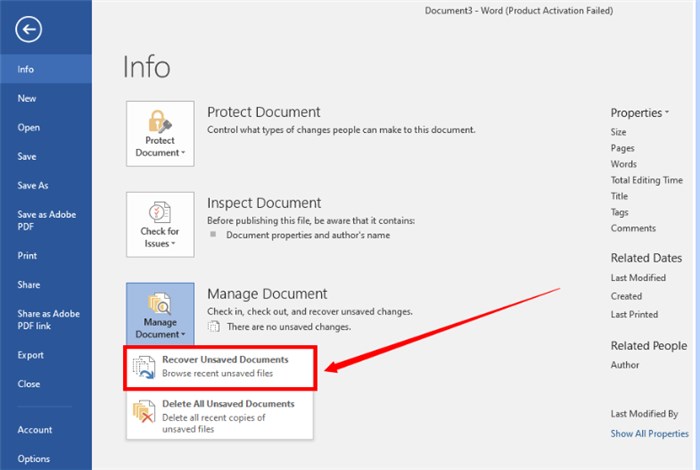
Select Recover Unsaved Documents
Step 3. Find the missing file and open it. Then click the Save icon in the top left.
Additional Help – How to Turn on AutoRecover
Your Word program may have the Auto Recover function turned off. As a result, it won’t let you recover any lost data. So, you should manually enable this feature to keep your documents safe in the future. Here are the steps:
Step 1. Open Word and go to File > Options.
Step 2. Select Save from the left panel.
Step 3. Check the following two options and click OK:
- Save AutoRecover information every [set number] minutes.
- Keep the last autosaved version if I close without saving.
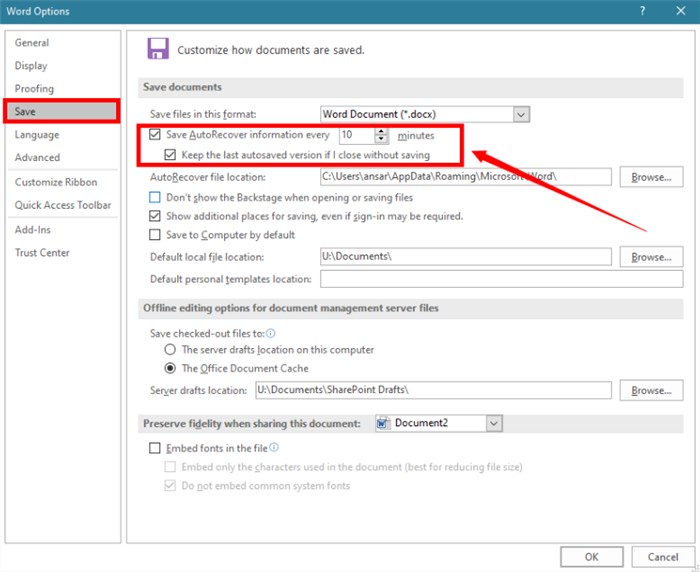
Check Options to Enable AutoRecover
Method 2. Recover Not-Saved Word Documents from Temporary Files
Sometimes, Word’s recovery tool cannot save the unsaved document. And you may not find it in the Unsaved Files folder. In this case, you can find it in the temporary files your system creates during a crash. Follow the steps blew:
Step 1. Open This PC from the desktop.
Step 2. Type .temp in the top right search bar and press Enter.
Step 3. Find the file from the results. Then open and save it.
How to Recover Unsaved Word Documents on iPad
If you’ve lost an unsaved Word file on an iPad, you can retrieve it using the same recovery feature. Plus, iCloud backup gives you an additional option to restore the document. Follow the steps below to try these methods.
Method 1. Restore Unsaved Word Document from iCloud Backup
If you have iCloud backup enabled, you can find the file in the iCloud Drive. If it’s deleted from your iPad, you may find it in the Recently Deleted folder or using the Data Recovery tool. Here is how to do:
Step 1. Go to iCloud website and sign in.
Step 2. Click the dotted menu in the top right and choose Drive.
Step 3. Go to Browse > Documents to find the Word file.
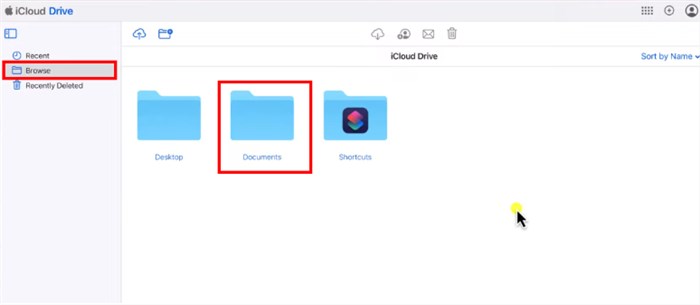
Open Documents Under Browse
Step 4. If you cannot find it, you can see it in the Recently Deleted folder.
Step 5. Alternatively, click the dotted menu in the top right and choose Data Recovery. Then select Restore Files to retrieve the missing document.
Method 2. Check Autosave/Recovery Features
You can also use Word’s Auto Recovery on iPad to get back your lost files. This works for a recently unsaved document. Here are the steps:
Step 1. Open Word on your iPad. Then, tap Open in the left panel.
Step 2. Look for Recovered Drafts under Other Locations. Tap it and open the document. Then, tap the Save icon in the top left.
How to Recover Unsaved Word Documents on Phone [iPhone & Android]
You might have lost your Word document while working on your smartphone. Still, you can recover it. You can either retrieve it from the temporary files or the OneDrive backup.
Method 1. Recover Word Document Not Saved from Temporary Files
For this method, you need to access the temporary file folder for MS Word located in your device’s internal memory.
Step 1. Connect your Android to the PC through a USB cable.
Step 2. Go to Internal Storage > Android > Data > com.microsoft.office.word.
Step 3. Open files and choose Temp.
Step 4. Find files ending in .asd or .tmp. Then, move the desired file to your chosen location.
Method 2. Recover Unsaved Word Documents from OneDrive Backup
The Word app on Android has an integrated cloud backup option. You might have used this feature earlier to save your document. If so, you can retrieve the file from OneDrive.
Step 1. Go to the OneDrive website using incognito mode and sign in.
Step 2. Tap My Files > Documents.
Step 3. Select your desired file. Then tap the three dots at the top and choose Download.
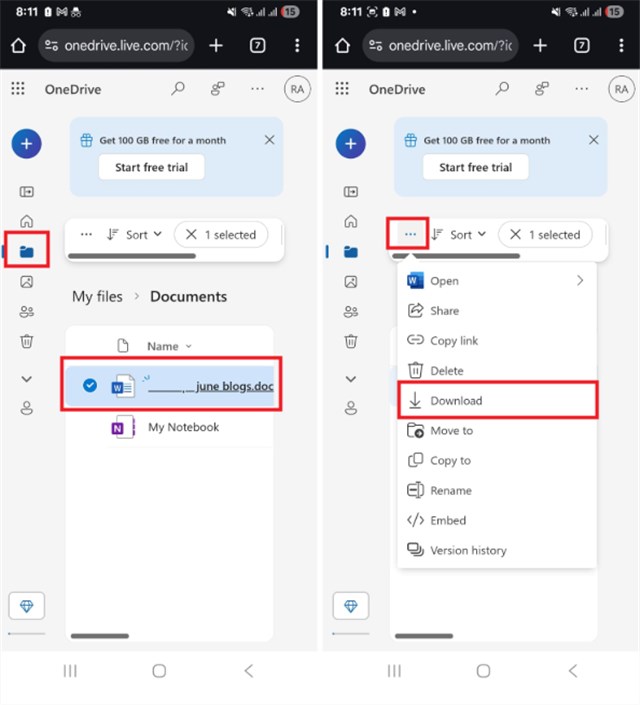
Download Document in OneDrive
Bonus Tip: Recover Deleted Word Documents on Android [Easy & Secure]
Accidentally losing or deleting a Word document can be frustrating, but DroidKit provides a practical way to restore it quickly. As a reliable data recovery tool, DroidKit can retrieve lost data from internal memory, SD card, or Google Drive. You can even preview the documents before recovering them to your computer to ensure accuracy. Except for documents, this tool can also recover lost photos, messages, contacts, etc, on Android phones. With its clear interface and step-by-step guidance, DroidKit makes the recovery process fast, secure, and easy to complete without technical skills.
Key Features of DroidKit:
- Recovers 13 types of lost data, including Word documents.
- Two distinct recovery modes with a high success rate.
- Quick mode retrieves data without root in minutes.
- Supports 20,000+ devices running Android 6 – 15.
Free Download * 100% Clean & Safe
Steps to recover Deleted documents on Android via DroidKit:
Step 1. Download and install DroidKit on your Windows or Mac computer. Launch it and select Quick Recovery from Device under Data Recovery.
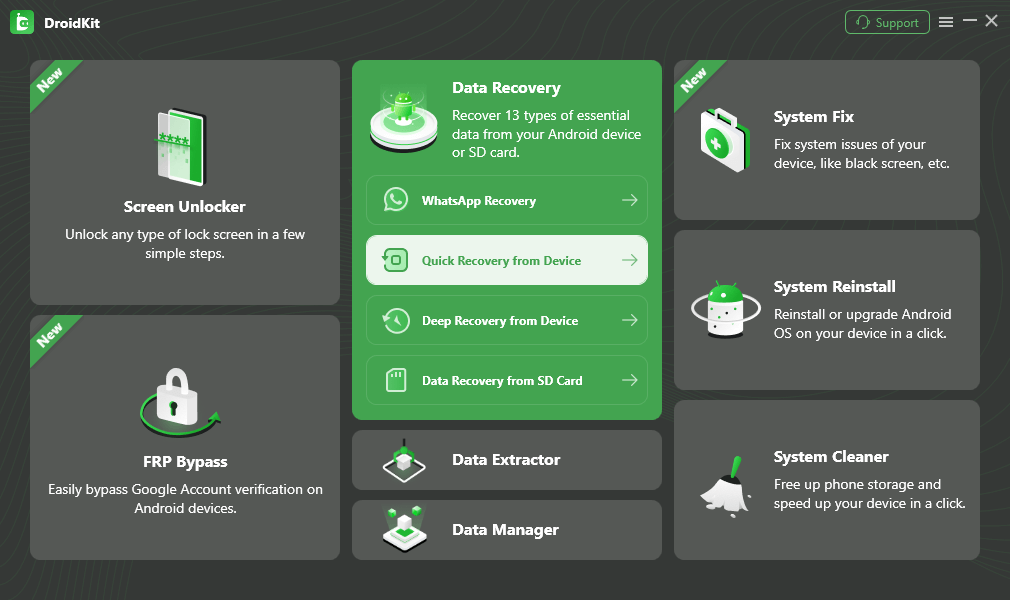
Choose Quick Recovery from Device from Data Recovery
Step 2. Select the data type you want to recover. Then, click Start.
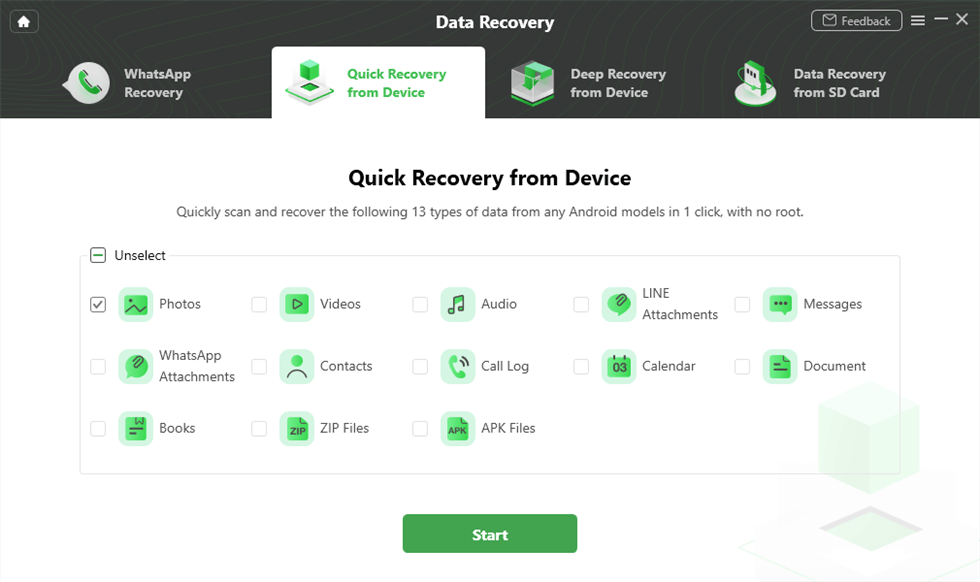
Select the Data Type that You Want to Recover
Step 3. Preview and select the files you want to restore. DroidKit will start restoring the lost data on your selected device. Once done, you will see Recovered Successfully on your screen.
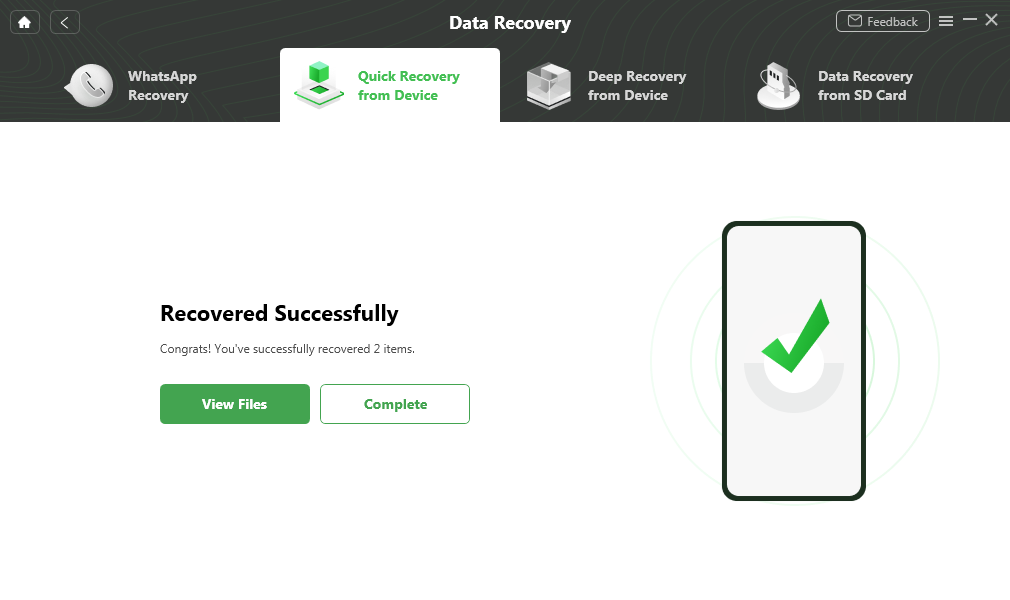
Quick Recovery from Device Successfully
FAQs about How to Recover Unsaved Word Documents
Q1. How do I recover a file I didn’t save?
You can restore the unsaved file using the AutoRecovery tool. For this, go to “File” > “Info” > “Manage Document.” Then, select “Recover Unsaved Documents.”
Q2. Where are autosave Word documents stored?
Word stores the autosaved files in its recovery folder. You can find the location by going to File > Options > Save. Then look at the path for “AutoRecover file location.”
Q3. How do I retrieve unsaved Word document on Mac?
To find the unsaved Word file on your Mac, go to ~/Library/Containers/Microsoft Word/Data/Library/Preferences/AutoRecovery. Then open and save the file using Word.
Q4. How do I recover unsaved Word document on Windows 7?
To restore the unsaved document from the Unsaved Files folder on Windows 7, go to File > Info > Manage Documents > Recover Unsaved Documents, then open the file and save it.
Conclusion
That’s all about how to recover unsaved Word documents on all devices. You can use AutoRecovery, temporary files, or cloud backup to retrieve your files. However, if the document has been permanently deleted, DroidKit offers a reliable option. With a high success rate and broad compatibility, it can restore your files quickly and securely. Download DroidKit to enjoy a stress-free recovery process now!
Free Download * 100% Clean & Safe


Roger Smith is a senior technical writer with years of experience in providing Android solutions. He loves to help users solve various problems such as Android unlock, Android data recovery, and Android system repair.
Product-related questions? Contact Our Support Team to Get Quick Solution >
