Is iSpoofer Android Available? A Complete Setup Guide
Switching to Android reveals no official iSpoofer support, leading to unreliable APKs and risks. This guide explains safe, system-based GPS simulation methods to regain stable, controlled AR gaming without bans or crashes.
Transitioning to a new operating system only to realize your favorite mobile game enhancement tool is missing is an incredibly frustrating experience. When I recently switched from an iOS environment to a Samsung Galaxy S23 Ultra, my first instinct was to search for an “iSpoofer for Android download.” I wanted to jump right back into Pokémon GO and Monster Hunter Now, but I quickly realized that the original software simply does not exist for Android devices.
This lack of official support often pushes players to test questionable applications. I spent weeks downloading various APKs on both my Galaxy device and a backup Pixel 7, only to experience constant app crashes, GPS signal errors, and mounting anxiety over account safety. Finding yourself unable to play your favorite AR games when you want to is a major obstacle.
However, you do not have to accept a subpar experience or stay tethered to a desktop computer forever. By understanding how Android’s native system configurations operate, you can replicate that precise, ban-free control. This guide presents a tested, real-world solution that resolves complex setup issues—including a clear, chronological breakdown of developer settings—providing a safe method to regain control of your gameplay from the comfort of your couch.
Why the iSpoofer Android Not Available Error Occurs
Understanding why you constantly encounter the reality that iSpoofer is not available on Android helps clarify how location manipulation actually operates. The core issue is architectural.
The original application was explicitly built for a closed ecosystem. A closed environment allows developers to bypass native location services using proprietary, internal overrides. Android, being an open-source framework, handles GPS hardware entirely differently. It requires external applications to feed coordinate data through a specific developer protocol. Because the internal structures dictate how GPS coordinates are reported to your installed games, a simple, direct port is impossible.
If you find a website offering a direct “iSpoofer Android APK,” it is highly likely to be malware or a deceptive application designed to compromise your device security. The software was never ported, and any site claiming otherwise is lying.
Choosing an iSpoofer Android Alternative: A Real Market Comparison
Once you realize the official app is unavailable, your next logical step is evaluating a real alternative. During my testing phase across multiple Android versions, I realized the market is filled with varied solutions, each with distinct pros and cons. To save you the headache, here is an honest comparison of the most popular methods used by the AR gaming community today.
1. Modified APKs (e.g., PGSharp)
Modified clients are very popular because they are incredibly easy to install directly on your phone.
How it works: You download a modified version of the actual game (like Pokémon GO) that has a joystick built right into the interface.
The Reality: The safety risk is extremely high. Game developers frequently run integrity checks on app signatures. Using a modified APK is one of the fastest ways to trigger an automated account strike.
2. Root-Based Manual Methods (e.g., GPS Joystick by App Ninjas, Polygon)
For highly technical players, this is often considered the gold standard of mobile spoofing.
How it works: You use advanced tools like Magisk to root your phone, allowing apps like GPS Joystick to inject location data directly at the system level.
The Reality: If you know what you are doing, the success rate is incredibly high and the ban risk is low. However, rooting voids device warranties, breaks banking apps, and can cause severe system instability. If you execute a step incorrectly, you might need to learn how to fix an android boot loop just to get your phone working again.
3. Professional Desktop-Based Tools (e.g., Fonelora Location Changer)
Dedicated third-party applications running from a PC or Mac offer a secure middle ground for users who refuse to root their primary devices.
How it works: You connect your phone to a computer, which securely pushes GPS coordinates to your device’s native developer settings.
The Reality: This method requires zero technical skill, no rooting, and boasts a very low ban risk because you are using the official, unmodified game downloaded directly from the Google Play Store. While you initially need a computer, premium tools allow for Wi-Fi syncing so you can play untethered from the couch.
Choosing the right method depends on your technical comfort level. While GPS Joystick is a fantastic free tool for rooted devices, I chose a professional desktop tool because I refused to void the warranty on my new Samsung Galaxy.
Fonelora Location Changer: A Secure Alternative
After experimenting with multiple apps that failed to deliver a consistent experience, I identified a compatible tool that replicated my preferred joystick functionality: Fonelora Location Changer. To be entirely transparent, Fonelora is a premium, paid software. However, I view it as a worthwhile investment to protect a five-year-old game account from detection.
Fonelora addresses the difficulty of finding reliable alternatives by eliminating the need for complex system modifications like Magisk or LSPosed. It features a proprietary Safe Game Mode that simulates realistic movement speeds, actively reducing the risks of automated flags that typically plague free apps. With a built-in 360° GPS joystick, GPX file support, and multi-stop routing, it allowed me to enjoy mobile gaming without constant anxiety.
How to Use Fonelora to Change GPS Location
Follow these simple steps to get started:
Step 1: Download and Install
Download Fonelora Location Changer from the official website and install it on your computer.

Step 2: Connect Your Device
Connect your iPhone or Android device using a USB cable.
- On iOS: Tap “Trust This Computer” when prompted
- On Android: Enable USB Debugging

Step 3: Choose a Location
Open the map interface in the software:
- Enter a specific location (such as an airport or busy area)
- Or select a point directly on the map

Essential Preparation: Unlocking Android Developer Settings
Here is where many guides set users up to fail: they tell you to click “Move” on the desktop software before properly configuring your phone. If you do not enable the correct internal permissions first, your Android device will completely reject the external coordinate data.
To solve the issue of apps not functioning as expected, you must unlock your hidden system menus.
- Open Settings: Navigate to your phone’s main Settings app and scroll down to “About Phone.”
- Find the Build Number: Look for the “Software Information” menu to find your exact “Build Number.”
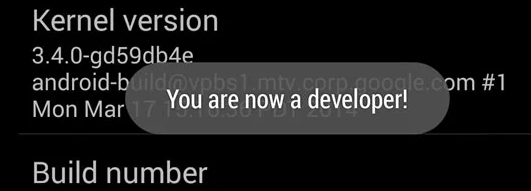
- Unlock Developer Mode: Tap the “Build Number” text exactly seven times in rapid succession. You will be prompted to enter your device PIN. A small notification will pop up stating, “You are now a developer!”
- Enable USB Debugging: Go back to the main Settings page, scroll to the bottom, and open the newly visible “Developer Options” menu. Scroll down and toggle on “USB Debugging” .
Do not proceed to the next section until these steps are completed.
Step-by-Step Chronological Setup Guide
Executing a safe device location override is easy once your system is properly prepped. Follow these precise steps in this exact order to ensure a flawless connection between the desktop software and your mobile game.
Step 1: Install and Connect
First, download and install Fonelora Location Changer on your Windows or Mac computer. It is always wise to use the best Android backup software to secure your data before starting. Launch the desktop software and connect your Android phone to the computer using a high-quality USB data cable.
Step 2: The Companion App Auto-Install
When the software recognizes your phone, it needs a way to communicate with your Android’s GPS module. The desktop software will automatically push a small companion app to your phone via the USB cable. Look at your phone screen; you will likely see a prompt asking for permission to install this companion app. Tap “Allow” or “Install.”
Step 3: Assign the Mock Location App
This is the critical step that makes everything function. Now that the companion app is installed on your phone, you must tell your Android system to trust it.
1. Open your phone’s “Developer Options” again.
2. Scroll near the bottom to find the setting labeled “Select mock location app” (or “Allow mock locations”).
3. Tap it, and select the newly installed Fonelora companion app from the popup list.
Step 4: Execute the Location Change
Turn your attention back to your computer screen. You can now use the search bar on the top-left to enter your desired destination. Choose your preferred movement style—such as the joystick or multi-spot routing—and click the “Move” button. The desktop software will instantly project the new coordinates to your phone. You can now open your game and play. For future sessions, you can toggle the Wi-Fi connection feature within Fonelora, allowing you to disconnect the USB cable and play from anywhere in your home.
Troubleshooting Common Errors
Even with premium tools, hardware variations mean that different smartphone models process location data differently. Here are the most common issues and how to fix them efficiently:
- GPS Rubber-Banding: This happens when your in-game avatar rapidly snaps back and forth between your real physical location and the spoofed coordinates. To fix this, open your phone’s location settings and ensure your accuracy is set to “Device Only” or “GPS Only.” You must actively disable “Wi-Fi Scanning” and “Bluetooth Scanning” in your location settings, as these sensors routinely leak your true physical position to the game.
- “Signal Not Found” Errors: If the game displays a red error banner, it usually indicates that the mock location app is not selected properly in your developer options. Repeat Step 3 of the guide above.
- App Disconnections: If your phone stops following the computer’s commands, your USB cable might be faulty, or your screen may have locked. Ensure your phone screen stays awake during the initial setup and try a different, data-capable USB cable.
Frequently Asked Questions About Android Spoofing
To finalize this resource, I have compiled straightforward answers to the most common questions players have when navigating device location control.
Is iSpoofer available for Android?
No. The original developers never released an official version for the Android operating system. Any website claiming to offer a direct APK download is distributing malware or counterfeit software.
What are the best alternatives to iSpoofer on Android?
If you have a rooted device, GPS Joystick by App Ninjas is widely considered the best free alternative. If you do not want to root your phone, desktop-based location changers like Fonelora are the safest and most reliable alternative, offering superior stability without modifying your hardware.
How do I enable mock location on Android?
First, unlock Developer Options by tapping your device’s “Build Number” seven times in the “About Phone” settings. Next, install your spoofing companion app. Finally, navigate to Developer Options, tap “Select mock location app,” and choose the companion app from the list.
How do I fix location spoofing not working?
First, verify that your mock location app is correctly selected in Developer Options. Second, ensure that your phone’s location accuracy is set to “GPS Only” and turn off Wi-Fi scanning. Finally, restart your smartphone, reopen your desktop software, and establish a fresh connection.
Conclusion
Realizing your preferred software is not officially available for Android devices creates a frustrating hurdle, especially when you just want to relax and enjoy your games. However, you no longer need to struggle with the difficulty of finding reliable alternatives or risk your progress on shady downloads.
By resolving the complex setup involving developer settings and observing strict cooldown protocols, you can alleviate your concerns about account safety. Fonelora Location Changer provides a secure, beginner-friendly method to execute a precise device location override without voiding your phone’s warranty. It takes just minutes to configure, pushes the companion app for you automatically, and offers a highly stable environment. Do not let operating system limitations hold you back. Follow this straightforward procedure, and safely regain total control over your gameplay today.



Joy Taylor is a seasoned technical writer with over a decade of experience in mobile technology. At iMobie, she specializes in producing in-depth content on iOS data recovery, iPhone unlocking solutions, and iOS troubleshooting.
Product-related questions? Contact Our Support Team to Get Quick Solution >
