PGSharp Download: A Secure Guide for Android Users
This guide shows how to safely download, verify, and install Android apps, avoid malware, fix installation errors, and enable unknown sources so you can use location tools with confidence.
We have all been there: staring at your phone screen, frustrated because an app will not install, or worse, worrying if that file you just downloaded is full of malware. Searching online for a working location modifier often means sifting through unreliable sources, broken files, and confusing forum posts. If you are struggling with installation errors, parsing glitches, or trying to figure out how to safely enable unknown sources on your Android device, you are definitely not alone.

This guide gets straight to the point. We will show you exactly where to get the verified file, how to scan it for safety, and the exact steps to get it running on your phone. By applying these secure downloading practices, you can avoid malicious software and get back to enjoying your mobile experience with total confidence.
Finding a PGSharp Direct Download Link and Verifying Sources
Let us solve the biggest problem right away: where do you actually download the file?
If you want a safe pgsharp latest download, you must go directly to the official website: pgsharp.com.
Do not download this app from third-party APK sharing sites, random YouTube video descriptions, or unknown Reddit links. Many unofficial websites offer what they claim is a direct download, but these frequently host modified, compromised, or outdated files that can harm your device or steal your account data. Downloading from trusted, official channels is the absolute best practice to minimize risk.
Show, Don’t Just Tell: How to Scan Your APK
One personal detail I wish I had known when I first started installing third-party apps is that you never have to guess if a file is safe. You can check it yourself in seconds.
Before you install anything, use a free web scanner like VirusTotal.
1. Head over to virustotal.com on your mobile browser.
2. Upload the APK file you just downloaded from pgsharp.com.
3. The site will run the file through dozens of different antivirus engines.
4. A clean file will show green checkmarks across the board. If it flags several malicious warnings, delete the file immediately.
Securing the correct file from the official domain and running a quick scan is the only reliable method to ensure your device remains protected.
PGSharp Install Download Guide: Correct Mobile App Setup
Once you have your verified file, the next phase is installing it correctly. Because Android devices block third-party installations by default to protect you, properly enabling installation permissions is required for a successful setup.
Before you tap install, there is one massive hurdle that trips up almost every beginner:
If you already have the standard, official version of Pokémon GO installed from the Google Play Store, the PGSharp APK will fail to install. Your phone will view it as a conflicting package. You must completely uninstall your base Pokémon GO app before trying to install this new APK.
Once the original game is removed, follow this exact method for modern Android operating systems:
- Locate the File: Open your device’s default “Files” or “Downloads” application and find the APK you just downloaded.
- Trigger the Prompt: Tap the file. A security popup will appear stating that your device is not allowed to install unknown apps from this source.
- Access Settings: Tap the “Settings” button directly located on that security popup menu.
- Grant Permission: Toggle the switch next to “Allow from this source.” This tells your phone that you trust your file manager to handle the installation.
- Complete Installation: Press your device’s back button once and tap “Install.”
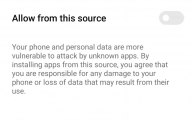
By following these exact steps, the application should install successfully, allowing you to proceed.
Troubleshooting: Fixing PGSharp APK Download Errors
Even with the correct file from pgsharp.com, you might occasionally run into installation errors after downloading the apk. If you face the generic “App not installed” message, systematic troubleshooting will get you sorted.
Here is a technical checklist to resolve the most frequent apk installation errors:
- Parsing Errors: If your phone says “There was a problem parsing the package,” it means the APK file is corrupted or incomplete. Delete the file, clear your mobile browser cache , and re-download it over a strong, stable Wi-Fi connection.
- Insufficient Storage: Modern applications need room to breathe. Ensure you have at least 2GB to 3GB of free internal storage. SD card installations frequently fail or cause extreme lag, so prioritize your phone’s internal memory.
Checking your device specifications before downloading reduces installation issues drastically. Many older or budget-friendly Android phones run on 32-bit operating systems. If you try to install a 64-bit APK on a 32-bit device, it will permanently fail to install. Go to your phone’s ‘About Phone’ settings to check your architecture. If you have a 32-bit phone, you must download the specific “ARMv7” (32-bit) version from the official website.
Understanding the Risks of a PGSharp Free Download
While grabbing a pgsharp free download is incredibly popular, you need to understand how modified applications work so you can protect your gaming accounts.
When you install a modified APK on your Android device, you are running an altered version of a game. Game developers constantly update their detection algorithms to identify unauthorized client modifications. Relying on heavily modified mobile files always carries a risk of account flags, temporary suspensions, or permanent bans.
For maximum safety, many players choose to use secondary or “alt” accounts when playing on modified mobile apps, keeping their main gaming accounts completely separate from the modified software.
Alternative Solution for PC Users: Fonelora Location Changer
For users who want to use their main accounts, or those who prefer to avoid the complexities of mobile APK files altogether, professional desktop software is a highly secure alternative.
If you prefer an automated, error-free setup from your computer, Fonelora Location Changer is a premium tool designed to control your device’s GPS coordinates externally. It works seamlessly for both iOS and Android systems.
Instead of installing a modified game on your phone, Fonelora operates from your Windows or Mac computer. It alters your location data externally without injecting modified code into the mobile application itself. This means you can play the official game downloaded directly from the Google Play Store, heavily reducing the risk of software conflicts or account bans.
Core Features of Fonelora Location Changer
- Zero Mobile Installation Errors: Bypasses local device limitations completely because the software does not require jailbreak, root access, or unknown APK files.
- Safe Game Mode: Simulates highly realistic movement patterns with custom speed variations to keep your activity looking natural.
- 360-Degree GPS Joystick: Obtain real-time, precise navigation control directly from your keyboard.
- Multi-Device Management: Control multiple smartphones simultaneously from a single computer .
How Desktop Software Compares to Mobile APKs
To help you understand the differences, here is a quick overview of how a PC tool compares to a mobile app:
| Feature | Mobile APK Sideloading | Desktop Location Software (Fonelora) |
|---|---|---|
| App Used | Modified Third-Party App | Official App Store Version |
| Installation | Requires changing phone security settings. | Simple PC install; plug-and-play phone connection. |
| Account Safety | Moderate to High Risk (Detection possible). | Highly Secure (No modified code on the phone). |
Choosing between a mobile download and a desktop tool depends entirely on how you prefer to play, but having both options ensures you can pick the setup that makes you most comfortable.
How to Use Fonelora to Change GPS Location on Uber
Follow these simple steps to get started:
Step 1: Download and Install
Download Fonelora Location Changer from the official website and install it on your computer.

Step 2: Connect Your Device
Connect your iPhone or Android device using a USB cable.
- On iOS: Tap “Trust This Computer” when prompted
- On Android: Enable USB Debugging

Step 3: Choose a Location
Open the map interface in the software:
- Enter a specific location (such as an airport or busy area)
- Or select a point directly on the map

Frequently Asked Questions About the PGSharp App Download Tutorial
To provide further clarity, here are concise answers to the most common questions users have regarding the pgsharp app download tutorial and general setup procedure.
Where can I download PGSharp safely?
You should only download files directly from the official website: pgsharp.com. Avoid third-party forums or file-sharing links, as these frequently contain compromised, outdated, or malicious APK files.
How do I check if my APK is safe?
Before installing, go to virustotal.com on your mobile browser and upload the APK file. It will scan the file using multiple antivirus engines to ensure it is free of malware.
What to do if the download file is not working?
If you receive a “parsing error,” it means the file is corrupted. Delete the corrupted file, clear your browser cache, and re-download the file via a stable Wi-Fi connection to ensure it completes successfully.
Conclusion
Finding a trustworthy download source and avoiding the risk of malicious files is easy when you know exactly where to look. By downloading directly from pgsharp.com, verifying your file with a quick VirusTotal scan, and remembering to uninstall the base game first, you resolve the most common mobile installation frustrations instantly.
Whether you choose to optimize your mobile device with a secure APK installation or prefer the enhanced account safety of a desktop simulator like Fonelora Location Changer, you now have the exact steps needed to play securely. Take control of your digital experience today, follow these proven security steps, and enjoy a safe, highly functional location-changing setup.



Joy Taylor is a seasoned technical writer with over a decade of experience in mobile technology. At iMobie, she specializes in producing in-depth content on iOS data recovery, iPhone unlocking solutions, and iOS troubleshooting.
Product-related questions? Contact Our Support Team to Get Quick Solution >
