

How to Fix iPhone & iPad Notifications Not Working

iPhone or iPad notifications not showing, vibrating, or making sound? Discover 6 proven troubleshooting steps to fix notification issues on the latest iOS versions. Get your alerts back on track in minutes.

Author Avatar Joy Taylor Last Updated: Jun. 16, 2026

I just updated to iOS 27 today and now suddenly my notifications for texts are not coming through. Previously, my text messages would cause my phone to vibrate and light up the home screen, where I could read the message. Now, I am not getting a vibration notification, nor is my screen lighting up. None of my settings have changed. Any ideas?

— An iPhone user reported this iPhone messages notifications issue.

Are you not receiving notifications on iPhone after updating to iOS 27? You may find that text messages do not vibrate, app alerts do not appear on the Lock Screen, notification sounds stop working, or banners only show up after you open the app.

In most cases, this problem is related to Focus mode, app notification permissions, Messages settings, Notification Summary, Silent Mode, Apple Watch notification routing, network connection, or a temporary iOS system issue. Don’t worry. This guide collects the most useful methods to fix iPhone notifications not working on iOS 27, iOS 26, iOS 18, iOS 17, and earlier versions.

Why Am I Not Receiving Notifications on iPhone?

If you are not receiving notifications on iPhone, the cause is usually one of the following:

  • Focus mode or Do Not Disturb is enabled, so calls, messages, and app alerts are silenced.
  • Notifications are disabled for a specific app, so the app cannot show banners, sounds, badges, or Lock Screen alerts.
  • Messages notifications are muted, especially if only text message alerts are missing.
  • Notification Summary is delaying alerts, so some notifications are delivered later instead of immediately.
  • Your Apple Watch receives alerts instead, so your iPhone may not vibrate or light up when locked.
  • Network connection is unstable, causing push notifications from apps to arrive late.
  • iOS 27 has a temporary system glitch, especially if the problem started right after the update.

How to Fix Not Receiving Notifications on iPhone

Tip 1. Check Silent Mode and Notification Volume

If your iPhone receives notifications but does not make a sound or vibrate, first check whether Silent Mode is turned on. On older iPhone models, check the Ring/Silent switch. On newer models, check whether the Action Button is set to Silent Mode.

Then go to Settings > Sounds & Haptics and make sure the alert volume is not too low. You can also enable haptics in Ring Mode and Silent Mode if you want your iPhone to vibrate when notifications arrive.

Fix not receiving notifications on iPhone by checking Silent Mode
Fix Not Receiving Notifications on iPhone – Check Silent Mode

Tip 2. Turn Off Focus Mode or Do Not Disturb

Focus mode is one of the most common reasons why you are not receiving notifications on iPhone. If Do Not Disturb, Sleep, Work, Personal, Driving, or another Focus mode is enabled, your iPhone may silence messages, calls, and app alerts.

Open Control Center > tap Focus > turn off the active Focus mode. You can also go to Settings > Focus and check whether important apps like Messages, Phone, Mail, WhatsApp, Gmail, Calendar, or Messenger are allowed to send notifications.

Fix iPhone notifications not working by turning off Do Not Disturb
Fix iPhone Notifications Not Working – Check Do Not Disturb

Tip 3. Allow Notifications for the App

If you are not receiving notifications from only one app, the app notification permission may be disabled. Go to Settings > Notifications, choose the app, and make sure Allow Notifications is turned on.

Also enable Lock Screen, Notification Center, Banners, Sounds, and Badges. If you want to read notifications on the Lock Screen, set Show Previews to Always or When Unlocked.

Allow app notifications when not receiving notifications on iPhone
Check Apps’ Notification Setting

Tip 4. Check Messages Notification Settings

If you are not receiving text notifications on iPhone, check Messages settings separately. Go to Settings > Apps > Messages > Notifications, then turn on Allow Notifications.

Make sure Lock Screen, Notification Center, Banners, Sounds, and Badges are enabled. Then open the Messages app and check whether a specific conversation is muted. If you see a crossed-out bell icon, swipe left on the conversation and tap the bell icon to unmute it.

Tip 5. Turn Off Notification Summary for Important Apps

Notification Summary can delay some app alerts and deliver them together at scheduled times. If you feel that notifications are late or only appear after a long delay, this setting may be the reason.

Go to Settings > Notifications > Scheduled Summary or Summarize Notifications. You can turn it off completely, or remove important apps such as Messages, Phone, Mail, banking apps, delivery apps, or work communication apps from the summary list.

Tip 6. Check Whether Your Apple Watch Is Receiving Notifications

If your iPhone is paired with an Apple Watch, notifications may be delivered to your watch when your iPhone is locked. In that case, your iPhone may not vibrate or light up, which makes it look like iPhone notifications are not working.

Open the Watch app on your iPhone > tap Notifications > choose the affected app. You can adjust whether notifications mirror your iPhone or use custom settings.

Tip 7. Check Lock Screen Notification Preview

If your iPhone receives notifications but does not show message content on the Lock Screen, the preview setting may be hidden.

Go to Settings > Notifications > Show Previews, then choose Always or When Unlocked. Also make sure Lock Screen alerts are enabled for the affected app under Settings > Notifications.

Tip 8. Check the Network Connection

If the network is not working properly, apps may fail to update in the background and push notifications may arrive late. This is common for messaging apps, email apps, social apps, and delivery apps.

You can reconnect Wi-Fi or cellular data, turn Airplane Mode on and off, restart your router, or switch between Wi-Fi and cellular data. If the issue continues, go to Settings > General > Transfer or Reset iPhone > Reset > Reset Network Settings.

Tip 9. Enable Background App Refresh

If notifications only appear after you open the app, Background App Refresh may be disabled. Go to Settings > General > Background App Refresh, then turn it on for Wi-Fi or Wi-Fi & Cellular Data.

After that, make sure the affected app is enabled in the list. This can help apps refresh content and deliver alerts more reliably.

Tip 10. Restart Your iPhone

Restarting your device is still one of the basic ways to fix iOS notification issues. A temporary iOS process error may stop notifications, sounds, or banners from working correctly.

Press and hold the Side button and either Volume button, drag the power-off slider, wait for about 30 seconds, then turn your iPhone back on. If your iPhone is frozen, you can force restart it by quickly pressing Volume Up, quickly pressing Volume Down, then holding the Side button until the Apple logo appears.

Restart iPhone to fix notifications not working
Fix Notifications Not Working – Restart Device

Tip 11. Update iOS and the Affected App

If you started not receiving notifications on iPhone right after installing iOS 27, check whether a newer iOS update is available. Apple may release follow-up updates to fix bugs found after a major iOS release.

Go to Settings > General > Software Update and install the latest available version. You should also open the App Store, tap your profile icon, and update the affected app if a new version is available.

Tip 12. Reset All Settings

If none of the above methods work, you can try resetting all settings. This does not delete your photos, messages, apps, or personal files, but it resets system settings such as Wi-Fi, notifications, privacy, display, and keyboard preferences.

Go to Settings > General > Transfer or Reset iPhone > Reset > Reset All Settings. After the reset, check notification settings again for your most important apps.

Bonus Tip: Fix iPhone System Issues After iOS 27 Update

In most cases, the methods above can fix the issue when you are not receiving notifications on iPhone. However, if the problem started immediately after the iOS 27 update and your iPhone also has other issues, such as black screen, boot loop, stuck on Apple logo, app crashing, update failure, or restore failure, the notification problem may be caused by a deeper iOS system glitch.

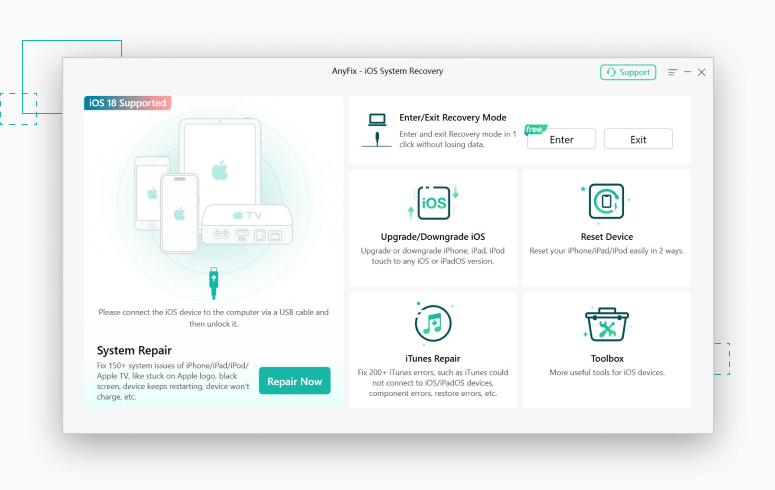
In this situation, you can try AnyFix – iOS System Recovery. It is designed to help Apple users fix 150+ iPhone/iPad/iPod touch/Apple TV system issues, including common iOS update problems, screen stuck issues, recovery mode problems, and other software errors.

You can download AnyFix on your computer and follow the steps below to repair possible iOS system issues.

Free Download

Free Download

* 100% Clean & Safe

Free Download * 100% Clean & Safe

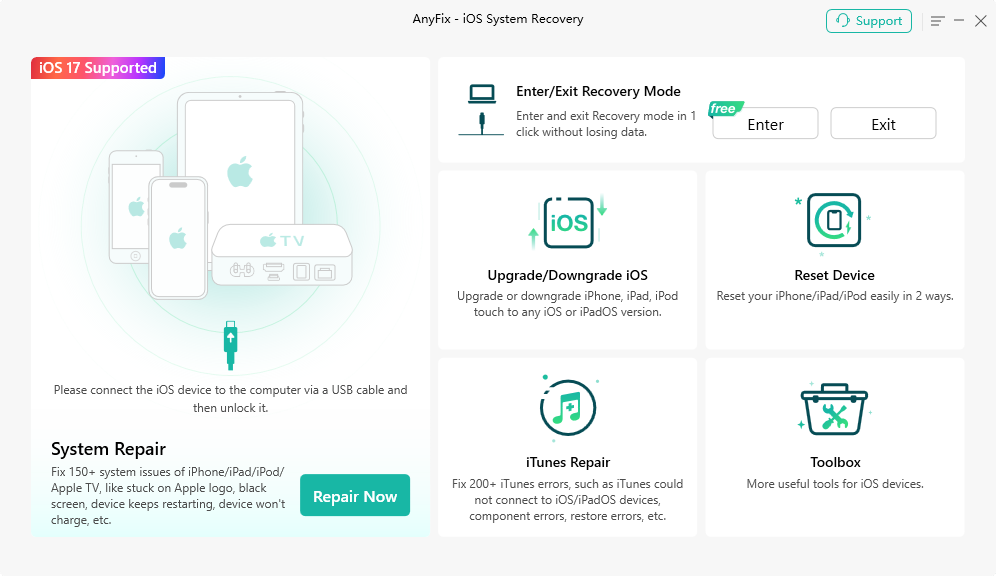
Step 1: Install and open AnyFix on your computer. Connect your iPhone to the computer with a USB cable. Then choose the System Repair panel to fix iPhone/iPad/iPod touch/Apple TV system issues.

Tap on System Repair to fix iPhone notifications not working after iOS update
Tap on System Repair

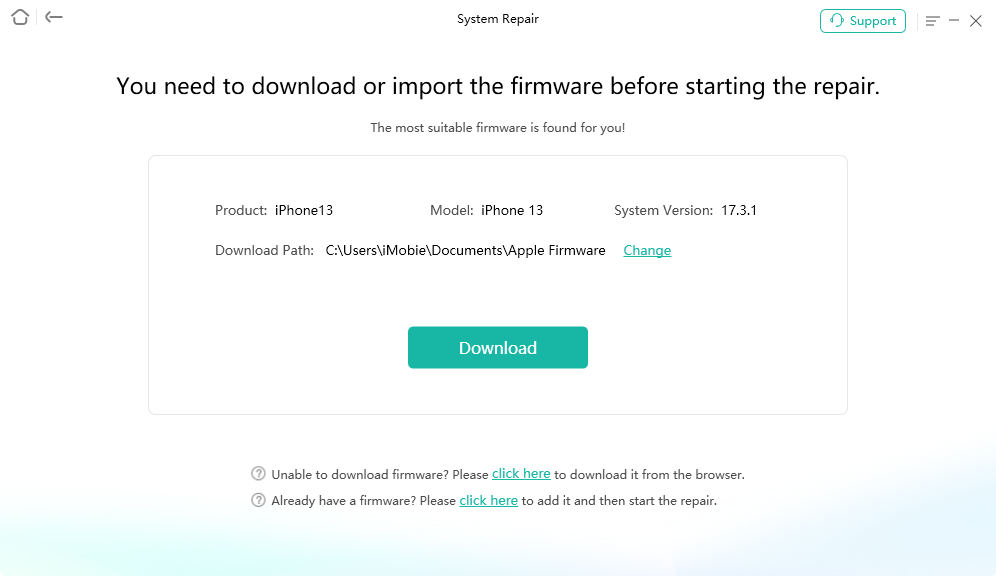
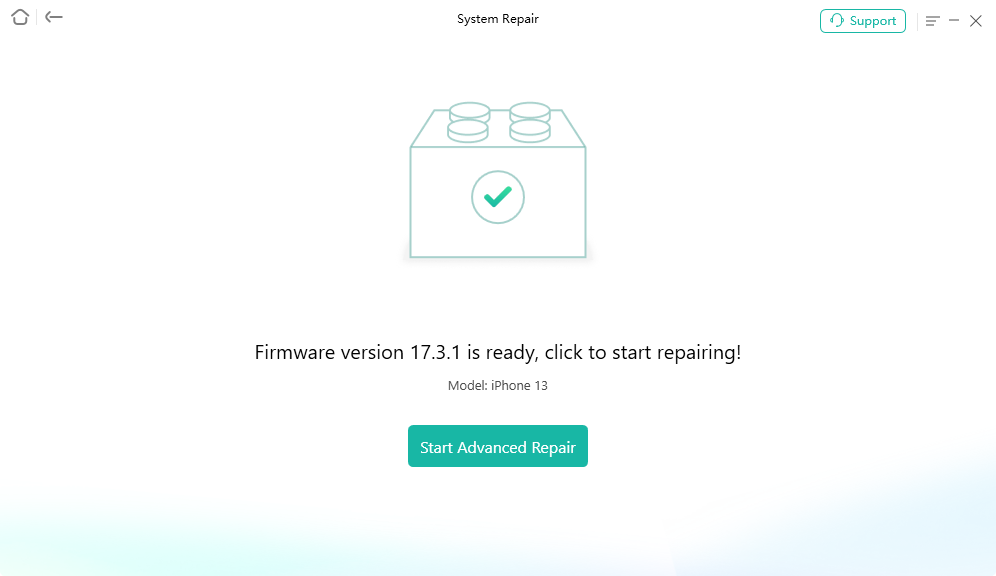
Step 2: Choose the corresponding iPhone problem category and click Start Now. Then follow the on-screen instructions to repair your iOS system.

Choose iPhone Problems to repair iOS system issues
Choose iPhone Problems and Start Now

Note: If your iPhone only has a notification setting issue, try the basic fixes first. AnyFix is more suitable when the notification issue appears together with other iOS system problems after an update.

FAQ About iPhone Notifications Not Working

1. Why am I not receiving notifications on my iPhone after iOS 27 update?

You may not receive notifications after updating to iOS 27 because Focus mode is enabled, app notification permissions are disabled, Notification Summary is delaying alerts, Messages conversations are muted, Apple Watch is receiving alerts, or the iOS update caused a temporary system issue.

2. Why am I not receiving text notifications on iPhone?

Go to Settings > Apps > Messages > Notifications and make sure Allow Notifications, Sounds, Badges, Lock Screen, Notification Center, and Banners are enabled. Also check whether the conversation is muted in the Messages app.

3. Why does my iPhone receive notifications but not make a sound?

Your iPhone may be in Silent Mode, the alert volume may be too low, the app notification sound may be disabled, or Focus mode may be silencing alerts. Check Settings > Sounds & Haptics and the notification settings for the affected app.

4. Why are my iPhone notifications delayed?

Delayed notifications are often caused by Notification Summary, poor network connection, disabled Background App Refresh, Low Power Mode, or app-specific bugs. Remove important apps from Notification Summary and check your network connection.

5. Why do notifications show on my Apple Watch but not my iPhone?

When your iPhone is locked and paired with an Apple Watch, notifications may be delivered to your Apple Watch instead of your iPhone. Open the Watch app on your iPhone and check notification settings for the affected app.

The Bottom Line

If you are not receiving notifications on iPhone, start by checking Silent Mode, Focus mode, app notification permissions, Messages settings, Notification Summary, Apple Watch routing, and network connection. These settings are the most common reasons why iPhone notifications do not show, sound, vibrate, or appear on the Lock Screen.

If the issue started after updating to iOS 27 and your iPhone also has system symptoms like freezing, app crashing, black screen, boot loop, or update failure, you can try AnyFix – iOS System Recovery to repair possible iOS system problems.

Author Avatar
Joy Taylor Twitter Share Facebook Share

Joy Taylor is a seasoned technical writer with over a decade of experience in mobile technology. At iMobie, she specializes in producing in-depth content on iOS data recovery, iPhone unlocking solutions, and iOS troubleshooting.

Back to Top Icon