How to Transfer Audiobooks to iPhone
Want to add audiobooks to your iPhone? Learn how to sync audiobooks with Finder or iTunes, re-download Apple Books purchases, transfer local audiobook files from a PC or Mac, and use AnyTrans when you want a more flexible transfer method.
If you have audiobooks on a computer and want to listen to them on your iPhone, the best transfer method depends on where the audiobook came from. Purchased Apple Books audiobooks can usually be downloaded again directly on the iPhone, while local audiobook files can be synced from a Mac or Windows PC.
Apple’s current setup is also different from older iTunes-only guides. On a modern Mac, you normally use Finder to sync audiobooks and other media to an iPhone. Windows users can still use iTunes in supported setups, and Apple also provides the Apple Devices app for current device syncing.
Quick answer: If the audiobook was purchased from Apple, re-download it in the Books app. If the audiobook is stored on your Mac, use Finder. If it is in an iTunes library on Windows, use iTunes. If you want to add local audiobook files without relying on the traditional sync workflow, AnyTrans is another option.
Transfer Audiobooks to iPhone from Mac with Finder
If your Mac uses macOS Catalina or later, Apple uses Finder instead of iTunes for syncing an iPhone. Apple currently lists audiobooks among the content types that can be synced from a Mac to an iPhone, iPad, or iPod touch.
Step 1. Connect your iPhone to the Mac with a USB or USB-C cable.
Step 2. Open Finder.
Step 3. Select your iPhone in the Finder sidebar.
Step 4. Choose the content category that contains the audiobooks you want to sync.
Step 5. Turn on syncing for that content and select the audiobooks you want on the iPhone.
Step 6. Click Apply. If syncing does not begin automatically, click Sync.
If Finder says the iPhone is already synced with another library, read the warning before choosing Erase and Sync. Apple notes that syncing with a different library can replace content of that synced media type on the device.
Can You Sync Audiobooks over Wi-Fi?
Yes. After the iPhone has been connected by cable once, Finder can be configured to show and sync the iPhone when the Mac and iPhone are on the same Wi-Fi network.
This is useful if you regularly add audiobook files from the same Mac and do not want to reconnect the cable every time.
Transfer Audiobooks from iTunes to iPhone on Windows
For Windows users who still manage audiobooks in iTunes, Apple continues to support audiobook syncing through iTunes.
Step 1. Connect the iPhone to your Windows PC.
Step 2. Open iTunes and select the connected iPhone.
Step 3. Open the Audiobooks syncing section.
Step 4. Turn on Sync Audiobooks.
Step 5. Select all audiobooks or only the titles you want to transfer.
Step 6. Click Apply or Sync.
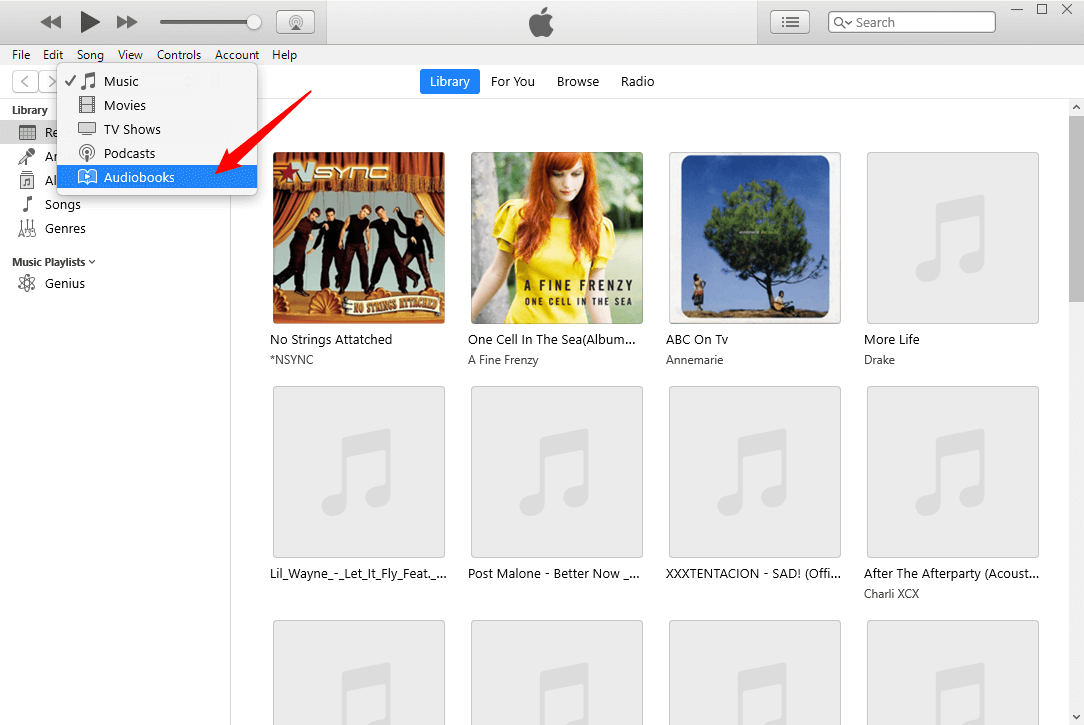
Older Windows iTunes setups include an Audiobooks sync section for the connected iPhone.
What About the Apple Devices App on Windows?
Apple now also provides the Apple Devices app for Windows. It is the newer Windows tool for managing, backing up, restoring, and syncing content with iPhone, iPad, and iPod devices.
If your Windows setup uses Apple Devices rather than the traditional iTunes device-management screen, select the iPhone in the sidebar and use the available syncing controls for the content stored on your PC.
You do not need to reinstall an older version of iTunes simply because a guide from several years ago only shows iTunes screenshots.
Transfer Audiobooks to iPhone without iTunes
If you have local audiobook files on a computer and want a more direct transfer workflow, AnyTrans can import supported iOS media from a Mac or Windows PC to an iPhone.
AnyTrans currently supports managing content across iPhone, iPad, iPod touch, computer, iTunes, and iCloud. Its current product information lists support for iOS devices running iOS 5 and later.
AnyTrans – Add Local Audiobooks to iPhone
- Transfer selected media files from a Windows PC or Mac to iPhone.
- Manage content without relying on the traditional full-library iTunes sync workflow.
- Supports iPhone, iPad, and iPod touch devices running iOS 5 or later.
- Can also access and transfer content from an existing iTunes library.
How to Add Audiobooks to iPhone with AnyTrans
Step 1. Launch AnyTrans and connect the iPhone to the computer.
Step 2. Open Device Manager and go to the media-management area that contains Audiobooks.
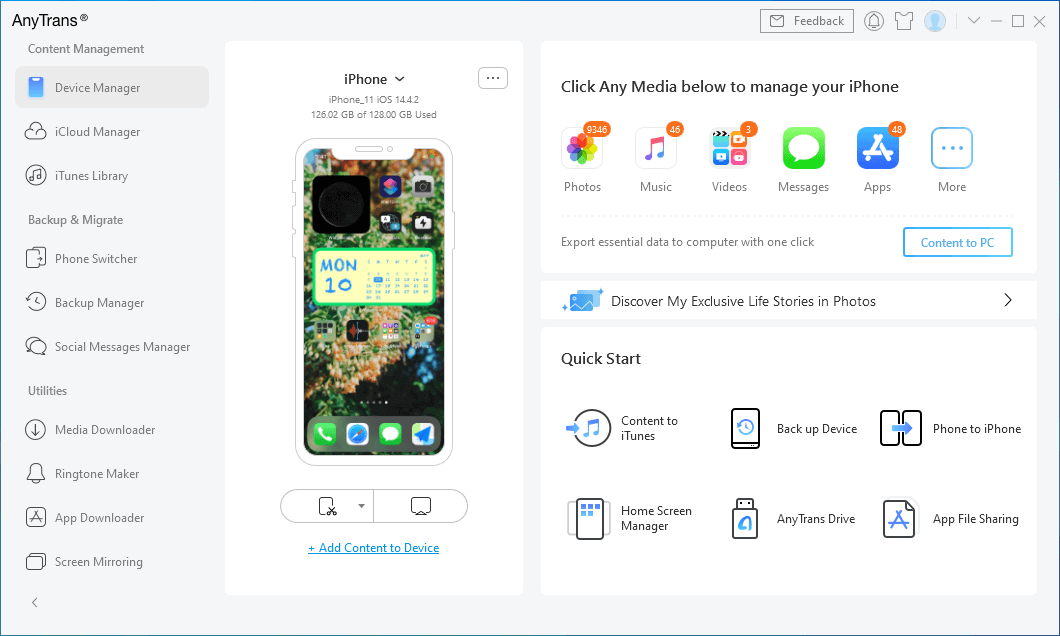
Open Device Manager and choose the content category you want to manage.
Step 3. Click the option to add new content from the computer.
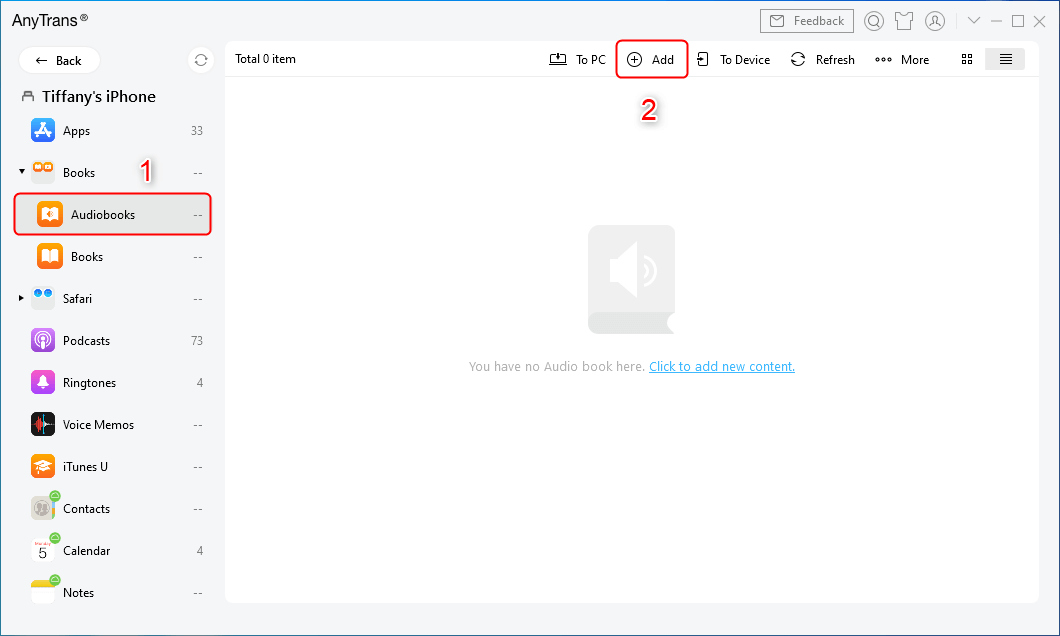
Choose the option to add audiobook files from the computer.
Step 4. Select the audiobook files you want to transfer.
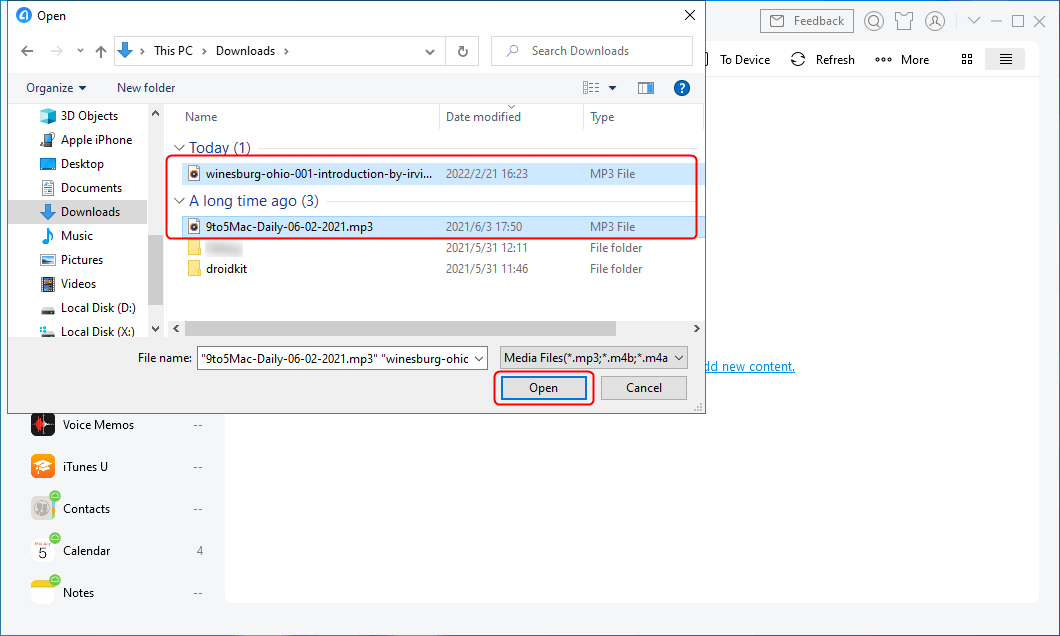
Select the audiobook files stored on the computer.
Step 5. Start the transfer and keep the iPhone connected until AnyTrans reports that the operation is complete.
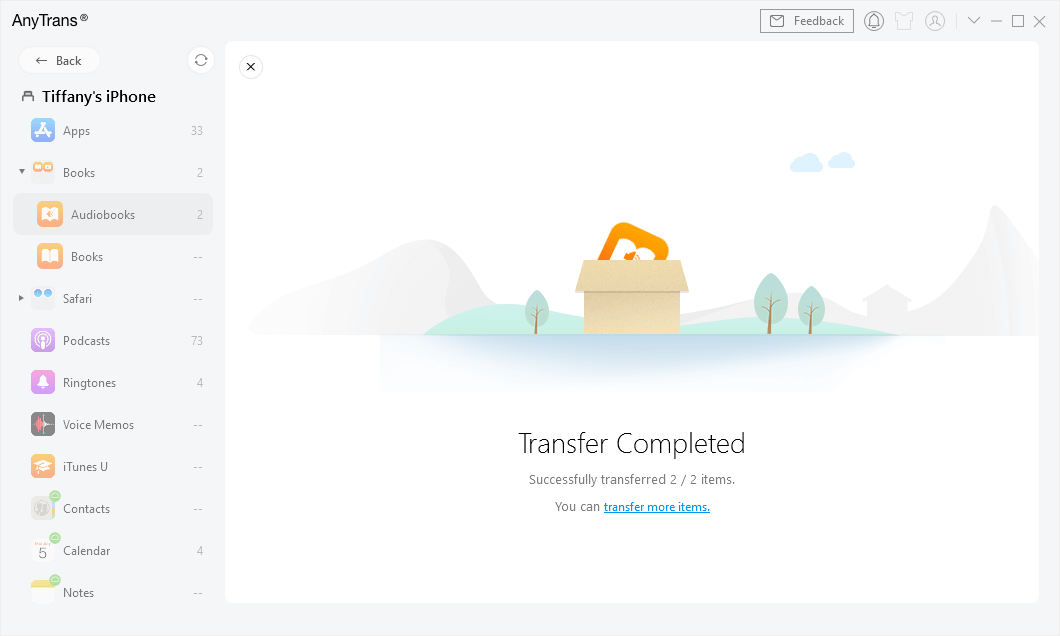
Wait until the audiobook transfer finishes before disconnecting the iPhone.
Step 6. Open the Books app on the iPhone and check whether the transferred audiobook appears in your library.
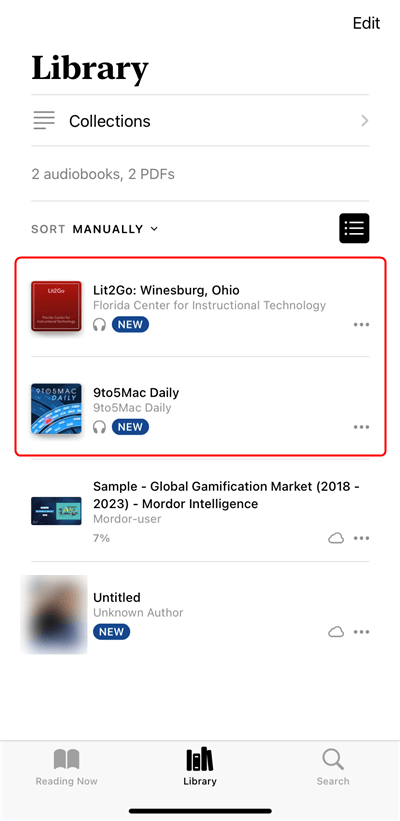
Check the Books app after the transfer is complete.
Only transfer audiobook files that you have the right to use. Some protected purchases or subscription content are subject to the rules of the service where the audiobook was obtained.
Transfer Audiobooks from an Existing iTunes Library with AnyTrans
If the audiobooks are already stored in an iTunes library on the computer, AnyTrans also provides access to iTunes-library media.
Step 1. Connect the iPhone and open AnyTrans.
Step 2. Open iTunes Library.
Step 3. Choose Audiobooks.
Step 4. Select the titles you want and use the transfer-to-device option.
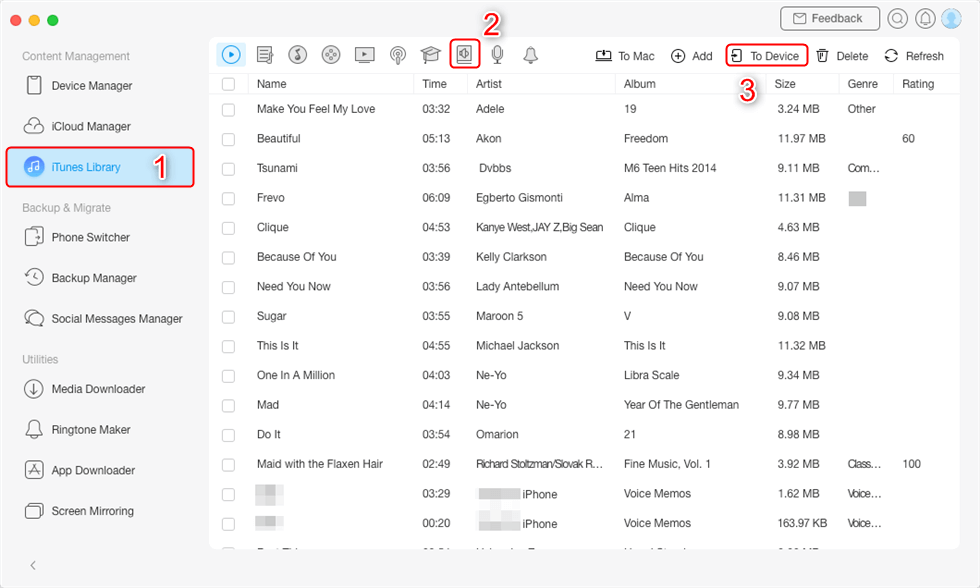
Select audiobooks from the iTunes library and transfer them to the connected iPhone.
Download Purchased Audiobooks in Apple Books
If the audiobook was purchased from Apple’s Audiobook Store, you may not need a computer at all. Apple lets you re-download eligible purchased audiobooks directly in the Books app.
Step 1. Open the Books app on the iPhone.
Step 2. Tap Home, then tap your photo or Account button.
Step 3. Under My Purchases, tap Audiobooks.
Step 4. Tap Not on this iPhone.
Step 5. Find the audiobook you want and tap the Download button.
Download a Family Member’s Audiobook
If your Family Sharing group uses Purchase Sharing and the audiobook is eligible for sharing, the Books app can also show a family member’s purchases.
Open your account area in Books, choose the family member, locate the audiobook, and download it to the iPhone.
Family Sharing does not make every audiobook universally shareable. Availability depends on the item, region, account settings, and whether Purchase Sharing is enabled.
Keep Apple Books Content Available Across Devices
If you use the same Apple Account on your iPhone and Mac, Apple Books can keep purchases, library information, collections, reading position, bookmarks, and other supported Books data synchronized through iCloud.
On current iPhone software, check:
Settings > [your name] > iCloud > See All > Books
and:
Settings > Apps > Books
Then make sure the relevant Books and iCloud Drive syncing options are enabled.
FAQs About Transferring Audiobooks to iPhone
1. How do I transfer audiobooks from my computer to my iPhone?
On a modern Mac, connect the iPhone and use Finder to sync audiobooks. On Windows, you can use supported iTunes or Apple Devices workflows. A third-party transfer manager such as AnyTrans can also import local audiobook files.
2. Can I transfer audiobooks to iPhone without iTunes?
Yes. Mac users can use Finder, purchased Apple Books audiobooks can be downloaded directly on the iPhone, and local files can be transferred with another compatible iPhone content manager.
3. Does Finder replace iTunes for audiobooks on Mac?
Yes on macOS Catalina and later. Apple lists audiobooks among the content types that Finder can sync between a Mac and an iPhone, iPad, or iPod touch.
4. Can I still sync audiobooks with iTunes on Windows?
Yes. Apple continues to document iTunes for Windows as a supported way to sync audiobooks and other media in compatible Windows setups.
5. Can I download an audiobook again without connecting my iPhone to a computer?
Yes, if it is an eligible purchase from Apple’s Audiobook Store. Open Books, go to your purchases, choose Audiobooks, and download the title again.
6. Can Family Sharing transfer audiobooks to my iPhone?
Family Sharing can let you download eligible audiobooks purchased by family members when Purchase Sharing is enabled. Availability varies by content and region.
7. Where do transferred audiobooks appear on iPhone?
Audiobooks that are successfully added to the Apple Books library normally appear in the Books app under your audiobook library or collections.
8. Why are my audiobooks not syncing to iPhone?
Check that the iPhone is trusted by the computer, the correct sync category is enabled, the audiobook is actually stored in the source library, and the device is not currently syncing that content through a conflicting cloud/library configuration.
9. Will syncing audiobooks erase other music on my iPhone?
It depends on the existing sync relationship. Apple warns that if an iPhone is synced with another computer library and you choose Erase and Sync, content of that synced media type can be replaced. Read the warning before proceeding.
10. Can AnyTrans transfer audiobooks without erasing my existing library?
AnyTrans is designed for selective content transfer rather than requiring a full-library iTunes sync. Review the selected files and the current transfer screen before confirming the operation.
The Bottom Line
The easiest way to transfer audiobooks to iPhone depends on the source. Use Finder for a modern Mac, supported iTunes or Apple Devices workflows on Windows, and Apple Books to re-download purchases directly on the iPhone.
If your audiobook files are already stored on a computer and you want a more flexible alternative to traditional syncing, AnyTrans can import selected media and access an existing iTunes library. The important point is to distinguish purchased Apple Books content from local audiobook files, because they use different transfer and licensing paths.



Joy Taylor is a seasoned technical writer with over a decade of experience in mobile technology. At iMobie, she specializes in producing in-depth content on iOS data recovery, iPhone unlocking solutions, and iOS troubleshooting.
Product-related questions? Contact Our Support Team to Get Quick Solution >
