How to Screen Record Netflix without Black Screen-2025? Guide
Netflix has strict policies that restrict users from recording their favorite shows and seasons. But you can record Netflix by disabling hardware acceleration and using tools like QuickTime Player or OBS screen recorder. Lastly, you can even use a reliable third-party tool like Keeprix Video Downloader to save the videos for offline viewing.
Netflix is a popular streaming platform. Millions of people use it to enjoy their favorite shows. Sometimes, users want to download and watch the videos offline. One way is to record Netflix. However, the issue is that recording makes the screen black. So, how to screen record Netflix without a black screen?
In this guide, we’ll discuss 2 ways you can record the Netflix screen easily. Plus, we’ll also explain a reliable tool like Keeprix Video Downloader to save any Netflix video and keep it for an unlimited time. Let’s have a look.
Part 1. Can I Screen Record on Netflix?
Yes, you can screen record Netflix, but it’s not straightforward due to DRM restrictions. Netflix employs DRM to prevent unauthorized copying, causing a black screen when you try to capture content with standard tools. However, by disabling hardware acceleration in browsers or using specialized software like OBS Studio or QuickTime Player, you can bypass this barrier. For a hassle-free alternative, tools like Keeprix Video Downloader let you save videos directly without recording.
Part 2. How to Screen Record Netflix on a Computer Without Black Screen?
Below, we have discussed 3 reliable methods to record Netflix screen on your computer without any black screen:
Method 1. Screen Record Netflix on Browser (Disable Hardware Acceleration)
To screen record Netflix on a computer without a black screen, you have to first disable hardware acceleration. Netflix videos are encrypted, and they are decoded by hardware acceleration to show your favorite movies on the display. When you disable this option, the videos become decrypted, and you can record easily with any recording software.
1. Google Chrome
Step 1: Open the browser and click the 3 vertical dots in the top-right corner.

Choose Three Dots
Step 2: Click “Settings” from the available menu.
Step 3: Open “System” and uncheck “Use graphics acceleration when available” from the new menu. Relaunch your browser to apply the settings.

Choose System to Open Menu
2. Firefox
Step 1: Launch Firefox and click the three horizontal lines in the top right corner, and choose Settings.

Choose Settings from New Menu
Step 2: Click on General from the left menu and find the Performance section by scrolling down.
Step 3: Uncheck the “Use recommended performance settings” from the right side menu. Uncheck the new option “Use hardware acceleration when available.” Restart the browser to apply the changes.
3. Microsoft Edge
Step 1: Open Microsoft Edge, click the “three button” on the top right corner, and choose Settings.
Step 2: Choose “System and Performance” and tap on System from the right menu.

Choose System and Performance
Step 3: In the next menu, uncheck “Use hardware acceleration when available.” Relaunch the browser to apply the settings.

Disable Hardware Acceleration
4. Safari
Safari doesn’t allow disabling the hardware acceleration. This is because hardware acceleration is only available in Chromium-based browsers. For non-Chromium browsers, this option is not available as it is managed automatically.
Method 2. Screen Record Netflix on Mac via QuickTime Player
Screen recording via QuickTime Player is suggested for Mac users. Since you can’t disable hardware acceleration on a Mac, this tool may help you in recording the screen. The following are the steps:
Step 1: Open QuickTime Player from the apps and click Files from the menu bar.
Step 2: Select the new screen recording option, and it will ask you to choose the recommended area of the screen for recording.
Step 3: Click the Record button. Go to Netflix and play your favorite movie.

Choose New Screen Recording
Method 3. Screen Record Netflix via OBS Screen Recorder
OBS or Open Broadcaster Software is basically a video production software that helps in tasks like video editing. The best thing about this tool is that you can use it to capture the screen as well as Netflix content.
Before using, you must disable hardware acceleration as described in the above steps. Let’s have a look at how to record Netflix screen without black screen issues:
Step 1: Download OBS Studio from the official site and install it on your PC.

Select Your Desired Platform
Step 2: Launch the tool and click the Plus icon in the scenes menu. This will add a new scene.
Step 3: Now, add a new source by tapping Plus and either select Display capture or Window capture as per your needs.

Create New Scene
Step 4: If you have selected the Window Capture option, the tool will ask you to create a new window. Name the new window and hit OK.
Step 5: Then choose the browser where Netflix is being played. You can choose any Chromium-based browser, but Chrome is preferred.
Step 6: Once you see the contents of the browser in the OBS tool, such as the Netflix screen, choose Start Recording.
Part 3. How to Screen Record Netflix on Mobile (Android/iOS)
If you want to record Netflix on your phone, such as an Android or iOS device, the built-in recording app is enough. However, this method may not bring results successfully each time. Follow the given steps:
1. On Android
The screen recording process for Android involves using the native screen recording option. Here is how to find and use it:
Step 1: Swipe down the top of your mobile screen to open the shortcut panel and find the “screen recorder” button. Initiate the recording by clicking the recording button.

Tap the Screen Recoding Option
Step 2: Open Netflix and play your favorite video. The recorder will start recording the video as it plays.
2. On iOS
On iOS phones, recording is possible with the built-in screen recording feature. A step-by-step guide in this regard is given below:
Step 1: Open Netflix and play your favorite movie. Now, open the Control Center and find the Screen Recording icon.

Find Screen Recording App
Step 2: After the countdown, it will start recording the screen. To stop it, tap on the red status bar at the top and choose stop.
Part 4. Bonus. How to Save Netflix Videos Directly without Recording
If you want to save Netflix videos and also don’t want to go through the hassle of screen recording, a reliable third-party tool, Keeprix Video Downloader, can help you. With this software, you can save any of your favorite movies, shows, or seasons and keep them for as long as you want.
The following are some key features of this tool:
Key Features:
- Download your concerned video in high quality.
- Enjoy subtitles and audio tracks without interruption
- No recording stress.
- Works completely independent of DRM protection.
- Download on both Windows & Mac devices.
How It Works:
Step 1: Firstly, download and install Keeprix video downloader from the official site. Launch the platform tool and choose Netflix from the given sites.
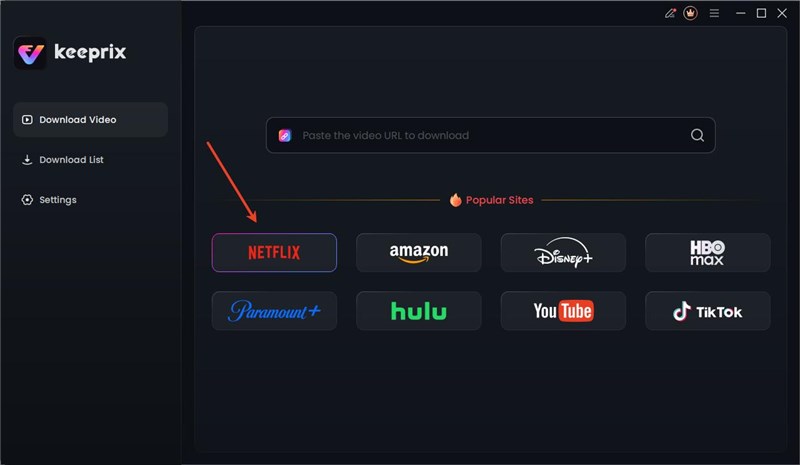
Choose Netflix Platform
Step 2: Sign in to Netflix using your credentials and click the Sign In button.
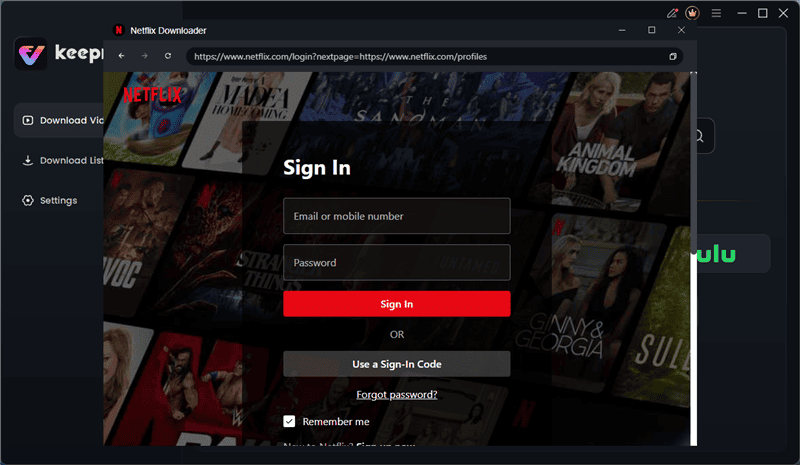
Log in to Netflix in Keeprix
Step 3: Next, choose your favorite movie or show from the Netflix website and click the download arrow in the bottom right.
Step 3: Choose video settings such as resolution or subtitle language in the next screen and click the Download button.
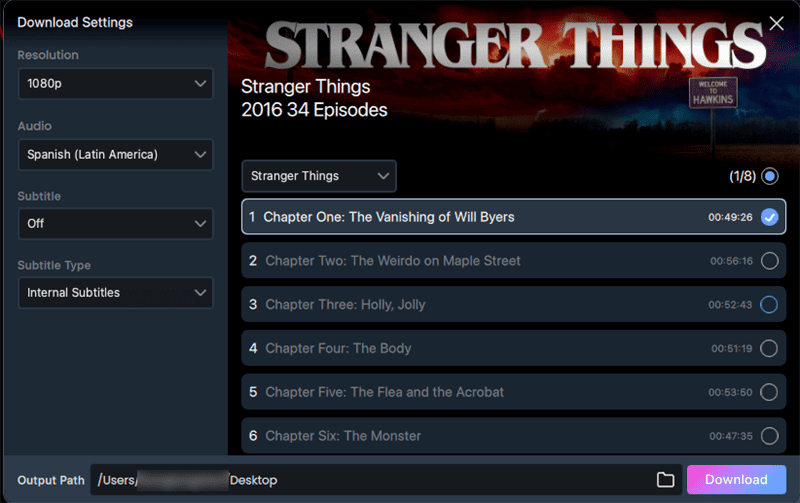
Download Netflix Video in Keeprix
Step 4: Check the progress of the downloaded video in the next screen. After that, play and enjoy your media in the Download List section.
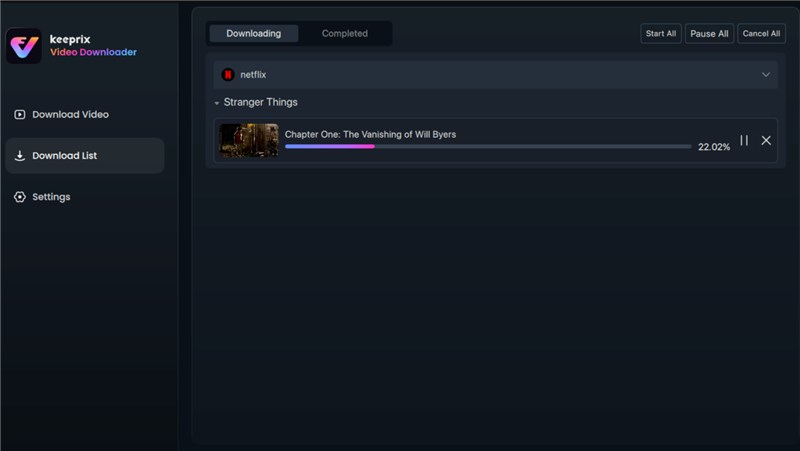
Download Netflix Videos
Part 5. FAQs
Q1. Does Netflix Know When You Screen Record?
Yes, Netflix knows when you try to record the screen. Due to its DRM policy, the platform can instantly detect when someone is trying to capture the screen and turn the screen black.
Q2. Why Does Netflix Go Black When I Screenshot?
Netflix has built-in DRM protection capabilities to detect any unusual attempts at capturing screenshots. While screenshotting, Netflix goes back to deny access as soon as possible.
Q3. Is it legal to record or download Netflix content?
Recording or downloading for personal use is generally acceptable under fair use, but sharing or distributing violates Netflix’s terms. Always respect copyright laws.
Part 6. Conclusion
Screen recording Netflix without a black screen in 2025 is achievable with the right approach. Disabling hardware acceleration in Chrome, Firefox, or Edge allows tools like OBS Studio or QuickTime Player to capture content smoothly on computers. For mobile users, built-in Android/iOS recorders may work but face DRM hurdles. For the easiest and most reliable solution, Keeprix Video Downloader lets you save Netflix videos directly in high quality, skipping recording entirely.



Joy Taylor is a seasoned technical writer with over a decade of experience in mobile technology. At iMobie, she specializes in producing in-depth content on iOS data recovery, iPhone unlocking solutions, and iOS troubleshooting.
Product-related questions? Contact Our Support Team to Get Quick Solution >
