Top 5 iPhone Webcam Apps for Using iPhone as Webcam
You can turn your iPhone into a high-quality webcam with the right app. So, after scouring the internet, we have provided the top 5 iPhone webcam apps for you. We’ve highlighted their unique features as well as limitations. All these apps offer an affordable & convenient path for a better video experience.
I know the iPhone’s camera is already top-notch, so why not extend its capabilities? Instead of buying a separate webcam, you can easily use your iPhone for this task. And iPhone webcam apps are tools that make this a reality.
This will not only save you money but also ensure that you get excellent video quality.
In this article, we’ll guide you through the top 5 iPhone webcam apps that make this possible. We’ll also give you the key features and pros & cons of each app. So you can choose the one that fits your needs!
But first, let’s start with the basics and see what an iPhone webcam app is!
What is the iPhone Webcam App?
With the exceptional camera capabilities of your iPhone, you don’t need a separate webcam. The iPhone Webcam App is a software that allows you to transform your iPhone into a high-quality webcam for your computer.
These apps automatically set your iPhone settings so that it becomes perfect for webcam function. For example, it prevents your iPhone from turning off during the webcam function and helps in connecting the iPhone to a computer.
Moreover, the beauty of these iPhone webcam apps lies in their accessibility. Most of the iPhone webcam apps provide both free and paid options. So you can choose the version that is suitable for your needs.
Now that’s enough for some introduction. Let’s jump into our list and take a look at the first iPhone webcam app.
1. iVCam Webcam from E2ESOFT (Android/iOS)
iVCam Webcam by E2ESOFT is the top ranker in our list. It allows your Android or iOS phone to function as an HD webcam for your PC.
What sets iVCam apart is its compatibility with all webcam-enabled applications. Moreover, it can run as a security camera, baby monitor, or even as a remote video recorder. iVCam Webcam even allows for automatic connections. You just need to download it on both your iPhone and computer. Then, with a single click, both devices will be connected right away.
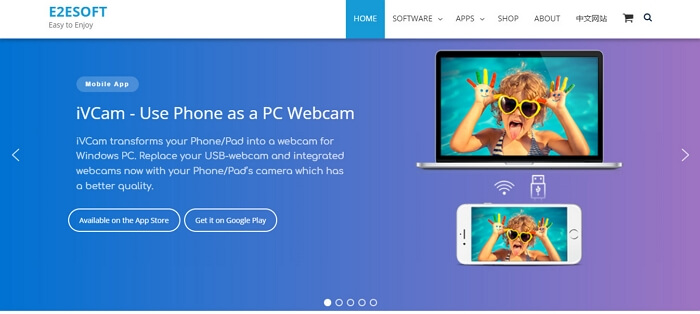
iVCam Webcam official webpage interface
Key Features
Here are the key features of the iVCam Webcam app.
- Automatic Connection
There is no need for manual setup. iVCam provides automatic connectivity via Wi-Fi or USB. - Video Quality Choices
It supports common video resolutions like 4K, 2K, 1080p, etc. - Camera Settings
You can customize your experience with advanced settings such as AE/AF, ISO, EC, and WB. - Multi-Device Support
You can also connect multiple mobile devices to one PC simultaneously. - Background Replacement
There are also options like blur, bokeh, and green screen for your video background.
Pros & Cons
Here are some pros and cons of using the iVCam Webcam app.
| Pros | Cons |
| The app is simple to use. | The free version includes a watermark on the video and displays ads. |
| It can serve as a security camera, baby monitor, and more. | It can be laggy when used alongside other GPU-intensive programs. |
| Allows for video recording directly to your computer. | Some users experience a delay between audio and video. |
| Works with any application that uses a webcam. | After a trial period, video quality is reduced, and some features become restricted. |
Now, let’s move on to the second-best iPhone webcam app on our list.
2. DroidCam Webcam (Android/iOS)
Now comes the DroidCam Webcam. This app is ideal for everything from video calls to live streaming.
DroidCam Webcam stands out as one of the original apps for converting your smartphone into a webcam. Since 2010, it has helped millions of people to use their mobile devices for a variety of video needs. DroidCam is compatible with multiple platforms and provides a simple user interface.
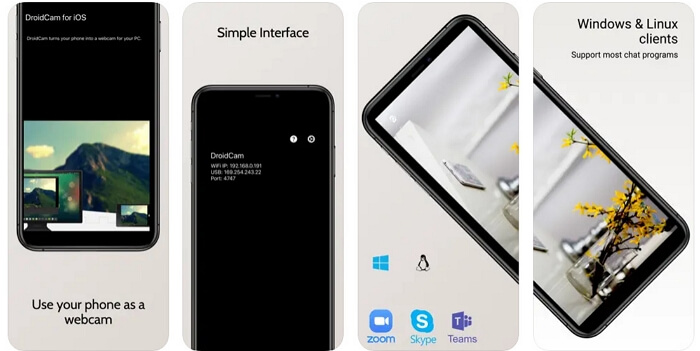
DroidCam features for webcam
Key features
Here are some key features of the DroidCam webcam app.
- Multi-Platform Compatibility
DroidCam works with Windows, Mac, and Linux systems. - Native OBS Studio Support
It integrates directly with OBS Studio for high-quality, low-latency video recordings and live streams. - Connection Options
DroidCam offers the flexibility of connecting via Wi-Fi or USB. - Simplicity & Efficiency
There are no complicated setups. It’s designed for simple usage.
Pros & Cons
These are the pros and cons of using the DroidCam Webcam app.
| Pros | Cons |
| Works with Zoom, MS Teams, Skype, and most other video programs. | Only 480p video quality in the free version. |
| It’s extremely user-friendly. | HD video on iOS includes a watermark unless you upgrade. |
| There is no time limit on standard definition usage. | Requires manual adjustment through the client software. |
| Some users have trouble getting the 720p version to work. |
The third place in our list of iPhone webcam apps is taken by EpocCam Webcam from Elgato.
3. EpocCam Webcam from Elgato (iOS)
Everyone knows Elgato because of their popular capture cards. But did you know that they also provide an excellent iPhone webcam app? Yes, they do!
EpocCam Webcam from Elgato is also useful in turning your iOS device into a versatile webcam. Unlike other competitors, EpocCam is known for its advanced features. They include AR capabilities and fine-tuned controls via Camera Hub. Moreover, it also provides a high level of customization.
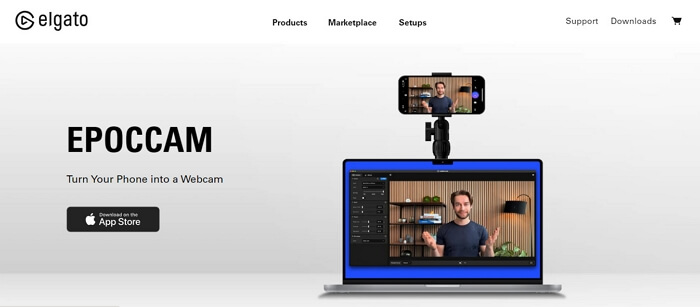
EpocCam official webpage interface
Key Features
Let’s have a look at the key features of the EpocCam app.
- AR Capabilities
EpocCam is the first webcam app to integrate Snapchat Lenses for better experiences. - Camera Hub
Advanced controls to fine-tune brightness, contrast, and more. It even offers a live preview on your PC. - Multicam Support
You can add your phone as an additional camera angle in your streaming app with ease. - Wire-Free Streaming
You have the option to operate over Wi-Fi. So you can move freely during video sessions.
Pros & Cons
Let’s see some pros and cons of using the EpocCam app.
| Pros | Cons |
| Works well with Microsoft Teams, Zoom, and OBS, among others. | Adjusting zoom and other settings in the viewing software is not always possible. |
| Offers up to 1080p video quality. | The free tier is limited to 720p with a watermark. |
| Can use your phone as a wireless with a microphone. | Microsoft Teams feature that currently works only on Windows. |
| Supports a range of lens types, including wide angle and telephoto. |
Now, let’s see the next iPhone webcam app.
4. Camo (Android/iOS)
The next app on our list is Camo. It provides top-tier video quality across a variety of devices.
Camo distinguishes itself by providing flexibility and full control over your video settings. The platform supports multiple devices including built-in cameras and even DSLRs. Additionally, Camo Studio allows detailed adjustments to your video settings. So it is highly customizable for any scenario.
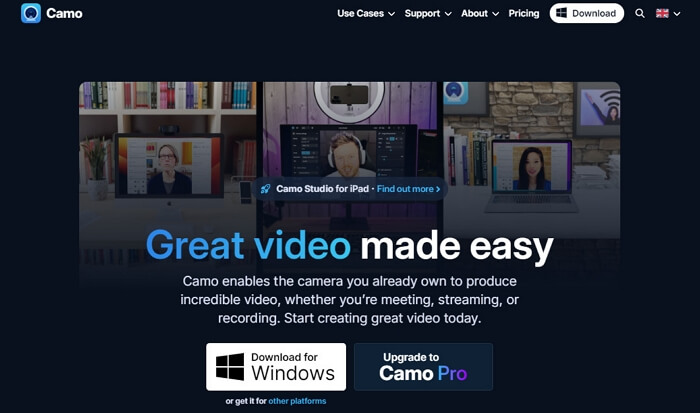
Camo official webpage interface
Key Features
Here are the key features of Camo.
- Camo Studio
A comprehensive control panel is provided. This panel allows you to tweak lenses, exposure, colors, and more. - Overlays Editor
You can overlay brand logos, text, or other elements directly onto your video stream. - Spotlight Feature
Camo brightens you against the background. It solves common lighting issues in video calls. - Auto Framing
You can also incorporate face-tracking to keep yourself centered as you move.
Pros & Cons
Let’s see the pros and cons of Camo now.
| Pros | Cons |
| Enables custom overlays for business or project-specific needs. | The free version is limited to 720p and may lack some features. |
| Enhances video from any connected camera. | The pro version comes at a yearly fee of $49.99. |
| The pro version offers up to 1080p resolution. | The full feature set may require time to master. |
| Advanced features may use more computer resources. |
Last but not least, we’ve got GetCam.
5. GetCam (Android/iOS)
GetCam is the last app in our hand-picked list. But since GetCam has managed to get a spot here, it can easily transform your iPhone into a high-quality webcam.
GetCam provides a user-friendly way to convert your iPhone into a superior webcam for both Mac and Windows systems. The service specializes in optimizing your video feed for all online activities. Its focus on simplicity, alongside its powerful automatic features, distinguishes it from other webcam apps.
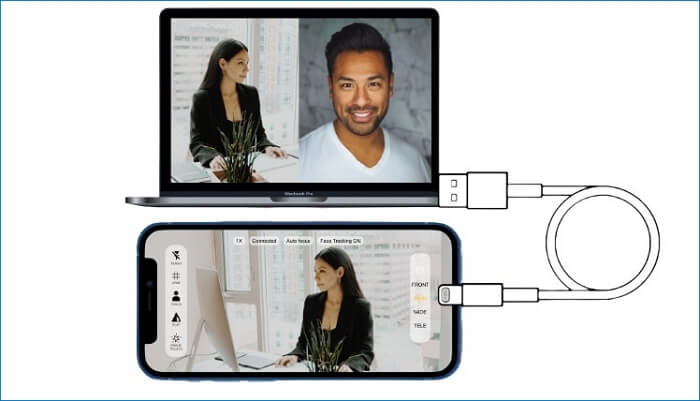
GetCam operating sample
Key Features
These are the key features of GetCam.
- Multi-Platform Support
You can easily connect your iPhone to both Mac and Windows computers. There is also a broad compatibility with video conferencing apps. - Magic Touch
It automatically adjusts the best exposure and color settings. There is no need for manual changing. - Built-In Flashlight
There is an integrated flashlight feature to enhance video quality in low-light conditions. - Head Tracking
You can keep your face centered on the screen during calls and streams.
Pros & Cons
The pros and cons of using GetCam are as follows.
| Pros | Cons |
| It has a user-friendly interface. | Not compatible with older iPhones. |
| Allows you to focus and set up scenes manually. | A monthly subscription is necessary for using full features. |
| The app is only available for iPhone users. |
The Bottom Line
Since Covid 19, the need for a reliable and high-quality webcam is increasing every single day. Now, given the current surge in remote work, everyone is looking for those high-quality webcams. But, if you have an iPhone on hand, then the iPhone webcam apps are a better option. They offer top-notch video quality without requiring additional hardware.
In this article, we have discussed five popular iPhone webcam apps. Each of these apps comes with a unique set of features and pricing options. So check their key features and select the one you like.



Senior writer of the iMobie team as well as an Apple fan, love to help more users solve various types of iOS & Android-related issues.
Product-related questions? Contact Our Support Team to Get Quick Solution >
