Wise Trick: Use an Old iPhone as Webcam
Do you know that you can capture stunning visual content using your old iPhone as a webcam? If not, this is the right platform to be. This post will demonstrate how to use your old iPhone as a webcam.
Whether you want to create how-to clips, tutorial videos, product demos, or even record yourself while hosting a video call, you need a high-end webcam if you are looking to record top-notch content from your PC/Mac. However, the expensive nature of most professional webcams can be discouraging. But that’s nothing to stress about if you’ve got an old iPhone.
You can use your old iPhone as a webcam to capture any activity you are engaged in easily and quickly. Though this isn’t common, the approach is super simple. In case you don’t have an idea of how it’s done, this post should help you out, as we discuss in detail how to use an old iPhone as a webcam. Keep reading!
Can I Use an Old iPhone as a Camera Only?
Yes of course!
Your old iPhone can serve as a camera for you to take pictures or even record facecam videos. However, you must have the appropriate app or software to link your iPhone to your computer system so it can serve the purpose of a webcam.
How to Use an Old iPhone as a Webcam on a PC?
If you are using a PC with your old iPhone, you need a compatible third-party app to turn your mobile device into a webcam. Though there are many brands online, not all will give you that high-end result you seek. But as experts in the space, we recommend using DroidCam.
DroidCam is a simple app that allows you to turn your iPhone or Android phone into a webcam on both Windows and Linux computers. It offers dual connection mode, which could be via a wireless connection or USB cable.
The steps to linking your old iPhone to PC via DroidCam is straightforward and you don’t have to worry about system compromise when using the app. Here’s the procedure to follow for you to use your iPhone as a webcam on a PC:
Step 1. Launch the Apple Store on your iPhone and enter DroidCam in the search field. Ensure you are connected to an internet connection, then click the appropriate button to install the app.
Step 2. After completing the download, proceed to download the Windows client version on your PC. Follow the on-screen wizard instructions to complete the installation.
Step 3. Next, find the DroidCam app icon on your PC and click on it to open it. Also, run the app on your iPhone and grant the necessary permission, such as camera and microphone access.
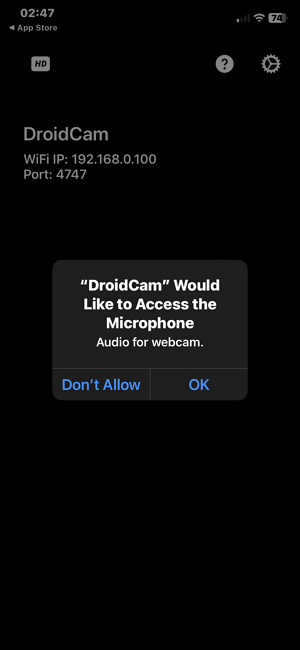
Run DroidCam on Your iPhone
Step 4. Once done with the aforementioned step, connect your iPhone and PC to the same WiFi network.
Step 5. Note down the numbers after WiFi IP and DroidCam Port. Copy the numbers and paste them in the Device IP and DroidCam Port field.
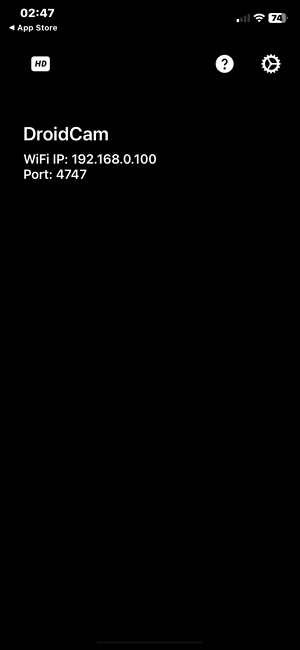
The WiFi IP and Port Number
Step 6. Next, proceed to check off the video and audio feature on DroidCam, then click on Start to use your iPhone as a webcam. Without further ado, your phone will launch the camera and you can see yourself on your PC.
Quick Note: If you are looking to work with a third-party video conferencing app, you need to make necessary adjustments to the camera and microphone settings. To do that, kindly head to the settings menu on the video conferencing app and change the camera and microphone input to DroidCam and DroidCam Virtual Audio respectively.
Limitations of Using DroidCam
- DroidCam offers a free version but hides some advanced features that are only accessible to premium users. That is, only folks who have subscribed premium can access the features.
- Apps installed from the Microsoft Store don’t connect with DroidCam. For instance, you can’t use Skype with the DroidCam app.
How to Use Old iPhone as Webcam on Mac
For folks using Mac, you can try the Continuity Camera to link your iPhone with your computer so it can serve the purpose of a webcam. The Continuity Camera is a built-in feature tucked into Apple smartphones, including iPhone to help establish a connection with a Mac computer.
With this feature, you don’t have to worry about installing any third-party app or software. However, you must fulfill some conditions to connect your iPhone to Mac conveniently. Find below the precondition:
- Make sure your iPhone is running on iOS 16.0 or later operating system.
- Your Mac must be running on macOS Ventura or later to use the Continuity Camera with your iPhone.
Use the stepwise guide below to connect your old iPhone to Mac using Continuity Camera:
Step 1. Make sure your WiFi is enabled on your iPhone and Mac computer. Once confirmed, sign in the same iCloud details on both devices (the iPhone and Mac).
Step 2. Once the above is set, head to Settings on the iPhone and select General.
Step 3. Next, tap on the Airplay & Handoff icon and ensure Handoff and Continuity Camera is enabled.
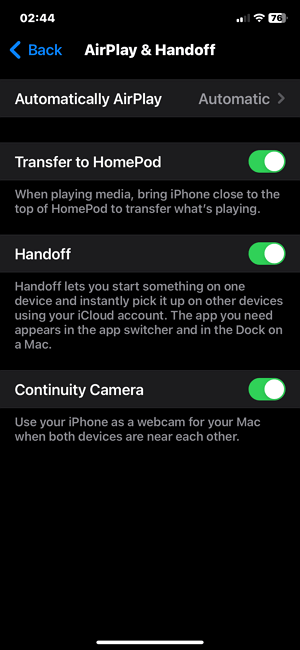
Enable Handoff and Continuity
Step 4. Change the camera source settings on your video conferencing app to your iPhone camera. After that, make sure your iPhone is in range with your Mac and wait for both devices to connect.
Now that a connection is established, your iPhone can now act as a webcam for your Mac.
Limitations
- Continuity Camera is available for specific iPhone and Mac devices. For example, you can’t connect iPhone 7 or later models with Mac using Continuity Camera since the device doesn’t support iOS 16 or later. The same thing applies to Macs.
- Your iPhone and Mac must be in close range for you to successfully connect them using the Continuity Camera.
Bottom Line
Now that you have this guide, your iPhone can serve as a webcam on any computer system, whether PC or Mac. Just select any of the techniques introduced to connect your iPhone smoothly with your computer and start using it as a webcam.



Senior writer of the iMobie team as well as an Apple fan, love to help more users solve various types of iOS & Android-related issues.
Product-related questions? Contact Our Support Team to Get Quick Solution >
