How to Download Disk Drill for Android Data Recovery 2026
Disk Drill is an Android data recovery tool that you can use to get back your lost files, photos, and more on your device. Check how Disk Drill use and what data can be recovered by this tool.
It’s quite a nightmare if you accidentally lose important data on your Android, leaving you in search of a reliable recovery solution. That’s where Disk Drill Android recovery steps in, which connects to your phone and uses deep‑scan algorithms to restore lost files. This guide will explain what Disk Drill is, the types of Android data it can recover, and step‑by‑step instructions to get your data back. We’ll also introduce an Android‑focused alternative when you fail to recover data with Disk Drill.
You may also like: Best Android data recovery software 2026
What is Disk Drill?
Disk Drill is a desktop-oriented data recovery tool known for its advanced scanning algorithms. You can recover data from many different kinds of storage devices (like hard drives or USB sticks) and even from SD cards.
Even if it’s a Windows/Mac application, you can fully use it to read Android file systems. In this way, you can recover deleted media and other files directly from your phone when connected via USB.
What Data Can Be Recovered by Disk Drill?
Disk Drill can restore multiple types of data on your Android device. Its scanning will look for lost photos, videos, audio/music, documents (PDFs, text files, etc.), archives (ZIP, RAR) and more. It even supports recovering contacts, text messages, call history and similar data if your phone is rooted.
Essentially, after scanning, Disk Drill groups recoverable content into categories so you can easily find files by type. Disk Drill’s algorithms work on both internal phone memory and external SD cards. Its interface also lets you pause a scan and set filters to refine the search, making it easy to locate exactly what you need.
Is Disk Drill Free to Use?
Disk Drill offers a free basic version, but with limits. The free Windows/Mac edition allows recovering up to 500 MB of data. After that, you’ll need to upgrade to unlock unlimited recovery. In practice, this means you can download and run Disk Drill for free to see if it finds your files, but retrieving large amounts (over 500 MB) requires a paid key.
The advantage is that you can test Disk Drill Android risk-free on small losses. If you only need to rescue a few photos, the free limit may suffice.
How to Recover Android Data with Disk Drill
Recovering data from your Android phone with Disk Drill involves a few straightforward steps:
Step 1. Download and Install Disk Drill
Begin by accessing the Disk Drill official site and downloading its installer. You can choose the free version or the Pro version while running the installer. Once the app is successfully installed, launch Disk Drill.
Step 2. Enable USB Debugging on Your Android Phone
Before connecting the device, go to your Android’s Settings > About Phone and tap Build Number seven times to unlock Developer Options. Then go to Settings > Developer Options and turn on USB Debugging.
Step 3. Connect Your Android Device
Moving forward, connect your Android to your computer via a USB cable and allow USB debugging. Simply hit the “OK” button when your Android phone prompts you for it.
Step 4. Scan Your Phone for Lost Data
Now, in Disk Drill’s main window, click “Data Recovery” and locate your Android phone from the list. Once you select your phone, click the “Search for lost data” button to initiate the scanning process.
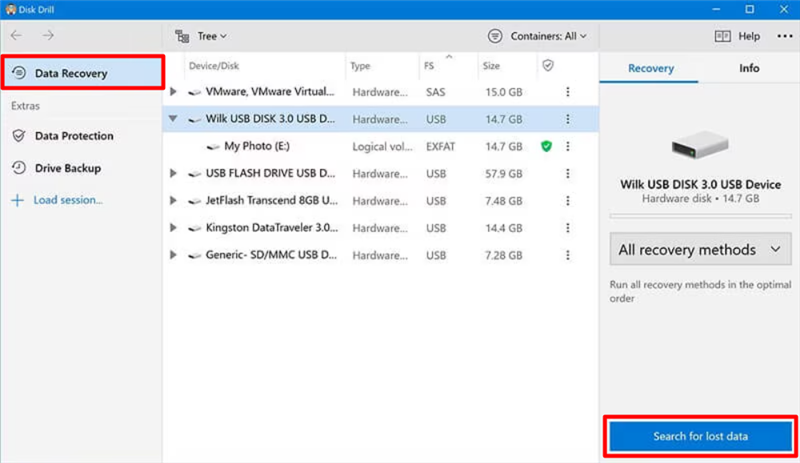
Scan Data in Disk Drill
Step 5. Preview and Recover Files
Disk Drill will display categorized files when your Android’s scan finishes. Once you are done checking all the desired data, click “Recover” to proceed with saving your lost Android files to your selected storage destination.
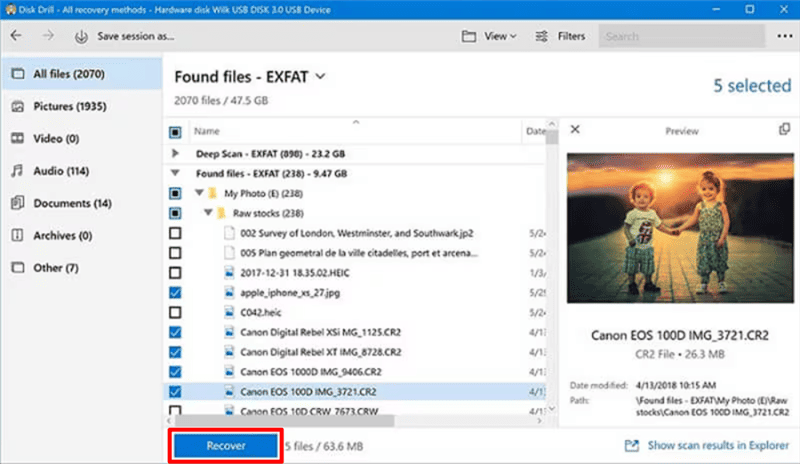
Recover Data in Disk Drill
Best Alternative to Disk Drill – DroidKit
While Disk Drill is capable, it has some limitations on Android data recovery (focus on media files, requires root for some items, and a strict free limit). For a more flexible Android-centric solution, we recommend DroidKit Android data recovery. It is an all-in-one Android toolkit that recovers lost data even from broken or locked devices.
You can bring back almost all kinds of data with its exceptional data-recovery module without even needing a backup. Additionally, DroidKit offers tools like FRP bypass and system repair, making it a versatile toolkit. Given these advantages, DroidKit is often considered the best Disk Drill Android alternative for managing your Android.
Instructions to Recover Android Data via DroidKit:
You can download and install DroidKit on your computer before recovering lost data.
Free Download * 100% Clean & Safe
Step 1. Install DroidKit and Launch Quick Recovery
Download and install the Windows or Mac version. Open DroidKit and click “Quick Recovery from Device” from the “Data Recovery” feature on the main screen.
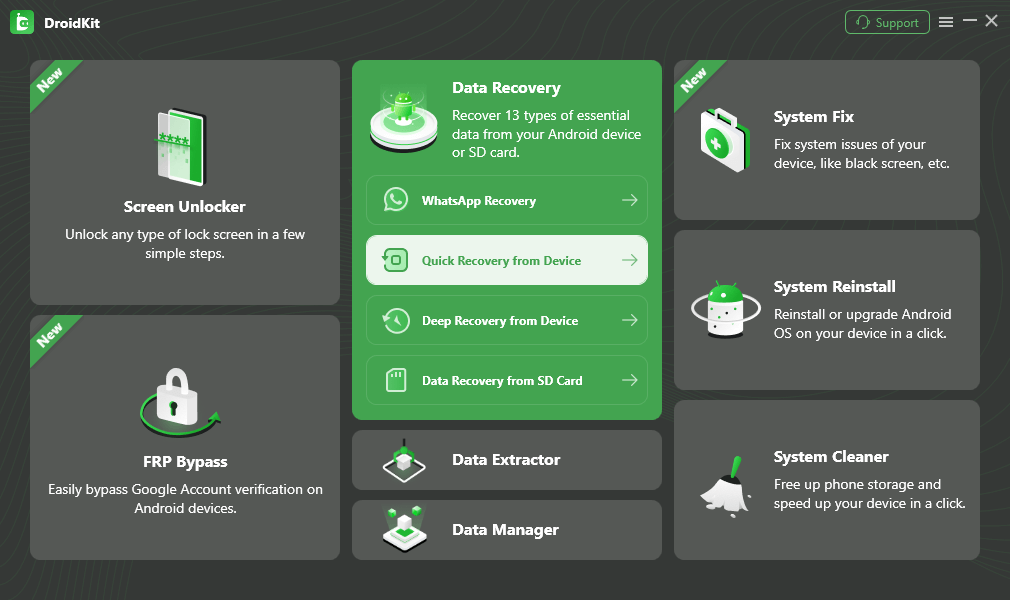
Choose Quick Recovery from Device from Data Recovery
Step 2. Select Data Types to Scan
DroidKit will show 13 different categories like Photos, Messages, Contacts, and Videos. Check the boxes for the data you want to recover and click “Start”.
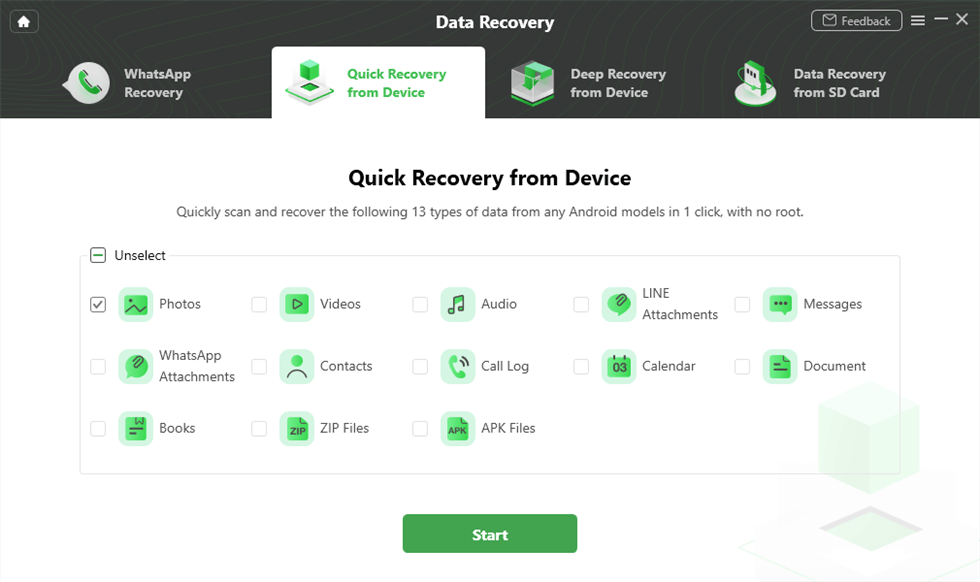
Select the Data Type that You Want to Recover
Step 3. Connect Your Android Device
Use a USB cable to attach your phone to the computer. Hit the “Start” button once your Android is successfully connected.
Step 4. Scan and Preview
After the scan finishes, preview thumbnails or text snippets to confirm file integrity. Select the items you need and proceed to save with either “To Device” or “To PC”.
Step 5. Save Extracted Data to the Selected Path
Once you proceed, choose the export path of the scanned data and hit the “Save” button to start the recovery process.
Step 6. Access the Recovered Data Files
After the recovery process ends, you can view saved files or continue recovering data from any category.
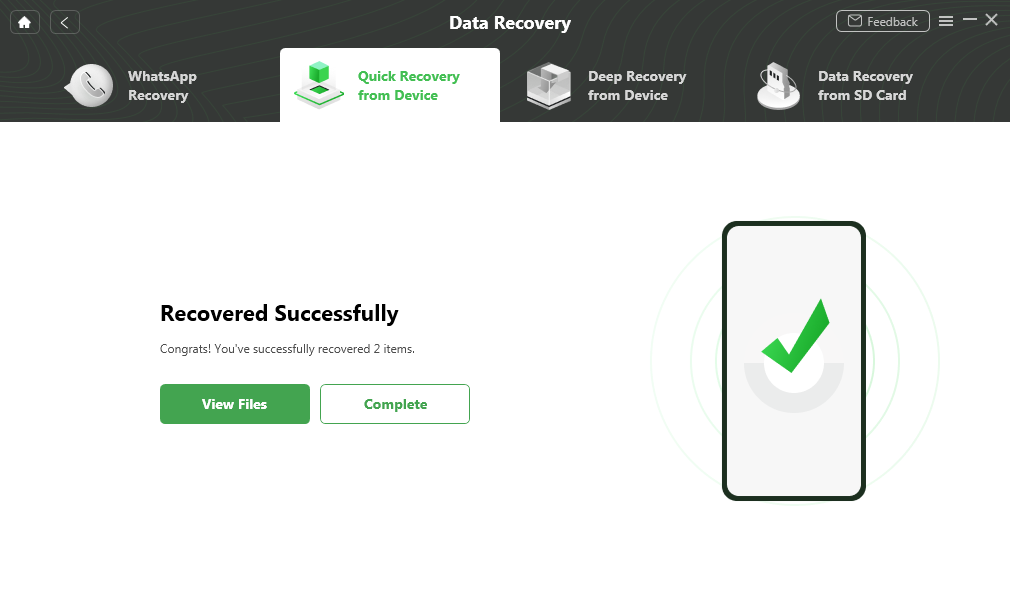
Quick Recovery from Device Successfully
Conclusion
In conclusion, Disk Drill Android is a handy data-recovery tool that can extract lost files from your Android phone. It supports virtually any data type and offers user-friendly scanning features. However, larger data recoveries will need a paid plan upgrade, as the free edition of Disk Drill only recovers up to 500MB. As an alternative, DroidKit provides a more comprehensive Android-focused solution that covers the restrictions of Disk Drill. It recovers a wide array of data even from damaged devices and supports thousands of device models.
Free Download * 100% Clean & Safe



Senior writer of the iMobie team as well as an Apple fan, love to help more users solve various types of iOS & Android-related issues.
Product-related questions? Contact Our Support Team to Get Quick Solution >
