How to Recover Deleted Samsung Notes With or Without Backup
Deleted or missing Samsung Notes? Learn how to check Trash, restore synced notes from Samsung Cloud, fix sync issues, and what to try when you have no usable backup.
Deleted a Samsung Note by mistake, or opened Samsung Notes only to find an important note missing? The best recovery method depends on what happened to it. A recently deleted note may still be in Trash, while a note that disappeared after changing phones, resetting the device, or signing into a different account may depend on Samsung Cloud sync or an earlier backup.
Start with the least invasive options below before trying device-level data recovery. In particular, check Trash and your Samsung account first. If the note was never synced or backed up, recovery becomes less certain and depends on what recoverable data still exists on the device.
Can I Recover Deleted Samsung Notes?
Yes, in some situations. The first thing to identify is whether the note was deleted, missing because of a sync/account problem, or lost along with other phone data.
| Situation | What to Check First | Recovery Outlook |
| You recently deleted the note | Samsung Notes Trash | Best case if the note is still in Trash |
| Notes disappeared after signing in or changing devices | Samsung account and Samsung Cloud sync | Possible if the notes were previously synced |
| Notes disappeared after a reset | Samsung Cloud and other backups created before the reset | Depends on whether a usable synced or backed-up copy exists |
| No Trash copy or usable backup exists | Device-level recovery options | More uncertain; recovery is not guaranteed |

Check where your Samsung Notes were stored or synced before choosing a recovery method.
If a note is simply missing rather than deleted, also search All notes and check your folders before attempting a restore. A note that was moved, sorted differently, or opened under another Samsung account may look deleted even though it still exists.
Why Did My Samsung Notes Disappear?
The cause matters because restoring a note from Trash is very different from trying to recover data after a factory reset. Common situations include:
- Accidental deletion: You may have deleted an individual note while organizing or editing Samsung Notes.
- Wrong Samsung account: Synced notes may appear missing when the phone is signed into a different Samsung account.
- Samsung Cloud sync is off: Notes created on one device will not automatically appear elsewhere unless the relevant sync option was enabled.
- Sync has not completed: A connection or account problem can prevent previously synced notes from appearing immediately.
- Factory reset: A reset removes locally stored phone data. Whether your notes return afterward depends on what was synced or backed up beforehand.
- App or device changes: Changing devices, reinstalling apps, or modifying account settings can make locally stored or unsynced notes unavailable.
- The note was moved: A note may still exist under All notes, another folder, or a different view instead of being permanently deleted.
Before using a recovery tool, confirm that you are signed into the Samsung account you previously used and search Samsung Notes itself. This avoids treating a sync or organization problem as permanent data loss.
How to Recover Samsung Notes
Method 1. Recover Deleted Samsung Notes from Trash
If you deleted the note recently, check Trash first. This is the quickest recovery path because it restores the existing note rather than trying to reconstruct deleted phone data.
Step 1. Open the Samsung Notes app.
Step 2. Tap the menu icon and choose Trash.
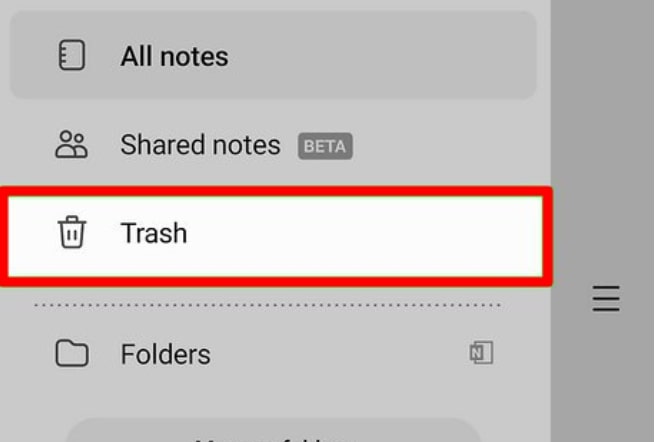
Open Trash to look for a recently deleted Samsung Note.
Step 3. Find the note you want to recover and select it.
Step 4. Tap Restore to return it to Samsung Notes.
If the note is not in Trash, do not assume it has been permanently erased yet. Search All notes and folders, then check your Samsung account and sync status.
Method 2. Recover Synced Samsung Notes from Samsung Cloud
Samsung Notes can sync through your Samsung account and Samsung Cloud. This method is relevant when notes disappeared after switching devices, signing back into an account, or changing sync settings.
Step 1. Open Settings on your Galaxy phone or tablet.
Step 2. Tap your Samsung account at the top of Settings and open Samsung Cloud. Menu names can differ slightly depending on the Galaxy model and software version.
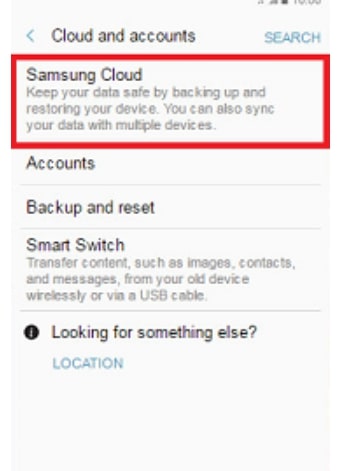
Open Samsung Cloud from your Samsung account settings.
Step 3. Check whether Samsung Notes synchronization is available and enabled for the Samsung account you previously used.
Step 4. Open Samsung Notes again and allow synchronization to complete.
This only helps if a copy of the missing note was previously synced. Turning synchronization on after an unsynced local note has already been deleted does not create a backup retroactively.
Method 3. Check Samsung Cloud Restore Options
If the notes disappeared together with other data after a device change or reset, also check whether Samsung Cloud offers a relevant restore option for an earlier backup.
Step 1. Open Settings and go to your Samsung account.
Step 2. Open Samsung Cloud and choose Restore data if that option is available.
Step 3. Select the relevant device backup.
Step 4. Review the data categories Samsung makes available and restore the applicable data.
Sync and backup are not interchangeable. If Samsung Notes was never synced and no usable backup contains the missing information, Samsung Cloud cannot recreate a locally deleted note.
Method 4. Fix Samsung Notes That Are Missing After Sync
If you did not intentionally delete anything, troubleshoot synchronization before attempting data recovery:
- Confirm that the phone is signed into the correct Samsung account.
- Open Samsung Cloud and check whether Samsung Notes sync is enabled.
- Connect to a stable network and allow synchronization to finish.
- Open All notes and search for the missing title or text.
- Check folders in case the note was moved rather than deleted.
- If you use Samsung Notes on more than one Galaxy device, compare the account and sync settings on both devices before deleting or resetting anything.
This distinction is important: a synchronization problem can often be corrected without scanning the phone for deleted files.
How to Recover Samsung Data Without Backup
If the Samsung Note is no longer in Trash and there is no usable Samsung Cloud copy, your options become more limited. If other Samsung data was lost at the same time, such as photos, messages, contacts, documents, or videos, DroidKit Android Data Recovery provides device-level Android recovery modes.
There is an important distinction between its recovery modes: Quick Recovery does not require rooting, while Deep Recovery performs a deeper scan and requires root access. Do not start Deep Recovery under the assumption that the phone will remain unrooted.
DroidKit – Recover Lost Android Data
- Provides Quick Recovery and Deep Recovery for different Android data-loss situations.
- Supports recovery categories including photos, messages, contacts, documents, videos, and other Android data.
- Lets you preview available data before selecting items to recover.
- Quick Recovery does not require root; Deep Recovery requires root for a deeper device scan.
How to Check Recoverable Samsung Data with DroidKit
Step 1. Launch DroidKit and open its Android data recovery options. Start with Quick Recovery when appropriate; use Deep Recovery only after understanding its root requirement.
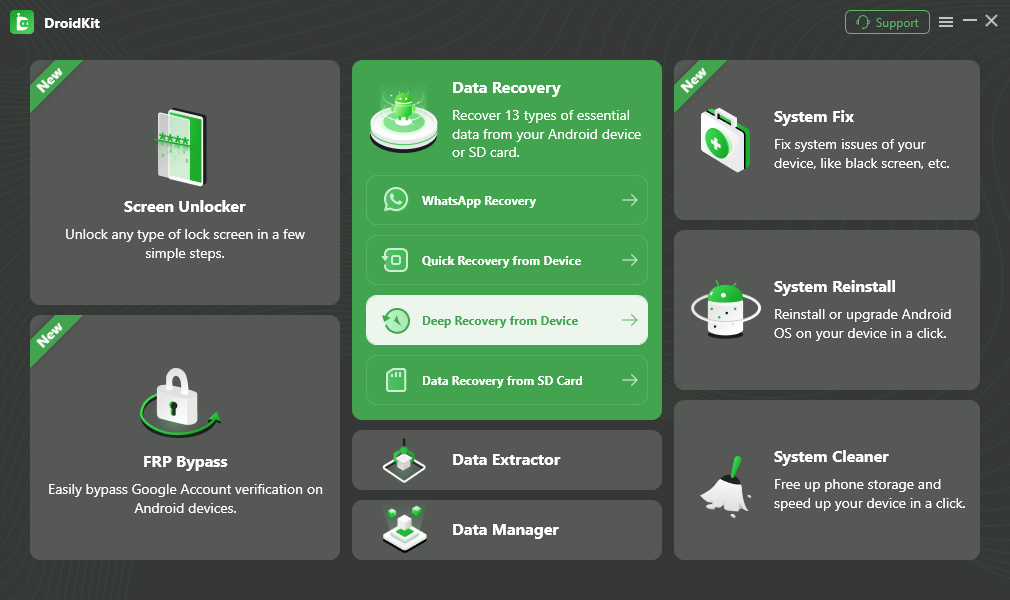
DroidKit provides device recovery modes for Android data loss.
Step 2. Select the data category you need to search and start the recovery workflow.
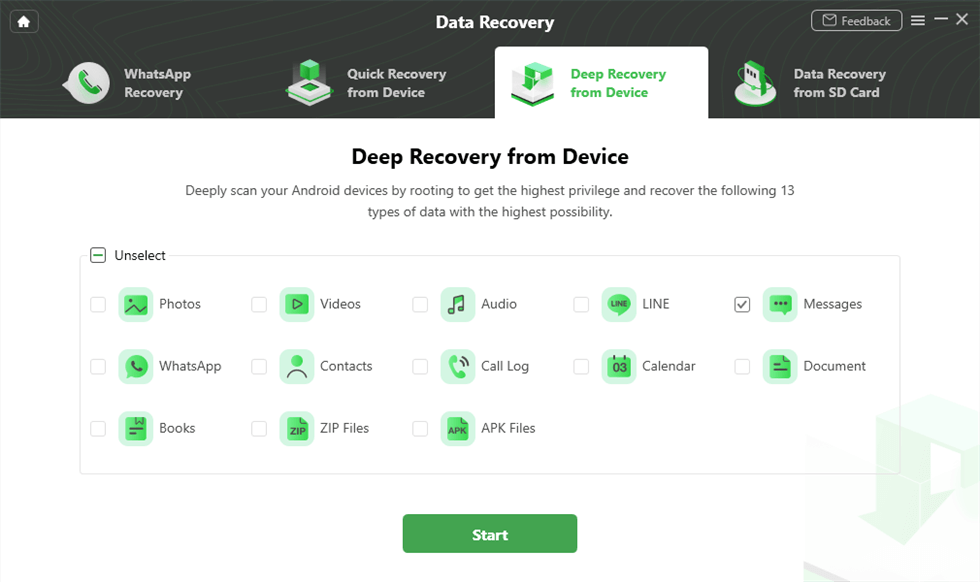
Select the relevant data category before scanning.
Step 3. Connect your Samsung phone to the computer with a USB cable and follow the connection instructions shown by DroidKit.
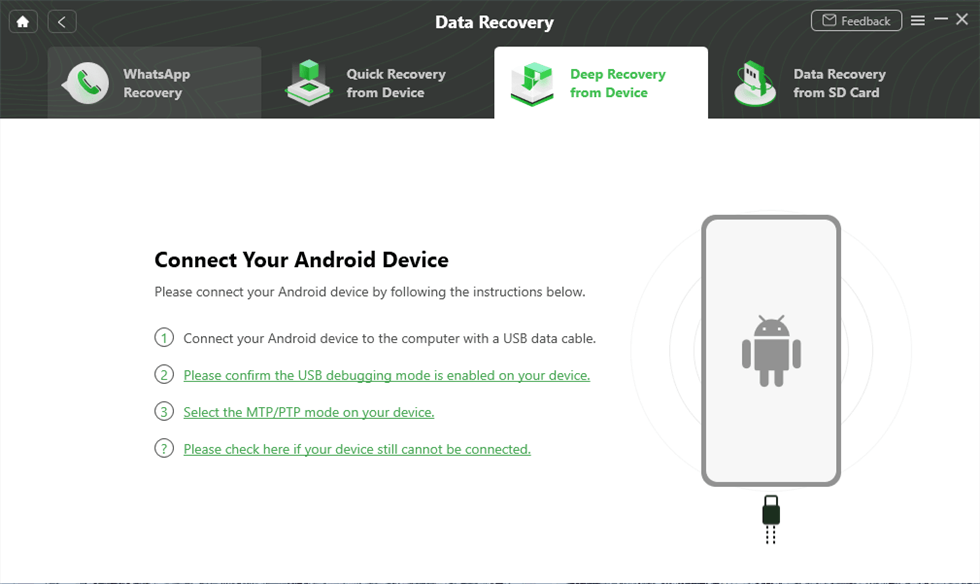
Connect the Samsung device and follow the on-screen instructions.
Step 4. If you deliberately choose Deep Recovery, DroidKit will check the device’s root status. Review the rooting requirement before continuing.
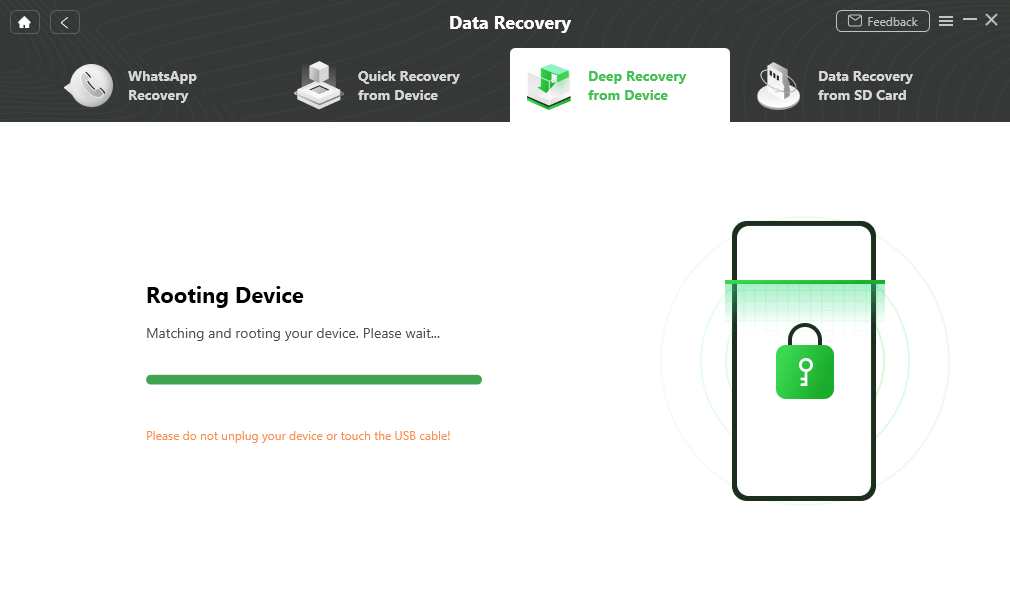
Deep Recovery requires root access for a deeper scan.
Step 5. After scanning, preview the data DroidKit finds and select the available items you want to recover.
Step 6. Choose the recovery destination offered for that data type and complete the recovery process.
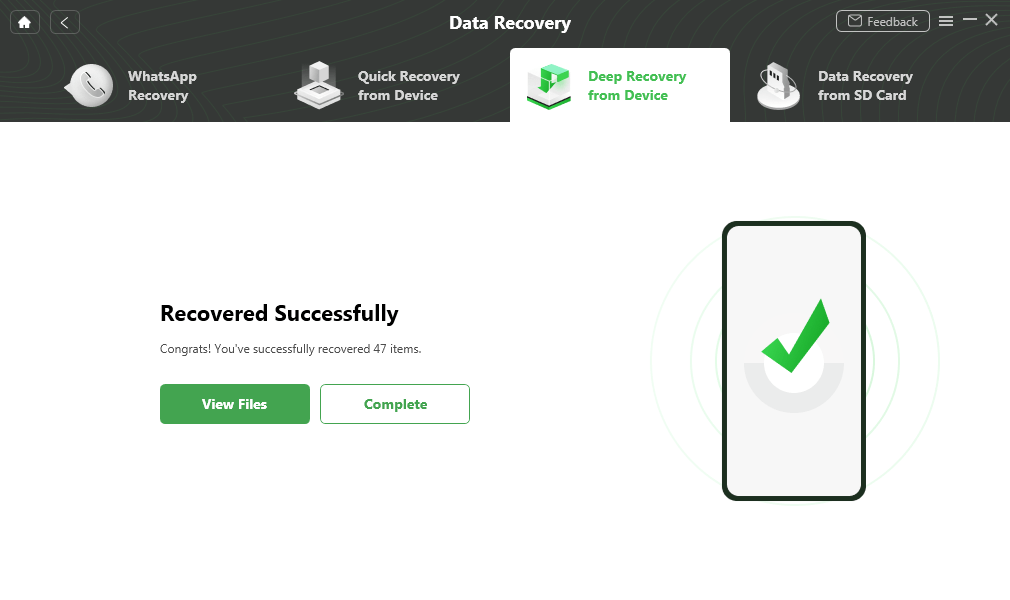
Complete the recovery after selecting the available data you need.
Important: device-level recovery is not a guarantee that a deleted Samsung Note itself can be reconstructed. Recovery depends on the data type, how the note was stored, the recovery mode, and whether usable data remains. If the loss happened after a factory reset, see the guide to recover Android data after a factory reset for recovery paths specific to that situation.
FAQs About Samsung Notes Recovery
1. How do I recover a deleted note on my Samsung phone?
Open Samsung Notes and check Menu > Trash first. If the deleted note is still there, select it and tap Restore. If it is not in Trash, check All notes, folders, your Samsung account, and Samsung Cloud sync before considering device-level recovery.
2. Are Samsung Notes backed up to Samsung Cloud?
Samsung Notes can sync with Samsung Cloud through your Samsung account when synchronization is enabled. A note that was never synced cannot be recovered simply by enabling Samsung Cloud after the note has already been deleted.
3. Why did my Samsung Notes disappear after changing phones?
First check whether the new phone uses the same Samsung account and whether Samsung Notes synchronization is enabled. If the old notes were synced to that account, allowing Samsung Cloud synchronization to complete may make them available on the new Galaxy device.
4. Can I recover Samsung Notes after a factory reset?
Your best chance is an existing synced or backed-up copy created before the reset. Check your Samsung account and Samsung Cloud first. If no usable copy exists, recovery becomes much less certain because a factory reset removes locally stored data.
5. Can I recover Samsung Notes without a backup?
Check Samsung Notes Trash and search All notes first, because neither requires a traditional backup. If the note is absent there and was never synced, there is no guaranteed way to restore it. Device recovery software may help with supported recoverable Android data, but it should not be presented as a guarantee that every deleted Samsung Note can be restored.
6. Does DroidKit require root to recover Samsung data?
It depends on the recovery mode. DroidKit’s Quick Recovery is designed to work without root, while Deep Recovery requires root access for a deeper scan. Choose the mode according to the data-loss situation and review the root requirement before proceeding.
Conclusion
For a missing Samsung Note, the order of recovery matters. Check Trash first, then search All notes and folders, verify the Samsung account, and check Samsung Cloud synchronization or an earlier backup. Those options address the most common cases without making unnecessary changes to the phone.
If the note disappeared together with other Samsung data and no usable backup exists, device-level recovery can be evaluated afterward. Keep the expectations realistic: whether anything can be recovered depends on how the data was stored and what remains available on the device.
More Related Articles


Roger Smith is a senior technical writer with years of experience in providing Android solutions. He loves to help users solve various problems such as Android unlock, Android data recovery, and Android system repair.
Product-related questions? Contact Our Support Team to Get Quick Solution >
