How to Recover Deleted Files from Your OPPO Phone-2025 Guide
Losing your OPPO data accidentally due to various reasons? Don’t panic! This guide will help you get OPPO data back with or without backup. Let’s start!
Accidentally deleted precious photos, videos, or contacts from your OPPO phone? Don’t panic! Data loss from accidental deletions, system crashes, factory resets, or failed updates is often recoverable. This 2026 guide outlines five reliable methods to recover deleted files quickly and efficiently, whether you have a backup or not.
Part 1. Why Did You Lose Your OPPO Data?
Losing data can be a shock and quite distressing, but due to a handful of common reasons, it is usually an occurrence. The following are the major cases that may expose your OPPO phone to data loss:
- Accidental deletion: While handling your phone’s storage, deleting pictures, videos, or chatting is very convenient. Most of the time, users only find out the significance of the deleted files when they can’t be recovered.
- System crashes or software glitches: Sudden system errors, unsuccessful Android updates, or an app that is not working properly can lead to data corruption or complete data loss.
- Factory reset: A lot of people reset their OPPO phones to improve performance and get rid of bugs, but they do not realize that this is a clean wipe unless they have made a backup.
Part 2. 4 Ways to Recover OPPO Data in Minutes
In this guide, you will learn how to recover OPPO data with or without backup.
Way 1. Recover OPPO Data via Local Backup
OPPO’s Local Backup feature, built into ColorOS, allows you to restore contacts, messages, photos, and more from a previous backup stored on your device.
Steps to recover OPPO data via Local Backup:
Step 1. Launch the Settings app on your OPPO phone. Navigate to Additional Settings > Back Up and Reset > Backup and Restore.
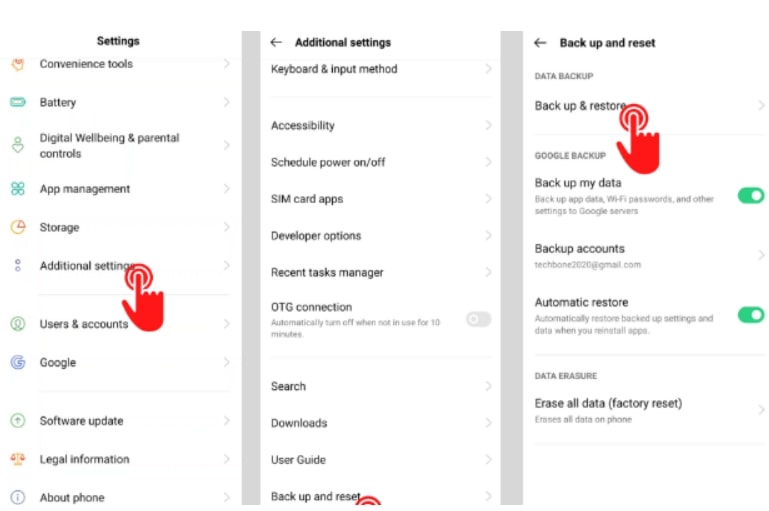
Choose Backup and Restore
Step 3. Click on Local Backup. Pick out the latest backup file from the given list. Identify the items of data that you want to be recovered (pictures, contacts, messages, etc.).
Step 4. Hit the Restore button and wait until the process of restoration is done.
Hit the Restore Button
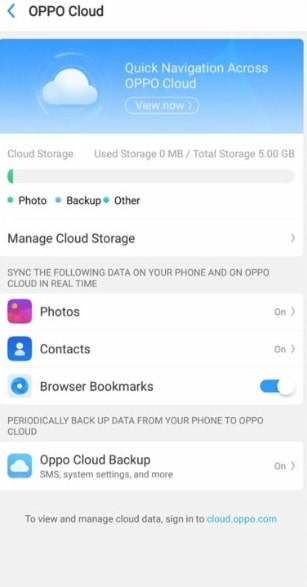
Way 2. Recover OPPO Data Using OPPO Cloud
OPPO Cloud (or O-Cloud in some regions) syncs your data online, making it easy to recover photos, contacts, and messages if you’re signed into your OPPO account.
How to recover OPPO data via OPPO Cloud:
Step 1. Go to the Settings on your OPPO device.
Step 2. Locate OPPO Cloud by scrolling down and tapping it. Use your OPPO ID and password to sign in.
Step 3. Pick the data that you want to get back (photos, contacts, messages, etc.) and recover it. Hit the Restore button and wait until the files are transferred to your device.
Way 3. Recover OPPO Data via OPPO Data Recovery Tool-DroidKit [without Backup]
In case of no backup, the only way you can recover your data is by using a professional recovery tool like DroidKit. Compared to the built-in solutions, DroidKit is more efficient as it can retrieve the deleted data directly from your OPPO phone’s internal storage or SD card without requiring a root.
Key Features:
- Recovers photos, videos, contacts, messages, and more.
- Performs deep scans to retrieve files not yet overwritten.
- Compatible with more than 20,000 Android device models.
- User-friendly interface requiring no technical skills.
Free Download * 100% Clean & Safe
Steps to recover OPPO data via DroidKit:
Step 1. Get DroidKit installed on your PC. Open the app, then select Quick Recovery from Device mode.
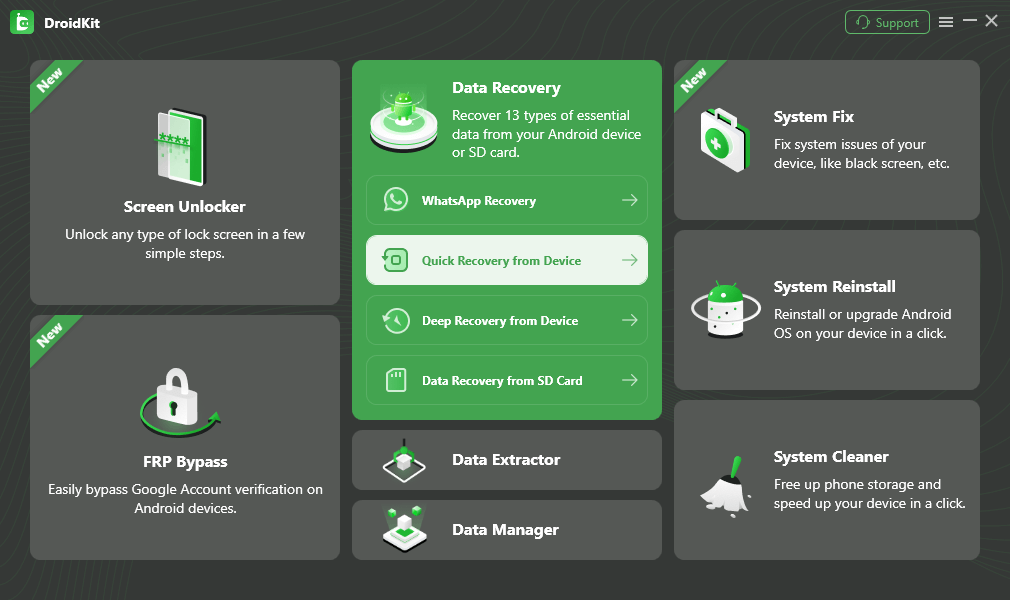
Choose Quick Recovery from Device from Data Recovery
Step 2. You are given an opportunity to choose the data types to recover pictures, videos, contacts, messages, etc. After the selection, click Start.
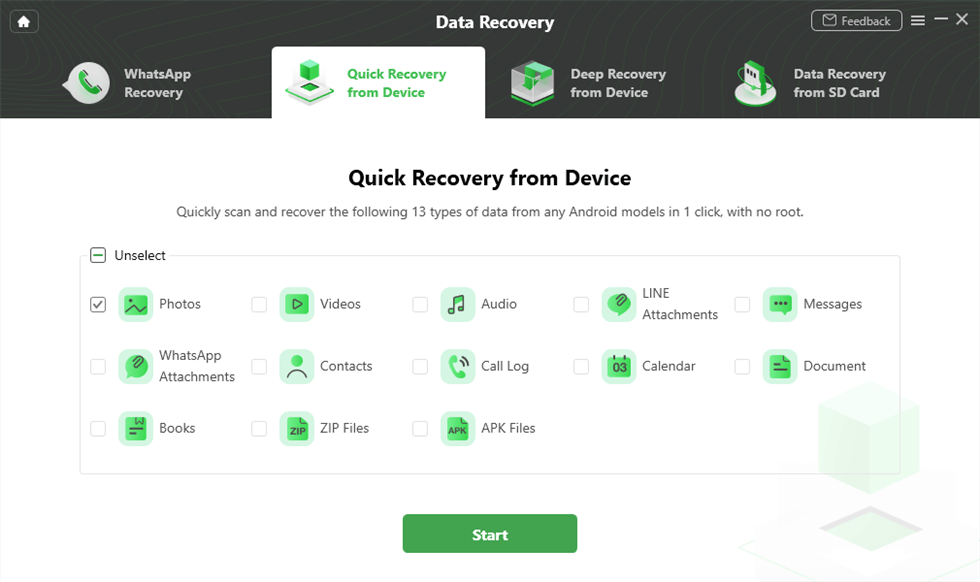
Select the Data Type that You Want to Recover
Step 3. Connect your OPPO phone to the computer via a USB cable. When your device is successfully detected, click Next to carry on.
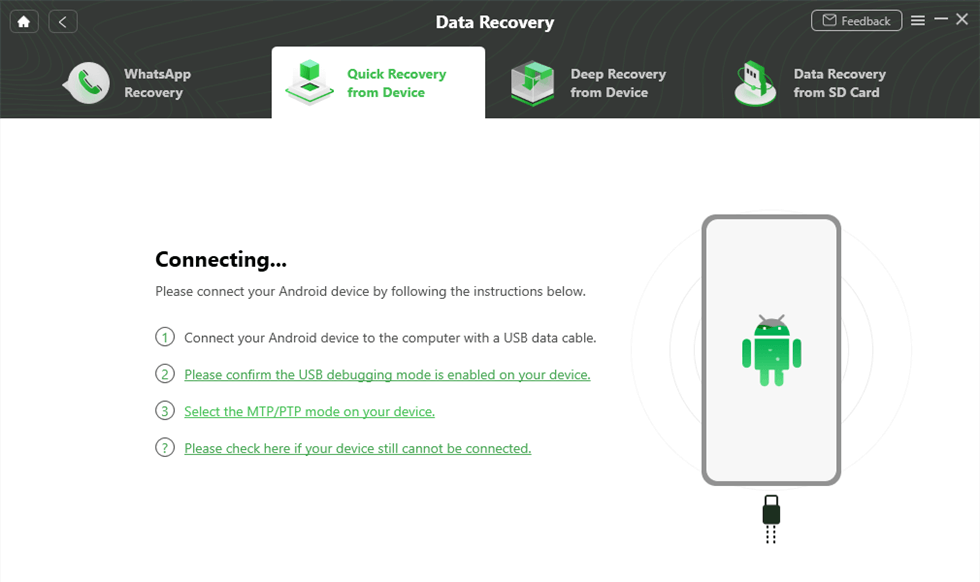
Connect Your Phone to Computer
Step 4. DroidKit will fetch both current and deleted files on your device quickly. Now you can preview and choose the OPPO data you want to restore and click on the To PC button. Just wait for a while. You will see the interface below when it has restored your photos successfully.
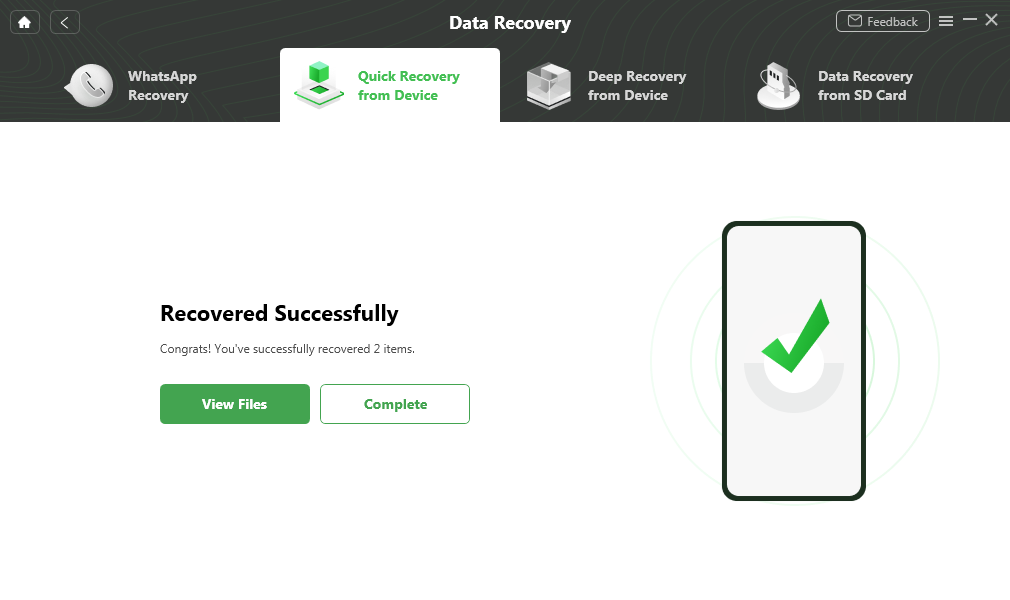
Quick Recovery from Device Successfully
Way 4. Recover OPPO Data Using Google Drive Backup
Using a Google backup, you can very easily retrieve your data, for example, after a factory reset of your OPPO phone or when the phone is being set up for the first time. In that case, make sure your phone memory has been backed up to Google One first. Thus, your contacts, apps, photos, and settings would be the items that would be recovered in this safe route.
Steps to get back the data from a Google One backup:
Step 1. After the “OK” screen is displayed, your mobile phone is ready to restore content. Tap Next. Tap Can’t use old device?
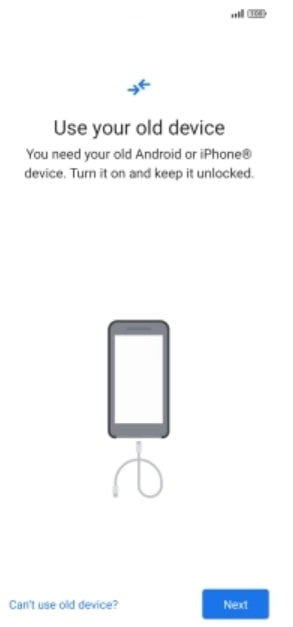
Tap Can’t Ues Old Device
Step 2. Provide your Google account details (email or phone number) and then tap Next. Type in your password and then tap Next.
Step 3. Tap “I agree” and continue setting up your Google account. Pick the backup you want, and your device will start bringing back the data.

Tap I Agree
Part 3. FAQs
Q1. How to get data from OPPO Phone with broken screen?
If your OPPO phone with a broken screen is still working, a tool such as DroidKit could be used to extract data directly by connecting the device to your computer.
Q2. Can permanently deleted files cannot be recovered?
When files are permanently deleted, for instance, after being overwritten, their recovery is as good as impossible. Still, there is a slight possibility that some advanced recovery software, such as DroidKit, can get some fragments, so the best way to be sure that your data is erased is to use data erasure tools.
Q3. Can you retrieve information from a lost phone?
It is impossible to recover the data directly if you do not have the device. Still, the backup made through Google or other cloud services (like OPPO Cloud) can help.
Q4. How to permanently delete files so they cannot be recovered?
By using a professional data erasure tool, you can overwrite files to such an extent that even the fragments will be non-restorable. The combination of a factory reset and secure erasure is the most effective way to ensure the safety of your private data when your phone is going to be sold or disposed of.
Part 4. Conclusion
It is feasible to retrieve data from an OPPO device via various ways, such as OPPO Cloud, Google Drive backup, and more. But in the case of a broken or misplaced phone, or if the built-in options fail, then a technician’s help is needed. Moreover, DroidKit is a comprehensive Android data rescue tool that allows the user to recover contacts, photos, messages, and other necessary files easily.
Free Download * 100% Clean & Safe


Roger Smith is a senior technical writer with years of experience in providing Android solutions. He loves to help users solve various problems such as Android unlock, Android data recovery, and Android system repair.
Product-related questions? Contact Our Support Team to Get Quick Solution >
