3 Ways to Recover Deleted Messages on Android Without App
Deleted messages can be retrieved on Android device without an application by searching the recycle bin, going through archived conversations, or restoring backups. This guide will explain each method thoroughly so that you can get back your lost texts easily.
Message texts often carry important details, from work updates to personal moments. Accidentally losing them can feel frustrating, but recovery is still possible. On Android, you don’t always need a data recovery app to recover your lost text messages. Some built-in options, like the recycle bin, archives, or a backup, can help you out. In this comprehensive guide, we’ll walk through how to recover deleted text messages on Android without app in 3 simple ways.
Can You Recover Android Deleted Messages Without App?
Yes, without installing an app, it is possible to recover deleted Android messages. Restoring them is typically simple if your phone is connected to Google Drive or another backup service. Before they are eventually erased from the internal memory, some devices tend to retain deleted text messages in the system folders for a few days. This offers another chance for recovery.
Important points of Android messages recovery without app:
- Deleted messages remain in storage until overwritten.
- Some phones have a temporary trash or recently deleted folder.
- Cloud backups can restore messages if previously enabled.
- Quick action improves chances of successful recovery.
- Recovery tools can help even without a backup.
Knowing the possibilities and potential restrictions, let’s learn how to recover Android deleted messages without app in 3 tested methods.
You may also like: How to recover deleted videos on Android
How to Recover Deleted Messages on Android Without App
Generally, you can recover Android lost messages directly from the recycle bin, check archived messages, or use a backup. Each method comes with convenience and limitations. Check them out one by one in the following part.
Method 1. Recover from the Recycle Bin
On Android devices, deleting a text message doesn’t immediately make it go away. Instead, it enters the Recycle Bin. These messages will be stored for 30 days before being permanently deleted, which provides a chance for you to recover directly.
Steps to recover from the Recycle Bin:
Step 1. Open the Messages app. In the upper right-hand corner of the screen, tap on the three-dot menu.
Step 2. Select the Recycle Bin from the alternatives. This folder keeps deleted messages for 30 days.
Step 3. Choose the messages you wish to recover by scrolling through the deleted ones.
Step 4. Once selected, tap the restore button. The messages will immediately move back into your regular inbox, just like before they were deleted.
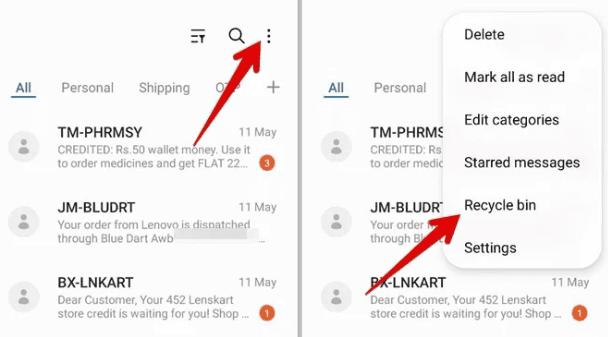
Recover Android Messages in Recycle Bin
Method 2. Check Archived Messages
Not all messages that disappear are truly erased. It may occasionally simply be in the archive. Archiving lets you remove messages from your inbox area but not from storage. Once archived, you can recover these messages at any time.
Limitations of recovering archived messages on Android:
- Only restore messages that were archived and not actually deleted.
- Old archived chats may disappear in case a storage cleanup is done.
- Not all devices or message app versions may enable this feature.
Steps to recover archived Android messages:
Step 1. On your phone, launch the Messages app, then hit the top-right part where the profile icon is located.
Step 2. Select Archived to view all hidden conversations.
Step 3. Scroll through the list and find the chat you want to restore.
Step 4. Press and hold the conversation, then tap Unarchive. The chat will immediately move back to your main inbox.
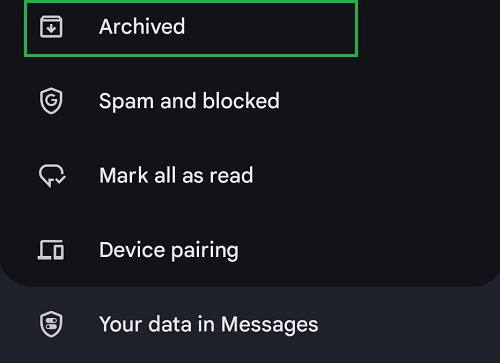
Check Archived Messages on Android
Method 3. Recover from Backup [Google Drive/Cloud Backup]
If you can’t find the deleted messages in the Recycle Bin or archived messages list, using a cloud backup should be the last chance to recover Android deleted messages without app. This method is available for users who are used to backing up messages. It also comes with some restrictions.
Limitations of recovering from a cloud backup:
- Only messages included in the most recent backup can be restored.
- Messages received after the backup are not recoverable.
- The same phone number and account must be used for backup.
Steps to Recover Android messages from a backup:
Step 1. On your Android phone, open the Settings app.
Step 2. View your backup choices, locate and hit Accounts and backup.
Step 3. To start restoring your files, tap Restore data.
Step 4. Choose the backup that has your messages on it. Uncheck everything else and only check Messages.
Step 5. After selecting Restore, check for the messages to return.
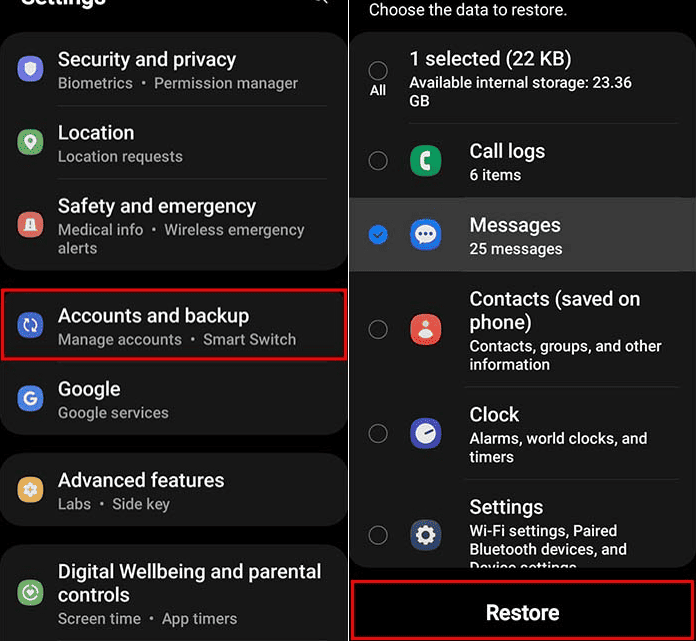
Restore Android Messages from Backup
What To Do If I Deleted Android Messages Permanently?
As the above 3 methods can help you recover deleted Android messages without an app, they all come with restrictions. Some users may have deleted the messages for more than 30 days and don’t have any backups. If this is the case, using a powerful Android data recovery tool is necessary. One of the most reliable solutions for this situation is DroidKit. It’s designed to recover deleted text messages on Android without a backup. Unlike basic recovery tricks, DroidKit performs a deep scan of your device, giving you access to messages that standard apps can’t retrieve. You can preview each recovered text before restoring it, making sure you only get back what you need.
Why Choose DroidKit:
- Retrieves 13 types of data, including messages, media, and WhatsApp chats.
- Two recovery options: Quick Recovery for fast results and Deep Recovery for a more detailed scan.
- Easy and straightforward to use. No technical skills are required.
- Preview the messages before recovering them.
- Support all phones and tablets running Android 6-16.
Steps to recover permanently deleted messages on Android with DroidKit:
Step 1. Install and launch DroidKit on your computer.
Free Download * 100% Clean & Safe
Step 2. Select Quick Recovery in DroidKit and connect your Android phone.
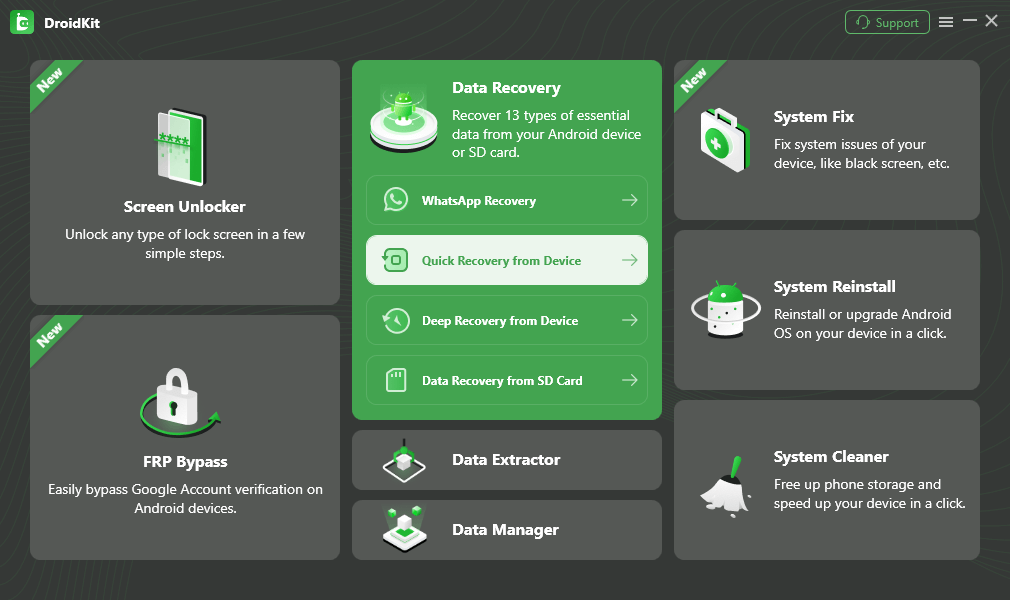
Choose Quick Recovery from Device from Data Recovery
Step 3. You can choose Messages from the data list and click Start. DroidKit will start scanning the messages immediately.
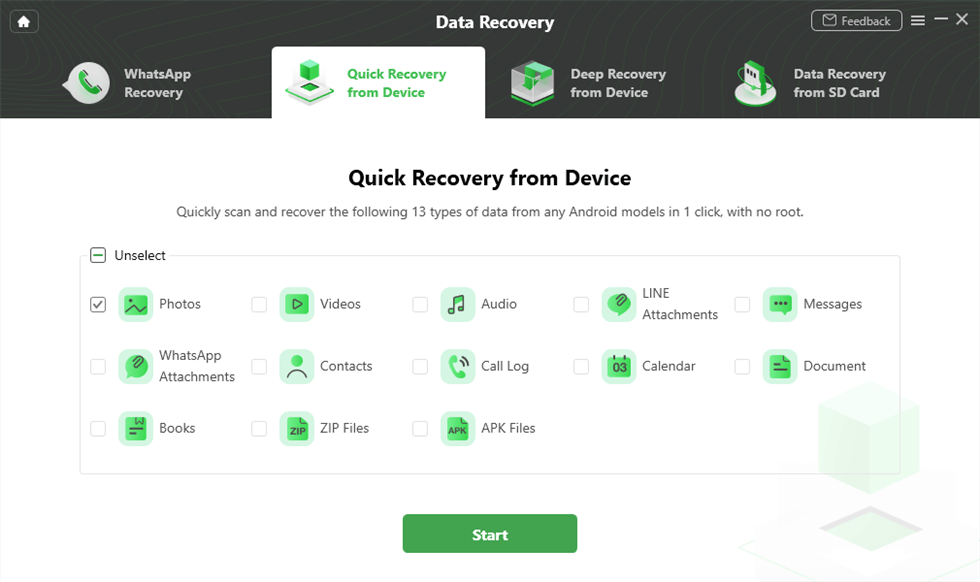
Select the Data Type that You Want to Recover
Step 4. After scanning, preview the deleted texts, and choose to either restore them directly to the phone or save them on the computer.
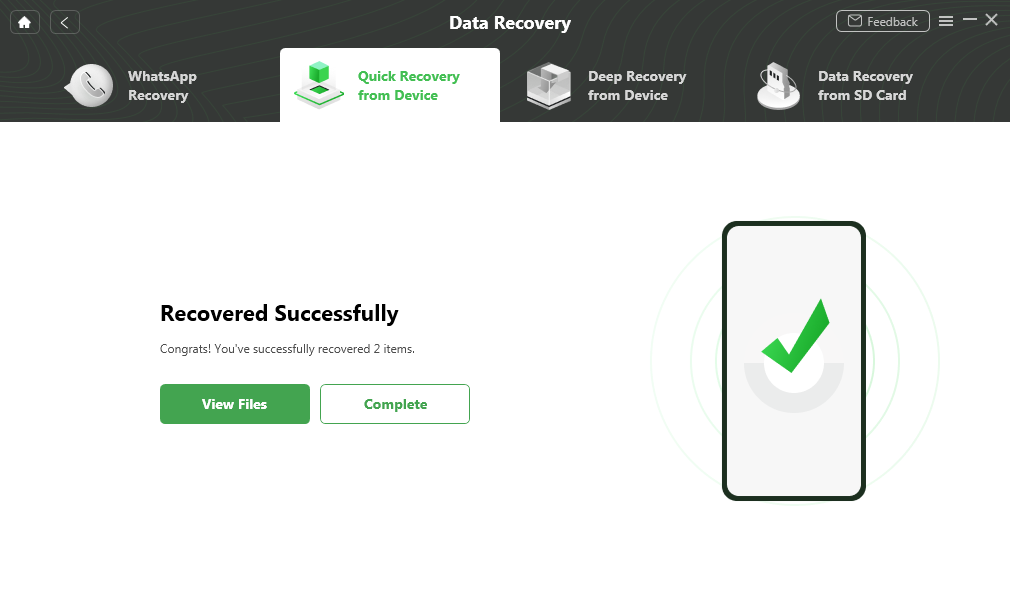
Quick Recovery from Device Successfully
Quick Recovery mode in DroidKit doesn’t require root for your device. But if your permanently deleted messages need to be scanned with the Deep Recovery mode, it may need to root your device for a successful recovery.
Conclusion
In this guide, we have introduced how to recover deleted text messages on Android without app by using the Recycle Bin, checking archived messages, and accessing cloud backups. These 3 methods provide a direct recovery of your lost messages on Android. However, they all come with restrictions and you may fail to meet the requirements. Then you can try DroidKit as an alternative way to recover lost Android messages. It is easy to use and works on all Android devices, so you can save much time to get back the texts. Download DroidKit now and enjoy fast data recovery on your Android phones and tablets.
Free Download * 100% Clean & Safe


Roger Smith is a senior technical writer with years of experience in providing Android solutions. He loves to help users solve various problems such as Android unlock, Android data recovery, and Android system repair.
Product-related questions? Contact Our Support Team to Get Quick Solution >
