How to Unlock APN Settings on Android in 5 Ways
To unlock APN settings on an Android phone, you can unlock APN settings on your Android device by resetting them to default, turn on airplane mode, remove and reinsert the SIM card, restart your phone while connected to Wi-Fi, or use advanced methods that don’t require root access.
Mobile network performance often depends on proper Access Point Name (APN) configuration. On some Android devices, APN settings are locked by carriers, preventing users from modifying them. Learning how to unlock APN settings on Android allows you to optimize internet speed, switch carriers, and gain full control over your mobile data connection. We will go through 5 easy and efficient ways to open and change the APN settings, helping you enjoy faster mobile data without hassle.
Why Can’t I Change My APN Settings?
Users may notice that the APN (Access Point Name) settings on their Android devices are greyed out or cannot be accessed. This typically occurs because of limitations set by the carrier, the device’s software, or external controls. Common causes include:
- Carrier Restrictions: Several mobile carriers keep the APN locked so that a default Network configuration is maintained for the users.
- Phone is Carrier-locked: In the case where your device is associated with a certain network, the APN settings are generally limited until the phone is unlocked.
- Software Updates: Changes in Android or Android customizations (like Samsung, Xiaomi, or Huawei) may result in the APN editing fields being closed.
- Enterprise or Parental Controls: If your device is under the control of an organization or restricted by parental controls, then the APN settings can still be turned off.
- Wrong SIM Card: A SIM card that is not supported or that is incompatible with the user can also prevent APN changes.
Unlock APN Settings on Android by Resetting to Default
In case your APN settings look restricted or you can’t change them, the fastest solution is to bring them back to default. By doing so, any custom settings, wrong entries, and some temporary errors that prevent you from making changes will be removed. Steps to reset APN settings:
Step 1. Navigate to Settings > Network & Internet. Select Mobile Network, then tap on Access Point Names (APN).
Step 2. Tap the three-dot menu (or options icon) usually located in the top-right corner.
Step 3. Choose Restore to default from the dropdown menu. Tap Save to continue.
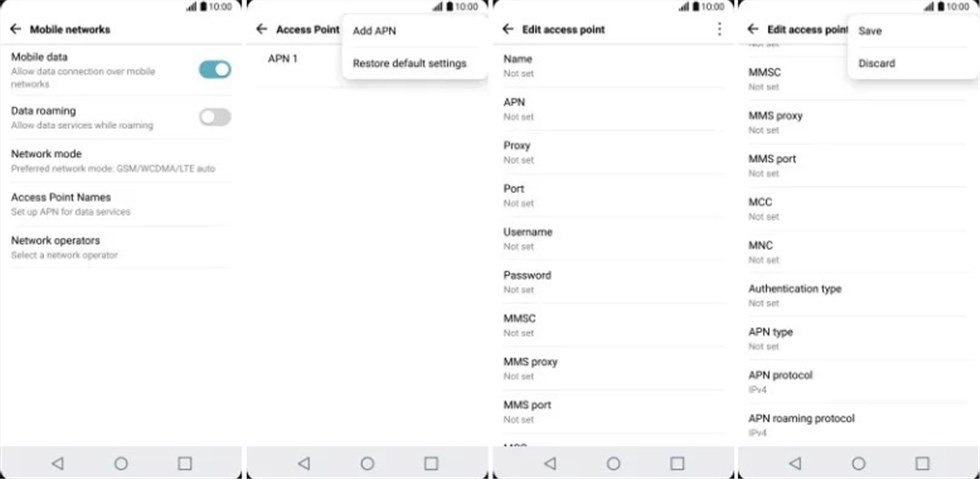
Resetting APN Settings to Default
Activate Airplane Mode to Change APN Settings
There are instances when your carrier’s network imposes certain limitations, and you are unable to modify APN fields on your phone. Usually, allowing airplane mode to be on is a simple but effective way to get around that. Step to switch on airplane mode and alter APN settings:
Step 1. Pull down the Quick Settings panel from the top of the screen. Click the Airplane Mode icon to turn off all your wireless connections.
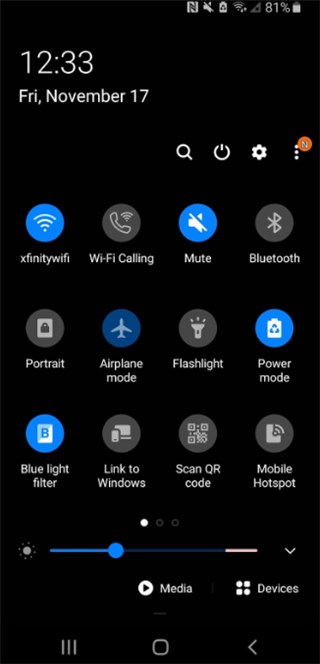
Tap Airplane Mode
Step 2. Go to Network & Internet > Mobile Network > Access Point Names (APN) in the Settings app. Make a new APN profile or edit an existing one.
Step 3. Save the changes and then turn off Airplane Mode to go back to your carrier’s network.
Remove the SIM card to Unlock APN Settings on Android
One more efficient method to gain access to the APN is to remove the SIM from the phone for a limited period. Usually, the carriers set the APN limitations through the SIM profile only. When the phone is without a SIM, it permits you to enter the APN fields without any restrictions. Here is how to do:
Step 1. Power off your Android gadget, and take out the SIM card.
Step 2. After taking out the SIM card, keep it in a safe place.
Step 3. While the SIM is out, turn your phone on again. Go to Network & Internet > Mobile Network > Access Point Names (APN) and see if you are allowed to modify or create a new APN profile.
Restart Your Phone While Connecting to WiFi to Change APN Settings
Maybe you have tried many ways to solve your APN problems, but the settings are still locked. In that case, the one that is simple and effective is a reboot of the phone while still being on the WiFi network. What happens is that the device will temporarily switch off its connection to the carrier, and during this time, the carrier’s restrictions on editing the APN can be unconditionally released. When the handset returns, the fields of the APN may be recognized as unlocked for change. To do this:
Step 1. Find a stable WiFi network and connect your Android phone to it. Power the device off and on again.
Step 2. After the reboot of the device has been completed, go to Settings > Network & Internet > Mobile Network > Access Point Names (APN).
Step 3. Go to the APN menu, edit the existing APN or create a new one, then save the changes and switch back to mobile data to test the connection.
How to Unlock APN Settings on Android Without Root
If none of the manual tricks work, consider using a professional tool such as iMobie’s DroidKit to unlock the APN settings without rooting your phone. DroidKit is an Android all-in-one repair & recovery software, which solves more than 50 system issues, such as those restrictions that stop you from changing the APN configurations. What makes it best is that it operates without complicated technical steps, so it is very friendly for beginners and quite safe.
Key Features of DroidKit:
- Recover 50+ Android system issues such as device restarts, frozen screen, and accidental data loss.
- Unlock APN settings on Android without root or technical skills.
- Support fixing system issues on devices with Android OS 6 – -15.
- User-friendly interface designed for beginners.
Free Download * 100% Clean & Safe
Steps to unlocking APN settings with DroidKit:
Step 1. Free download and install DroidKit on your computer. Connect your phone via USB and open the Fix System Issues panel.
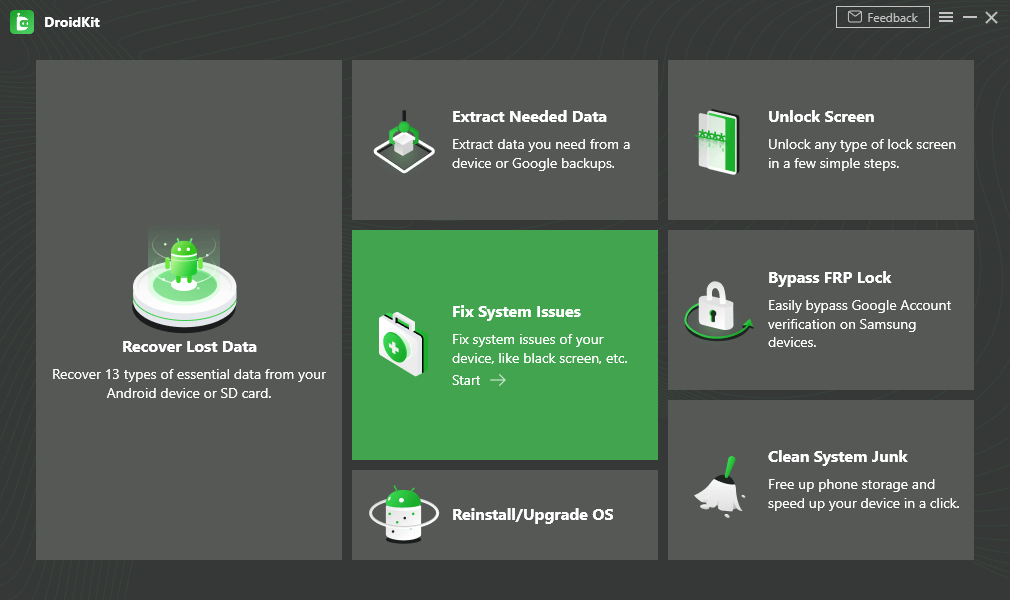
Choose Fix System Issues
Step 2. Get the matching code for your device and tap Download Now to install the required firmware. Once the firmware downloads, click Fix Now.
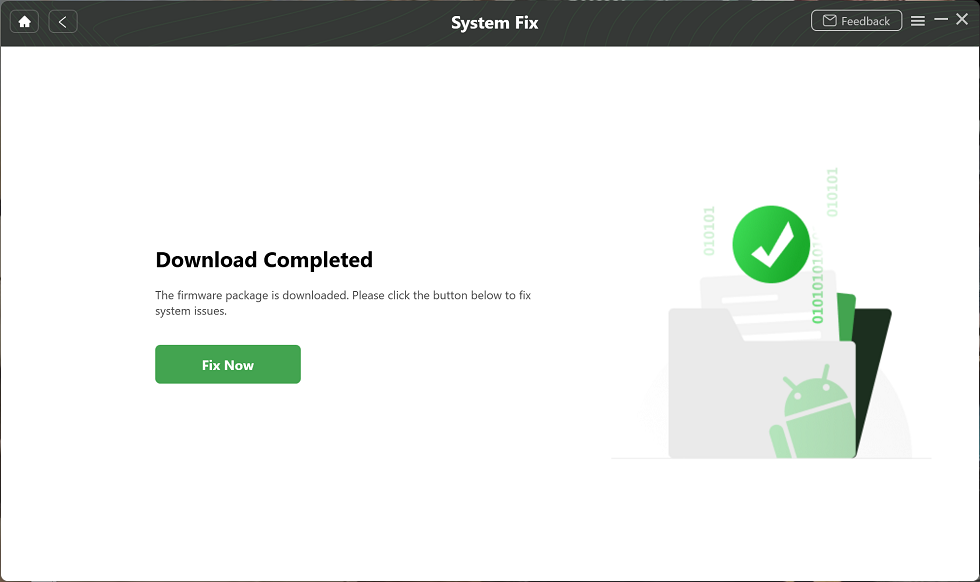
Complete the Firmware Download
Step 3. Wait a few minutes, and you’ll see a confirmation screen when the process is complete. Then you can change APN settings as you like.
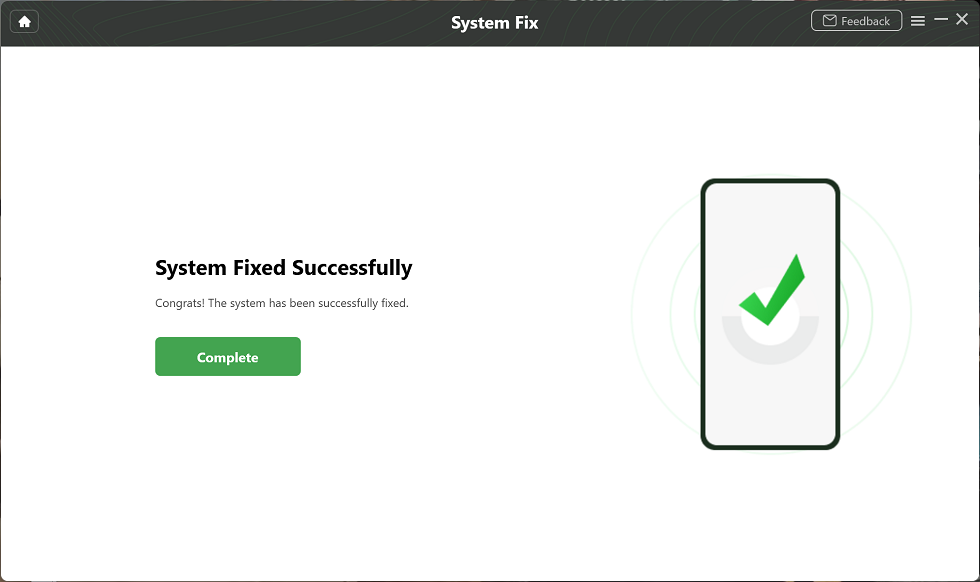
System Fixed Successfully
FAQs about APN Settings
Q1. Are there any security considerations when inputting APN settings?
Be sure that the APN information necessary to make the changes is directly from the carrier of your device. By entering unverified APN data, your device may become open to connectivity vulnerabilities or charges that you did not expect.
Q2. How to resolve connectivity issues after changing APN settings?
The first thing that you should do if mobile data and MMS are not working after you have changed the APN settings is to verify the information with your carrier. Besides that, you can also reset your APN settings to the original ones and restart your device to start over.
Q3. How to unlock APN settings on Android when the add option is grayed out?
To unlock APN settings on Android when the add option is grayed out, the easiest methods that can solve the problem are resetting the network settings, taking out the SIM card, or putting the device in flight mode.
Conclusion
In this guide, we’ve walked through 5 practical solutions for how to unlock APN settings on Android. While these tricks may work in some cases, the most reliable and user-friendly solution is DroidKit. With its incredible Android unlocking and fixing features, this tool lets you bypass the limitations and eliminate all the network-related problems, giving you full control back to your device including the APN settings. Download DroidKit today and enjoy a smoother, faster, and more flexible mobile data experience!
Free Download * 100% Clean & Safe


Roger Smith is a senior technical writer with years of experience in providing Android solutions. He loves to help users solve various problems such as Android unlock, Android data recovery, and Android system repair.
Product-related questions? Contact Our Support Team to Get Quick Solution >
