How to Fix ‘SECURE CHECK FAIL: RECOVERY’ Error on Samsung
The “SECURE CHECK FAIL: RECOVERY” error on Samsung usually appears during system updates or when flashing firmware, leaving the device stuck and unusable. Fortunately, there are effective ways to resolve it. This guide explains three proven solutions to fix the error, helping you restore your Samsung phone to normal operation quickly and safely.
Encountering the ‘SECURE CHECK FAIL: RECOVERY’ error on your Samsung device can be quite annoying, particularly if it halts the necessary updates or system fixes. Typically, this trouble pops up due to issues like corrupted ROM files, software conflicts, or built-in security settings. In this guide, we’ll outline the main causes of the error and share three effective methods to fix it, along with a helpful tip if Samsung Recovery Mode is not working.
Reasons for ‘SECURE CHECK FAIL: RECOVERY’ Samsung
The “SECURE CHECK FAIL: RECOVERY” message is fairly common among Samsung users. The reason for this is that Samsung devices conduct very stringent security checks to make sure that no unauthorized or incompatible software is installed. The main causes of the error are the following:
- Corrupted or Incomplete ROM File: In case the ROM that you have downloaded is defective, incomplete, or if it is not meant for your specific model, then the system will automatically stop it during your installation process.
- Incompatible Firmware Version: The error may also be caused if you install a firmware package that is different from your device’s region or model.
- Reactivation Lock Enabled: Samsung’s security feature could be the reason for the lack of flashing or recovery operations if the lock is still on.
- Faulty Storage Medium: The problem may be due to a corrupted micro-SD card or internal storage errors that obstruct the recovery process.
How to Fix ‘SECURE CHECK FAIL: RECOVERY’ Error?
Now that you know the common causes of the “SECURE CHECK FAIL: RECOVERY” error, here are three practical methods you can try to resolve it.
Way 1: Check if the ROM you downloaded is corrupted
Since a faulty ROM is the most common trigger, the first step is to make sure the firmware you downloaded is complete and fully compatible. If the firmware you downloaded is incomplete, damaged, or intended for a different Samsung model and region, the installation process will be stopped by the system. Therefore, to solve this problem, you should always get the ROM from the official Samsung website or a trustworthy source and confirm that the ROM is for the right device.
Way 2: Use a micro-SD card
Sometimes the “SECURE CHECK FAIL: RECOVERY” error happens because the recovery file in your phone’s internal storage is corrupted or cannot be read properly. In this case, using a micro-SD card provides a clean and reliable medium for the recovery image, helping the system bypass the faulty internal storage. Here are the steps:
Step 1. Download the correct recovery file on your computer and copy it onto a newly formatted micro-SD card.
Step 2. Insert the card into your Samsung device.
Step 3. Boot the phone into Recovery Mode (press Power + Volume Up + Home/Bixby depending on the model).
Step 4. From the recovery menu, select “Install from SD card” and flash the recovery image.
Way 3: Turn off “Reactivation Lock” security
Samsung’s Reactivation Lock (part of the Find My Mobile service) is designed to stop unauthorized resets, but it can sometimes block recovery or flashing processes and trigger the “SECURE CHECK FAIL: RECOVERY” error. Disabling it temporarily may solve the problem. To get rid of it:
Step 1. Go to Settings > Security (or Find My Mobile) on your smartphone.
Step 2. Turn off “Allow this phone to be found”.

Turn Off Allow This Phone to Be Found
Step 3. Restart your phone and reflash it. By turning off this feature, you may fix the ‘SECURE CHECK FAIL: RECOVERY’ Error.
Bonus Tip: How to Fix Samsung Recovery Mode Not Working?
When Samsung Recovery Mode fails to respond, restarting the phone or trying manual key combinations often isn’t enough. In such cases, a deeper system repair is needed to address the root cause. This is where DroidKit comes in. As a professional Android repair solution, it focuses on fixing system-level issues that block recovery mode and ensures your Samsung device can get back to normal quickly and safely. It can work with over 20,000 device models running Android 6 – 15. No matter if your phone is recovery-induced, black screens, frozen, or crashing again, this tool guarantees the easiest way out of the problem while also protecting your data.
Key features of DroidKit:
- Resolve problems that stop your Samsung from booting into or staying in recovery mode in easy steps.
- Eliminate issues like boot loops, freezes, or random crashes, so your phone runs smoothly again.
- Perform system repairs without rooting, minimizing risks and protecting your personal information.
- Designed for non-technical users with intuitive steps, saving you time and hassle compared to manual fixes.
Free Download * 100% Clean & Safe
Detailed Steps to Resolve “Phone Not Allowed for Voice” Issue Using DroidKit:
Step 1. Free download and install DroidKit on your computer. Connect your phone via USB and open the Fix System Issues panel.
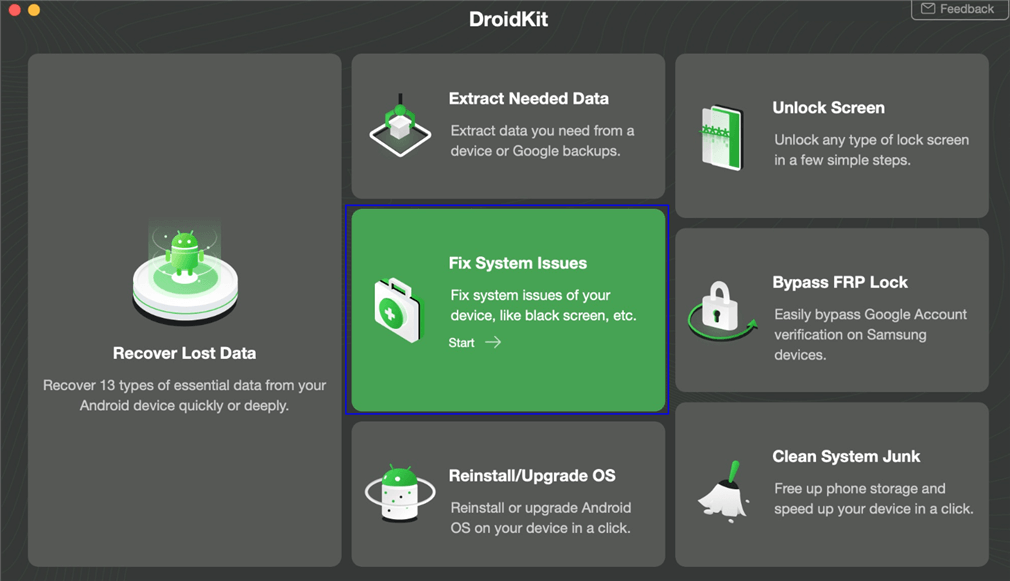
Click Fix System Issues
Step 2. Get the matching code for your device and tap Download Now to install the required firmware. Once the firmware downloads, click Fix Now.
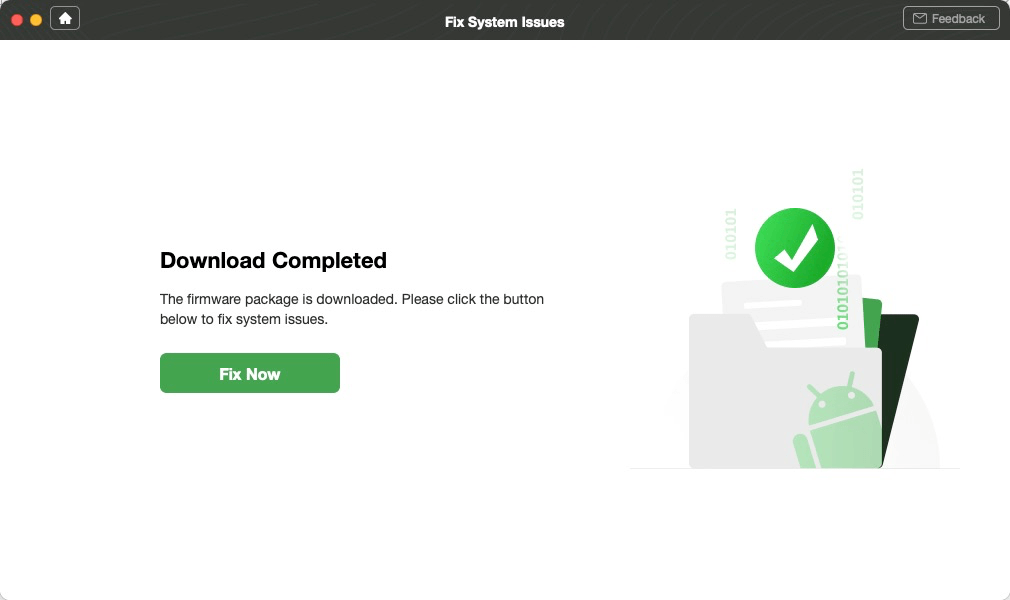
Click Fix Now after Firmware Downloaded
Step 3. Wait a few minutes, and you’ll see a confirmation screen when the process is complete. Now you resolve the ‘phone not allowed for voice’ error successfully.
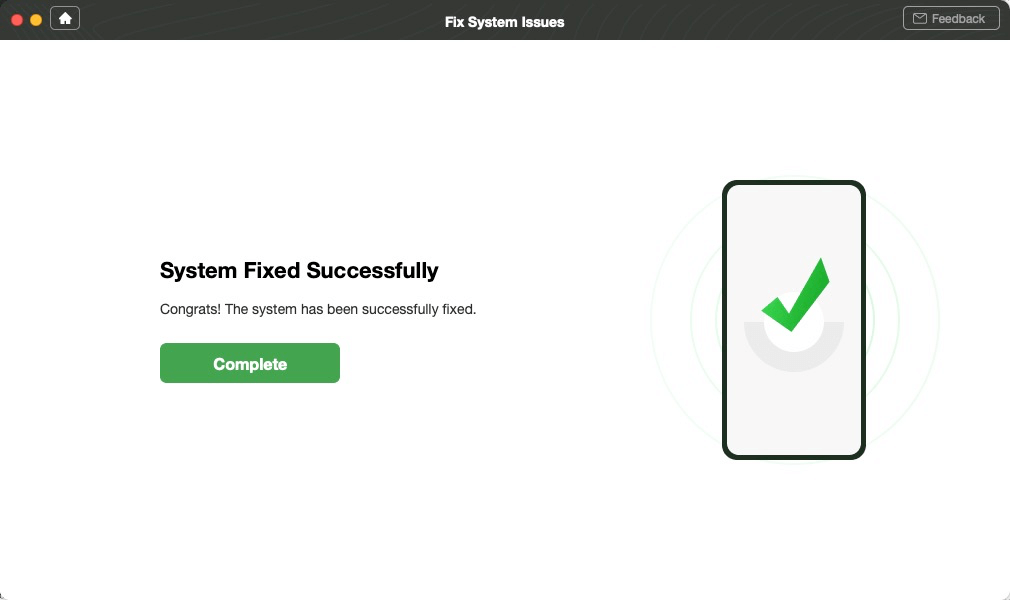
System Fixed Successfully
FAQs about ‘SECURE CHECK FAIL: RECOVERY’ Samsung
Q1. What is SECURE CHECK FAIL: RECOVERY.IMG while rooting Samsung Galaxy?
The SECURE CHECK FAIL: RECOVERY.IMG error occurs when Samsung blocks the recovery image, usually because the file is damaged, mismatched with your device, or incompatible with the firmware.
Q2. How do I fix “SECURE CHECK FAIL: BOOTLOADER” error?
To fix the SECURE CHECK FAIL: BOOTLOADER error, ensure that the bootloader file you are flashing matches your device model and region. Most of the time, the best way is to use Odin with an official Samsung firmware package.
Q3. Is “Secure Check Fail: (PIT)” common only on Samsung phones?
Yes. The “Secure Check Fail: (PIT)” error is unique to Samsung devices. It occurs when the Partition Information Table (PIT) file is corrupted or does not match the device during flashing.
Conclusion
In conclusion, this article has outlined three practical methods to fix the “SECURE CHECK FAIL: RECOVERY” error on Samsung devices—checking the ROM file, using a micro-SD card, and disabling the Reactivation Lock. While these solutions can often resolve the issue, they may not work if the problem is rooted deeper in the system. In such cases, DroidKit provides a reliable alternative by repairing Android system failures even when recovery mode is unavailable. Download DroidKit today and restore your Samsung device quickly and safely.
Free Download * 100% Clean & Safe


Roger Smith is a senior technical writer with years of experience in providing Android solutions. He loves to help users solve various problems such as Android unlock, Android data recovery, and Android system repair.
Product-related questions? Contact Our Support Team to Get Quick Solution >
