How to Find & Unlock PUK Code Samsung [Full Guide]
A Samsung PUK code is an 8-digit code used to unlock the SIM card if you’ve entered your SIM PIN incorrectly too many times. If you are ever asked for a PUK code, then this means that your SIM card has been locked, and you must call your carrier to have this resolved. You can also retrieve PUK code by checking your SIM card packaging, carrier’s website or app, or trying a Carrier USSD Code.
A PUK code Samsung is an 8-digit code that is used to enable your SIM card after the SIM PIN has been entered incorrectly several times. When your phone asks for the PUK code, it indicates that your SIM card is locked, and a code is required to regain access. In this article, we will explain what a PUK code is for Samsung phones and demonstrate how to get it easily. Additionally, we will tell you how to unlock your Samsung phone without a passcode by using DroidKit. Read this guide to unlock your phone securely and swiftly.
What Is PUK Code for a Samsung Phone?
A PUK code (Personal Unblocking Key) is an 8-digit code, used to unlock the SIM card on your Samsung phone after the SIM PIN has been entered incorrectly multiple times—generally three times. At that point, the SIM card is locked to enable support for the data stored on it, preventing unauthorized SIM code usage.
In this case, the Samsung device will ask you for the PUK code to unblock the SIM and restore the connection to the network. If you don’t have the correct PUK code, your SIM card will remain locked. You will not be able to make calls, send texts, or use mobile data. The PUK serves as a second layer of protection: if you forget or enter the SIM PIN incorrectly too many times, only the correct PUK code can unlock SIM and restore service.
You may also like: 10 Best Android SIM Unlock Software >
How Do You Find PUK Code Samsung When forgotten?
If you have forgotten your PUK code for your Samsung, then do not worry, as you can get it back with the help of some easy methods, and your SIM will be unlocked.
Way 1. Check Your SIM Card Package
Your SIM card was given to you with a package or a card that holds the most important details, i.e., the SIM PIN and the PUK code. Look in the original SIM card holder or documentation for the PUK code, as the code is usually written there.
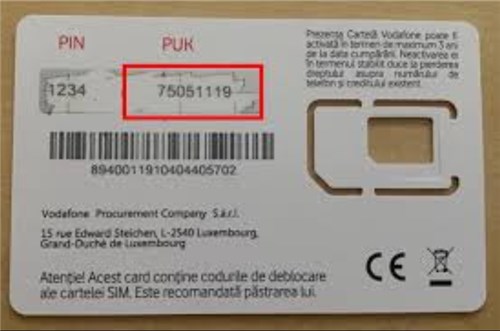
Check PUK Code Samsung from Package
Way 2. Check Your Carrier’s Website/App
Most of the mobile carriers provide the tools for managing accounts online. To access your account, log in to the carrier’s website or mobile app with your account credentials. Most carriers have the PUK code under security or SIM card settings.
Way 3. Try a Carrier USSD Code
Some carriers provide access to the PUK code using a special USSD code that you must call from your phone. For instance, by dialing *06#, you can get your IMEI, although different carriers may have other codes for PUK retrieval. Look into the support section of your carrier for the code you require.
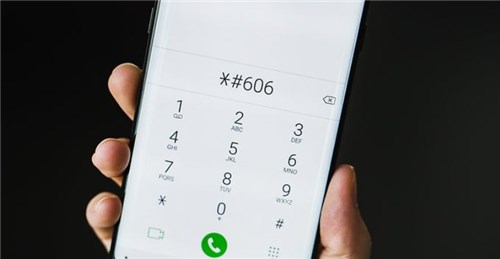
Try Carrier USSD Code
Way 4. Contact Your Mobile Carrier
You can get the PUK code in no time by calling the carrier’s customer service, in case you cannot get it through the packaging or online. They will do the identity verification and then tell you the PUK code via phone.
Way 5. Go to a Carrier Store
Only if you cannot find the PUK code in any of the previously mentioned ways, then you should go to the carrier’s store. The employees there can help you get a new PUK code or reset your Samsung phone to unlock it.
Bonus Tip: How to Unlock Samsung Phone Without Passcode
If you want to unlock a Samsung phone that is locked with a passcode and you do not have access to the passcode, then DroidKit by iMobie should be your foremost choice. It is created with the aim of letting users get immediate but secure access to their locked devices.
DroidKit is supported with over 20,000 different Android phones and tablets of various models and versions, which also includes the recent Samsung Galaxy series. If you forget Android PIN, password, pattern, fingerprint, or face recognition lock, DroidKit is the tool to get rid of any screen lock in a simple way without hard work or your phone getting rooted. By its user-friendly interface and detailed instructions, the unlocking of the phone of even non-technical users is possible in a few minutes.
Key Features of DroidKit:
- Compatible with over 20,000 Android devices, including Samsung, Xiaomi, Redmi, etc.
- Simple, intuitive user interface with guided step-by-step instructions.
- Fast screen unlocking process to regain access in minutes.
- Supports all types of screen locks: PIN, password, pattern, fingerprint, and face recognition.
Free Download * 100% Clean & Safe
Here are the steps to unlock a Samsung screen without password:
Step 1: Connect Your Samsung Device to Your Computer
Free download and install DroidKit on your PC. Connect your Samsung to the PC with a USB cable. Launch DroidKit and click the “Screen Unlocker” option.
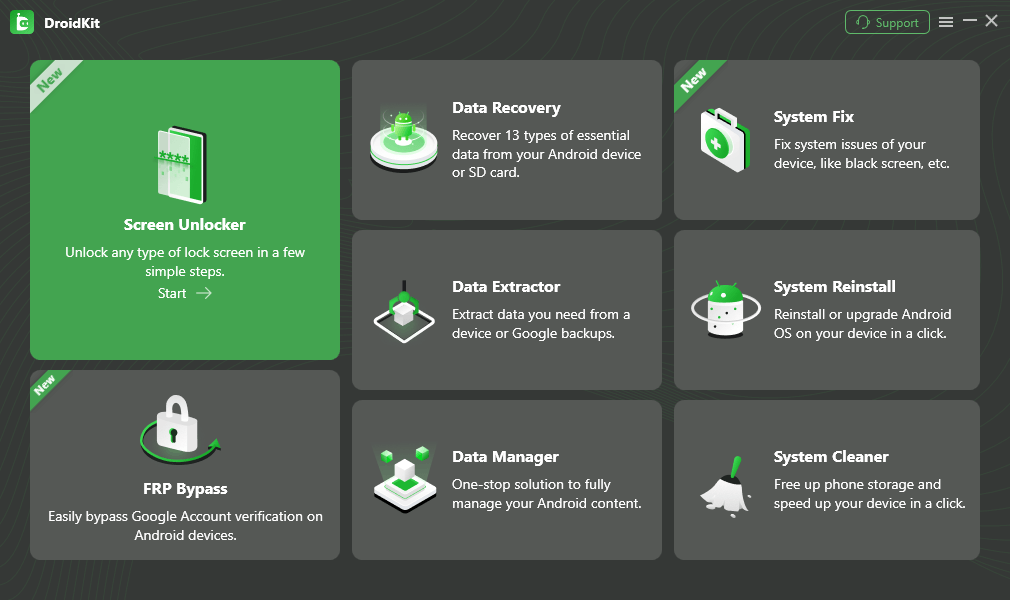
Select Screen Unlocker Mode
Step 2: Select Your Device Model
Select the Samsung brand to start the unlock process.
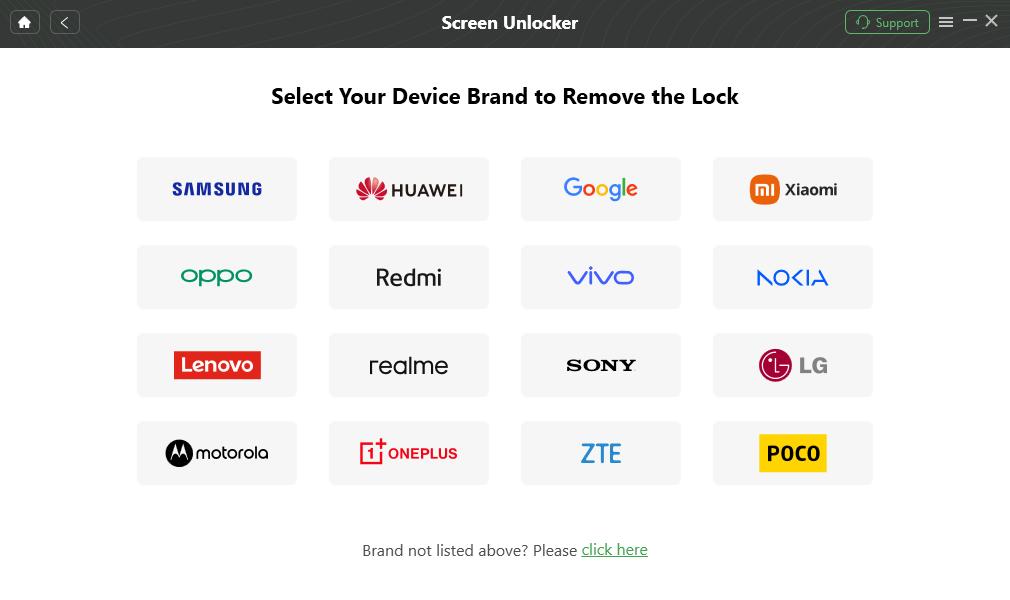
Confirm your Device Brand and Continue
Step 3: Enter Download Mode
According to the instructions from the DroidKit app, prepare your device for Download Mode.

Enter Download Mode
Step 4: Remove the Screen Lock
Wait for the unlock process to be completed. Then your phone will be restarted without a lock and available for use.
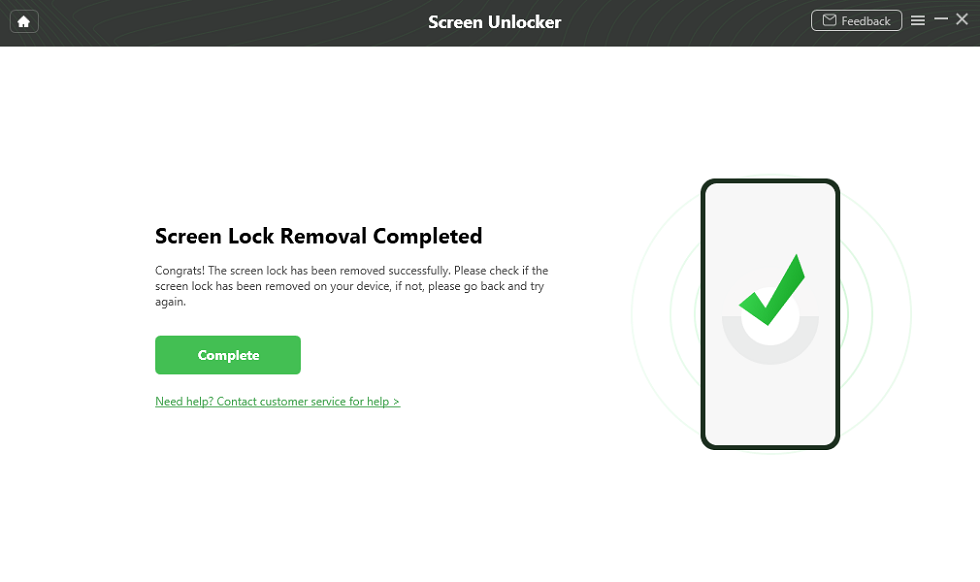
Unlock Samsung Screen Successfully
FAQs about PUK Code Samsung
Q1: What happens after 10 failed PUK code attempts?
Entering the PUK code incorrectly more than ten times will result in your SIM being locked forever, making it impossible for you to use that SIM again.
Q2: How to unlock PUK code Samsung keypad?
To unlock PUK code Samsung keypad, simply power it on, and it will automatically display the PUK code entry screen. Enter the correct 8-digit PUK code from your carrier, set a new SIM PIN, and your SIM card will be unlocked for network use.
Q3: Where to enter PUK code on Android?
You don’t need to manually look for a setting to enter the PUK code. After you enter the wrong SIM PIN three times, the SIM card locks itself, and the phone automatically brings up a PUK code entry screen on restart or when reconnecting to the network.
Q4: Where can I find my 8-digit PUK code?
You can usually find your PUK code on the packaging of your SIM card, within your mobile carrier’s official app or website under your account information, or by reaching out to your carrier’s customer service.
Q5: What is the code *# 1234 on Samsung phone?
*#1234 is a Samsung secret code used to display the phone’s firmware information, including PDA, CSC, and modem information.
Conclusion
In this article, we provide 5 easy methods to help you find PUK code Samsung back. By looking at your SIM packaging, going on your carrier’s website, or simply requesting a PUK code from your provider, you can get the PUK code. As a bonus, DroidKit is a good solution to get into your phone without a password in just a few easy steps. Try DroidKit to remove the lock screen on Samsung without any credentials.
Free Download * 100% Clean & Safe



Jeremy Feron is a writer for iMobie with a deep passion for Android. He specializes in creating clear guides on Android tips and the latest updates, helping users navigate their devices and get the most out of new features.
Product-related questions? Contact Our Support Team to Get Quick Solution >
