Mi Flash Unlock: How to Unlock Xiaomi Bootloader
Mi Flash Unlock is Xiaomi’s official bootloader unlock tool for Xiaomi, Redmi, and POCO devices. This guide explains what it does, how to use it safely, what to prepare before unlocking, why common errors happen, and when a screen unlock tool is a different solution.
Quick Answer: Mi Flash Unlock is used to unlock the bootloader on Xiaomi, Redmi, and POCO phones. It is helpful if you want to flash firmware manually, install a custom ROM, root the device, or modify system software. It does not remove a forgotten screen password, Mi Account lock, or FRP lock. Before using it, back up your data, bind your Xiaomi account to the device, prepare for a possible waiting period, and understand the security risks of an unlocked bootloader.
Part 1. What Is Mi Flash Unlock?
Mi Flash Unlock , also called the Mi Unlock Tool , is Xiaomi’s official utility for unlocking the bootloader on Xiaomi, Redmi, and POCO devices. A bootloader is the low-level program that starts the operating system. When the bootloader is locked, the phone is restricted to approved system software. When it is unlocked, advanced users can flash firmware, install custom ROMs, root the phone, or make deeper system changes.
Mi Flash Unlock is not a general phone unlocker. It does not unlock a forgotten PIN, pattern, password, fingerprint lock, Mi Account lock, or Google FRP lock. If you are locked out of the screen, skip to Part 7 to understand the difference.
Part 2. Mi Flash Unlock vs Mi Flash Tool vs Screen Unlock Tools
Many users confuse Mi Flash Unlock with similar-sounding tools. The table below explains the difference before you download or use anything.
| Tool / Method | Main Use | Does It Remove Screen Lock? | Main Risk |
|---|---|---|---|
| Mi Flash Unlock / Mi Unlock Tool | Unlock Xiaomi bootloader | No | May erase data and reduce device security |
| Mi Flash Tool | Flash official firmware or ROM packages | No | Wrong ROM or flashing mistake may break the system |
| Xiaomi account recovery | Recover account access | No | Requires the correct account details and verification |
| Android screen unlock tool | Remove PIN, pattern, or password in supported cases | Yes, in supported scenarios | May erase data; compatibility must be checked |
Part 3. Before You Use Mi Flash Unlock
Bootloader unlocking is an advanced operation. Read these points before starting.
1. Back up your Xiaomi phone
Unlocking the bootloader can erase user data, especially on encrypted devices or certain models. Back up photos, messages, contacts, app data, and important files before using Mi Flash Unlock.
2. Use the correct Xiaomi account
Your Xiaomi account must be linked to the phone you want to unlock. Use the same account on the device and inside the Mi Flash Unlock tool. If the account is not bound to the device, the tool may show an error.
3. Enable Developer options, OEM unlocking, and USB debugging
On the Xiaomi phone, go to Settings > About phone and tap the system version several times to enable Developer options. Then go to Settings > Additional settings > Developer options , enable OEM unlocking and USB debugging , and check Mi Unlock status to add your account and device. The exact path may vary by MIUI, HyperOS, model, and region.
4. Prepare for a waiting period
Xiaomi may require a waiting period after binding the account and device. The waiting time can vary. During the waiting period, keep using the same device and account normally unless Xiaomi gives a different instruction.
5. Understand the security trade-off
An unlocked bootloader can make it easier to modify the system, but it also reduces the default security barrier. It may increase the risk of data exposure, unstable software, failed updates, or service limitations. Normal users who do not need root, custom ROMs, or manual flashing should usually keep the bootloader locked.
Part 4. How to Use Mi Flash Unlock Tool
Use the official Xiaomi / Xiaomi Community channel available for your region whenever possible. Avoid modified, cracked, or re-uploaded unlock tools.
Step 1. Back up the phone
Save important files before unlocking. Bootloader unlock may erase the phone, and the process cannot be used as a safe backup method.
Step 2. Add your Xiaomi account to Mi Unlock status
On the phone, sign in to your Xiaomi account. Then open Developer options and use Mi Unlock status to add the account and device. Keep mobile data enabled if Xiaomi requires it during binding.
Step 3. Enter Fastboot mode
Power off your Xiaomi, Redmi, or POCO device. Press and hold Volume Down and Power together until the Fastboot screen appears.
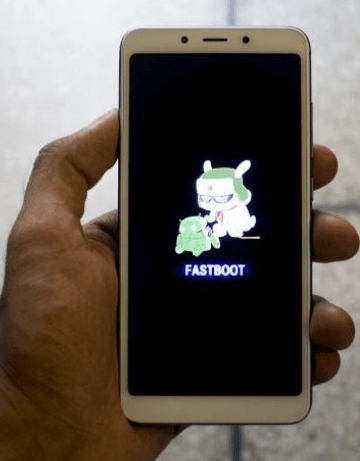
Fastboot Screen
Step 4. Connect the phone to your computer
Use a working USB cable and connect the phone to a Windows computer. Install the required drivers if the tool does not detect the phone.
Step 5. Open Mi Flash Unlock and sign in
Open miflash_unlock.exe and sign in with the same Xiaomi account that is bound to the phone.
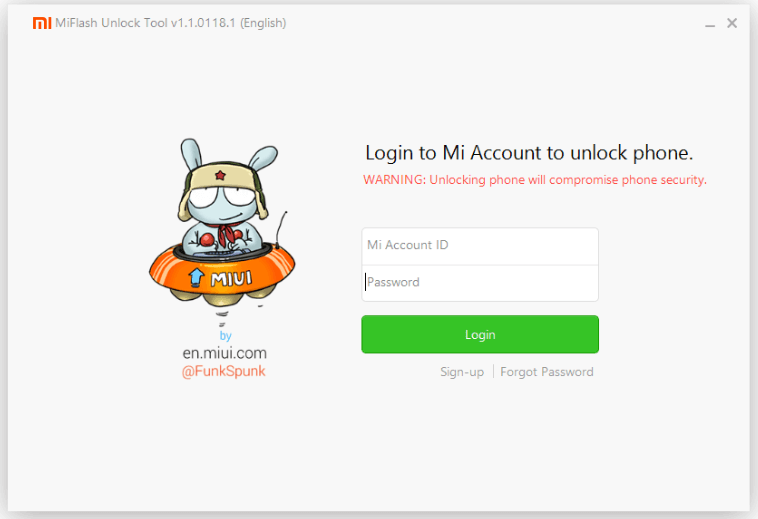
Login to Xiaomi Account to Unlock Phone
Step 6. Check device connection
If the phone is detected correctly, the tool should show that the phone is connected. If not, check the USB cable, driver, Fastboot mode, and account binding status.
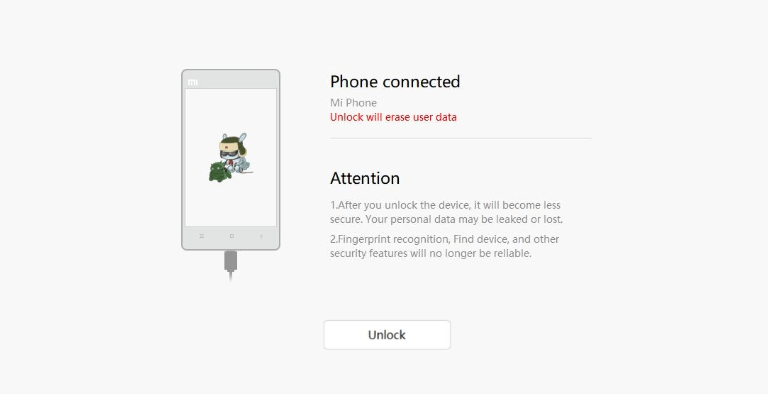
Phone Connected
Step 7. Start the unlock process
Click Unlock or Unlock anyway if the tool asks for confirmation. Read the warning carefully because unlocking the bootloader may erase data and reduce device security.
Step 8. Wait if Xiaomi requires it
If Mi Flash Unlock says you need to wait, do not keep rebinding accounts or resetting the phone repeatedly. Wait for the required time and try again with the same account and device.
Step 9. Restart and set up the phone
After the bootloader is unlocked, restart the phone. You may see a bootloader warning during startup. Set up the device again and restore your backup if the phone was wiped.
Part 5. Mi Flash Unlock Not Working: Common Errors and Fixes
| Error / Symptom | Possible Cause | What to Try |
|---|---|---|
| Current account is not bound to this device | The Xiaomi account was not added in Mi Unlock status | Sign in on the phone, add account and device again, then retry |
| Couldn't verify device | Connection, driver, account, or server verification issue | Check USB cable, drivers, Fastboot mode, account login, and network |
| Please try after a waiting period | Xiaomi requires time after account binding | Wait for the displayed time and avoid rebinding repeatedly |
| Phone not detected | Driver or Fastboot connection problem | Use another USB port/cable, reinstall drivers, or try another Windows PC |
| Unlock button unavailable | Account, permission, or region restriction | Check Xiaomi Community requirements for your region and device |
If the error is related to Xiaomi account permission, region rules, or HyperOS bootloader policy, follow the current instructions in the official Xiaomi Community or support page for your market. These requirements can change over time.
Part 6. Is Mi Flash Unlock Modified Safe?
No. Avoid modified, cracked, or unofficial Mi Flash Unlock tools. They may contain malware, steal Xiaomi account information, fail server verification, or damage the phone. A modified unlocker also cannot safely bypass Xiaomi’s official account or device restrictions. Use official Xiaomi channels whenever possible, and treat any “miflash unlock modified” or “instant bootloader unlock” download with caution.
Part 7. What If You Want to Unlock Xiaomi Screen Lock Instead?
Mi Flash Unlock only unlocks the Xiaomi bootloader. If your real problem is a forgotten Xiaomi screen password, PIN, pattern, or fingerprint lock, Mi Flash Unlock is not the right tool.
If official recovery or reset options are not suitable, DroidKit may be considered as a tool-assisted option for Android screen lock removal on supported devices. Check compatibility and data-loss notes before using it. Do not treat DroidKit as a replacement for Mi Flash Unlock when your goal is bootloader unlocking.
Free Download * 100% Clean & Safe
Part 8. FAQs
Q1. What is Mi Flash Unlock used for?
Mi Flash Unlock is used to unlock the bootloader on Xiaomi, Redmi, and POCO devices. It is mainly for advanced tasks such as installing custom ROMs, rooting, flashing firmware manually, or modifying system software. It does not remove a forgotten screen password or directly bypass FRP.
Q2. Is Mi Flash Unlock the same as Mi Flash Tool?
No. Mi Flash Unlock unlocks the bootloader. Mi Flash Tool is usually used to flash official firmware or ROM packages. In many cases, you need an unlocked bootloader before flashing certain ROMs, but the two tools serve different purposes.
Q3. Does Mi Flash Unlock erase data?
It may erase data, depending on the model, encryption status, and unlock process. Xiaomi support notes that some models and encrypted devices can clear user data when unlocking. Back up important files before starting.
Q4. Why does Mi Flash Unlock ask me to wait?
Xiaomi may require a waiting period after you bind your account and device. The waiting time can vary by model, account status, device history, and Xiaomi policy. Do not remove the account, change accounts, or reset the phone during the waiting period unless Xiaomi instructs you to do so.
Q5. Is Mi Flash Unlock modified safe to use?
No. Modified, cracked, or unofficial Mi Flash Unlock tools can be unsafe. They may contain malware, fail verification, damage the device, or put your Xiaomi account at risk. Use official Xiaomi or Xiaomi Community channels whenever possible.
Q6. Can Mi Flash Unlock remove a Xiaomi screen password?
No. Mi Flash Unlock is for bootloader unlocking, not screen password removal. If you forgot the PIN, pattern, or password on a Xiaomi phone, you need a screen lock solution or official recovery/reset method. DroidKit may be relevant only for supported screen-lock scenarios.
Q7. Can Mi Flash Unlock bypass Mi Account lock or FRP?
No. Mi Account lock and FRP are different from bootloader lock. Mi Flash Unlock should not be presented as a Mi Account or FRP bypass tool. Use official account recovery first, and only consider a dedicated unlock solution when you own the device and understand the risks.
Q8. Is unlocking the Xiaomi bootloader recommended for normal users?
Not usually. Unlocking the bootloader can reduce device security, increase data leakage risk, affect stability, and may impact warranty or service. Regular users who do not need custom ROMs or root access should usually keep the bootloader locked.
The Bottom Line
Mi Flash Unlock is the right tool when your goal is to unlock the bootloader on a Xiaomi, Redmi, or POCO phone. It is not a screen lock remover, Mi Account bypass tool, or FRP bypass tool. Before using it, back up your phone, bind the correct Xiaomi account, prepare for a waiting period, and understand the data-loss and security risks. If your actual problem is a forgotten Xiaomi screen password, use official recovery options or a dedicated screen unlock solution for supported devices instead.


Roger Smith is a senior technical writer with years of experience in providing Android solutions. He loves to help users solve various problems such as Android unlock, Android data recovery, and Android system repair.
Product-related questions? Contact Our Support Team to Get Quick Solution >
