Samsung FRP Helper V0.2 Download & Use 2026
Samsung FRP Helper is a free tool to bypass FRP on Samsung phones. It’s popular among Samsung users who are stuck on the Google account verification page. Check this article and learn how to download and use Samsung FRP Helper V0.2 to bypass FRP on Samsung devices.
Locked out of your Samsung phone and can’t get past the FRP screen? You’re not alone! This frustrating issue has affected countless users after a factory reset. Fortunately, Samsung FRP Helper v0.2 offers a simple and effective solution. This lightweight Samsung FRP Helper tool is designed to bypass Google account verification on Samsung devices using ADB or serial port methods. Whether you’ve forgotten your login credentials or purchased a secondhand phone, the Samsung FRP Helper can help you regain access without needing technical skills.
In this guide, we’ll walk you through how to download, use, and troubleshoot Samsung FRP Helper v0.2. We will also introduce a powerful alternative for Samsung FRP bypass if you fail in using Samsung FRP Helper V0.2.
What Is Samsung FRP Helper?
The Samsung FRP Helper Tool is a freeware program created by GautamGreat, and the program was initially published in November 2016 on the CrackingGSM blog. It also works with all Windows-compatible systems.
The characteristic of this tool is that it can trigger the phone calling process, utilizing the serial port of the Samsung device with FRP, and it can also process information using ADB mode to bypass the FRP lock. Here is the list of features for this tool.
- Read info (ADB Mode)
- Delete FRP (ADB Type)
- Phone call (Serial Port)
- Scan port (Select a specific serial port number.)
How to Bypass FRP with Samsung FRP Helper V0.2
Below are the steps to bypass the FRP lock with the Samsung FRP Helper tool.
Step 1. Firstly, download Samsung FRP Helper v0.2 for Windows.
Step 2. This tool does not require any installation. After downloading the Samsung FRP 0.2 setup file, open it as an administrator. In case you have downloaded a zip file, then you must unzip it using a similar extraction program such as WinRAR or 7-Zip.
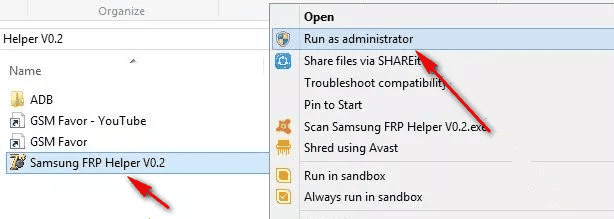
Run Samsung FRP Helper V0.2 as Administrator
Step 3. You can choose from two methods to proceed: the “Call Method” and the “ADB Method”. Choose the ADB method as it is reliable and recommended.
Step 4. Tap 7 times on the phone’s build number, enabling Developer options. Search and turn on the USB debugging icon from these settings.
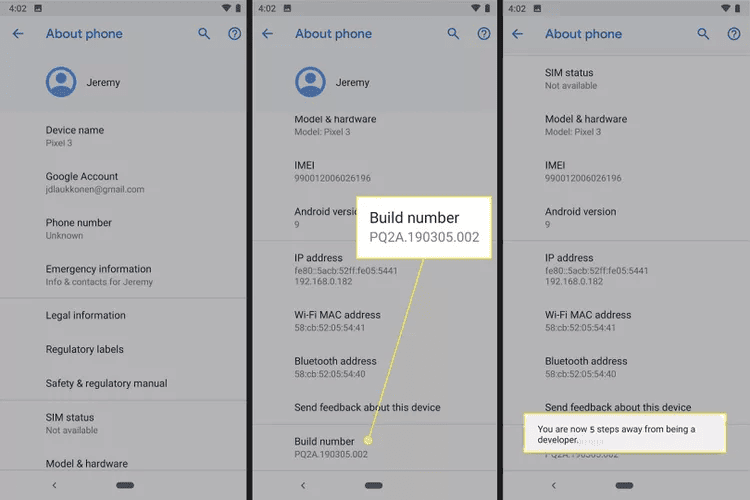
Enable Develop Option in Samsung FRP Helper V0.2
Step 5. Connect your device to the PC using a USB cable. On your tool’s screen, locate and click on the “Remove FRP” button.
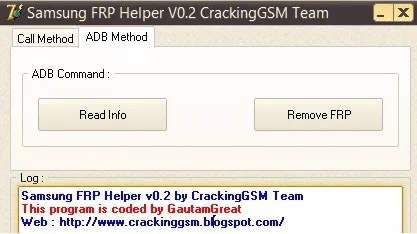
Choose Remove FRP in Samsung FRP Helper
Step 6. On the removal of FRP successfully, the device will reboot. After restarting the device, perform a quick reset on your phone.
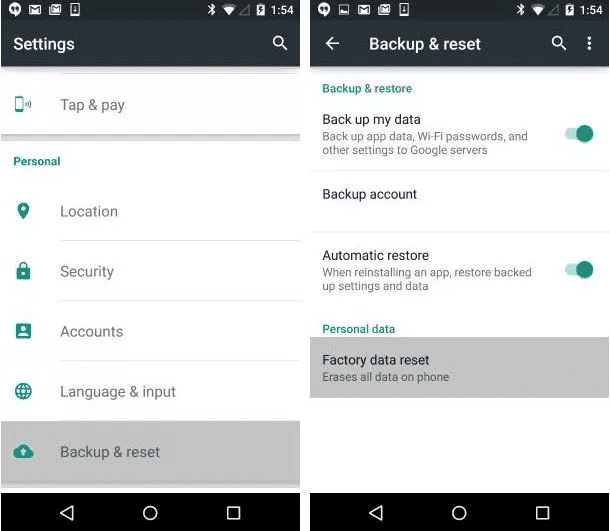
Factory Reset Samsung Phone
Now, you have your unlocked Samsung phone.
What To Do When Samsung FRP Helper Not Working?
Samsung FRP Helper V0.2 not working? Some users have reported the problem. Don’t worry, you’re not alone. It causes problems to numerous users, particularly on newer Samsung devices or more recent versions of Android. It could be any compatibility problem, connection error, or simply the tool refuses to open, yet the frustration is real.
In this case, you can consider the best alternative to Samsung FRP Helper V0.2 – DroidKit. It is an effective and user-friendly program that is not limited to bypassing FRP. It is a complete rescue package for Android devices. DroidKit provides an easy way to regain access to your Samsung device. In addition, you do not need to have technical knowledge to use it. It is fast, secure, and compatible with the majority of Samsung phones, including the new ones.
Standout Features of DroidKit:
- Bypass FRP locks without a password or Gmail account.
- Supports the latest Android OS and Samsung devices.
- No need for a root or complicated setup.
- Simple on-screen instructions, ideal for beginners.
- Also helps recover data, fix Android system issues, and more.
Free Download * 100% Clean & Safe
Steps to Bypass FRP Lock with DroidKit:
Step 1. Download and install DroidKit on your PC. Then, launch the tool on your computer and select “FRP Bypass” mode.

Choose FRP Bypass
Step 2. Connect your Samsung device to the computer with the help of a USB cable, then click the Start icon.
Step 3. Now select the brand of your device. After selecting your brand device, choose your Samsung version. DroidKit has a specific FRP bypass path for a higher success rate.
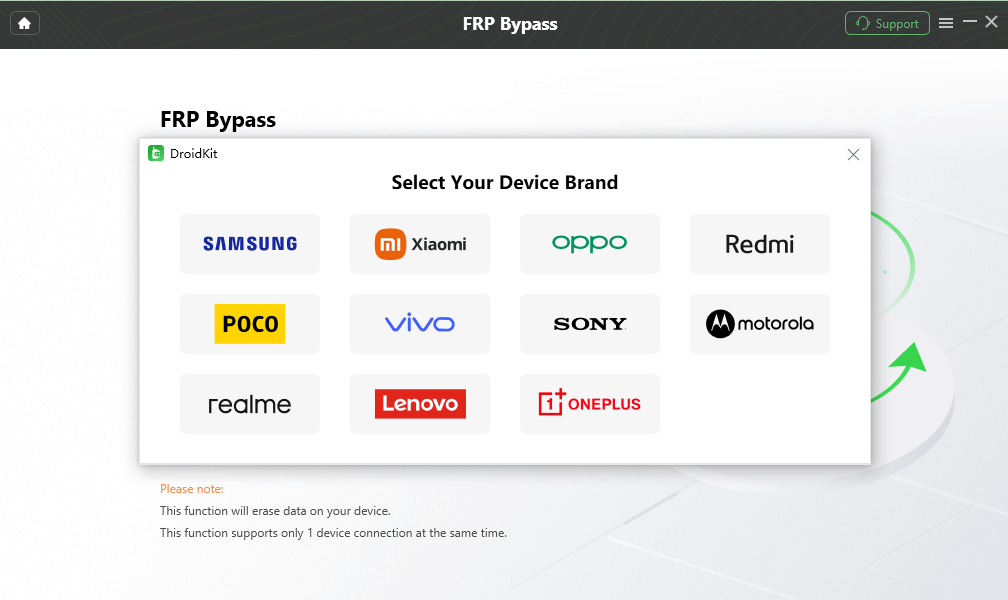
Select Correct Brand
Step 4. After starting the process, it will begin preparing the configuration file for your Samsung device. Next, select the operating system for your device.
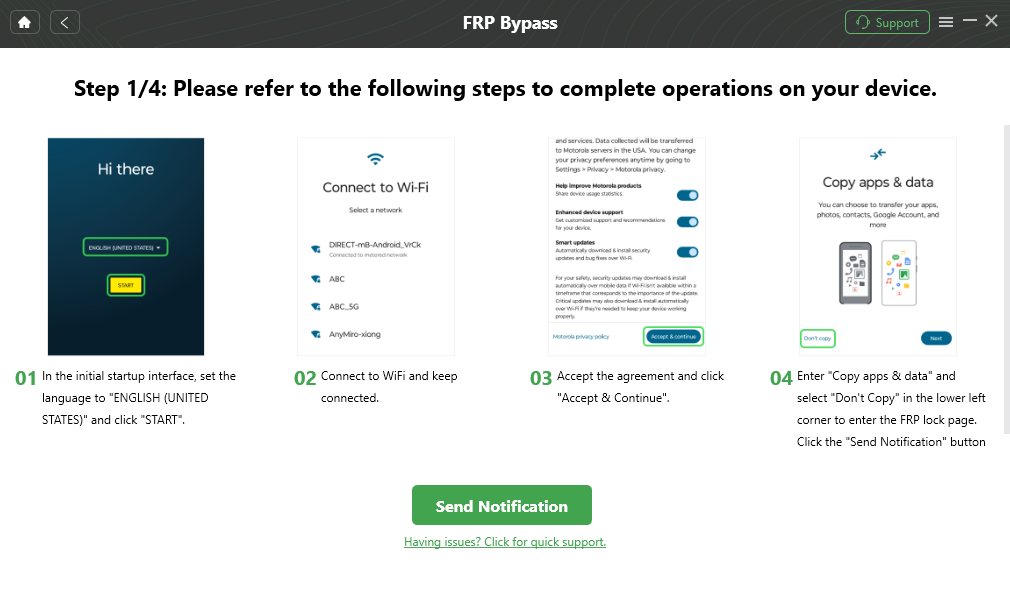
Follow the Bypass Steps
Step 5. Follow the on-screen prompts and click reset.
Wait until the FRP bypass process is finished. Then you can set up your Samsung phone with another Google account and use it normally.
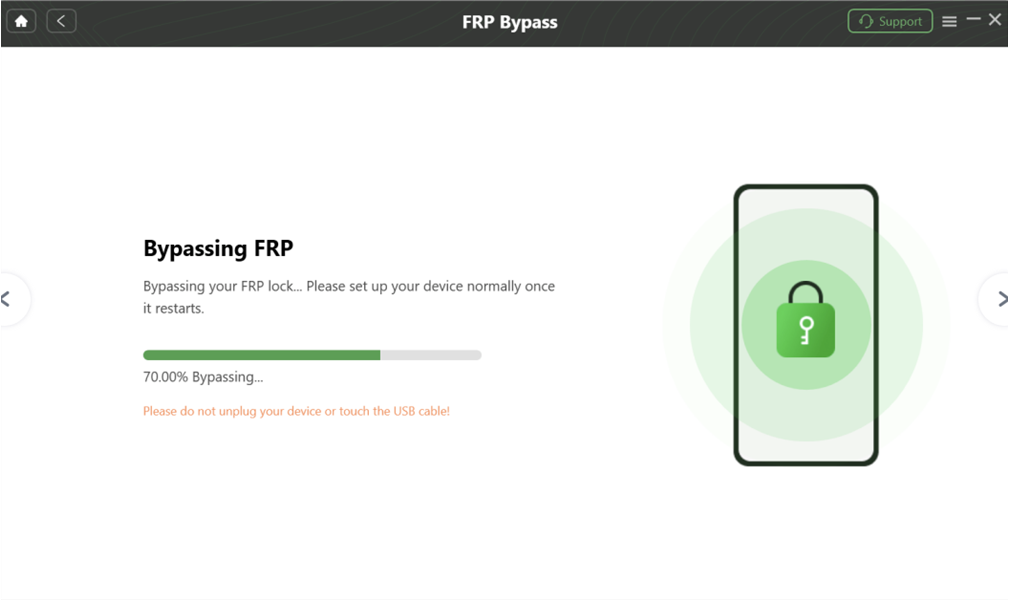
Droidkit Bypassing FRP
Conclusion
By now, you know how Samsung FRP Helper v0.2 operates and how to utilize it in bypassing FRP in Samsung devices. It is a convenient feature, but it may not always run faultlessly, especially with new models or a new software update. And, should that be the case, it does not mean that you have to remain stuck. DroidKit, as an alternative to Samsung FRP Helper V0.2, is a convenient and powerful FRP unlocking tool that helps you bypass the FRP lock without a password or prior expertise. Give it a go and get back into your device with confidence.
Free Download * 100% Clean & Safe



Senior writer of the iMobie team as well as an Apple fan, love to help more users solve various types of iOS & Android-related issues.
Product-related questions? Contact Our Support Team to Get Quick Solution >
