Samsung Galaxy M31 FRP Bypass Android 12
Locked out of your M31 due to FRP? Don’t panic. This article provides a detailed Samsung M31 FRP bypass guide with clear, stepwise instructions. We will share four practical techniques to help you unlock your device easily. Whether you want detailed manual solutions or an easy bypass tool, we have you covered.
Are you stuck on the Google sign-in screen after resetting your Galaxy M31? This guide offers effective solutions for the Samsung M31 FRP bypass to help you unlock your phone quickly.
While Google’s FRP lock protects your device, it becomes a hassle if you forget your account details or buy a used phone. Bypassing it can be complex and risky. But DroidKit provides a safe and easy alternative. With no technical skills required, you can regain access to your M31 within minutes.
Let’s explore how to bypass FRP using DroidKit and other manual methods.
Part 1. Use Google Account Recovery to Bypass Samsung M31 FRP Lock
If you’ve forgotten your Google account password or email, you can use Google Account Recovery to access your account. Here’s how:
Step 1. Go to Google Account Recovery. Enter your device’s email address or phone number. Then, click “Next.”
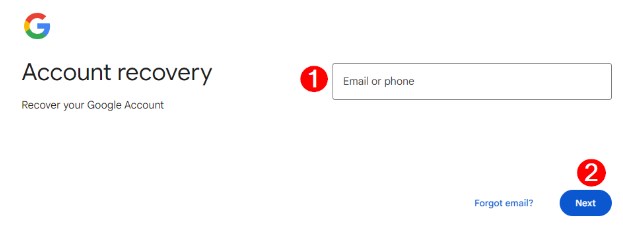
Enter Email/Phone and Click Next
Step 2. Select how to verify your identity. You can choose your passkey, answer security questions or receive verification code.
Step 3. Type the verification code in the text box and click “Next.”
Step 4. Enter a new password and re-enter it to confirm. Then, use the new password to sign in and bypass FRP.
Part 2. Use DroidKit to Bypass Samsung M31 FRP Lock
DroidKit offers an effortless Samsung M31 FRP bypass solution. It removes the synced Google account with minimal effort, so you can set up your device with a new one and regain access quickly. Whether you’ve forgotten your account password or bought a secondhand device locked to the previous owner, you can safely remove the Google lock in just a few clicks.
Enjoy the following key benefits of FRP bypass with DroidKit:
- Bypass FRP lock in minutes without complex navigation.
- Widely compatible with Samsung, Redmi, OPPO, and more.
- Your data is safe during the bypass with SSL-256 encryption.
- Customized bypass solutions to ensure a high success rate.
- Supports Android 6 to 14.
- Easy to use, no technical skills required.
Free Download * 100% Clean & Safe
Steps to Bypass FRP on Samsung M31 with DroidKit
Step 1. Download and install DroidKit. Launch it and select the “FRP Bypass” tool from the main screen.

Choose FRP Bypass Mode
Step 2. Connect your phone to your computer with a USB cable. Then, click “Start” and select Samsung as your phone’s brand.
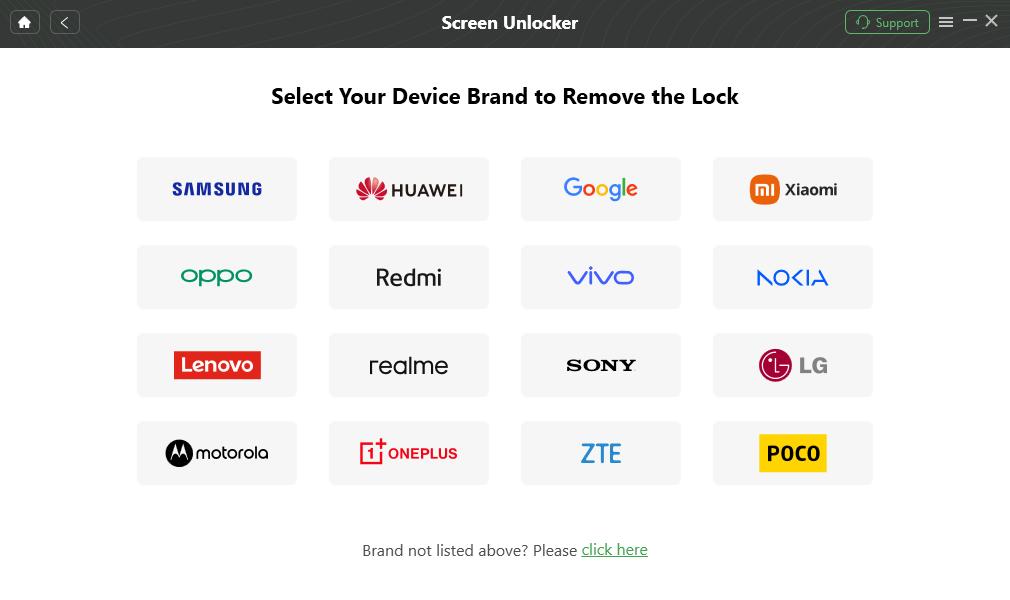
Confirm your Device Brand and Continue
Step 3. DroidKit will prepare the configuration profile for your Galaxy M31. Once the download is complete, click “Start to Bypass.”
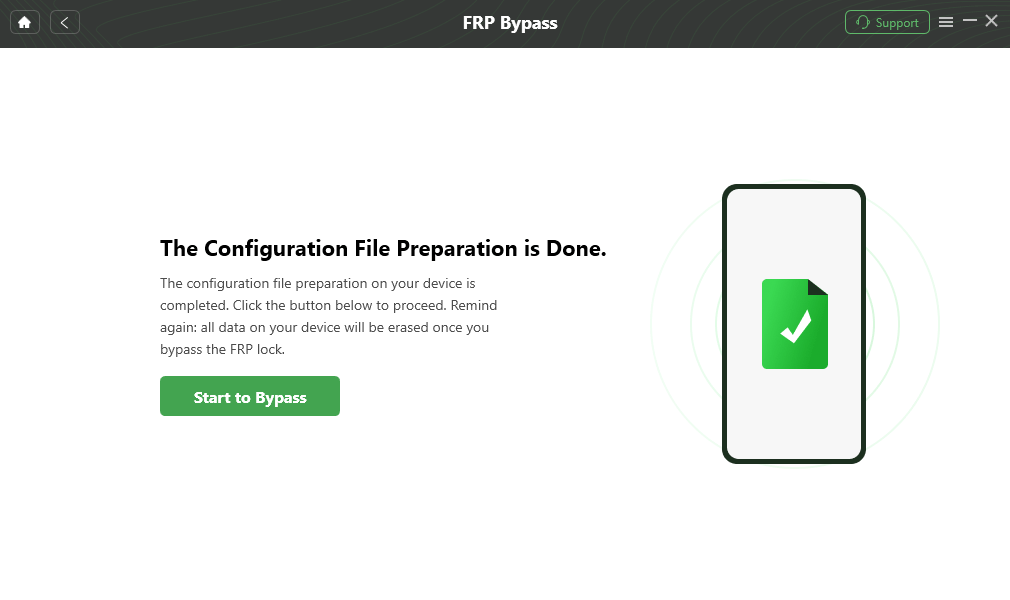
Click Start to Bypass
Step 4. Select your phone’s Android version. You can verify it by looking at the picture of the boot screen. Then click “Next.”
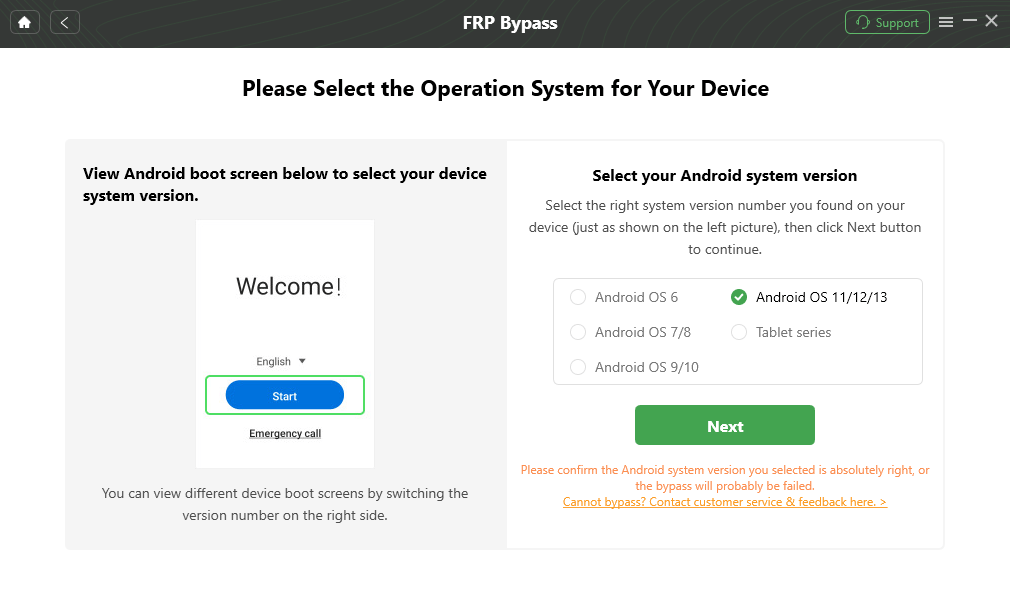
Choose System Version
Step 5. Follow the on-screen instructions for the Samsung M31 FRP bypass. You’ll need to put your device in factory mode. Then, click “Reset.”
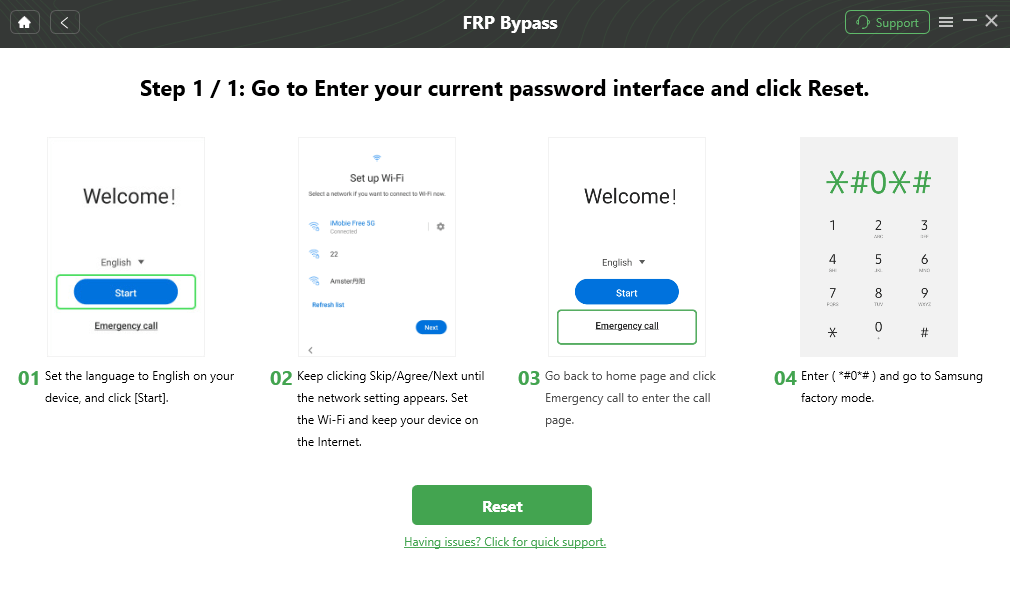
Go to Enter your Current Password Interface and Click Reset
Step 6. Once the process is complete, you will see the “Bypass completed” window as shown below.

FRP Bypass Complete
That was easy, right? DroidKit removes the hassle of technical operations for bypassing the FRP screen. Plus, it performs the bypass process safely, ensuring no harm is done to your device.
Part 3. Use TalkBack to Bypass Samsung M31 FRP Lock
Do you want to bypass the FRP lock on Samsung M31 without using a PC? The Talkback feature offers a quick workaround.
Here’s how it works.
Step 1. Connect your phone to a network. Then, go back to the Welcome screen. Press both volume buttons to turn on Talkback.
Step 2. Draw a reverse L on the screen and select “Use voice commands.”
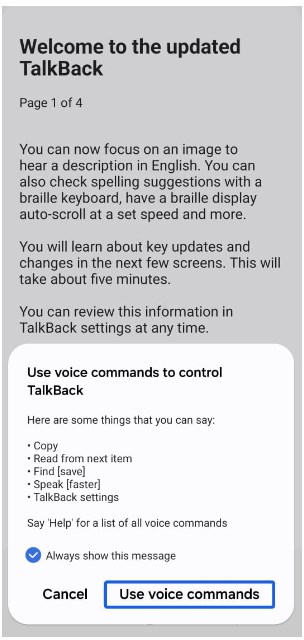
Select Use Voice Commands
Step 3. Speak “Google Assistant.” Once the Google Assistant appears, speak “Open Settings” to open the Settings app.
Step 4. Press and hold both volume buttons to turn off the talkback. Then, select the “Biometrics and security” option.
Step 5. Select “Other security settings > Pin windows” and turn on the toggle for this option.
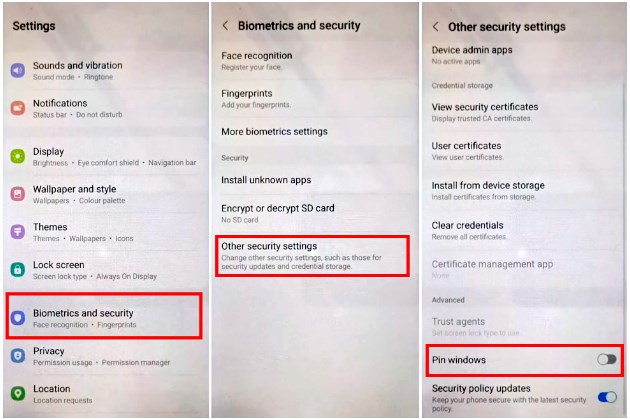
Enable Pin Windows under Biometrics and Security
Step 6. Turn on “Use screen lock type to unpin” and select a screen lock. Now, set the new passcode and use it to bypass the FRP lock.
Part 4. Use Package Disabler to Bypass Samsung M31 FRP Lock
If setting a screen lock does not work, you can use the App Launcher as the Samsung M31 FRP bypass solution.
Here’s how to go about it.
Step 1. Use Talkback to access Google Assistant and speak “YouTube.” Then, press “Accept & continue > No, thanks.”
Step 2. YouTube web app will open. Use the address bar to search and open “frproms bypass 2026” website.
Step 3. Tap “Open Galaxy Store” and update it. Then go back and tap “Open phone settings.”
Step 4. Go to “Biometrics and security > install unknown apps” and enable “My Files.”
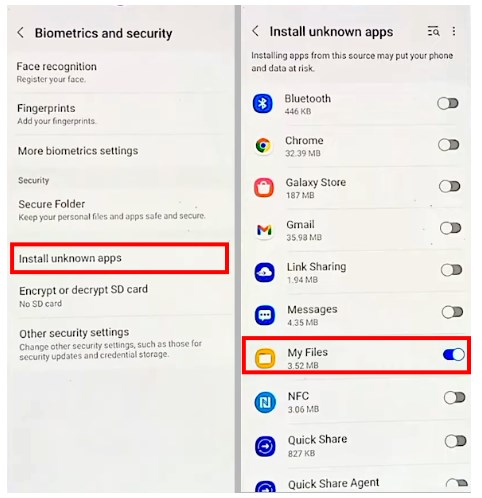
Enable My Files to Install Unknown Apps
Step 5. Go back and tap “Other security settings > Pin windows” and turn it on.
Step 6. Return to the settings app. Tap “Accessibility > Vision enhancements > Magnification” and turn on the “Magnification shortcut.”
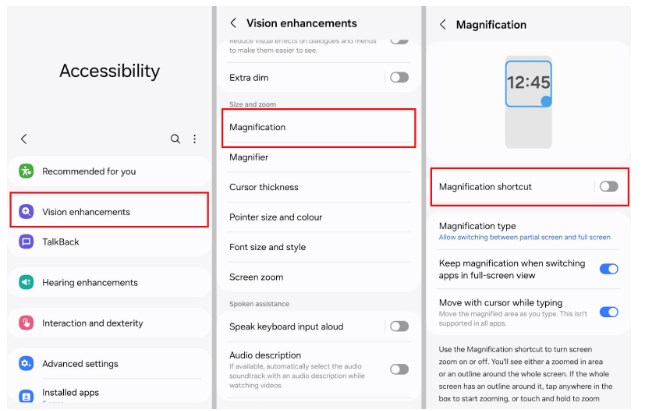
Enable the Magnification Shortcut
Step 7. Go back to the Settings app. Press “Samsung account” and sign in to your Google account. Then go to “Samsung apps and services > Galaxy Store.”
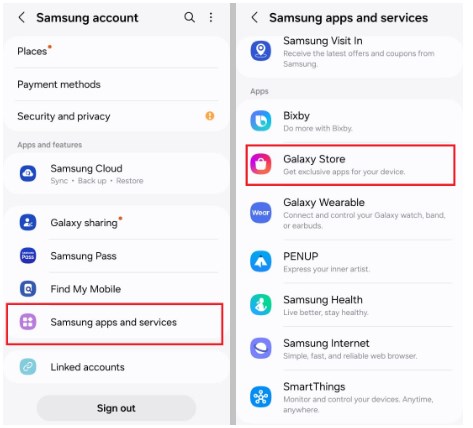
Access Galaxy Store under Samsung Apps and Services
Part 5. Which Samsung M31 FRP Bypass method is most suitable for you [method comparison]
Here’s a detailed comparison of all the methods to help you find the right Samsung M31 FRP Bypass solution.
| Aspect | Google Account Recovery | DroidKit | TalkBack | Package Disabler |
| Ease of Use | Easy | Very easy | Moderate | Complex |
| Technical Skills Required | Minimal | None | Minimal | Advanced |
| Success Rate | Medium, depends on having account info | High, customized solutions | May fail on newer versions | Low due to untrusted apk downloads |
| Safety | Safe | Secure with SSL-256 encryption | Safe but requires trial and error | Risky due to third-party apps |
| Time Required | Medium | Fast, within minutes | Medium | Long, multiple steps and downloads |
| Device/OS Support | Works only if the original account is accessible | Supports Android 6 to 14 | Dependent on device and software updates | May not work on newer Android versions |
Part 6. Conclusion
That’s all about the Samsung M31 FRP bypass! Use our complete guide to pick the right solution and unlock your device successfully. All the methods mentioned are effective in getting past the Google sign-in. But if you want a simple solution that won’t harm your device, try DroidKit. With Android 12 support and beyond, you can bypass FRP on Samsung M31 without worries!
Free Download * 100% Clean & Safe
Part 7. FAQs
1. What is a safe Samsung M31 FRP unlock tool?
DroidKit offers a safe and reliable Samsung M31 FRP bypass with powerful encryption that keeps your data secure. Full support for Android 6 to 14 ensures you can unlock your device without issues.
2. How do I remove my Google account from Samsung M31?
You can remove the synced Gooogle account using the settings app on Galaxy M31. Go to “Settings > Accounts and Backup > Manage Accounts.” Select your Google account and tap “Remove Account.”
3. Is it legal to bypass FRP on the Samsung M31?
Samsung M31 FRP bypass is legal as long as you own the device. However, unlocking a phone that is not yours is illegal. It violates both Google and Samsung’s terms of service and can lead to severe consequences.



Senior writer of the iMobie team as well as an Apple fan, love to help more users solve various types of iOS & Android-related issues.
Product-related questions? Contact Our Support Team to Get Quick Solution >
