Free Download For Win & Mac | 100% Clean & Secure


Basic Information
Introduction
AnyEnhancer utilizes AI models to enhance and restore old, low-quality, and blurry videos. It offers various repair functions, including intelligent enhancement, resolution enhancement, face restoration, colorization of black and white videos, color enhancement, denoise model and frame interpolation. With simple clicks, you can gain higher-quality video effects.
What Scenarios are Available?
AnyEnhancer is versatile and can be used in various scenarios, including but not limited to:
1. Improve the quality of memorable videos, such as journey, weddings or birthday parties, etc.
2. Use AI video enhancer to clearly clarify evidence or instructional videos.
3. Enhance the viewing experience of videos.
4. Make the color perceptually meaningful and visually attractive.
5. Make the fast-moving transition of the video smoother and more natural.
Tech Specs
| Windows | ||
| Minimum Specs | Recommended Specs | |
| Operating System | Windows 10, Windows 11 (64-bit) | Latest OS |
| CPU | Intel CPU from 2015 onwards or AMD CPU from 2016 onwards | Intel i7 (7th generation) or greater (4GHz and above) |
| GPU | NVIDIA GTX 1050 Ti or higher | NVIDIA RTX 3xxx (8GB) or higher |
| Storage | 16GB | 32GB |
| macOS | ||
| Minimum Specs | Recommended Specs | |
| Operating System | macOS 11 or later | Latest OS |
| CPU | macOS Intel or Apple M-Series Silicon chip | Apple M-Series Silicon chip |
| GPU | GPU macOS Intel or Apple M-Series Silicon chip | Apple M-Series Silicon chip |
| Storage | 16GB | 32GB |
How to Find Windows and Mac Computer Specifications?
For Windows Computer:
Step 1. Find "Settings" option on your computer.
Step 2. Choose "System" option.
Step 3. Choose "About" option. And you will view the detailed info about computer specification.
For Mac Computer:
Step 1. Click the Apple icon on the top left of your computer screen.
Step 2. Click "About this Mac".
Step 3. You will find the computer specifications in the following appearing window.
Differences between Free & Activated Version
| Benefits | Free Version | Activated Version |
| Intelligent Enhancement |  |
|
| Resolution Enhancement | |
|
| Face Restoration | |
|
| Colorize Model | |
|
| Color Enhancement | |
|
| Denoise Model | |
|
| Frame Interpolation | |
|
| Clip Video | |
|
| Crop Video | |
|
| Export Video |  |
|
Settings
Here you can unfold the Settings button to:
About: View information about AnyEnhancer and version details.
Choose Language: Choose your preferred language. (AnyEnhancer currently supports 8 languages, English, French, German, Japanese, Spanish, Arabic, Italian and Portuguese.)
Check for Updates: Check if there is a newer version of AnyEnhancer.
Send Feedback: Share your thoughts, suggestions, and any issues you encounter while using AnyEnhancer.
Open Log File: A logfile is a file that records events, errors, and other significant activities that occur while the software is running. Here you can access and view the log file of AnyEnhancer.
Guide: View the user guide to make good use of AnyEnhancer.
FAQ: Visit the FAQ to get quick solutions.
Facebook: Visit the home page of iMobie’s Facebook account.
Twitter: Visit the home page of iMobie’s Twitter account.
YouTube: Visit the home page of iMobie’s YouTube account.
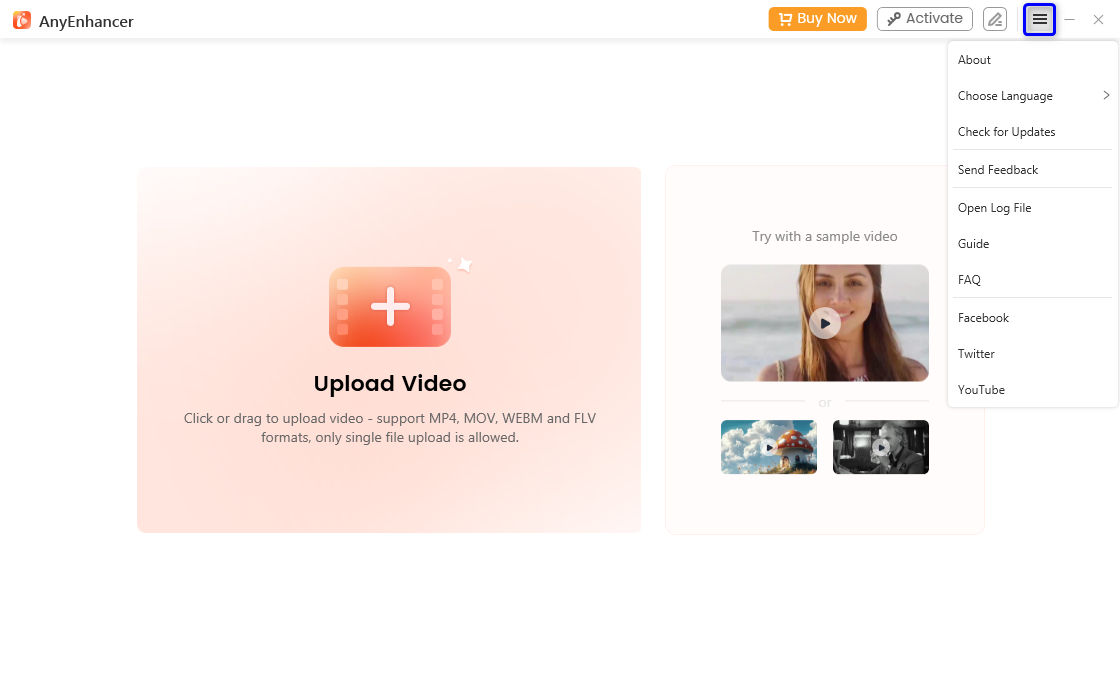
The Settings of AnyEnhancer
Activating Instructions
If AnyEnhancer satisfies your expectation, welcome to download and give it a try. To enjoy all benefits of AnyEnhancer, you need to upgrade to the full version See Pricing. After completing the payment, you will receive Account and Activation Code within several seconds to minutes. Please click the "Activate" button.
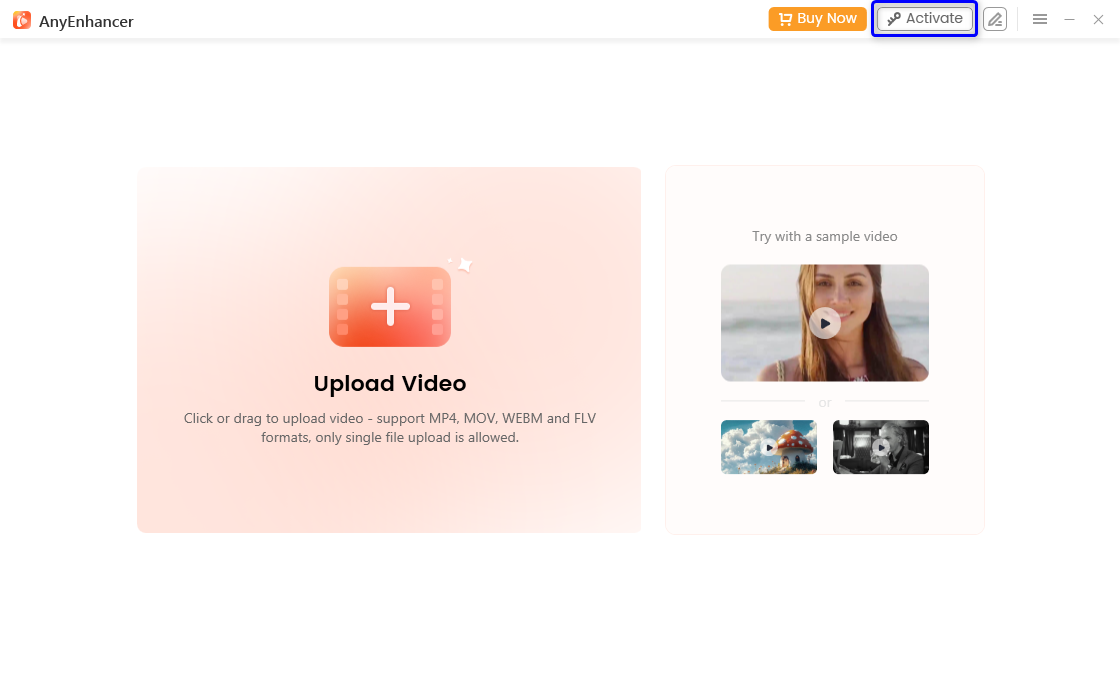
Click Activate Button
Please enter email address and the activation code you received. Please copy & paste the Activation Code to avoid any typing mistakes. Please also connect your computer to the Internet when activating AnyEnhancer.
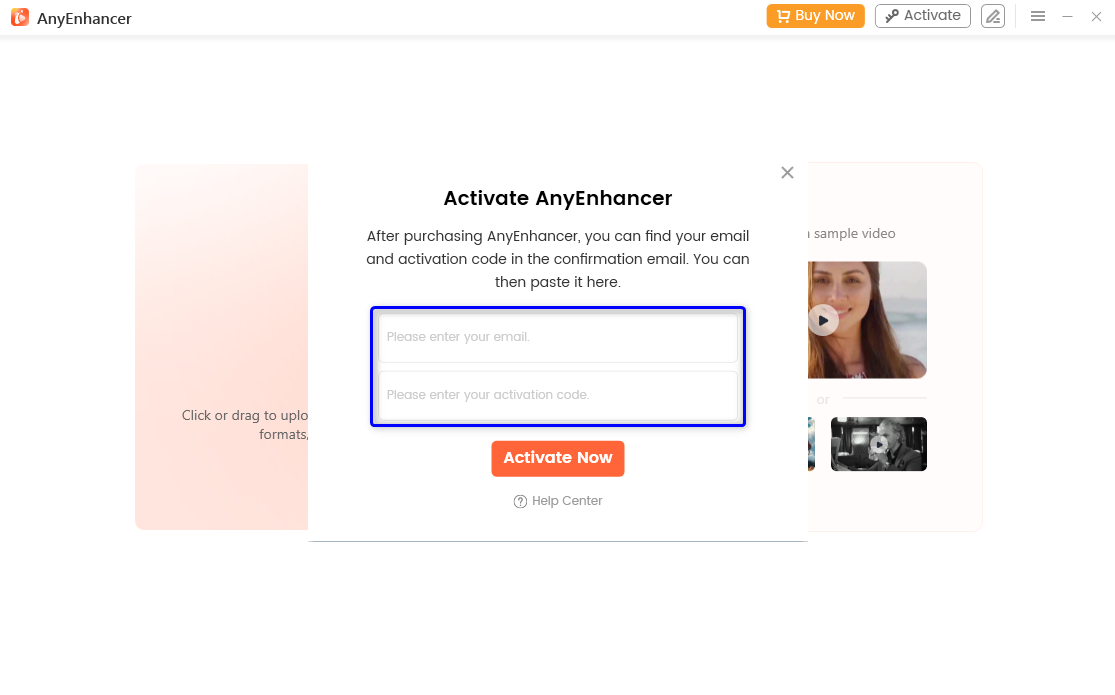
Enter your Account and Activation Code
Then, please click “Activate Now” button. After completing activating process successfully, you will see the interface below.
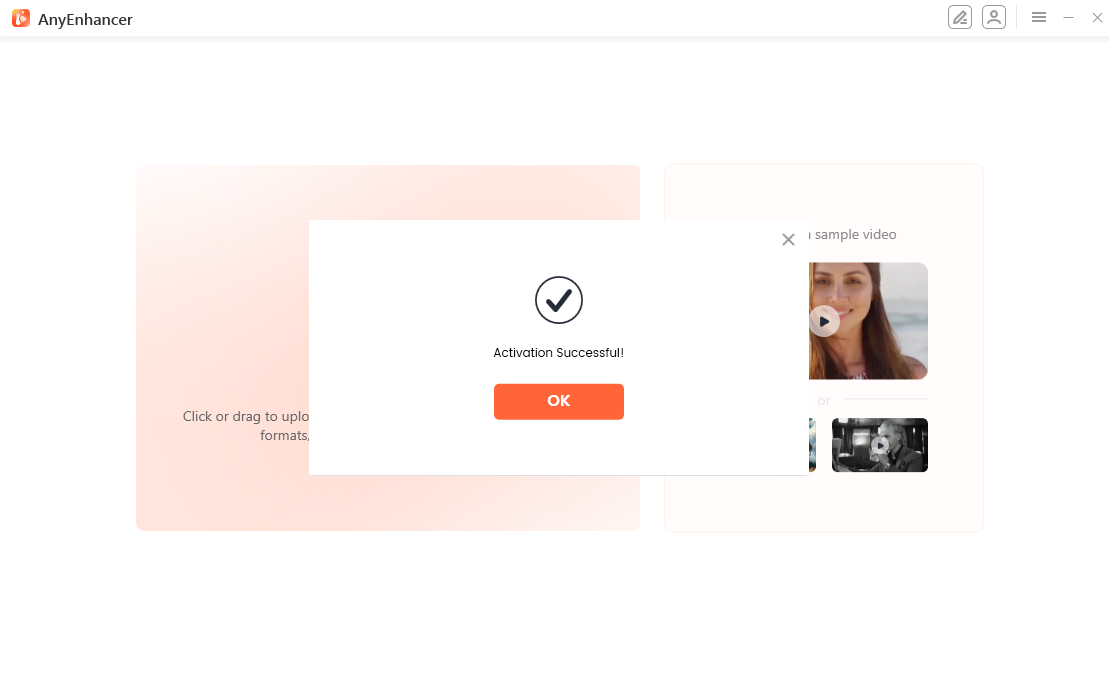
Activation Succeeded
Once AnyEnhancer is activated, you can view your logged-in account details, plan information, and cancel the activation status by clicking on the Avatar icon.
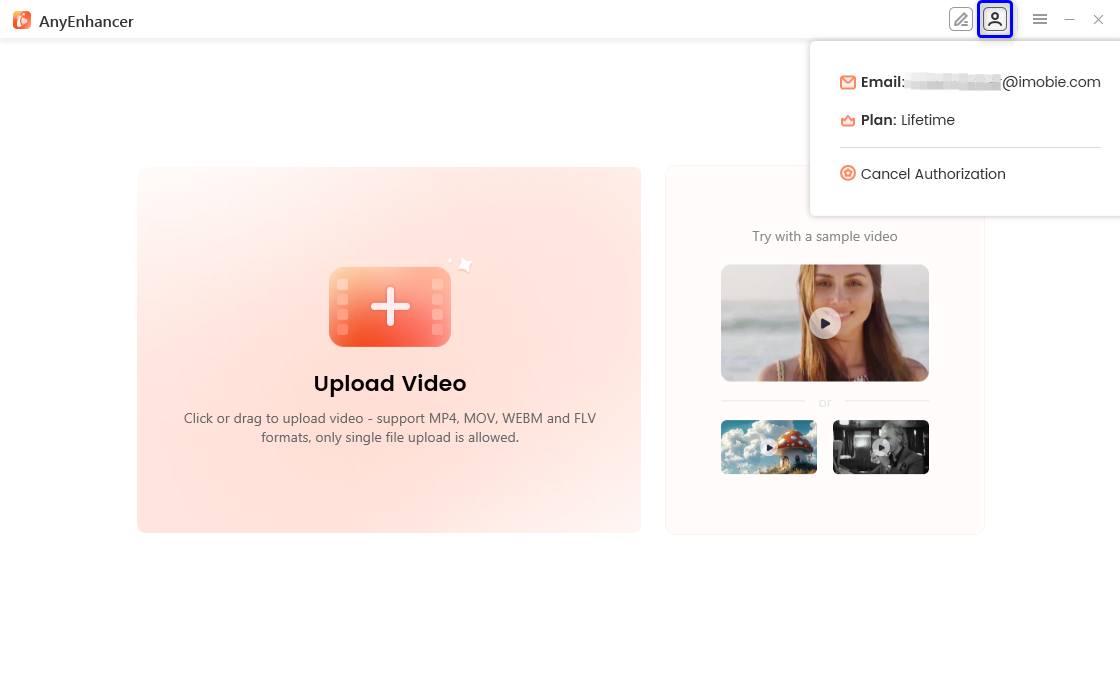
Your Account Information
If you need to turn AnyEnhancer into the inactivate state, please click Cancel Authorization button.
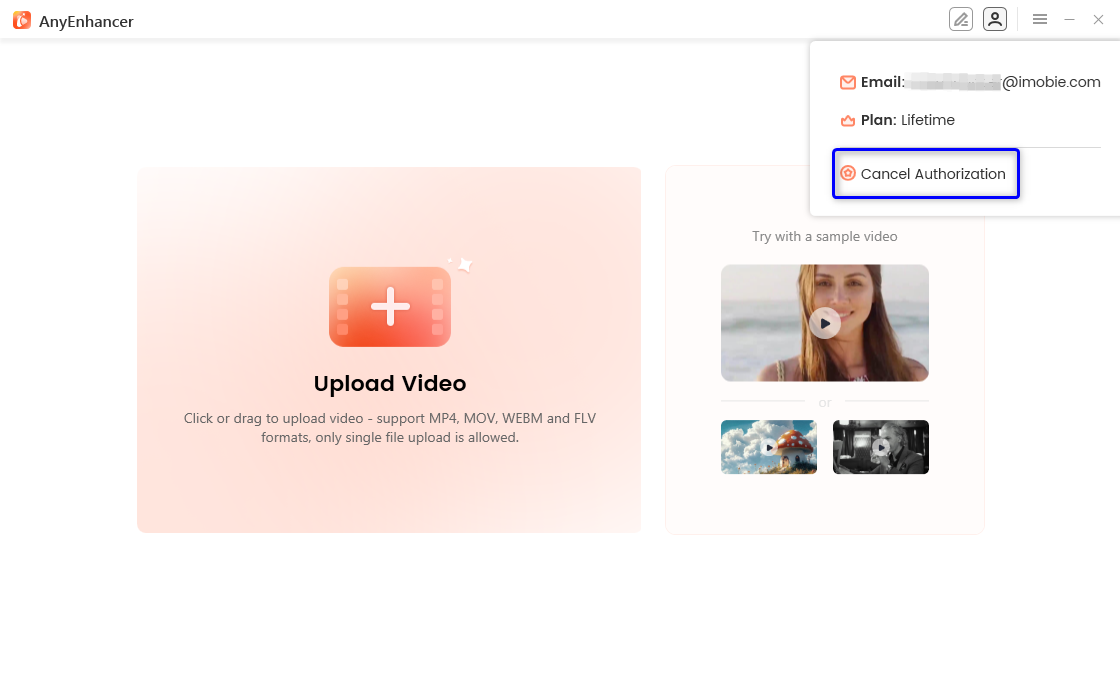
Cancel Authorization
Key Features
Intelligent Enhancement
Intelligent Enhancement focuses on boosting video quality by sharpening facial features and improving overall resolution. This AI technology supports 2K and 4K settings, providing substantial resolution enhancements. It not only clarifies the video but also carefully refines character facial details in mission scenes.
Intelligent Enhancement Effect
Resolution Enhancement
Resolution Enhancement model is specifically to enhance the clarity and resolution of the video. Using this AI technology, the video resolution can be increased to 2K/4K high-definition quality. It can effectively increase the details and clarity of video, thereby improving the visual experience.
Resolution Enhancement Effect
Face Restoration
Face Restoration can automatically recognize the face and restore facial details from blurry videos, such as the eyes, nose, mouth, skin texture, and other fine details. It offers two modes: Fast Mode for quicker processing with standard results, and Quality Mode for detailed restoration with slower processing speeds.
Face Restoration Effect
Colorize Model
Colorize Model can help enhance grayscale videos by adding color to single or multiple sequences, making the color perceptually meaningful and visually attractive.
Colorize Model Effect
Color Enhancement
Color Enhancement is the process of enhancing the vibrancy, accuracy, and overall quality of colors in a video. This technique adjusts and enriches colors to make them more vivid, balanced, and true-to-life.
Color Enhancement Effect
Denoise Model
This model can help enhance the clarity and visual appeal of your videos by removing unwanted grain and artifacts that may be present, especially in low-light conditions or high-ISO settings.
Denoise Model Effect
Frame Interpolation
Frame Interpolation model eliminates the stuttering found in low frame rate videos, providing a smooth playback experience.
Frame Interpolation Effect
If you still have questions after reading this guide, please refer to this FAQs page to check more solutions. Or you can contact our Support Team to get further help. We are here to help you!
FAQs About AnyEnhancer
1. What is AnyEnhancer?
AnyEnhancer is an AI-powered video enhancement tool designed to improve and restore old, blurry, and low-quality videos. It offers multiple AI models to enhance video clarity, improve resolution, restore faces, colorize black-and-white videos, enhance colors, reduce noise, and smooth video playback.
2. What can I do with AnyEnhancer?
You can use AnyEnhancer to improve the quality of family videos, travel recordings, wedding footage, birthday videos, and instructional videos. It can also help clarify blurry footage, enhance colors, restore facial details, and make low-frame-rate videos appear smoother.
3. What AI enhancement models does AnyEnhancer support?
AnyEnhancer offers several AI models, including Intelligent Enhancement, Resolution Enhancement, Face Restoration, Colorize Model, Color Enhancement, Denoise Model, and Frame Interpolation. Each model targets a different video quality issue, allowing you to choose the most suitable option for your footage.
4. Can AnyEnhancer upscale videos to 2K or 4K resolution?
Yes. AnyEnhancer's Intelligent Enhancement and Resolution Enhancement models support upscaling videos to 2K or 4K resolution. The results depend on the original video quality and the characteristics of the footage.
5. Can AnyEnhancer restore blurry faces in videos?
Yes. The Face Restoration model can automatically detect faces and enhance details such as the eyes, nose, mouth, and skin texture. It offers Fast Mode for quicker processing and Quality Mode for more detailed results, although Quality Mode takes longer to process.
6. Can AnyEnhancer colorize black-and-white videos?
Yes. AnyEnhancer's Colorize Model can add color to grayscale videos, helping make old footage appear more vivid and visually engaging. The final result depends on the original footage and the AI processing results.
7. What are the system requirements for AnyEnhancer?
For Windows, AnyEnhancer requires Windows 10 or Windows 11 (64-bit), an Intel CPU from 2015 onward or an AMD CPU from 2016 onward, an NVIDIA GTX 1050 Ti or higher GPU, and at least 16 GB of storage space. For macOS, it requires macOS 11 or later and an Intel or Apple M-series chip, with at least 16 GB of storage space. Recommended specifications are available in the official guide.
8. What is the difference between the free and activated versions of AnyEnhancer?
The free and activated versions provide different usage rights. Activating AnyEnhancer unlocks the benefits of the full version. You can review the comparison table in the official guide to check the availability of specific functions, including video enhancement, clipping, cropping, and exporting.
9. How do I activate AnyEnhancer after purchasing a license?
After purchasing a plan, you will receive your account information and activation code by email, usually within several seconds to a few minutes. Open AnyEnhancer, click “Activate,” enter your registered email address and activation code, and click “Activate Now.” Make sure your computer is connected to the internet during activation.
10. What should I do if AnyEnhancer fails to activate or stops working properly?
First, verify that your email address and activation code are correct, and copy and paste the code to avoid typing errors. Check your internet connection and ensure your computer meets the system requirements. You can also open Settings to check for software updates or access the log file. If the issue persists, contact the Support Team for assistance.

Try It Out & Share Your Feedback!

We'd love to hear how AnyEnhancer is working for you.
Give it a try and share your thoughts—your feedback helps us keep improving.
If you're enjoying AnyEnhancer, we'd be so grateful if you could leave us a review on Trustpilot. Your support helps others discover AnyEnhancer and motivates our team!

Thank you for being part of the iMobie community — we couldn’t do it without you!
Try It Out & Share Your Feedback!
We'd love to hear how AnyEnhancer is working for you.
Give it a try and share your thoughts—your feedback helps us keep improving.
If you're enjoying AnyEnhancer, we'd be so grateful if you could leave us a review on Trustpilot. Your support helps others discover AnyEnhancer and motivates our team!
Thank you for being part of the iMobie community — we couldn’t do it without you!