Free Download For Win & Mac | 100% Clean & Secure


Video Editing
Through video editing, you will gain the capability to seamlessly replace existing videos, adjust their duration and sizes with greater ease, thereby enhancing creativity and crafting more compelling visual narratives.
Part 1. Replace the Video
The Replace the Video function allows you to substitute the existing video with a new one. With a few simple steps, you can ensure that your video content remains up to date and meets your needs. Please click Replace Files button to upload new video to edit.
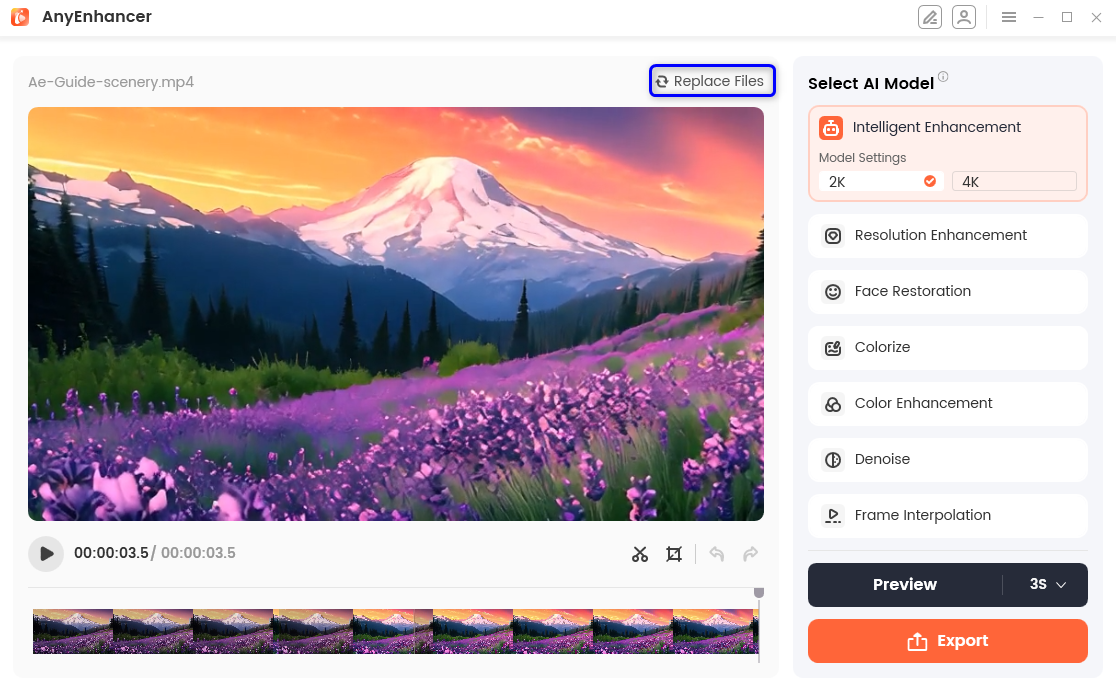
Click Replace Files
Select the target video you want to replace.
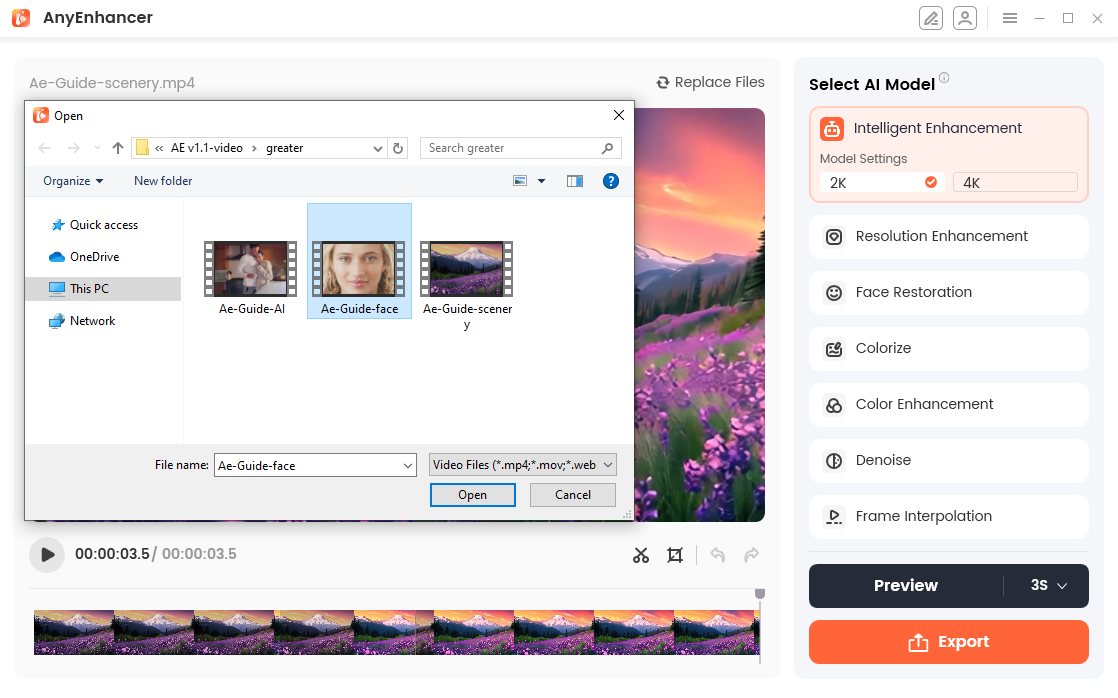
Select Target Video
Part 2. Clip the Video
The Clip function helps you adjust the start and end points of a clip and customize its duration. Clipping the video gives you the flexibility to control the duration and content of the final video output. Please click the Clip (scissors-shaped icon) button to pop up Clip Video function.
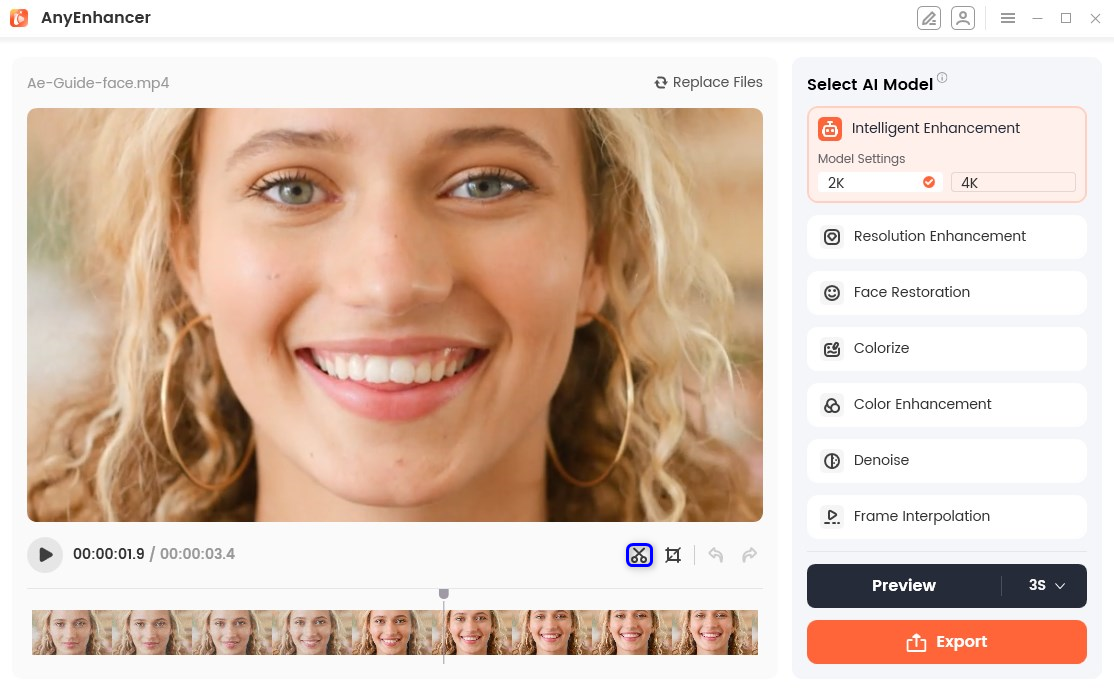
Click the Clip
Please select the video on the timeline you want to clip, click and drag the edge of your clip forwards or backwards to trim off the unwanted video. Clip Duration will show the time of the clipping and change as the duration changes.
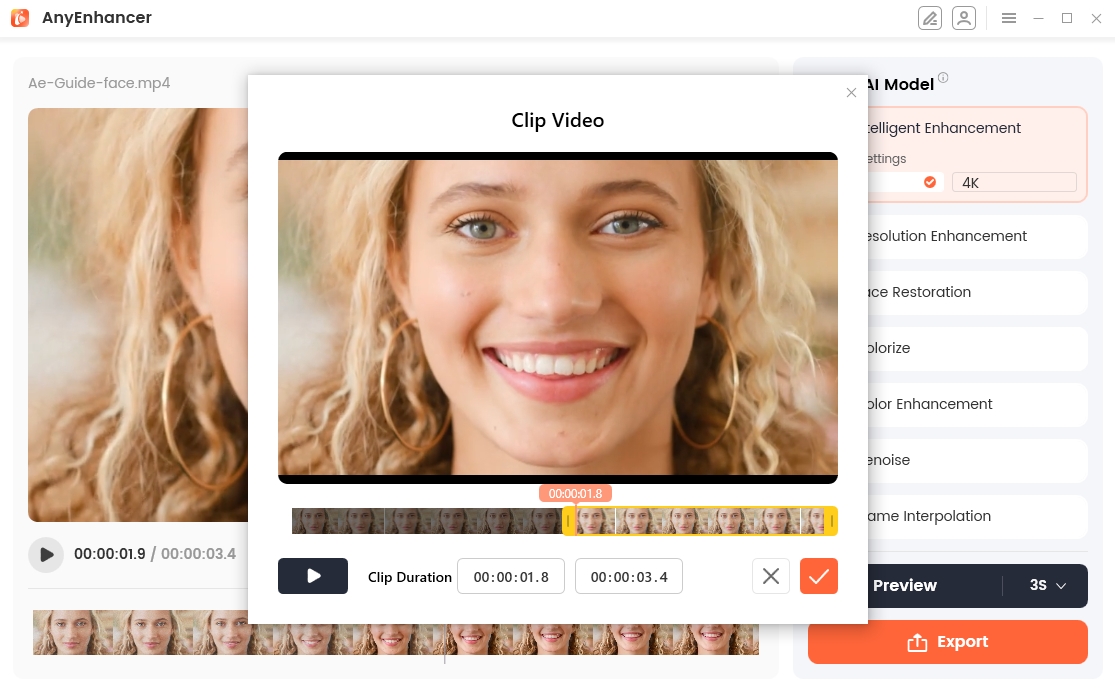
Clip Video in Timeline
The duration of the video should be more than one second. If the video you uploaded is too long to be edited, you can enter the time to edit it. If it is less than or equal to 1 second, the function button will not be clickable.
When the clipping is completed, please click [√] button.Then apply the current clipping to the operation interface display.
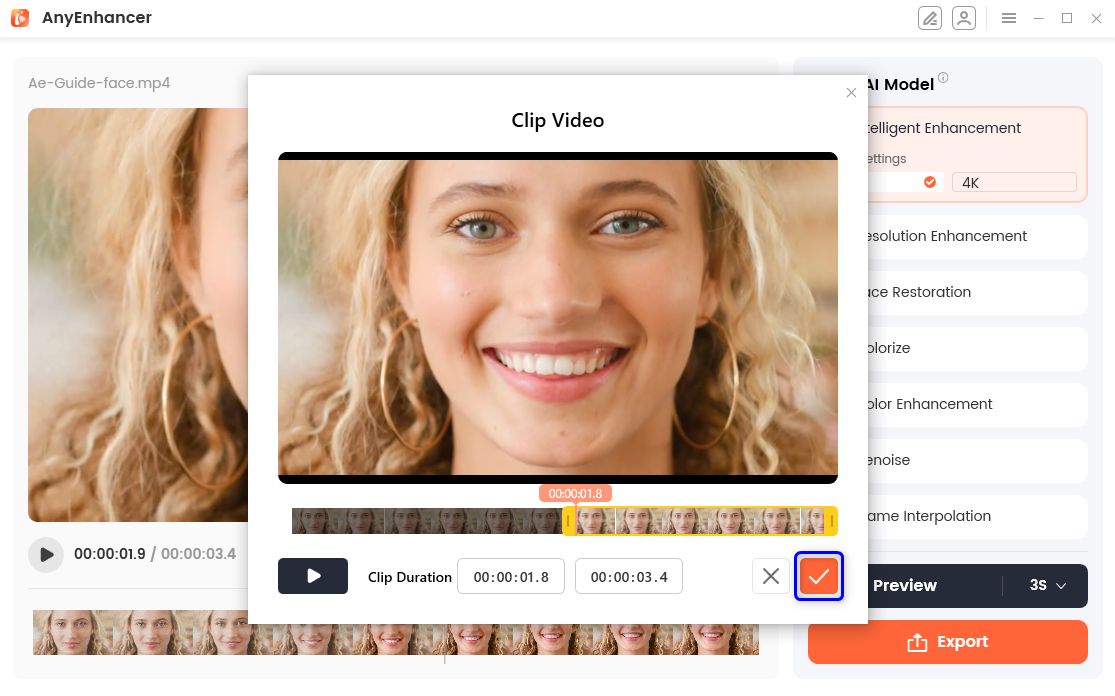
Finish Clipping
Part 3. Crop the Video
The Crop function helps you flexibly adjust the size and content of the video. Please click the Crop (Screenshot-shaped icon) function to pop up the Crop Video function.
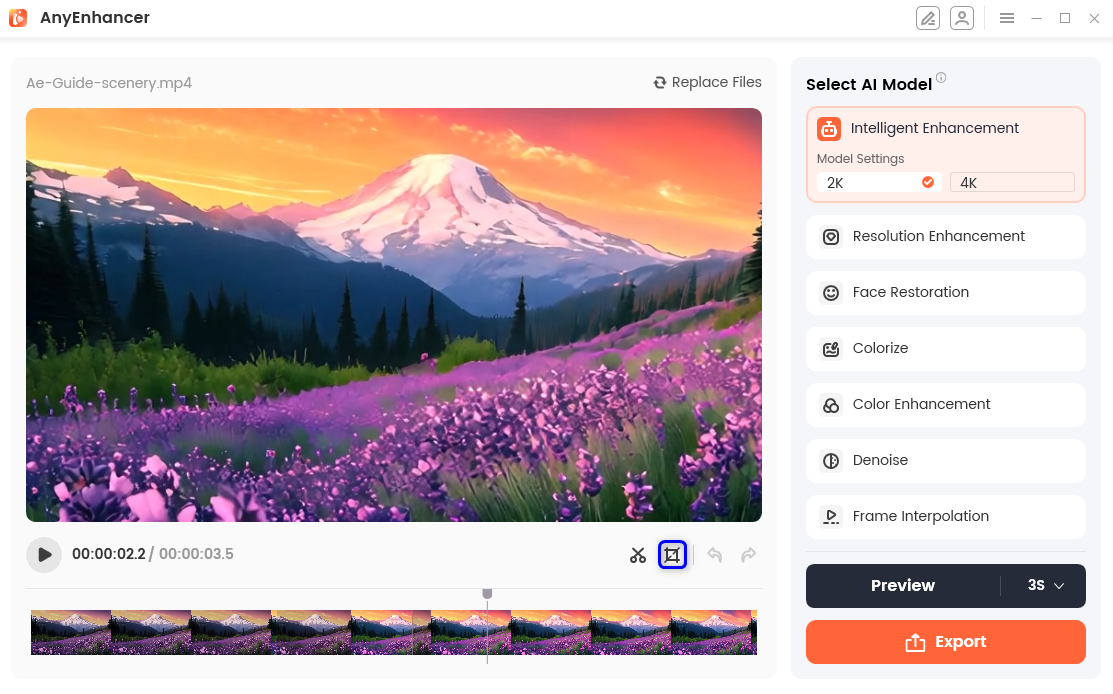
Click Screen Cropping
There are two available cropping modes that you can utilize to resize your video screen: Custom and Proportional cropping modes. You can choose any mode according to your preferences and specific needs.
Custom Cropping
Please click the Custom button, where you can crop the video size according to your preference. Please drag the 4 sides or 4 corners of the video to crop the video size.
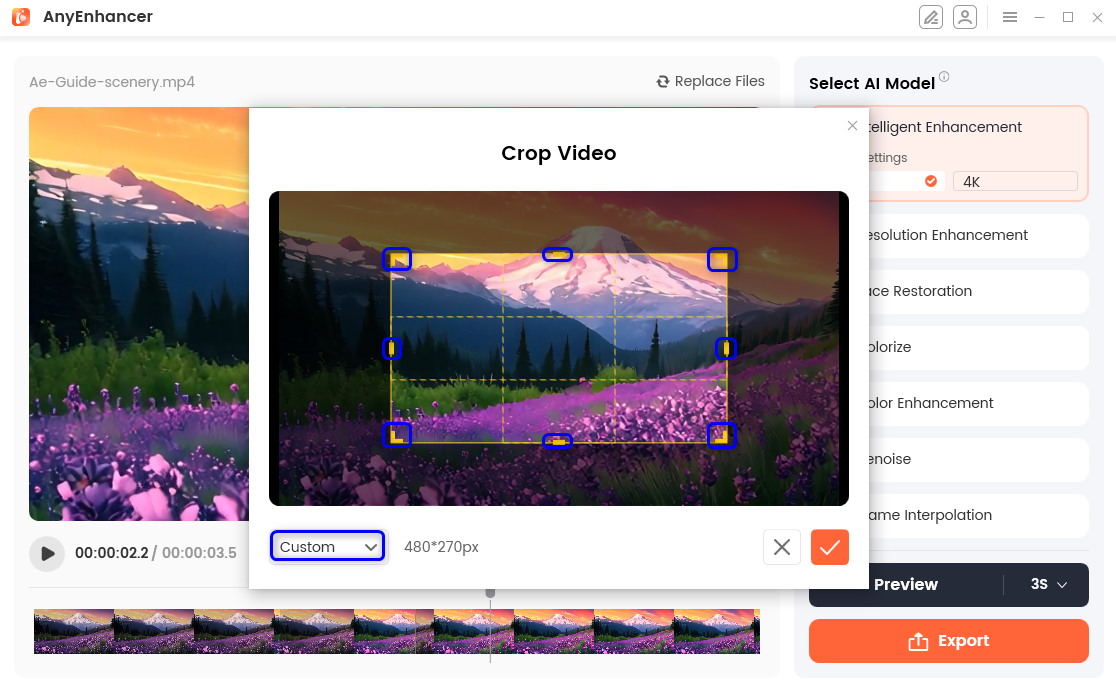
Click Custom
Proportional Cropping
Please click on Custom to unfold the supported ratios, where you can choose the desired cropping ratio. Please drag the 4 corners of the video, and the cropped video will be enlarged or reduced proportionally.
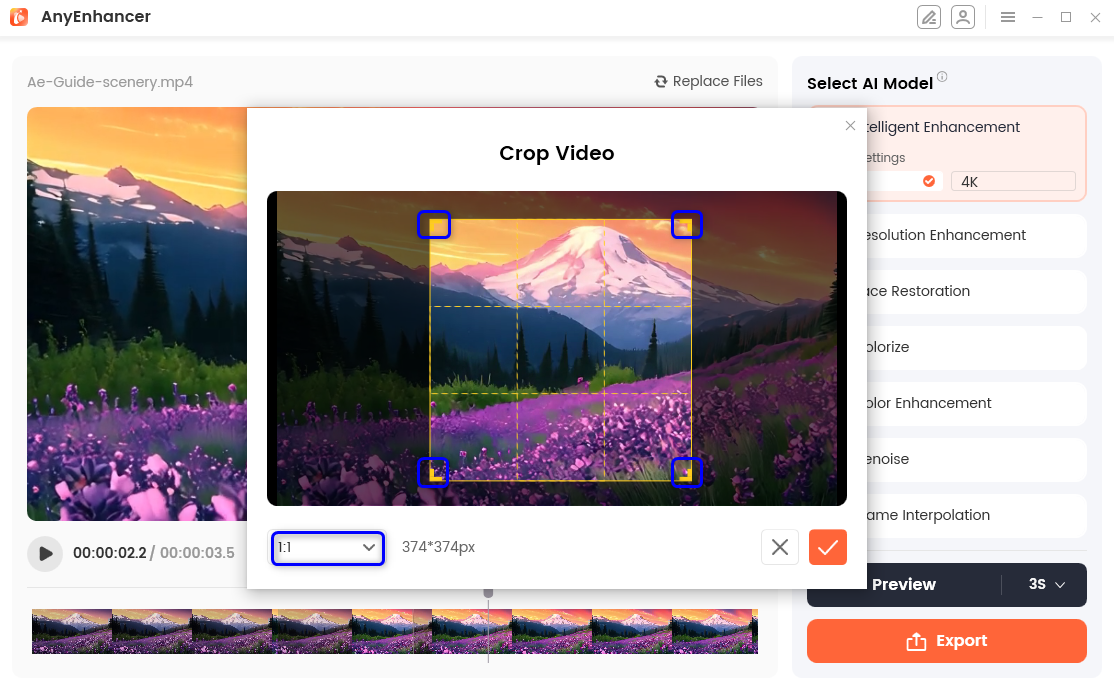
Select the Ratio
When the cropping is completed, please click the [√] button to apply the current cropping to the operation interface display.
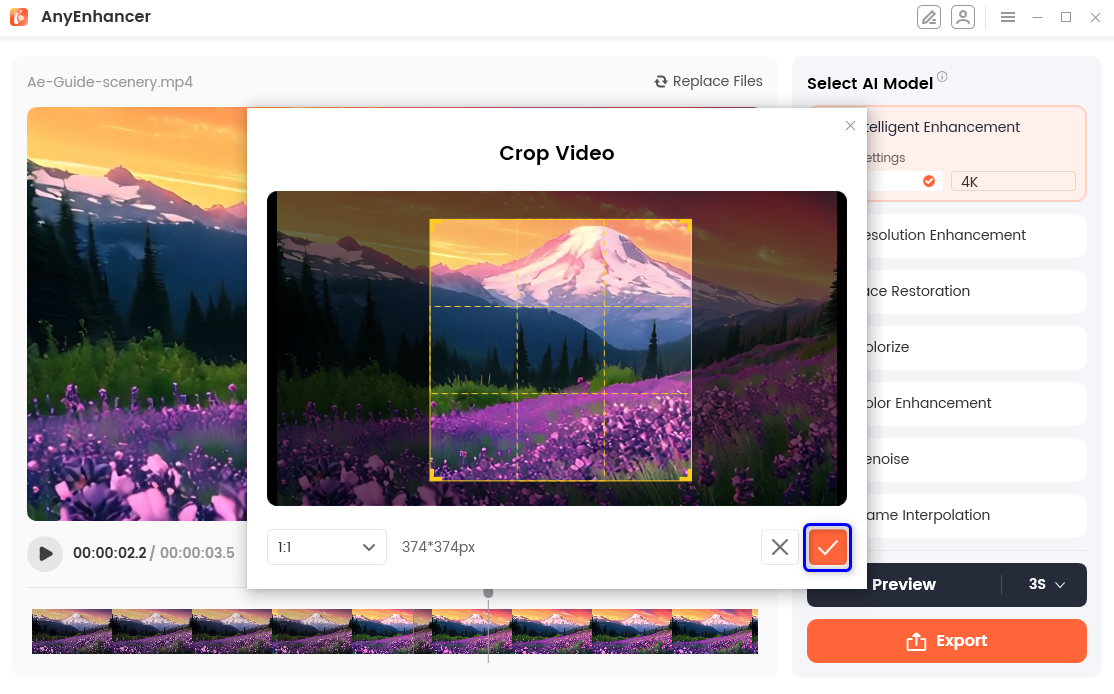
Finish Cropping
If you still have questions after reading this guide, please refer to FAQs page to check more solutions. Or you can contact our Support Team to get further help. We are here to help you!
FAQs About Editing Videos in AnyEnhancer
1. What video editing features does AnyEnhancer provide?
AnyEnhancer provides three main video editing features: Replace Video, Clip Video, and Crop Video. You can replace an existing video with another file, trim unwanted sections by adjusting the start and end points, and crop the video to change its visible area or aspect ratio.
2. How do I replace an existing video in AnyEnhancer?
Open your video in AnyEnhancer and click Replace Files. Select the new video and wait for the upload to finish. The new video will replace the current one, while the previously selected AI model remains unchanged.
3. Will replacing a video change the AI model I selected previously?
No. According to the official guide, after the replacement video is uploaded successfully, the AI model selected previously remains unchanged. However, you should preview the new video to ensure that the selected model is suitable for its content and quality.
4. How can I trim unwanted sections from a video in AnyEnhancer?
Click the scissors-shaped “Clip” icon to open the Clip Video interface. Select the video on the timeline, then drag the left or right edge of the clip to adjust its start or end point. The displayed clip duration changes as you adjust the selection. Click the checkmark button to apply the trimming.
5. Why is the Clip button unavailable in AnyEnhancer?
The Clip function requires the selected video segment to be longer than one second. If the duration is one second or less, the function button will be unavailable. Select a longer segment or adjust the clipping duration before trying again.
6. What should I do if my video is too long to edit using the timeline?
If the uploaded video is too long to edit conveniently, AnyEnhancer allows you to enter the desired time values to define the section you want to clip. Set the appropriate start and end times, confirm the selected duration, and click the checkmark button to apply the changes.
7. How can I crop a video in AnyEnhancer?
Click the screenshot-shaped “Crop” icon to open the Crop Video interface. Choose either Custom or Proportional cropping, adjust the crop area to include the content you want to keep, and click the checkmark button to apply the changes.
8. What is the difference between Custom and Proportional cropping?
Custom cropping allows you to adjust the visible video area freely by dragging the four sides or corners of the crop frame. Proportional cropping lets you select a supported aspect ratio so that the cropped area maintains the chosen proportions while you resize it.
9. How do I change a video's aspect ratio in AnyEnhancer?
Open the Crop Video interface and select the Proportional cropping option. Click the ratio selection control to view the available aspect ratios, then choose the one that best suits your intended use. Adjust the crop frame as needed and click the checkmark button to apply the changes.
10. Why are my video clipping or cropping changes not being applied?
After adjusting the clipping or cropping area, make sure you click the checkmark button to confirm your changes. If the changes do not appear in the editing interface, reopen the relevant tool, check your selections, and apply them again. For clipping, also make sure the selected duration is longer than one second.

Try It Out & Share Your Feedback!

We'd love to hear how AnyEnhancer is working for you.
Give it a try and share your thoughts—your feedback helps us keep improving.
If you're enjoying AnyEnhancer, we'd be so grateful if you could leave us a review on Trustpilot. Your support helps others discover AnyEnhancer and motivates our team!

Thank you for being part of the iMobie community — we couldn’t do it without you!
Try It Out & Share Your Feedback!
We'd love to hear how AnyEnhancer is working for you.
Give it a try and share your thoughts—your feedback helps us keep improving.
If you're enjoying AnyEnhancer, we'd be so grateful if you could leave us a review on Trustpilot. Your support helps others discover AnyEnhancer and motivates our team!
Thank you for being part of the iMobie community — we couldn’t do it without you!