Free Download For Win & Mac | 100% Clean & Secure


Install or Uninstall
This guide is to help you know how to install, uninstall or update AnyEnhancer on your Windows or Mac computer.
Tech Specs
| Windows OS | Windows 10, 11 (64bit) |
| macOS | macOS 11 and above |
Part 1. Download & Install AnyEnhancer on Windows Computer
Step 1. Download AnyEnhancer from Our Official Website.
Please click the download link of AnyEnhancer on your Windows computer. After downloading it successfully, please double click AnyEnhancer-en-setup.exe.

Download AnyEnhancer
Step 2. Install AnyEnhancer on Windows Computer.
Read the Privacy Policy & Terms of Use and agree it. Then click the Install button.
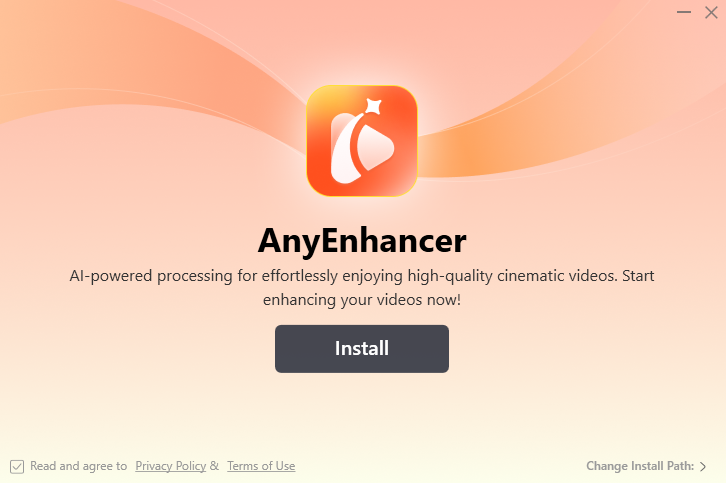
Click Install Button
After you click Install button, the installation process will start automatically.
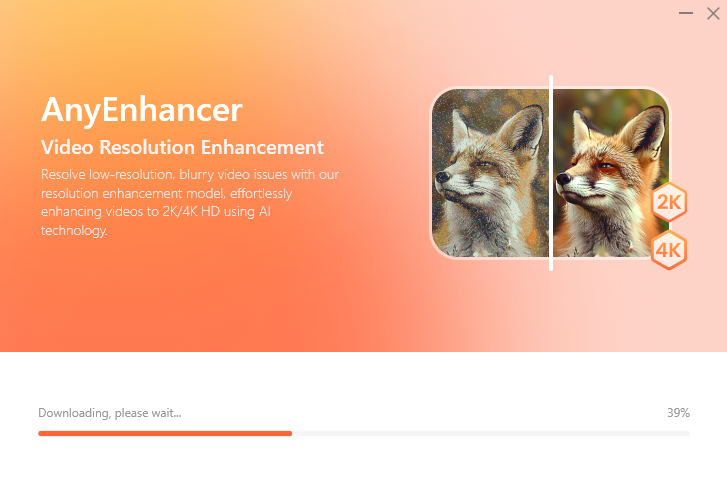
Installation Process Begins
Once the installation process finishes, the interface will be displayed as below.

The Installation Process Finishes
Part 2. Download & Install AnyEnhancer on Mac Computer
Step 1. Download AnyEnhancer from Our Official Website.
Click the download link of AnyEnhancer on your Mac computer. After downloading it successfully, please find AnyEnhancer-en-mac.dmg in the browser and open it.

Download AnyEnhancer
Step 2. Install AnyEnhancer on Mac Computer.
Double-click the AnyEnhancer icon to start the AnyEnhancer installation process.
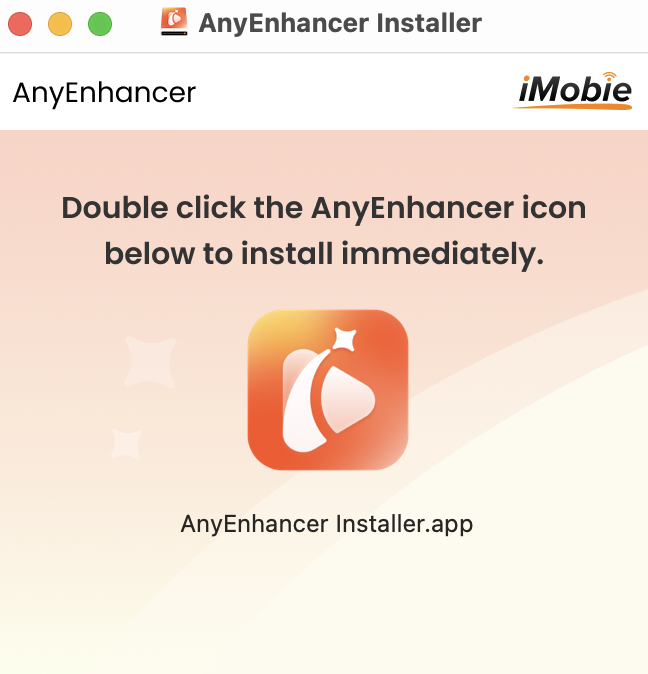
Double Click the AnyEnhancer Icon
Please read the Privacy Policy & Terms of Use and agree it. Then click the Install button.

Click Install Icon
After that, the installation process will be initiated automatically. It may take a few seconds to install it, so please just keep patient.
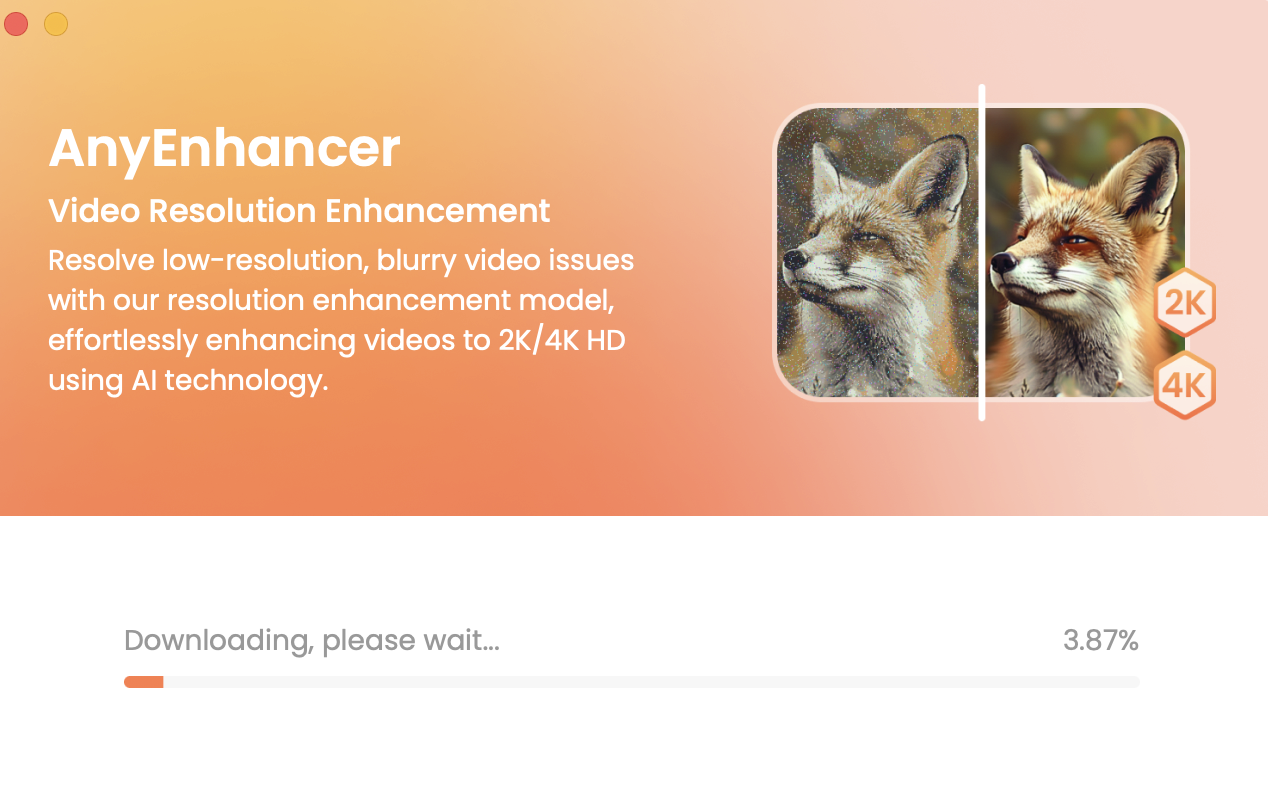
Installation Process Begins
Once the installation process completes, the interface will be displayed as below.
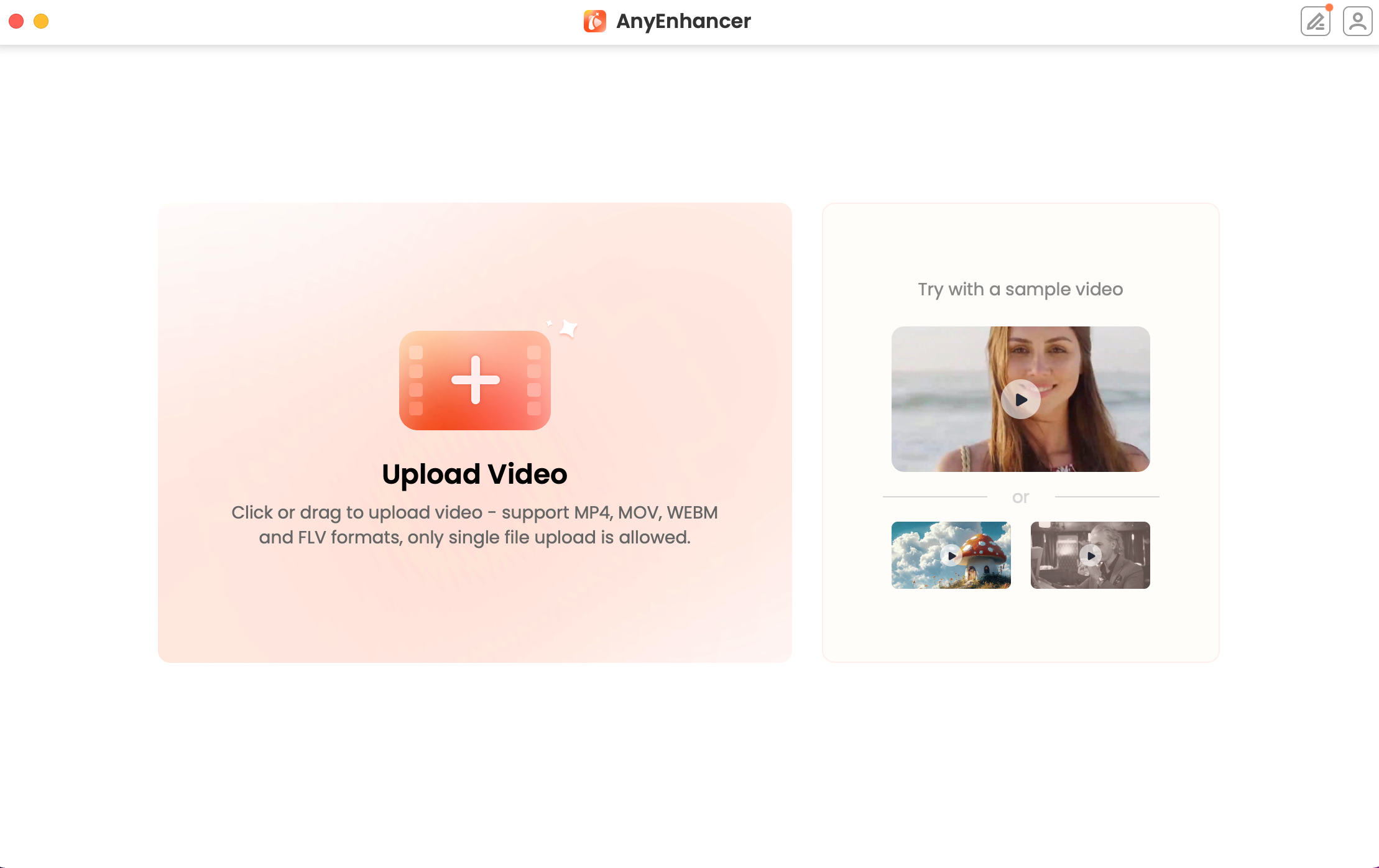
The Installation Process Finishes
Part 3. How to Update AnyEnhancer to the Newest Version
Updating not only brings new functionalities and improvements, enabling you to make the most out of AnyEnhancer's capabilities but also helps maintain the application's reliability and performance, ensuring you have a smooth user experience.
Step 1. Launch AnyEnhancer and Unfold the Menu Bar Settings button.
Please launch AnyEnhancer and unfold the menu bar settings button.

Unfold the Menu Bar Settings Button
Step 2. Click Check for Updates.
Please click the Check for Updates option on the menu to check whether you have the latest version of AnyEnhancer or not. If AnyEnhancer is not the newest version, please click the Update Now button to update AnyEnhancer.
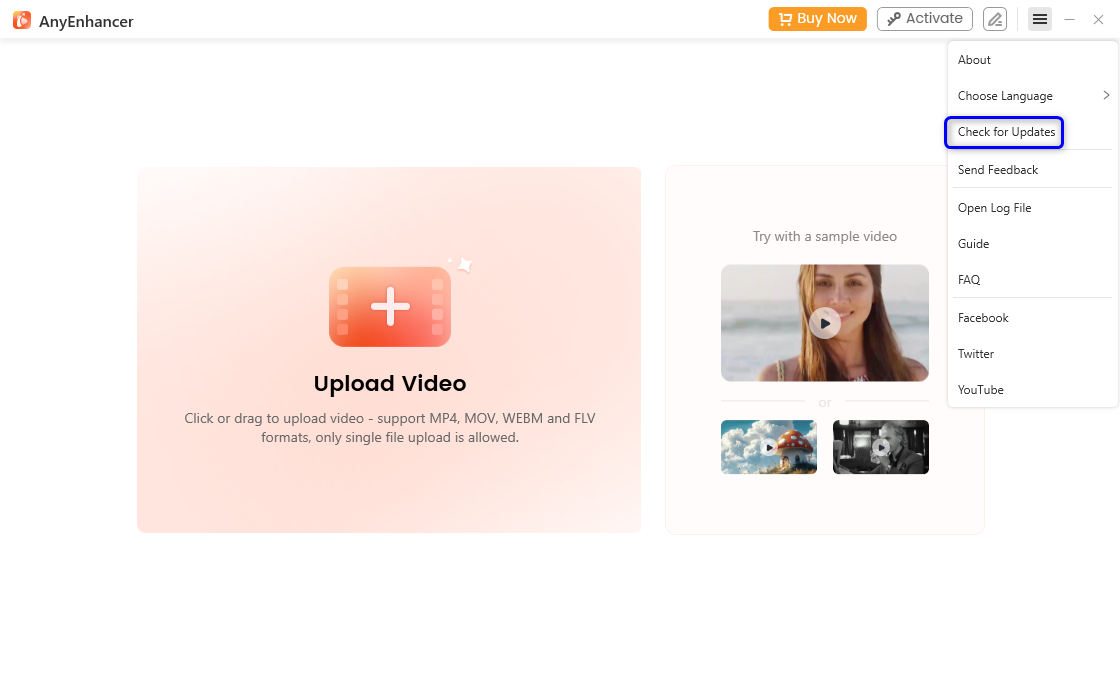
Click Check for Updates
If AnyEnhancer is already the newest version, the interface will be displayed as below.
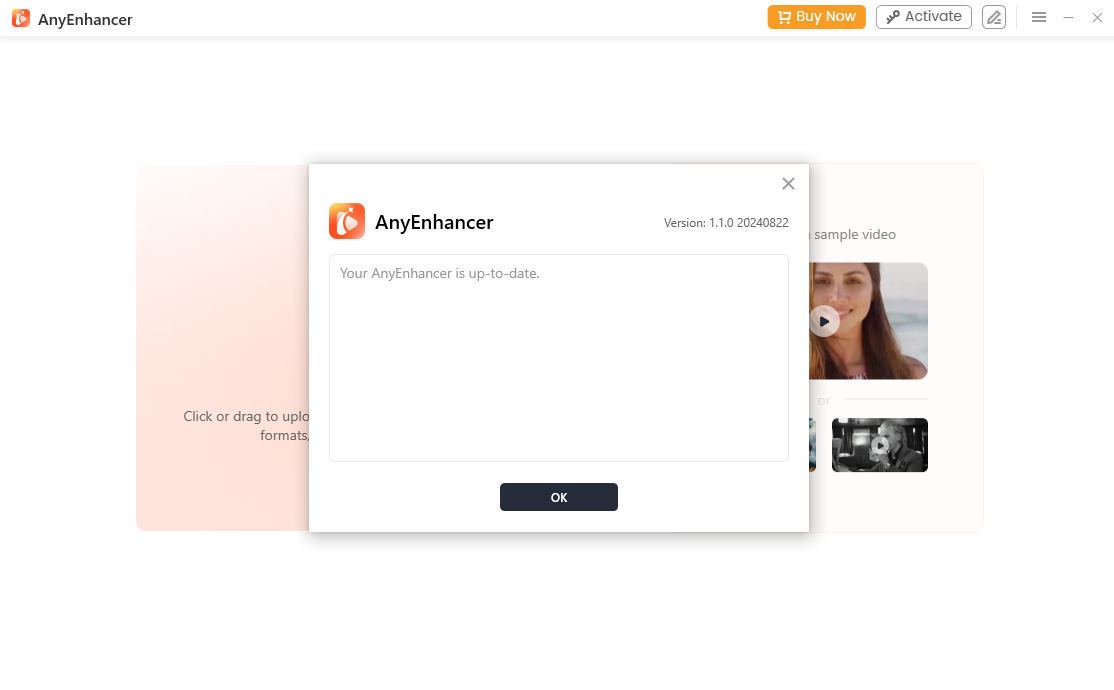
AnyEnhancer Is already the Newest Version
You can also visit this link directly to download the latest version of AnyEnhancer.
Part 4. Uninstall AnyEnhancer from Windows Computer
Step 1. Open the Control Panel on your Windows computer.
Please open your Windows computer and find the Control Panel, the interface will be displayed as below.
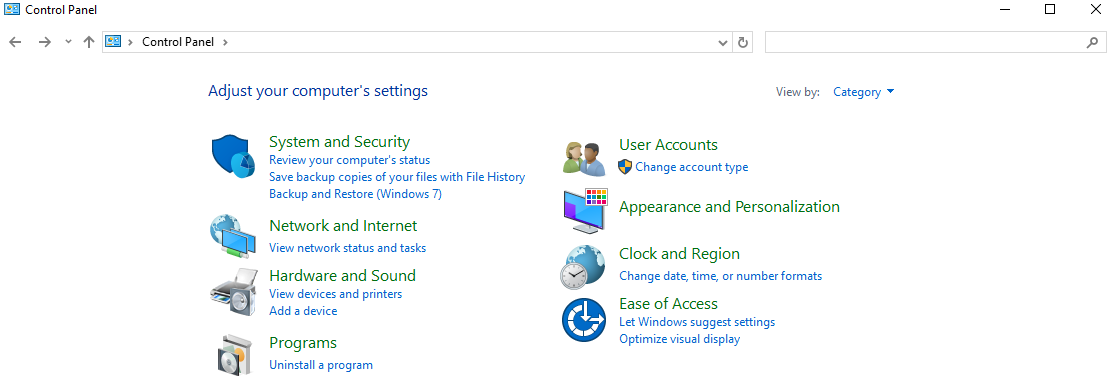
Open the Control Panel
Step 2. Click Programs Option and Choose Programs and Features.
Please click Programs option and choose Programs and Features. Then, locate AnyEnhancer.
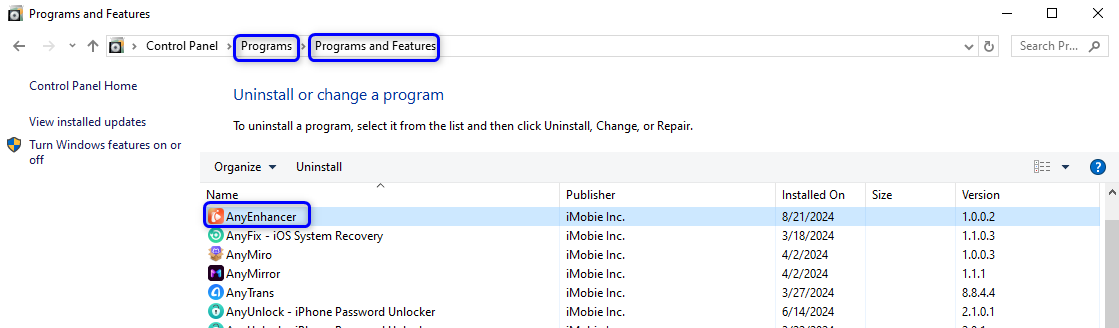
Click Programs Option and Choose Programs and Features
Step 3. Uninstall AnyEnhancer from Windows Computer.
Next, please right-click it to uninstall AnyEnhancer.
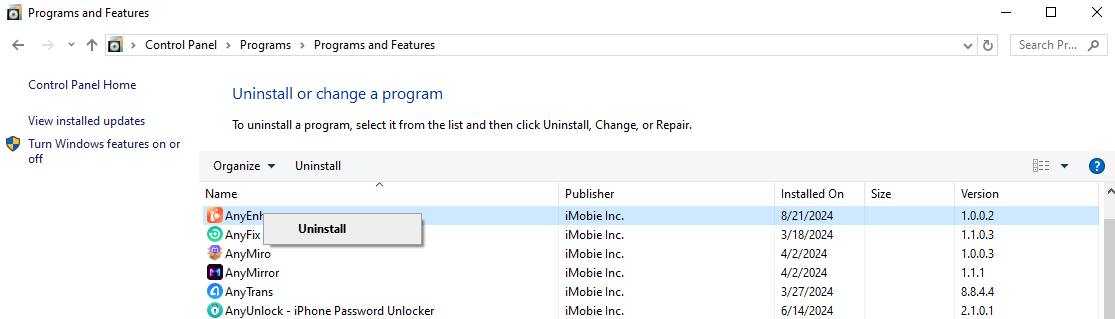
Uninstall AnyEnhancer
Please wait several seconds, the uninstalling process will complete soon.
Part 5. Uninstall AnyEnhancer from Mac computer
Step 1. Open Finder on your Mac computer.
Please open your Mac computer and click Finder, the interface will be displayed as below.
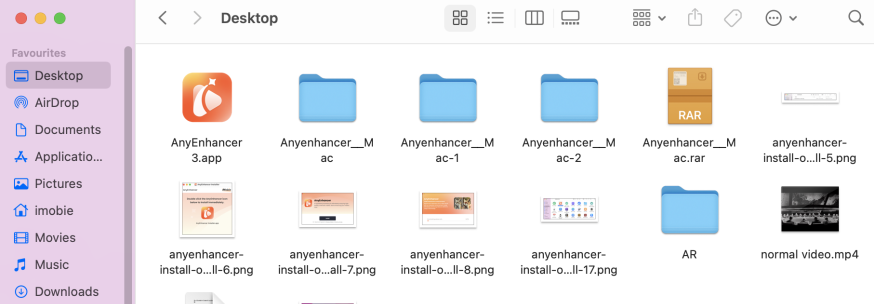
Open Finder
Step 2. Click Applications and Locate AnyEnhancer.
Once you enter the Finder interface, please click Applications and locate AnyEnhancer.
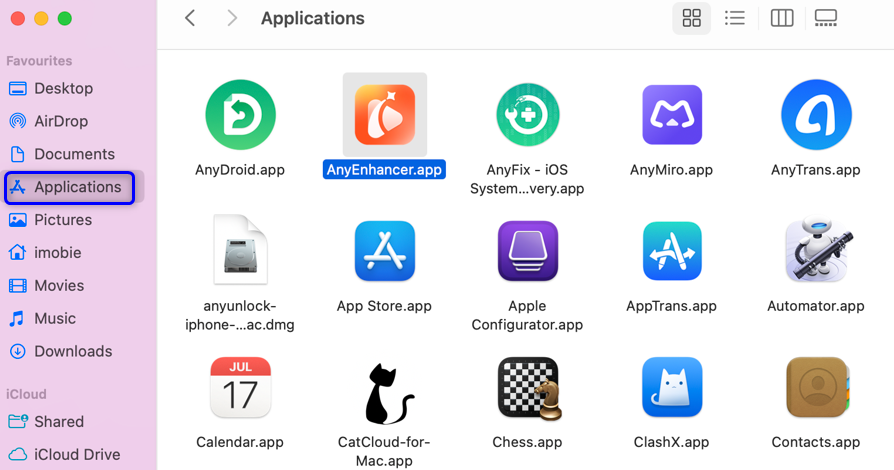
Click Applications and Locate AnyEnhancer
Step 3. Uninstall AnyEnhancer from Your Mac Computer.
Please right-click AnyEnhancer to choose Move to Bin.
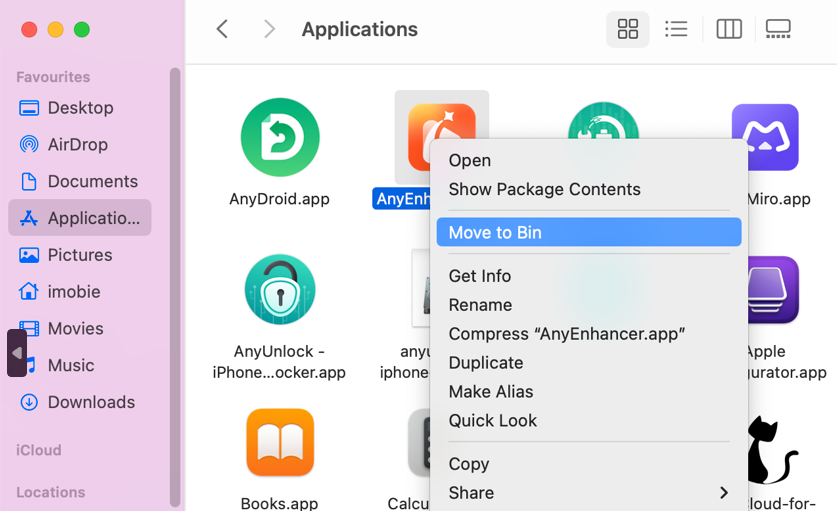
Right-click AnyEnhancer to Choose Move to Bin
Then, please right-click Trash to select Empty Bin.
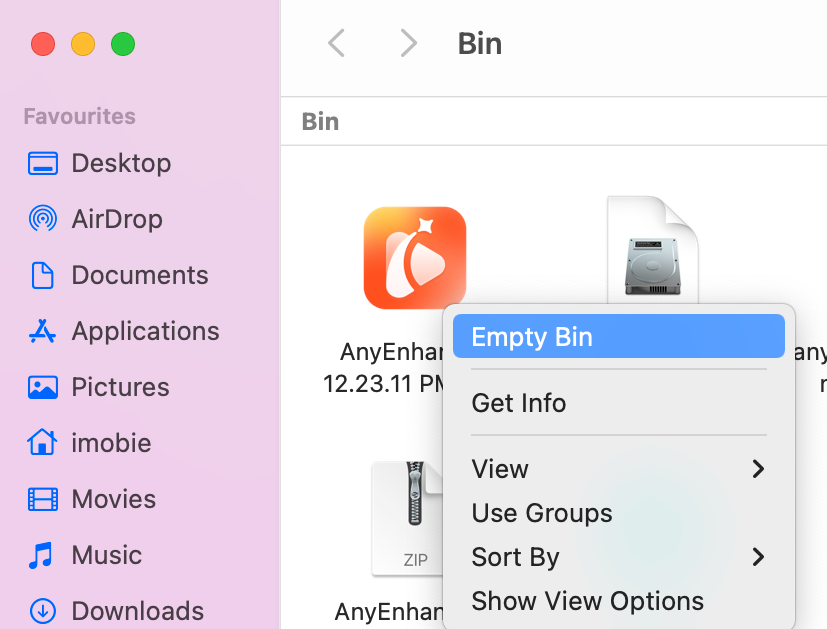
Right-click Trash to Select Empty Bin
Please wait several seconds, the uninstalling process will complete soon.
1. We sincerely apologize for any unsatisfactory experiences while using AnyEnhancer. We also genuinely hope you will share with us any issues you encounter or features you expect. Your feedback is important to us!
2. If you still have questions after reading this guide, please refer to this FAQs page to check more solutions. Or you can contact our Support Team to get further help. We are here to help you!
FAQs About Installing and Uninstalling AnyEnhancer
1. Where can I download AnyEnhancer?
You can download AnyEnhancer for Windows or Mac from the official AnyEnhancer website. Make sure you download the installation package that matches your computer's operating system.
2. What are the system requirements for installing AnyEnhancer?
AnyEnhancer supports Windows 10 and Windows 11 (64-bit), as well as macOS 11 and later. Before installing the software, check that your computer meets the system requirements listed on the official website.
3. How do I install AnyEnhancer on a Windows computer?
Download AnyEnhancer from the official website and double-click AnyEnhancer-en-setup.exeto run the installer. Accept the Privacy Policy and Terms of Use, click Install, and wait for the installation to finish before launching the application.
4. How do I install AnyEnhancer on a Mac?
Download the AnyEnhancer installer from the official website and open AnyEnhancer-en-mac.dmg. Double-click the AnyEnhancer icon, accept the Privacy Policy and Terms of Use, and click Install. Wait for the installation to complete before launching the app.
5. What should I do if AnyEnhancer fails to install?
First, verify that your computer meets the minimum system requirements and has enough available storage space. Check whether the installation package downloaded completely, and try downloading it again from the official website. If the problem persists, restart your computer and retry the installation.
6. How can I update AnyEnhancer to the latest version?
Launch AnyEnhancer and open the Settings menu from the menu bar. Select “Check for Updates” to see whether a newer version is available. If an update is available, click “Update Now” and follow the on-screen instructions. You can also download the latest version directly from the official website.
7. How do I uninstall AnyEnhancer from a Windows computer?
Open Control Panel and navigate to Programs > Programs and Features. Locate AnyEnhancer in the list of installed programs, right-click it, and select the uninstall option. Follow the on-screen instructions and wait for the uninstallation process to complete.
8. How do I uninstall AnyEnhancer from a Mac?
Open Finder and select Applications. Locate AnyEnhancer, right-click its icon, and choose “Move to Bin.” To complete the removal described in the official guide, right-click the Bin and select “Empty Bin.” Make sure you no longer need the files before emptying the Bin.
9. Will updating AnyEnhancer remove my videos or saved files?
No. Updating AnyEnhancer will not delete your videos or saved files. Your existing files will remain intact after the update.
10. What should I do if AnyEnhancer does not launch after installation or an update?
Ensure your computer meets the system requirements and that the installation or update completed successfully. Restart AnyEnhancer and your computer, then try again. If the issue persists, download the latest installer from the official website and reinstall the app, or contact the Support Team with a screenshot of the error message.

Try It Out & Share Your Feedback!

We'd love to hear how AnyEnhancer is working for you.
Give it a try and share your thoughts—your feedback helps us keep improving.
If you're enjoying AnyEnhancer, we'd be so grateful if you could leave us a review on Trustpilot. Your support helps others discover AnyEnhancer and motivates our team!

Thank you for being part of the iMobie community — we couldn’t do it without you!
Try It Out & Share Your Feedback!
We'd love to hear how AnyEnhancer is working for you.
Give it a try and share your thoughts—your feedback helps us keep improving.
If you're enjoying AnyEnhancer, we'd be so grateful if you could leave us a review on Trustpilot. Your support helps others discover AnyEnhancer and motivates our team!
Thank you for being part of the iMobie community — we couldn’t do it without you!