Free Download For Win & Mac | 100% Clean & Secure


Enhance Video
Whether you encounter the similar situations below?
"I have some old and precious videos that appear blurry. Is there any way to enhance their clarity and resolution?”
"There are some black and white videos saved on my computer. Can your software help colorize them?"
If you just encounter the similar situation above, don’t worry. You can try AnyEnhancer to enhance video quality with 7 types of AI models, including Intelligent Enhancement, Resolution Enhancement, Face Restoration, Colorize Model, Color Enhancement, Denoise Model, and Frame Interpolation. Let's take a look at how to enhance video.
Computer System Requirements
| Windows OS | Windows 10, 11 (64bit) |
| macOS | macOS 11 and later |
Supported Formats of Videos
| MP4, MOV, WEBM, FLV |
Different Benefits between Free & Activated Version
| Benefits | Free Version | Activated Version |
| Enhance Video with AI Models |  |
|
| Export Enhanced Video |  |
|
Step 1. Download and Install.
Before you start to enhance the video, get the tool downloaded onto your computer. Please make sure the network is stable while downloading and installing AnyEnhancer on your computer.
Step 2. Upload the Original Video.
After AnyEnhancer is installed on the computer, please launch the program. Then, you will enter the main window of AnyEnhancer displayed as below. Please click the Add button or drag to upload the original video.
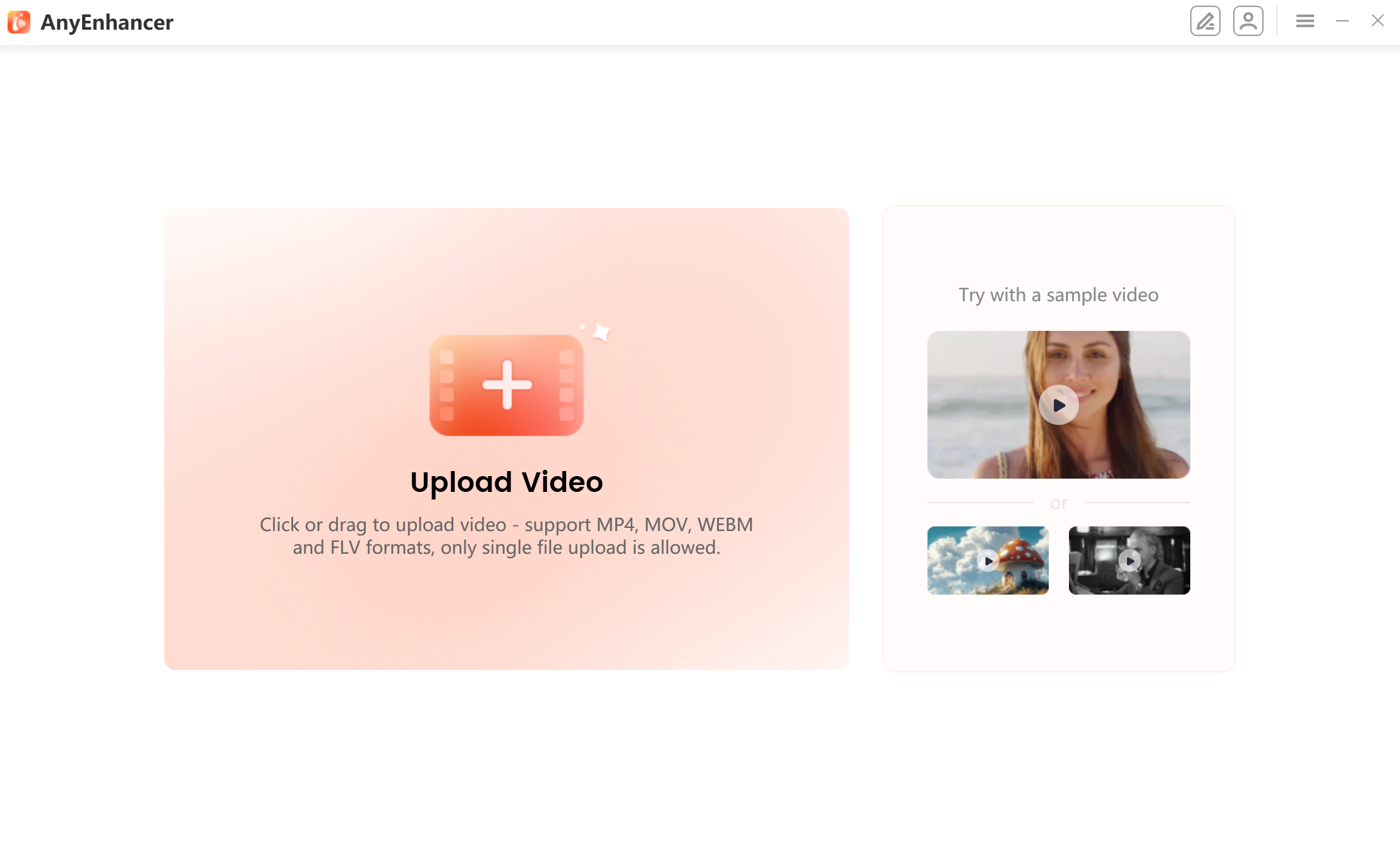
Upload the Original Video
Step 3. Choose An AI Model.
After you upload the video, please choose an AI model based on your video type to achieve enhancement effect. AnyEnhancer offers 7 types of AI models to enhance effects of the video: Intelligent Enhancement, Resolution Enhancement, Face Restoration, Colorize Model, Color Enhancement, Denoise Model, and Frame Interpolation.
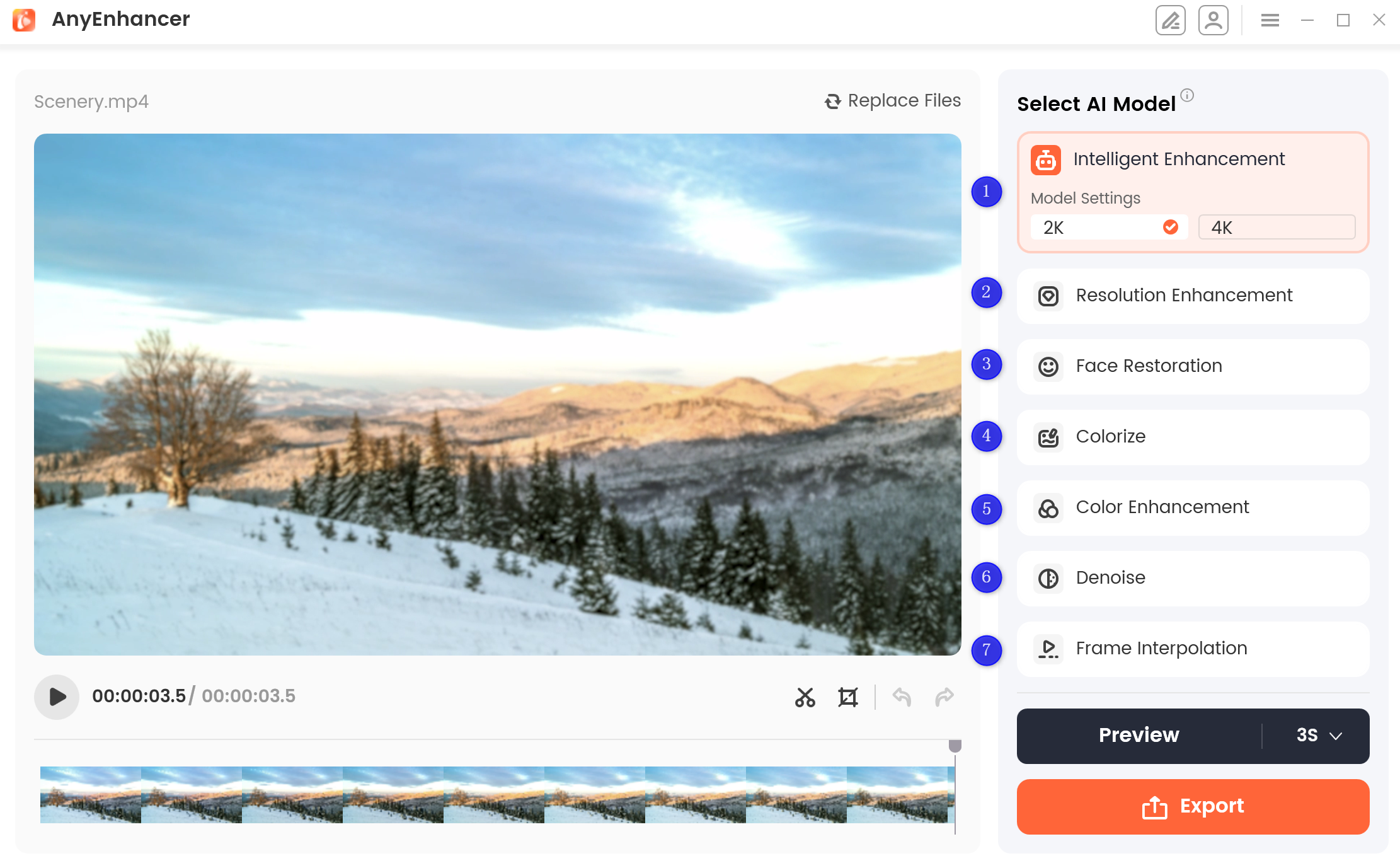
Choose An AI Model
1. To know more information about the 7 types of AI models, please refer to this detailed guide.
2. If you need to clip, crop ,or replace the video, please refer to this detailed guide.
Step 4. Preview the Effect and Export.
This guide will take using Resolution Enhancement to enhance video as an example. Please select Resolution Enhancement and choose a model setting (2k or 4k) based on your needs.
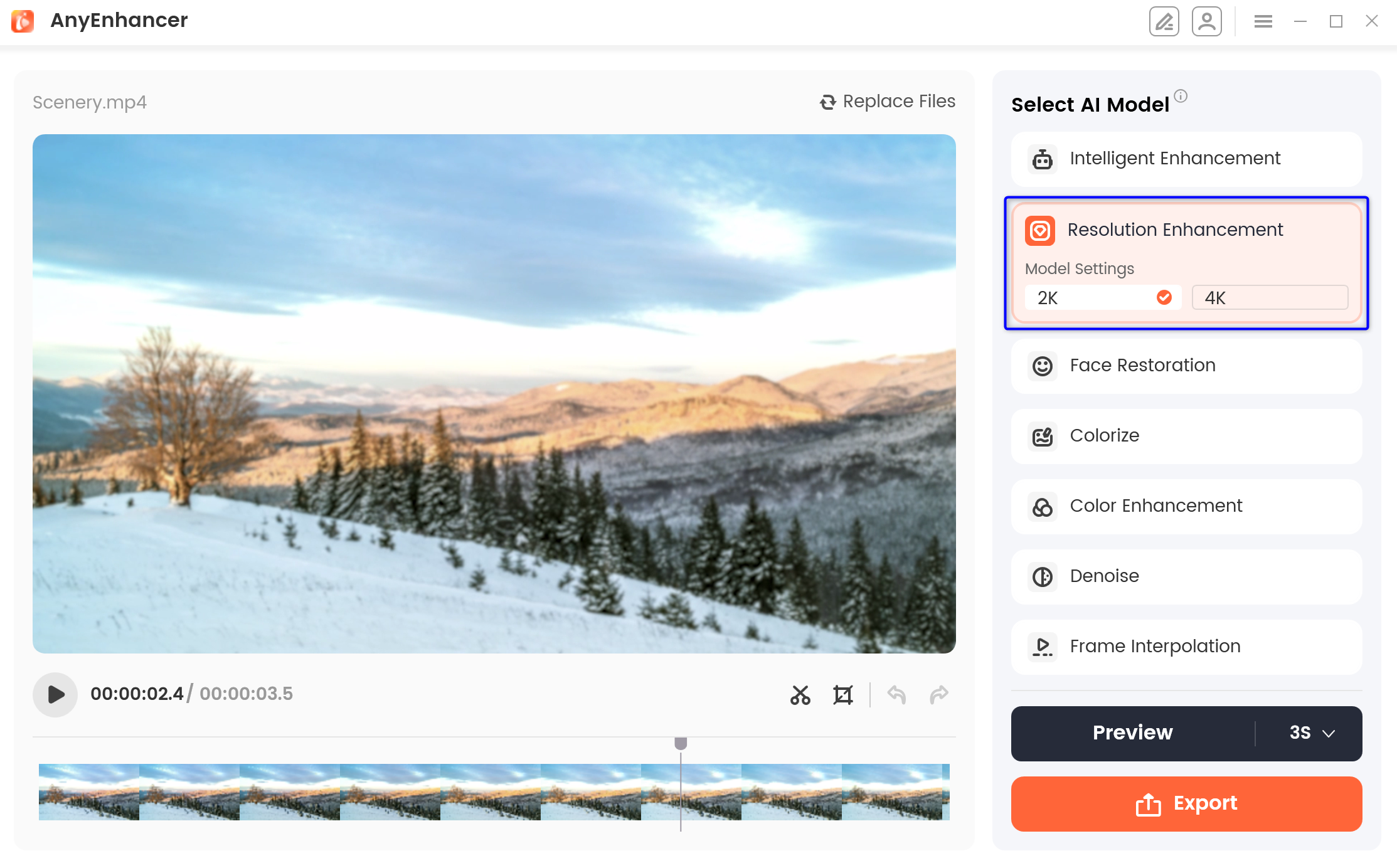
Select Resolution Enhancement
After that, please click the Preview button to process the video.
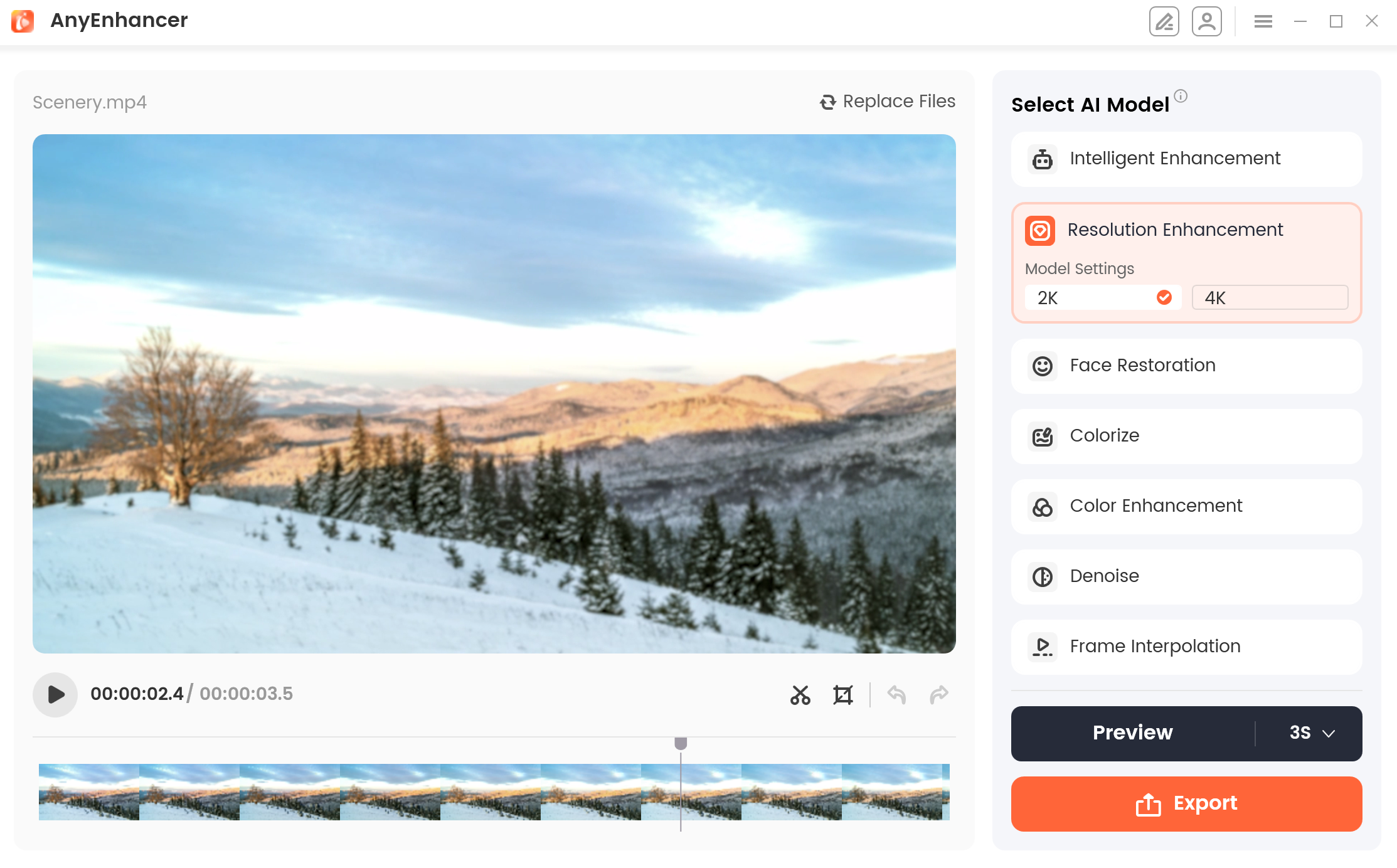
Click the Preview Button
By default, the preview duration is set to 3 seconds. Currently, you have the option to choose either 3 seconds or 5 seconds for the preview duration based on your requirements.
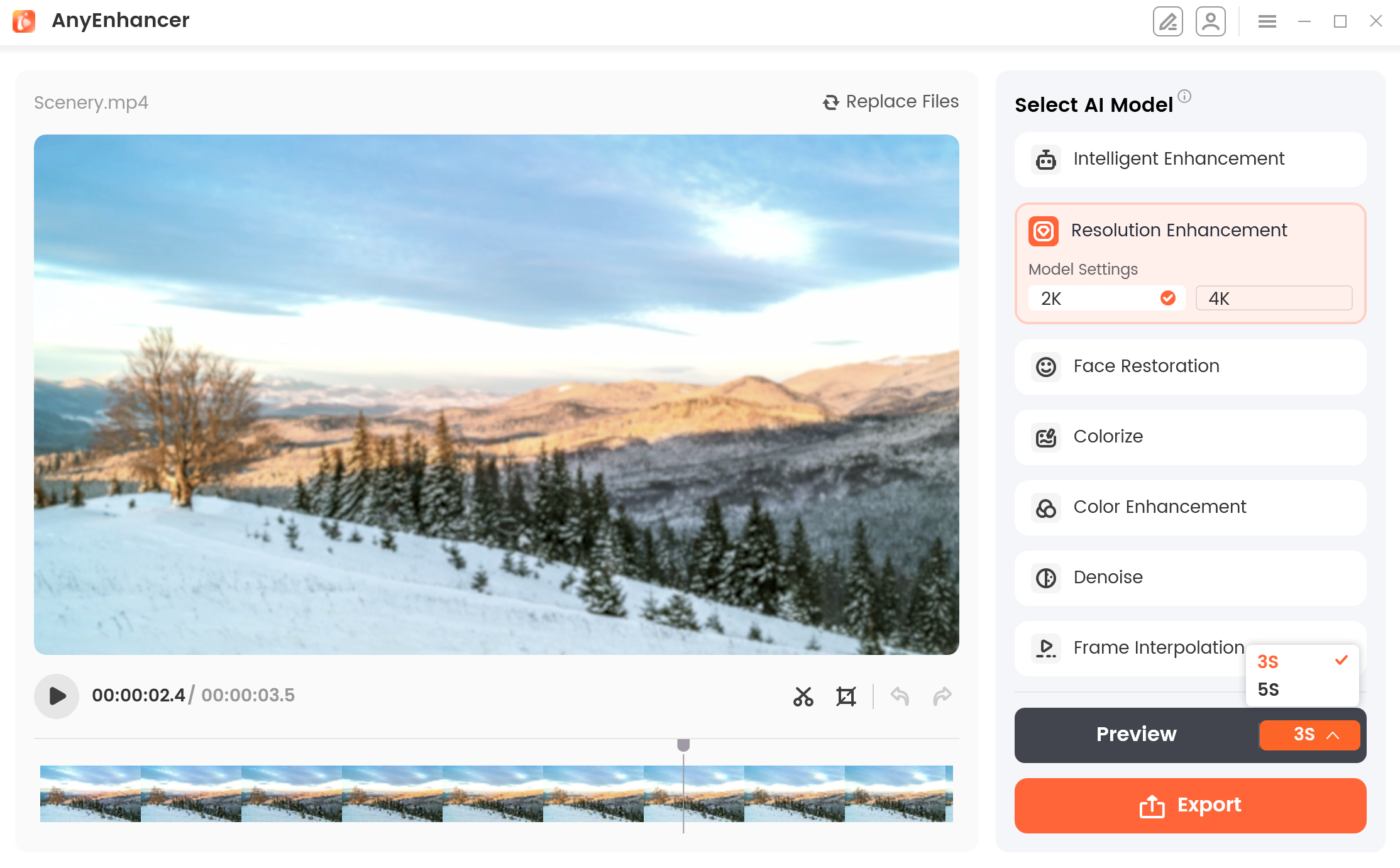
Choose the Preview Duration
1. You can preview the partial effect of the video using the AI model. After exporting the video, you will be able to preview the entire enhanced video.
2. The video enhancement effect depends on your computer's configuration. The actual enhancement effect will vary based on the computer's specifications and the video content.
After you click the Preview button, you will see a comparison between the original video and the processed video interface. The left side shows the original video interface, while the right side displays the processed effect interface by the selected AI model.
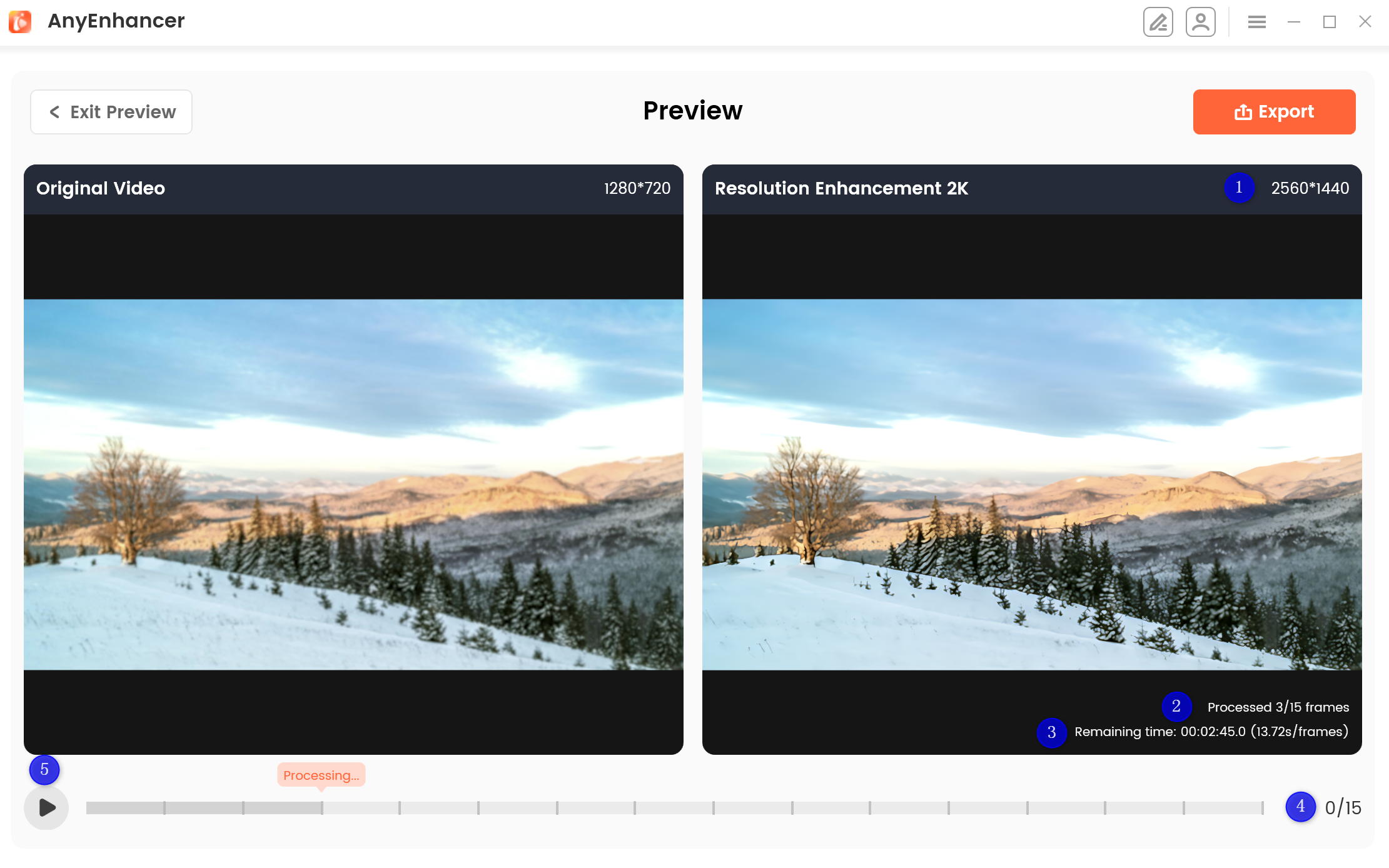
Enter the Preview Page
In this preview interface, it also displays:
If you access the preview interface more than twice, a preview history list will be displayed on the right panel.
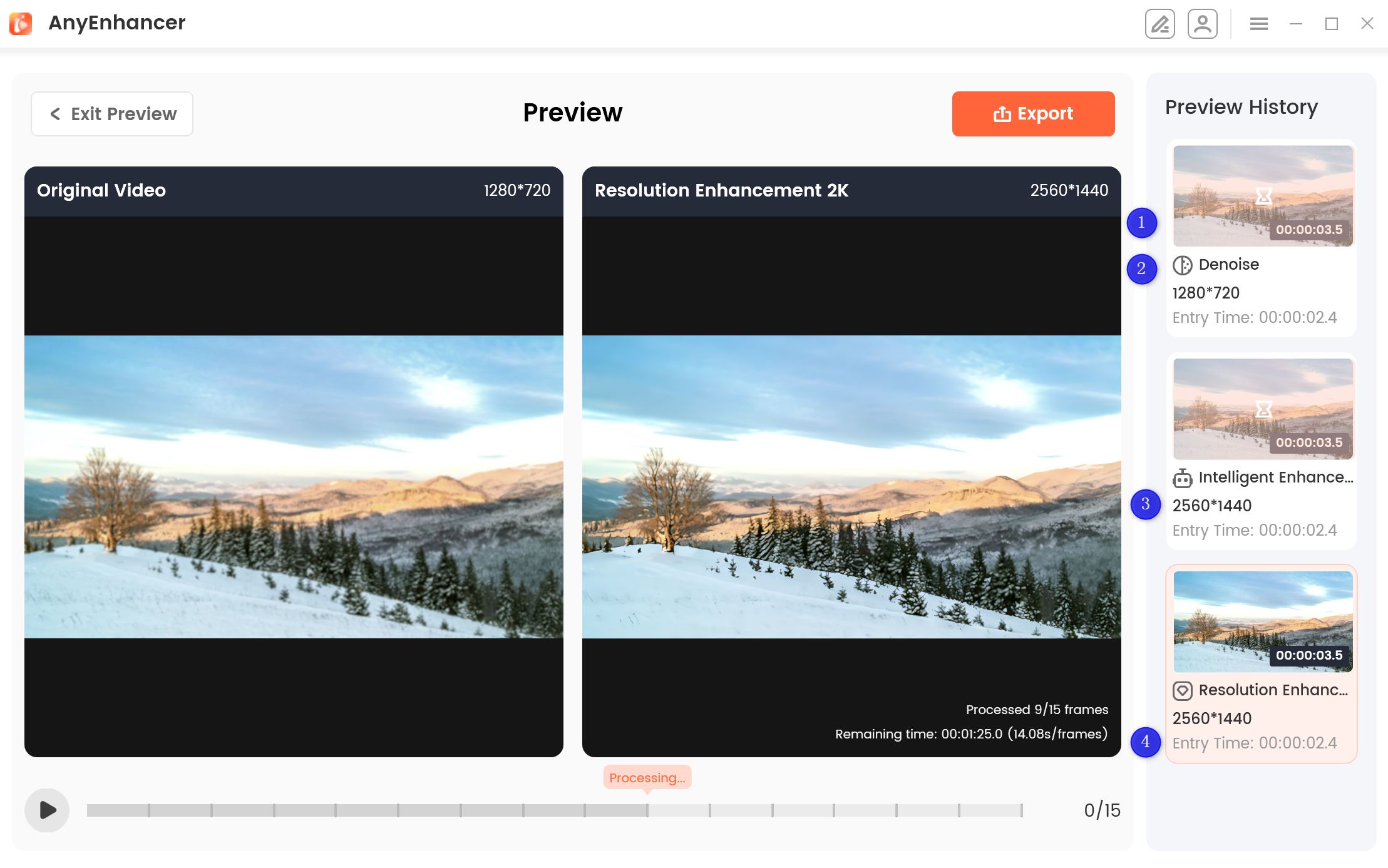
Preview History
On the preview history, it displays:
After previewing the effect, if you are satisfied with the enhancement effect, you can click the Export button to save the enhanced video.
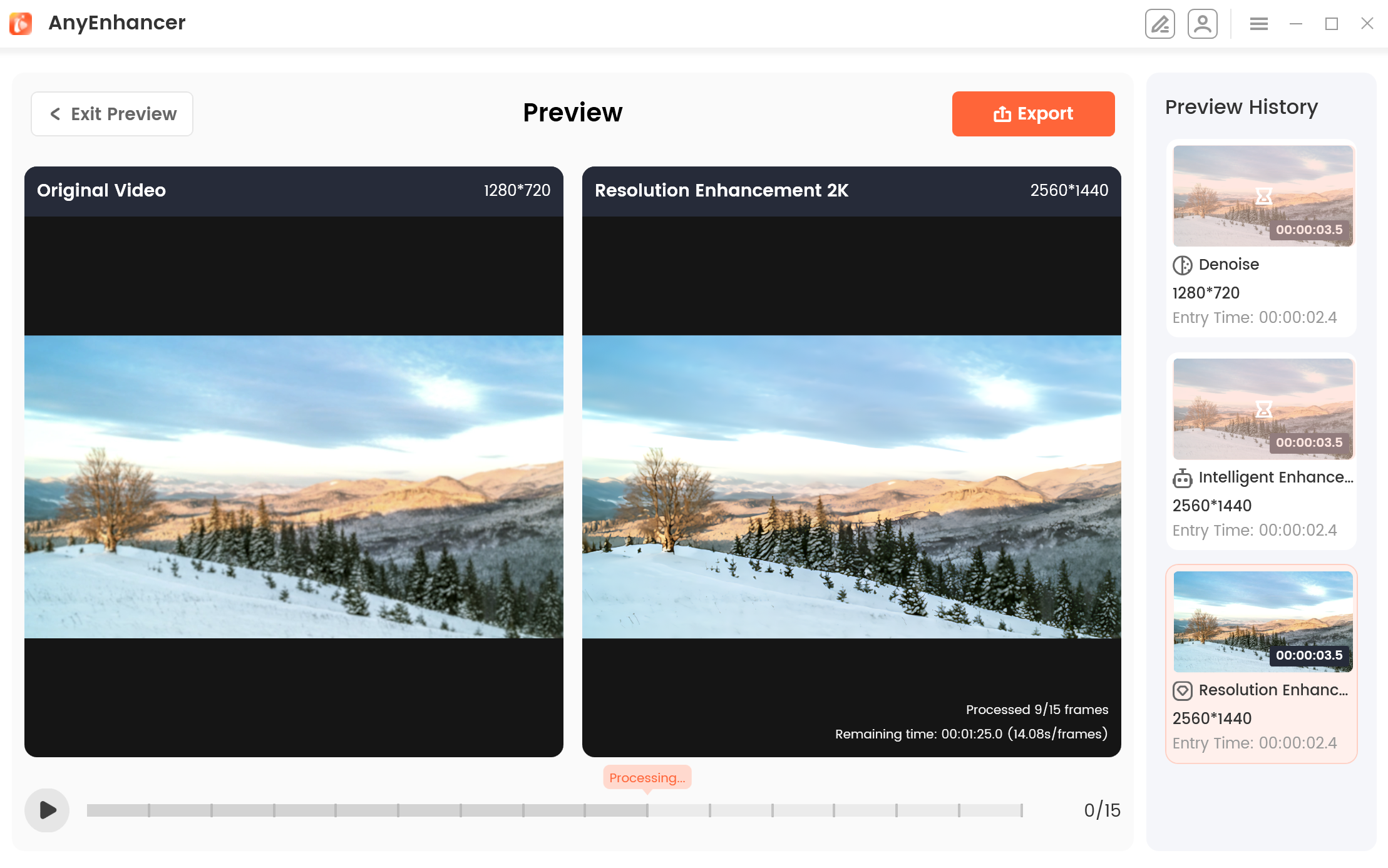
Click Export Button
After clicking the Export button, the following interface will be displayed.
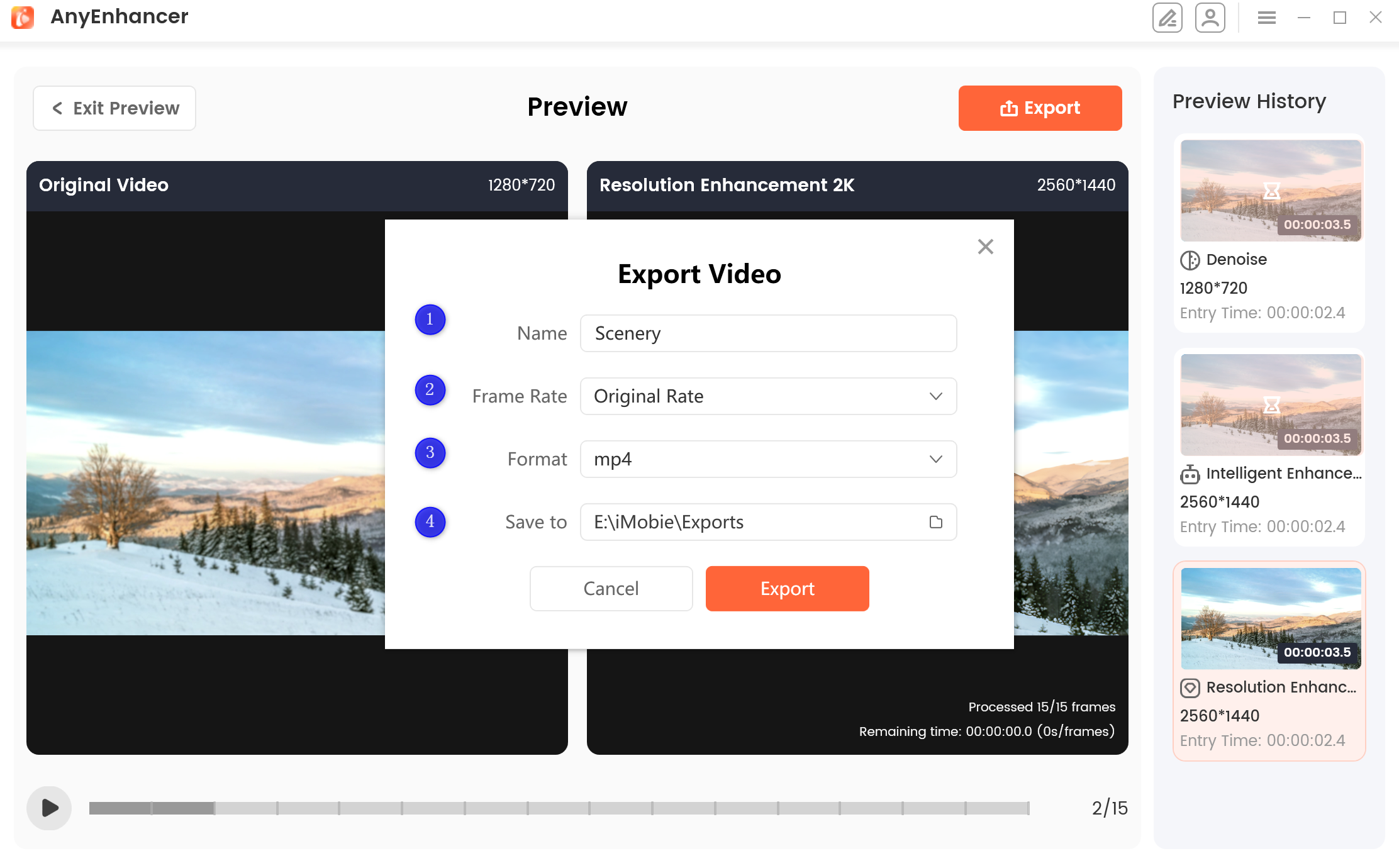
Setting Page
On this setting page, you can:
If the Frame Interpolation is selected for export, there is no frame rate option setting.
After completing the relevant settings, please click the Export button again to export the video. And the processing time of the video is determined by the size of the video. Please wait patiently.
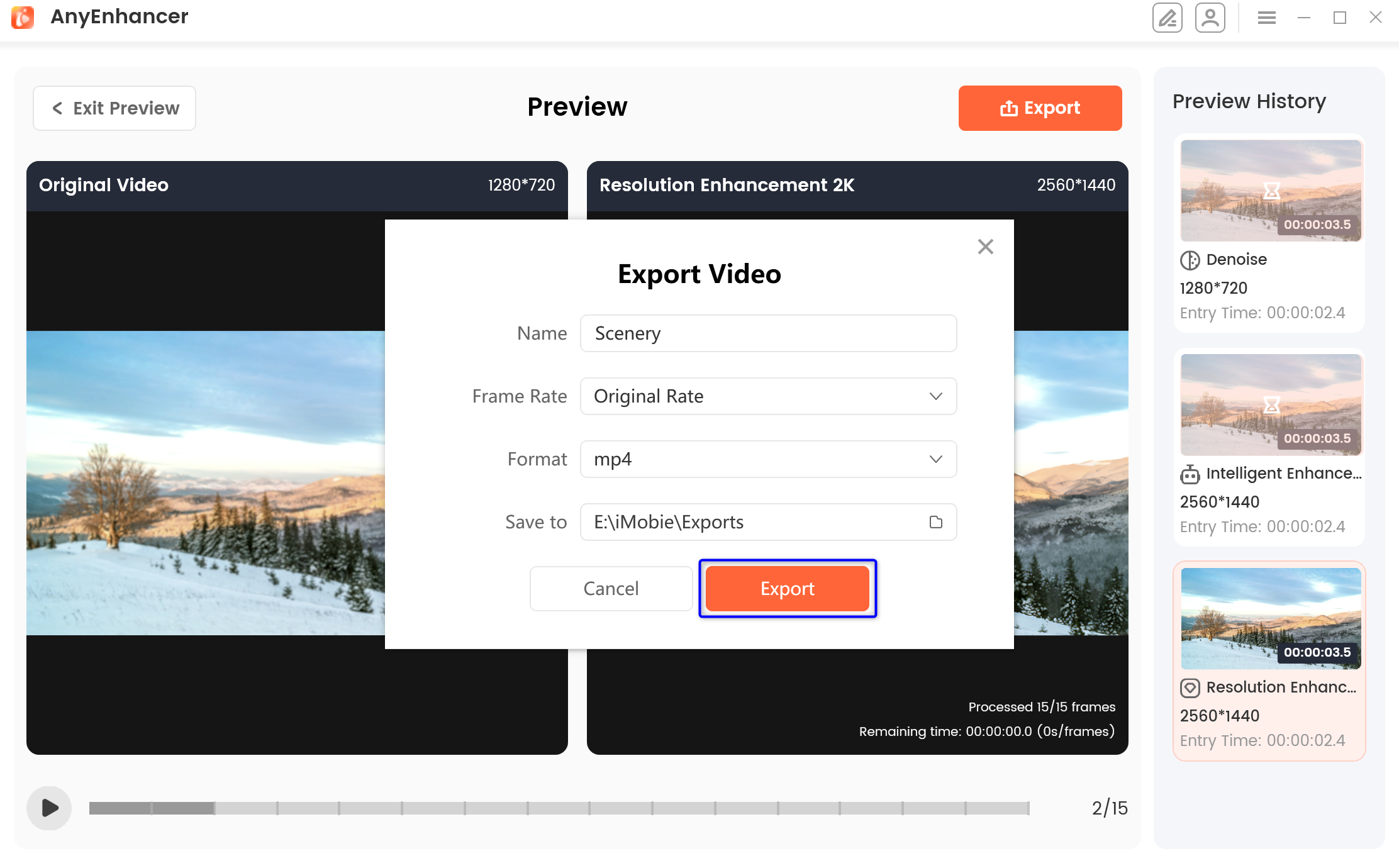
Click the Export Button
Then, the enhanced video will be exported successfully. You can also click the Exit Preview button to go back to the home interface.
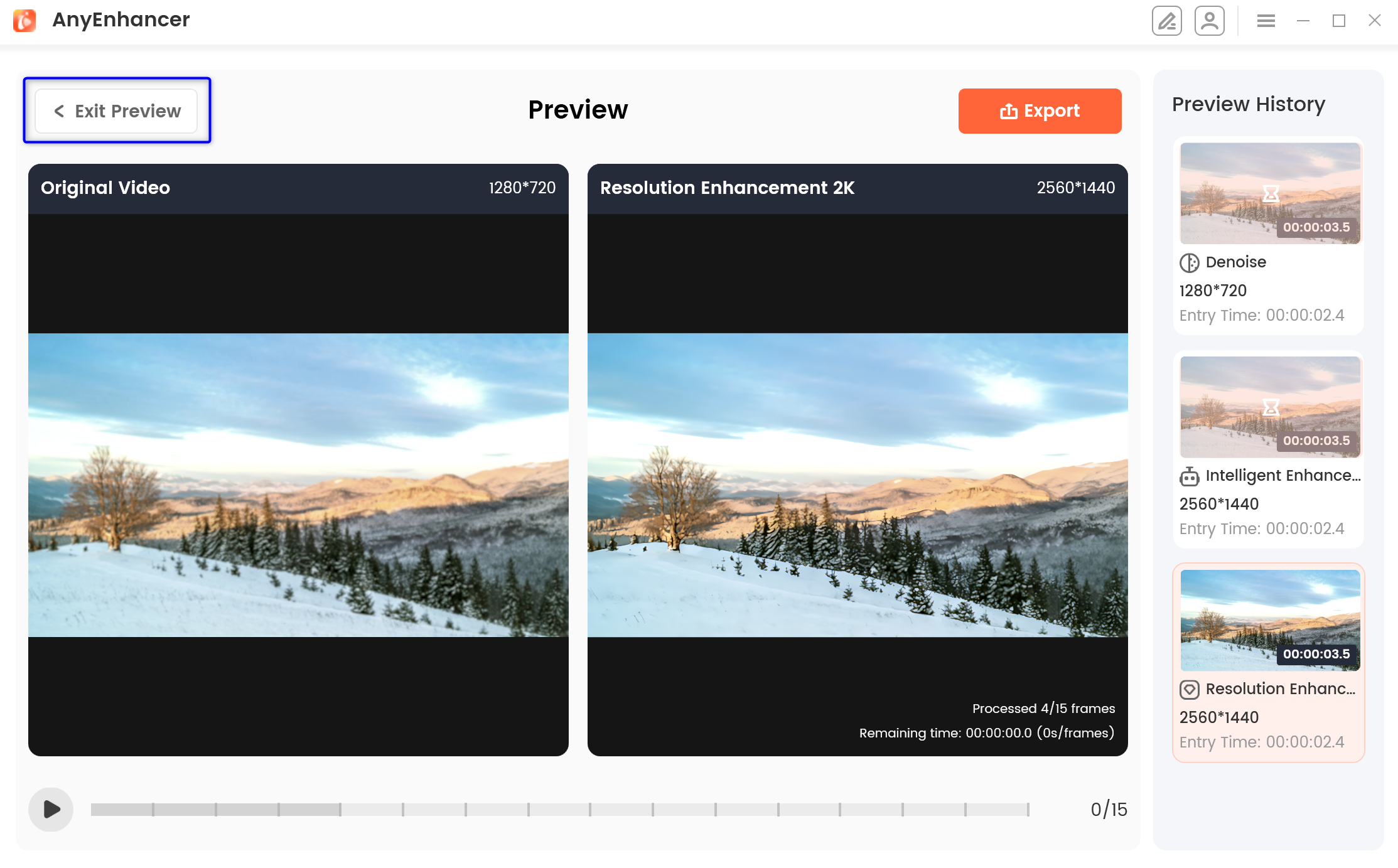
Video Will be exported Successfully
If you still have questions after reading this guide, please refer to FAQs page to check more solutions. Or you can contact our Support Team to get further help. We are here to help you!
FAQs About Video Enhancement
1. What video formats does AnyEnhancer support?
AnyEnhancer supports MP4, MOV, WEBM, and FLV video formats. Make sure your original video is saved in a supported format before importing it into the software.
2. How do I enhance a video using AnyEnhancer?
Launch AnyEnhancer on your computer and click the “Add” button or drag and drop your original video into the program. Select an appropriate AI model based on your video enhancement needs, click “Preview” to check the results, and then click “Export” to save the enhanced video.
3. Which AI models does AnyEnhancer provide for video enhancement?
AnyEnhancer offers seven AI models: Intelligent Enhancement, Resolution Enhancement, Face Restoration, Colorize Model, Color Enhancement, Denoise Model, and Frame Interpolation. Each model addresses different video quality issues, allowing you to choose the one that best suits your footage.
4. How can I improve the resolution and clarity of a blurry video?
Select the Resolution Enhancement model in AnyEnhancer and choose the 2K or 4K setting according to your needs. Click “Preview” to process a sample and compare the enhanced result with the original video before exporting the final file.
5. Can AnyEnhancer restore faces in low-quality videos?
Yes. The Face Restoration model detects faces in blurry videos and enhances facial details. You can select this model when you want to improve the appearance and clarity of faces in old recordings, family videos, or other low-quality footage. The final results depend on the original video and processing conditions.
6. Can AnyEnhancer colorize black-and-white videos?
Yes. AnyEnhancer's Colorize Model can add color to black-and-white videos. Import your video, select the Colorize Model, and preview the processed result before exporting it. The final colorization effect may vary depending on the original footage.
7. How can I preview the video enhancement effect before exporting?
After selecting an AI model, click “Preview” to process a sample of your video. The preview interface displays the original video on the left and the enhanced result on the right, allowing you to compare the effects. You can also view the video resolution, processing progress, and estimated remaining time.
8. Can I change the preview duration in AnyEnhancer?
Yes. The default preview duration is 3 seconds, and you can choose either 3 seconds or 5 seconds according to your needs. The preview lets you evaluate the enhancement effect on a portion of the video before exporting the entire file.
9. What export settings can I customize in AnyEnhancer?
Before exporting, you can rename the video file, select the frame rate when available, choose a supported output format, and specify the export path. If you select the Frame Interpolation model, the frame rate selection option is unavailable because the model adjusts the frame rate as part of its processing.
10. Why does video enhancement take a long time, or why do the results vary?
Processing time depends on the size of the video, while the enhancement results can vary according to your computer's configuration and the video content. Larger videos may take longer to process. For a smoother workflow, make sure your computer meets the software's system requirements and preview the result before exporting the full video.

Try It Out & Share Your Feedback!

We'd love to hear how AnyEnhancer is working for you.
Give it a try and share your thoughts—your feedback helps us keep improving.
If you're enjoying AnyEnhancer, we'd be so grateful if you could leave us a review on Trustpilot. Your support helps others discover AnyEnhancer and motivates our team!

Thank you for being part of the iMobie community — we couldn’t do it without you!
Try It Out & Share Your Feedback!
We'd love to hear how AnyEnhancer is working for you.
Give it a try and share your thoughts—your feedback helps us keep improving.
If you're enjoying AnyEnhancer, we'd be so grateful if you could leave us a review on Trustpilot. Your support helps others discover AnyEnhancer and motivates our team!
Thank you for being part of the iMobie community — we couldn’t do it without you!