How Do I Uninstall an iOS Update? The Safe Removal Guide
The text explains how an iPhone user accidentally downloaded an iOS update that occupied storage and risked auto-installation, and introduces a guide to delete the file, free space, and prevent future updates.
Imagine waking up to find your iPhone storage space completely slashed by a massive system file, leaving you terrified that your phone will automatically install a buggy new iOS update while you sleep. When your device is maxed out on storage, the last thing you want is an unwanted firmware package looming in the background.
This is exactly what happened to Jason, an iPhone 16 user who accidentally downloaded a beta update but decided to back out due to compatibility concerns. He faced the incredibly frustrating reality of an iOS update that was already downloaded and sitting on his device like a ticking time bomb. If you are staring at a full device and wondering how to delete that update file, you are not alone.
There is often a lot of confusion about the difference between deleting a downloaded file, stopping an automatic update, and canceling an installation that is already stuck in the queue. Fortunately, taking back control of your device is entirely manageable. In this guide, we will walk you through the exact, real-world techniques to safely remove the file, reclaim your storage space, and prevent the system from ever trying to download it again.
Decision-Making Guide: Manual Deletion vs. Professional Repair Tool
When determining how to handle an unwanted software update package, you generally have two reliable options: a manual deletion method built into your phone, or a dedicated system repair tool. Choosing the correct technique depends entirely on the current state of your device and whether the installation process has already started.
If the update is simply sitting in your storage and waiting, the free manual method is exactly what you need. However, if your phone is frozen on a “Preparing Update” screen, or the system refuses to let you delete the file, you will need to look at more advanced troubleshooting steps.
Comparing Your Options
| Feature | Manual Deletion (Settings) | Professional Tool (AnyFix) |
|---|---|---|
| Best Used For | Downloaded files passively waiting in storage. | Stuck updates, frozen “Preparing” states, or queued errors. |
| Success Rate | High for inactive files; low for queued updates. | Guaranteed for stubborn or stuck system updates. |
| Time Cost | Under 5 minutes. | 10–15 minutes. |
| Technical Skill | Beginner. | Beginner (guided desktop interface). |
| Safety Risk | Zero (if installation hasn’t started). | Zero data loss via Standard Repair mode. |
If you are dealing with a scenario where the update keeps reappearing after deletion or your device is locked in a frozen state, relying on a dedicated solution like AnyFix saves time and protects your hardware from deeper corruption.
How to Remove an iOS Update from iPhone Storage (Step-by-Step)
If the installation has not yet started, you can manually delete the downloaded iOS update directly from your device’s settings. This is the exact procedure Jason used to instantly free up gigabytes of storage space.
Experts explain that iOS updates can be safely removed before installation by deleting the update file from your storage settings. However, disabling automatic updates immediately afterward is necessary to prevent re-downloads. Once an active installation begins, uninstalling becomes much more complex and may require full system recovery.
Step-by-Step Removal Procedure
When your phone’s storage is nearly full, be aware that navigating these menus will require a little patience. Follow these instructions carefully:
1. Open the Settings Application: Unlock your iPhone and tap the gear icon to open Settings.
2. Navigate to General: Scroll down slightly and tap on the General tab.
3. Access Storage: Select iPhone Storage.
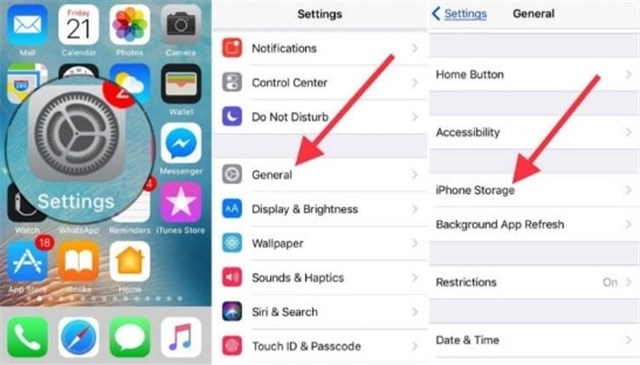
If your iPhone storage is completely maxed out, this screen will not load instantly. The system has to dynamically calculate the cache size of every single app you own. It is completely normal for this screen to freeze or take up to 2 full minutes to load. Do not close the app; just wait.
4. Locate the Update File: Scroll through your populated list of installed applications. You are looking for the specific iOS update file. It will not look like a normal app; instead, it will display a gray gear icon and the specific version number (for example, “iOS 27” or “iOS 18.1”).
5. Select the File: Tap directly on the gray gear icon to open its details page.
6. Execute the Deletion: Tap the red Delete Update button. Apple will present a secondary warning prompt at the bottom of your screen asking you to confirm. Tap Delete Update again to permanently trash the file.
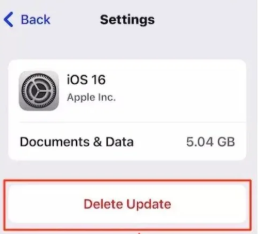
By completing this routine, you instantly recover your storage capacity and eliminate the immediate threat of an automatic install.
Stop Your iPhone from Downloading iOS Updates Automatically
Deleting the update file solves your immediate storage problem, but your device will likely attempt to download it again the second you plug it in and connect to Wi-Fi overnight. To stop your iPhone from downloading iOS updates permanently, you must adjust your automated behaviors.
Continuing with Jason’s experience, his relief was short-lived when he realized the system might just pull the massive file again while he slept. To perform proper update installation prevention, you must tell the system servers to stop checking for new firmware entirely.
How to Disable Automatic Settings
1. Open Settings and navigate back to General.
2. Tap on Software Update.
3. At the top of the screen, tap on Automatic Updates.
4. You will see two distinct toggles under the “Automatically” section. Toggle OFF both Download iOS Updates and Install iOS Updates.
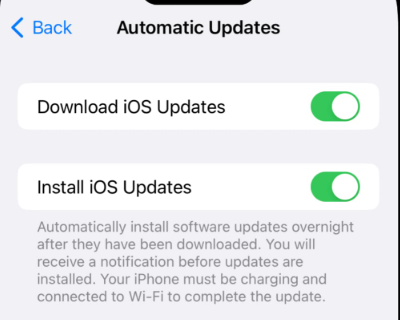
By turning both of these off, you ensure that the software removal remains a permanent solution. Your device will now happily stay on its current operating system version until you explicitly navigate to this screen and command it to upgrade.
What to Do When an Update is Stuck on “Preparing Update” (Free Methods)
If you are reading this because your phone is stuck in the terrifying “Preparing Update” state, or if the update is queued and you have no clear option to uninstall it, the standard manual methods outlined above will often fail or be grayed out.
Before jumping to paid software, there are a few manual fallback methods you can try to safely interrupt the queue.
- Method 1: Trigger Airplane Mode. If the update is currently communicating with Apple’s servers to verify the installation (which happens during the “Preparing” phase), severing the internet connection can sometimes break the cycle. Swipe down to open your Control Center and tap the Airplane Mode icon. Leave it on for a few minutes, then check if the update has paused or failed, allowing you to delete it from your storage.
- Method 2: Delete the Beta Profile. If you are trying to back out of an iOS Beta update, the system will relentlessly try to push the update as long as the beta profile is installed. Go to Settings > General > VPN & Device Management. Tap on the iOS Beta Software Profile and select Remove Profile. Restart your phone.
- Method 3: A Standard Restart. Simply turning your phone off and on again can occasionally clear a frozen “Preparing” queue, provided the actual installation hasn’t begun.
If your phone has already rebooted and is showing the Apple logo with a white progress bar, the installation has officially started. Do not attempt a hard reset at this stage. Forcibly shutting down your device mid-installation will corrupt the system partition. Apple locks down the device during this phase for a reason—interrupting it will force your phone into Recovery Mode, which often requires a total factory wipe to fix.
How to Safely Cancel a Queued Update with AnyFix
If you have tried the free manual procedures, but the update still refuses to clear, or your device is hopelessly locked in a frozen “Preparing Update” queue that won’t respond to Airplane Mode, your system requires deeper intervention. This is where a professional system recovery tool is necessary.
Instead of taking your phone to an Apple Store or risking data loss through a messy iTunes restore, you can use AnyFix to safely bypass the queued state.
Resolving Stuck Firmware with AnyFix
When an update is stuck in a loop, the underlying installation instructions are deeply embedded in your system cache. AnyFix performs a system-level reset of these instructions without touching your personal data .
- Standard Repair Mode (No Data Loss): To address the fear of losing personal files, AnyFix’s “Standard Repair” mode flushes the corrupted update cache and unfreezes the “Preparing” state. It safely resets your firmware back to its normal, working condition without deleting a single photo, text message, or application.
- Bypasses Apple’s Lockouts: If your Settings app is crashing every time you try to view your storage, or if a botched download has caused your screen to go black, AnyFix bypasses the graphical interface entirely to fix the root system error.

AnyFix – Your iOS System Repair Expert
With AnyFix, you can enjoy a one-stop solution to fix various iOS, iPadOS, tvOS, and iTunes issues within minutes, restoring your Apple device to normal without any data loss.
Beginner-Friendly Operation:
1. Download and open AnyFix on your computer, and choose “System Repair” mode.
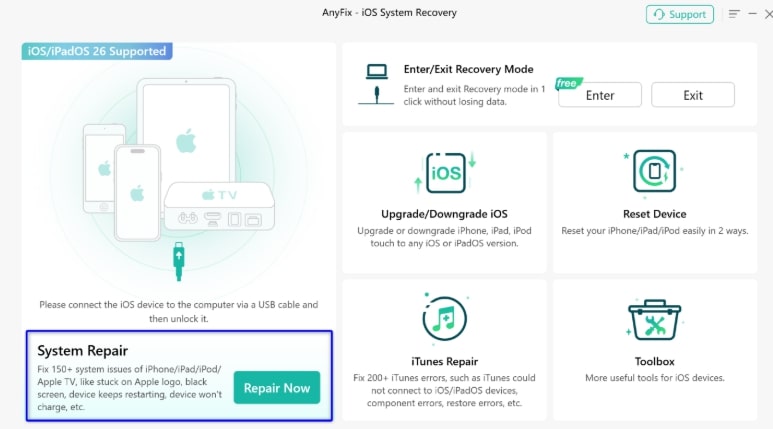
2. Choose the “Standard Repair” Mode.
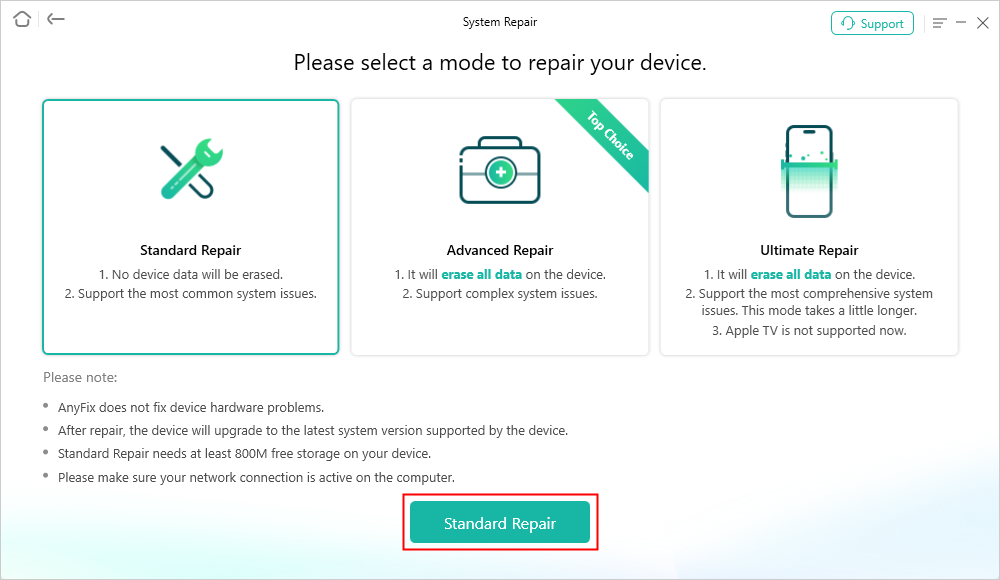
3. Download Firmware Package.
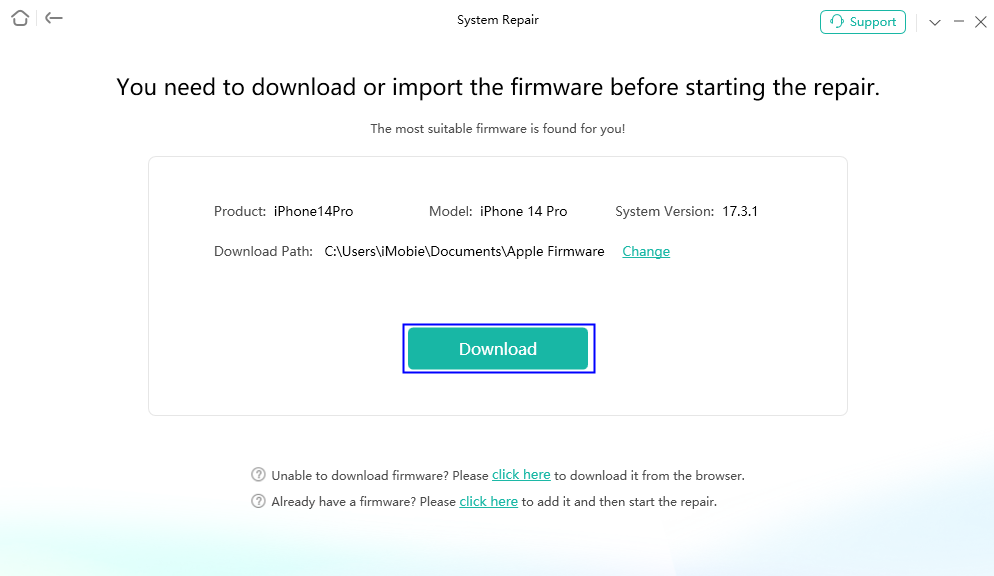
4. When the firmware package has been downloaded successfully, please click Start Standard Repair button.
Understanding Firmware: Why Old Methods Fail and Updates Reappear
Many users wonder why they can’t just undo an iOS update download by turning their phone off and back on. Understanding how Apple structures its firmware downloads can save you a lot of future headaches.
- The Hidden Cache: A standard reboot does not clear the firmware download cache. This cache consists of temporary data stored by the system to speed up future installations. When an update downloads, it embeds itself deeply into your local storage.
- System Data Bloat: Downloaded update files often get categorized quietly under your device’s “System Data.” If you attempt a basic system data cleanup routine without specifically targeting the update package through the storage menu, the underlying installation instructions remain completely intact.
- The Server Trigger: As mentioned earlier, merely deleting the file is a temporary measure if the automated download settings remain active. Your iPhone pings Apple’s servers daily; if it sees you are missing a designated update, it will quietly fetch it again the next time you charge your phone on Wi-Fi.
Understanding the difference between deleting a downloaded file and disabling the background trigger mechanism is crucial. If manual removal fails, it usually means the cache is corrupted , making a tool like AnyFix the safest way to reset your device’s update status.
Frequently Asked Questions: iPhone Software Update Removal Guide
When trying to stop an unwanted software update, it is entirely normal to have safety and operational concerns. Below are straightforward answers to common questions regarding iOS storage management.
Can I uninstall an iOS update after downloading it?
Yes. You can safely remove an iOS update if it has only been downloaded but not installed. You can delete the file by navigating to Settings > General > iPhone Storage, waiting for the list to load, and selecting the specific update file for deletion.
What does the update file look like in my storage?
It will not look like a standard app. It will display a gray gear icon (similar to your Settings icon) and will be labeled with the specific version name, such as “iOS 18.1” or “iOS 27”.
Will deleting the update affect my current system?
No. Deleting a downloaded, uninstalled update file will not harm your current operating system. It simply trashes the bulky installer file and frees up your valuable storage space.
Conclusion
Dealing with an unwanted iOS update that is eating up your storage and threatening to install automatically is an incredibly stressful experience. By manually clearing the file from your iPhone Storage menu and toggling off automatic downloads, you can confidently remove the threat and reclaim your gigabytes.
However, if you are caught in the dreaded “Preparing Update” phase with no clear option to uninstall, manual methods often fall short. When standard troubleshooting leaves you stranded, AnyFix offers a specialized, beginner-friendly solution to safely bypass the queue and repair your system in minutes. Regain full control of your iPhone, eliminate system anomalies with zero data loss, and safely solve your update problems today.
AnyFix – Your iOS System Repair Expert
With AnyFix, you can enjoy a one-stop solution to fix various iOS, iPadOS, tvOS, and iTunes issues within minutes, restoring your Apple device to normal without any data loss.
Free Download for all windows & 100% safe
Free Download for all mac & 100% safe
Free Download 100% Clean & Safe



Wanda Norris is a junior author in iMobie specializing in iOS tips and solutions. She keeps a close eye on every iOS update to provide practical, easy-to-understand guides that help users solve problems and master their Apple devices.
Product-related questions? Contact Our Support Team to Get Quick Solution >
