How to Fix iPad Frozen Issue in 9 Ways [Latest]
To unfreeze a frozen iPad, you can perform a force restart or charge your device, close background apps, update iPadOS, or reset all settings to fix this issue. For a more reliable solution, use AnyFix to repair the iPad frozen issue in easy steps.
AnyFix – Fix iPad Frozen in 5 Minutes
Download AnyFix to repair iPad Frozen caused by the system issues. Save time on refreshing your iPad and use it normally. Support the latest iPadOS 26.
Experiencing sudden freezes is common for iPad users, interrupting important tasks or entertainment sessions. On Apple Community, one user shared how their iPad froze while watching Hulu and refused to restart. Such issues highlight growing frustration among iPad owners facing unresponsive screens. This guide explores why your iPad may freeze and provides tested solutions to fix it.
Possible Reasons for iPad Frozen Issue
Sometimes, the iPad frozen problem happens for simple reasons you might not expect. Checking these common causes first can often help you fix the issue quickly. Below are a few of the main factors that may cause your device to become unresponsive:
- Low Battery: Having a weak or drained battery can disrupt the operations and freeze up.
- App Glitches: Some apps contain internal bugs that can make your device freeze at random.
- System Bugs: After certain updates, small software bugs may interfere with normal iPad functions.
- Background Apps: Running multiple apps together puts pressure on your iPad’s limited memory.
- Device Storage: When your iPad’s storage is almost full, performance becomes unstable and slow.
Common Solutions for iPad Frozen Issue
When your device freezes, multiple simple ways are available to make it work again. The following 8 easy fixes can help you bring your device back to normal without much hassle:
Way 1. Charge iPad
One simple yet effective fix for the iPad frozen issue is to charge the device. A low battery usually prevents the system from responding or loading apps properly. Keeping your device connected until it gains at least 50% charge can unfreeze its functions. This method helps when the device freezes suddenly during low battery use.
Way 2. Force Restart
A force restart is another quick method to fix the iPad frozen issue instantly. It helps refresh the device’s system without deleting any data or settings. This process clears temporary errors, causing unresponsiveness. Let’s explore how you can force restart your device easily:
For iPads without a Home button: Press and release the “Volume Up” key and do the same process for “Volume Down.” Tap the “Power” key for a few moments until you see an “Apple Logo” screen.
iPads with a Home button: Tap both “Power” and “Home” keys together until the “Apple Logo” screen appears.
Way 3. Close Background Apps
Closing background apps can help reduce system pressure and fix the iPad frozen issue. Too many open apps consume memory and slow down performance. Cleaning them lets your device have increased space to operate. Adhere to the following steps to close running background apps on your device:
Step 1. Swipe up at the bottom of the middle of the screen and get to “App Drawer.”

Step 2. Swipe up again on each app to force close it.
Way 4. Delete Problematic Apps
You should also try to delete problematic apps when facing the iPad frozen problem. Some apps contain bugs that interfere with system stability and performance. When you uninstall them, it helps your device reduce unexpected screen lag or crashes. Go through the steps below to learn how to delete a problematic app:
Step 1. Tap the problematic app for a few seconds and choose the “Remove App” option.

Step 2. When you see a prompt screen, tap the “Delete App” option.
Way 5. Free Up Storage
Another iPad Frozen solution is to free up the storage of your device. When space is low, system functions slow down or stop working properly. This action resolves the frozen problem caused by the limited available storage capacity. Take guidance from the given steps to check and free up your device storage:
Step 1. As you access settings, go to the “General” section and press “iPad Storage.”
Step 2. You can then check your iPad storage and tap the “Enable” option next to “Offload Unused Apps.”
Way 6. Update iPadOS
Updating the software version can also help fix the iPad frozen issue by removing hidden software bugs. New updates include performance improvements and better system stability. It also prevents freezing caused by outdated or unsupported system files. Review the steps to find out how you can update your iPadOS:
Step 1. When you go to the menu of “General” settings, open the “Software Update” section.
Step 2. If your device needs an update and shows you, press the “Update Now” button.
Way 7. Reset All Settings
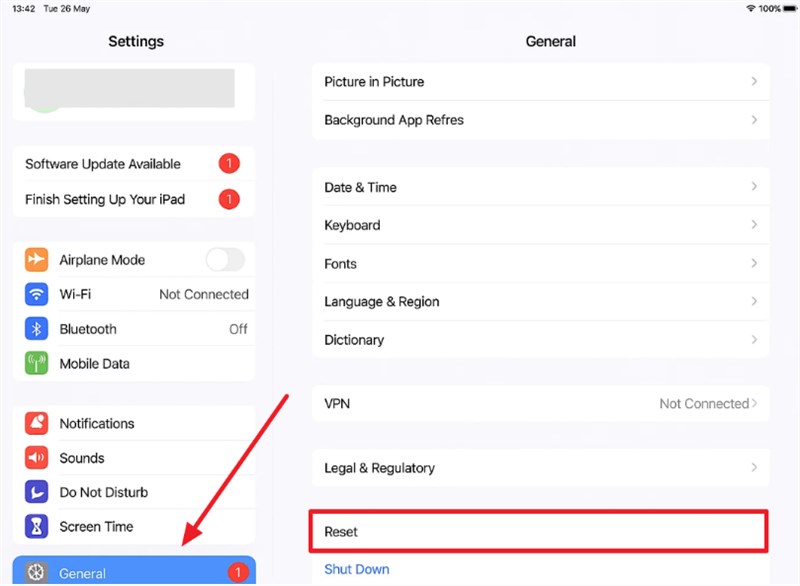
Another solution to fix performance problems is to reset all settings. This action restores default options without deleting personal files or apps. It helps clear faulty configurations that may slow down system responses. You can adhere to the given steps to reset your device’s settings and address the iPad frozen issue:
Step 1. When you access the “General” section, swipe up and tap the “Reset” option.
Step 2. Choose the “Reset All Settings” option and tap “Reset” from the upcoming pop-up.
Way 8. Restore via iTunes
Restoring your iPad with iTunes will also be a method to fix the iPad frozen problem. This process reloads the software and removes any corrupted or damaged system files. It resets the device without manual adjustments and improves overall performance. Go through the following steps to restore your device through iTunes:
Step 1. Run “iTunes” on your computer and put your iPad into “Recovery Mode.”
Step 2. As you see a prompt on iTunes, press the “Restore” button.
How to Fix an iPad Frozen Caused by System Glitches – AnyFix
In case the iPad frozen issue happens due to deep system glitches, AnyFix provides a complete solution. It can fix over 150 iOS and iPadOS issues within minutes. The tool ensures effortless repairs without losing any personal data during Standard Repair. While repairing, the tool automatically analyzes system performance issues. AnyFix focuses on stability and efficiency and ensures long-term reliability after every fix. Beyond standard fixes, AnyFix helps users who install iOS betas or face failed iOS updates to solve their problem.
Key Features of AnyFix:
- Detects system glitches and suggests the most effective repair mode.
- Restore frozen or unresponsive devices instantly in easy steps.
- High success rate for fixing even complex problems.
- Restores device functionality within minutes using intelligent recovery algorithms.
Free Download * 100% Clean & Safe
Stepwise Guide to Fix an iPad Frozen Caused by System Glitches via AnyFix:
Step 1. Free download and launch AnyFix, press the “Repair Now” button under “System Repair” and connect your iPad to the PC.
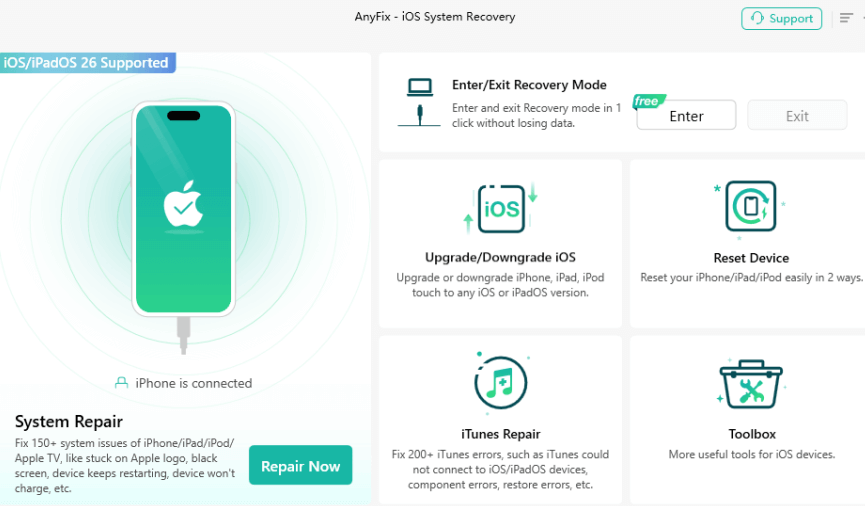
Step 2. Upon detecting your device, choose the corresponding issue and hit the “Start Now” button.
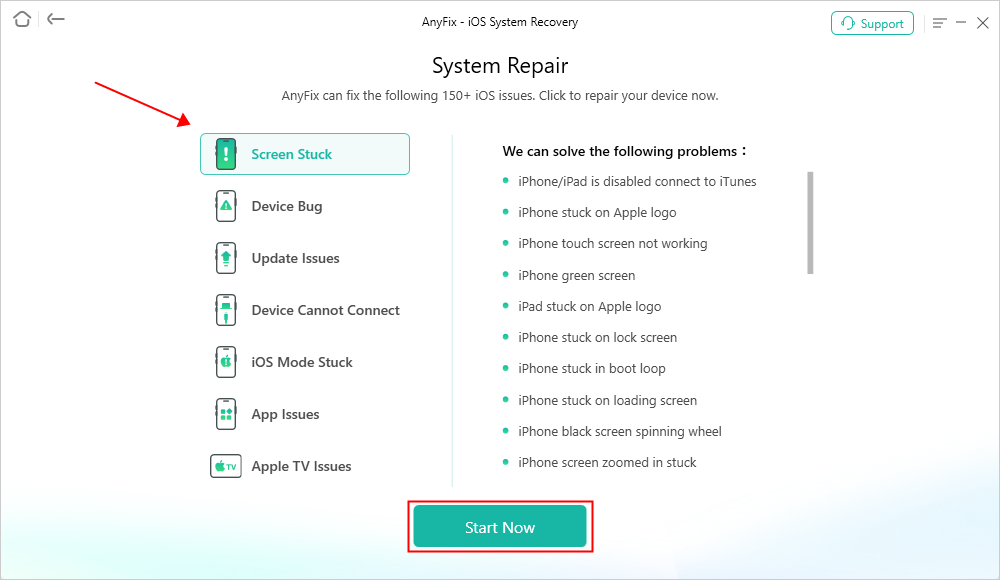
Step 3. Once you see a new screen, select “Standard Repair” mode. The tool will then commence configuring the firmware for your device.

Step 4. Wait until the process finishes. After that, your iPad will start up normally without freezing.

FAQs about iPad Frozen Issue
Q1. How do I get my iPad to unfreeze?
iPad freezes may occur from running too many apps or when software faces small errors. Usually, it becomes normal again after simple actions that restart or refresh the device.
Q2. How to fix an unresponsive iPad screen?
The user has to restart their device when the display is not responsive. You may update iPadOS or even restore it with iTunes in the event that the problem is chronic.
Q3. What to do if your iPad won’t turn on or is frozen?
When your iPad won’t turn on or is frozen, you can restart it to reboot the system and clear temporary software issues. For deeper issues, AnyFix can repair system errors and retrieve normal device performance.
Q4. How do I reset my iPad while it is frozen?
To restart your frozen iPad, easily press and hold the Power and Home buttons until the Apple logo appears. On newer models without a Home button, press and quickly release the Volume Up button, then press and hold the Power button until you see the Apple logo.
Conclusion
To sum up, this article offers 9 practical methods to fix an iPad frozen issue. The regular solutions may help when the problem isn’t too severe. However, if your iPad remains frozen due to deeper system errors, AnyFix is the most reliable choice. It is a professional iOS system repair tool to fix glitches without data loss, bringing your device back to peak performance. Try AnyFix now to restore your iPad’s performance with just a few clicks.
Free Download * 100% Clean & Safe



Joy Taylor is a seasoned technical writer with over a decade of experience in mobile technology. At iMobie, she specializes in producing in-depth content on iOS data recovery, iPhone unlocking solutions, and iOS troubleshooting.
Product-related questions? Contact Our Support Team to Get Quick Solution >
