How to Fix iPhone Stuck in Sleep Mode [Full Guide]
To fix an iPhone stuck in Sleep mode, start by turning off Sleep Focus, disabling the sleep schedule, or restarting your iPhone. If the issue persists, try to update iOS or reset all settings, etc. For a faster solution, use AnyFix to automatically detect and repair iPhone system issues that cause Sleep mode malfunctions.
Many people rely on their iPhones for almost everything, from checking messages and calls to browsing and entertainment. But sometimes, iPhone may stop responding and fail to wake from sleep, making it appear completely frozen. This frustrating issue is more common than you might think. Don’t worry, this full guide explains the reasons behind it and provides several effective ways to fix an iPhone stuck in Sleep Mode in 8 ways.
What Is Sleep Mode on iPhone?
Sleep Mode on iPhone, also known as Sleep Focus, basically helps manage bedtime habits. It reduces distractions and silences alerts for better rest before bedtime. You can set a sleep schedule in the Health app, allowing your phone to automatically turn on this mode at night. Sleep Mode can also sync with Apple Watch to track your sleep patterns and wake you with vibrations. It also includes a Wind Down option that helps you prepare for sleep with calm activities.
Why Is My iPhone Stuck in Sleep Mode?
When your iPhone refuses to wake up from Sleep Mode, it’s usually due to software or system-related issues rather than hardware failure. Here are common causes that affect the system or settings:
- Software glitches: Temporary bugs may freeze the screen or delay response, making the phone appear stuck.
- Focus or Sleep Sync errors: Sync conflicts between Apple devices can prevent your iPhone from exiting Sleep Mode properly.
- Display issues: Minor display errors might make it seem like the device is still asleep even though it’s on.
- Outdated iOS: Older versions of iOS may not fully support the latest Focus or Sleep features, leading to mode freezing.
- App conflicts: Some third-party apps can interfere with system processes, slowing down or blocking wake actions.
Common Solutions for iPhone Stuck in Sleep Mode
Fixing an iPhone stuck in sleep mode is usually straightforward. In many cases, simple adjustments can bring your device back to normal. The following section introduces 7 proven methods to help you restore proper functionality quickly and safely.
Fix 1. Manually Turn Off Sleep Focus
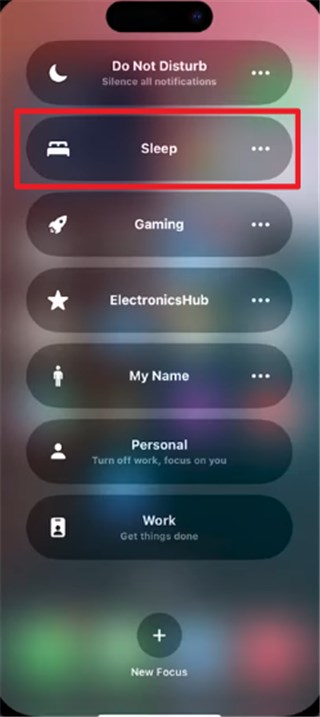
To fix iPhone is stuck in Sleep Mode, disabling Sleep Focus can often bring it back to normal instantly. Sometimes, the Focus feature continues running in the background, preventing your phone from waking or receiving alerts. Follow these steps to turn it off:
Step 1. Swipe down from the top right corner of the screen to access the “Control Center” and tap “Focus.”
Step 2. Tap the active “Sleep” mode to turn it off.
Fix 2. Disable Sleep Schedule
Sleep Schedule may be the reason why your iPhone keeps getting stuck in Sleep Mode automatically. This setting enables Sleep Mode based on your bedtime routine, which can sometimes trigger glitches or delayed wake responses. Disabling it lets you control Sleep Mode manually and prevents the device from freezing during automatic transitions. Follow the steps below to disable it and resolve the iPhone stuck in sleep mode:
Step 1. As you access the “Health” app, head to the “Browse” tab and choose the “Sleep” section.
Step 2. Swipe up on the upcoming screen and tap the “Full Schedule & Options” section.
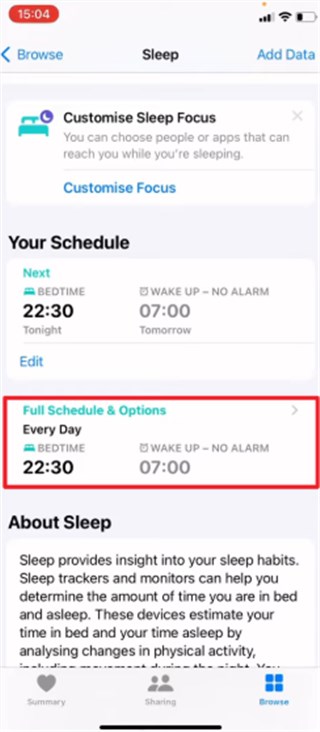
Step 3. Press the “Sleep Schedule” toggle to disable it.
Fix 3. Turn Off iCloud Focus Sync
In some cases, your iPhone may stay stuck in Sleep Mode because Focus settings synced from other Apple devices override local settings. For example, if your iPad or Mac still has Sleep Focus enabled, your iPhone may remain unresponsive even after you try to wake it. Turning off iCloud Focus Sync stops this cross-device interference and helps your iPhone exit Sleep Mode properly. Review the given steps to fix the iPhone stuck in sleep mode:
Step 1. Upon launching the “Settings” app, navigate to the “Focus” section.
Step 2. When you see the new screen, disable the “Share Across Devices” toggle.
Fix 4. Force Restart Your iPhone
A force restart can also help you fix iPhone stuck in Sleep Mode and unresponsive. This process refreshes the system memory, clears temporary glitches, and restores normal operation — without deleting any data. To do this, simply press and quickly release the Volume Up button, then the Volume Down button, and finally hold the Power button until the Apple logo appears. Once your iPhone restarts, it should wake from Sleep Mode and function normally again.
Fix 5. Update iOS Version
Another effective way to fix system bugs and improve phone performance is by updating iOS. This solves many glitches that can cause the phone to freeze in Sleep Mode. If your iPhone stuck in sleep mode, updating the software can remove bugs causing this issue. Take guidance from the following steps to update your iOS:
Step 1. As you head to the “Settings” app, tap the “General” section.
Step 2. Upon seeing the next display, go to the “Software Update” option.
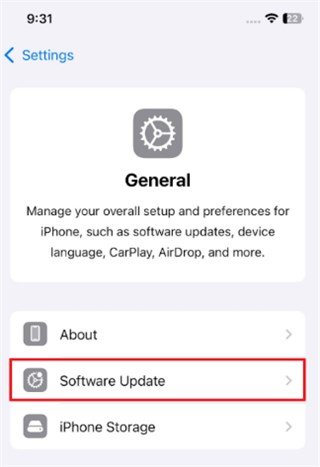
Step 3. When you see an update available, press the “Update Now” button.
Fix 6. Reset Focus Settings
Corrupted Focus settings may also cause your iPhone to stay stuck in Sleep Mode, even after you disable or adjust it. Resetting these settings clears all customized Focus modes — including Sleep — and removes configuration conflicts that prevent your device from waking properly. This gives your iPhone a fresh start and helps it return to normal operation. Follow the steps below to reset focus settings when your iPhone stuck in sleep mode:
Step 1. Initiate by heading to the “Focus” section from your device’s settings.
Step 2. Choose the “Sleep” mode you want to delete.
Step 3. After heading to the selected “Sleep Mode,” tap the “Delete Focus” option.
Fix 7. Reset All Settings
If your iPhone is still stuck in Sleep Mode after trying the previous fixes, some hidden configuration errors might be interfering with system functions. Performing a Reset All Settings clears all custom preferences — including Focus, display, and network settings — without erasing your data. This helps remove software conflicts that prevent the device from waking properly. Here are the steps to reset all settings on your phone:
Step 1. Upon navigating to the “General” section, tap “Transfer or Reset iPhone” and choose “Reset.”
Step 2. As you see a prompt, select “Reset All Settings” and enter your device passcode.
Step 3. Tap the “Reset All Settings” again to complete this process.
How to Fix iPhone Stuck in Sleep Mode [Easy Steps]
When an iPhone remains stuck in Sleep Mode because of underlying system errors, regular fixes often fail to solve the problem completely. As a professional iOS system repair tool, AnyFix offers a reliable and effortless way to restore your device to normal. It can help you fix iPhone stuck in Sleep Mode in easy steps, ensuring safe repairs without data loss.
With its intuitive interface and fast repair process, AnyFix makes system recovery smooth and beginner-friendly. Beyond Sleep Mode issues, it can also fix iPhone frozen screens, boot failures, and other unresponsive performance problems, helping your iPhone return to full functionality with ease.
Key Features of AnyFix:
- Supports iOS 26 and above to fix the latest device issues effortlessly.
- Detects underlying software issues quickly using intelligent scanning technology.
- Completes complex repair tasks within minutes using optimized repair algorithms.
- Repairs work without deleting any of your personal user data securely.
Free Download * 100% Clean & Safe
Stepwise Guide to Fix iPhone Stuck in Sleep Mode Using AnyFix:
Step 1. Download AnyFix and launch it. Connect your iPhone and click System Repair mode.
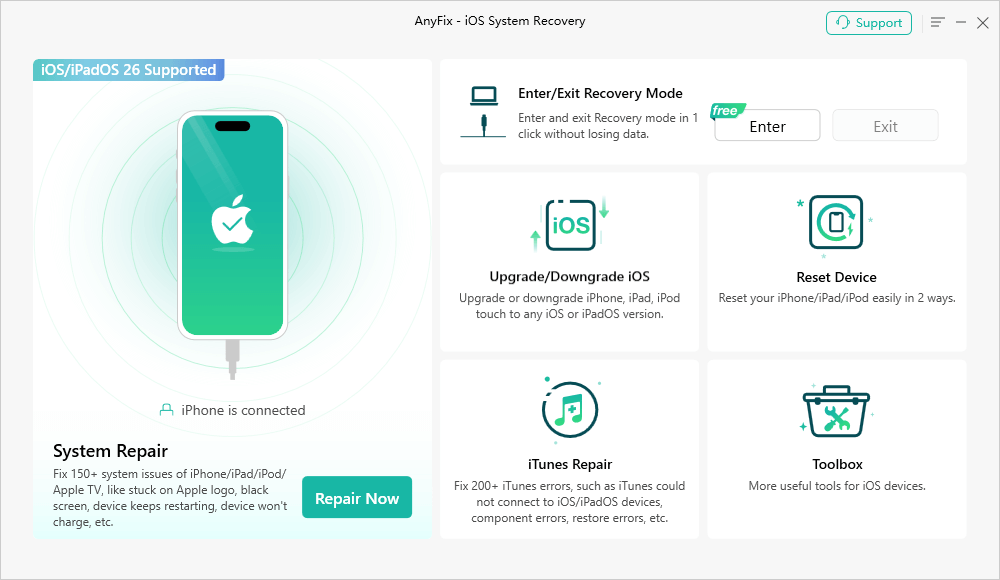
Step 2. Link your device to the computer, choose the “Sleep Mode” issue, and hit the “Start Now” button. Select and press the “Standard Repair” button.

Step 3. AnyFix will then initiate downloading the iOS firmware on your device. As it is completed, press “Start Standard Repair” and let the tool repair your iPhone effortlessly.

FAQs about iPhone Stuck in Sleep Mode
Q1. How do I get my iPhone out of Sleep Mode?
Turn off Sleep Focus from Control Center. If it doesn’t respond, perform a force restart to refresh the system. For persistent issues, use AnyFix iOS System Repair to fix the problem quickly.
Q2. Why is my iPhone stuck on Night Mode?
Software glitches or synced Focus settings may keep Night Mode active. Updating iOS or resetting Focus settings usually resolves the issue.
Q3. How to turn off Sleep Mode on iPhone 15?
Open Control Center, tap Focus, then select Sleep to disable it. You can also turn off the Sleep Schedule in the Health app to stop it from activating automatically.
Conclusion
In short, an iPhone stuck in sleep mode can interrupt your daily phone usage easily. You can fix this issue by adhering to the explored solutions in this article. When basic methods fail, as a professional iOS system repair tool, AnyFix is highly recommended to restore your iPhone’s normal performance. Download and try AnyFix today to resolve the iOS system issues effortlessly.
Free Download * 100% Clean & Safe



Joy Taylor is a seasoned technical writer with over a decade of experience in mobile technology. At iMobie, she specializes in producing in-depth content on iOS data recovery, iPhone unlocking solutions, and iOS troubleshooting.
Product-related questions? Contact Our Support Team to Get Quick Solution >
