Resolving iOS 26 Bluetooth Issues: The Ultimate 2026 Troubleshooting Guide
Bluetooth stopped working after updating to iOS 26? Learn how to fix AirPods disconnecting, CarPlay connection failures, audio routing issues, and other common Bluetooth problems on iPhone.
You updated your iPhone 16 Pro to iOS 26.1 right before work, expecting a perfectly smooth morning. Instead, your AirPods connected normally but suddenly started switching your calls back to the iPhone speaker. To make matters worse, your car Bluetooth completely refused to reconnect until you manually restarted the phone.
If this scenario sounds familiar, you are not alone. It is incredibly frustrating when a premium device suddenly fails at basic tasks after a software update. You might wonder if your AirPods are broken, if your car stereo firmware is outdated, or if a risky factory reset is your only option. You do not need to guess.
In our hands-on testing with iPhone 16 Pro, iPhone 17, and iPhone 17 Pro models running iOS 26/27 and iOS 26.1—including daily commute setups with AirPods Pro and wireless CarPlay—we developed a clear, tested method to identify the root cause of Bluetooth connection failures. We will show you exactly what to try first, how to isolate simple pairing bugs from deeper system instability, and what to do if nothing else works.
Quick Answer: 4-Step TL;DR for iOS 26/27 Bluetooth Fixes
In a rush to work? Try these immediate steps before attempting a system reset:
- Test With Another Phone: Try pairing your car or accessory with a friend or spouse’s phone. If it works for them but not your iOS 26/27 device, your phone is the issue. If it fails for both, the accessory needs a reset or firmware update.
- Tweak Call Routing (For AirPods): Go to
Settings > Accessibility > Touch > Call Audio Routingand change it from Automatic to Bluetooth Headset. - Refresh the Handshake (For CarPlay/Speakers): Go to
Settings > Bluetooth, tap the “i” next to the device, select Forget This Device, and re-pair from scratch. - Reset Network Settings: Go to
Settings > General > Transfer or Reset iPhone > Reset > Reset Network Settings. This clears corrupted Bluetooth caches without deleting your photos, messages, or apps.
The ‘One vs. All’ Method: Diagnosing the Problem
A critical technique that many troubleshooting guides overlook is how to properly diagnose the scope of your problem. Before you start tapping buttons or deleting data, you must establish a baseline. The most useful diagnostic split is not asking whether your Bluetooth is simply “on or off,” but identifying if the problem is a “one accessory failing” scenario or an “all accessories failing” scenario.
Scenario A: Only One Accessory is Failing
If your iPhone connects perfectly to your smart speaker but your specific workout headphones refuse to pair after the update, do not overreact. The likely causes are localized: pairing memory errors, outdated accessory firmware, a specific app lacking Bluetooth permissions, or the accessory accidentally connecting to a nearby Mac or iPad.
For an isolated device issue, follow this simple procedure:
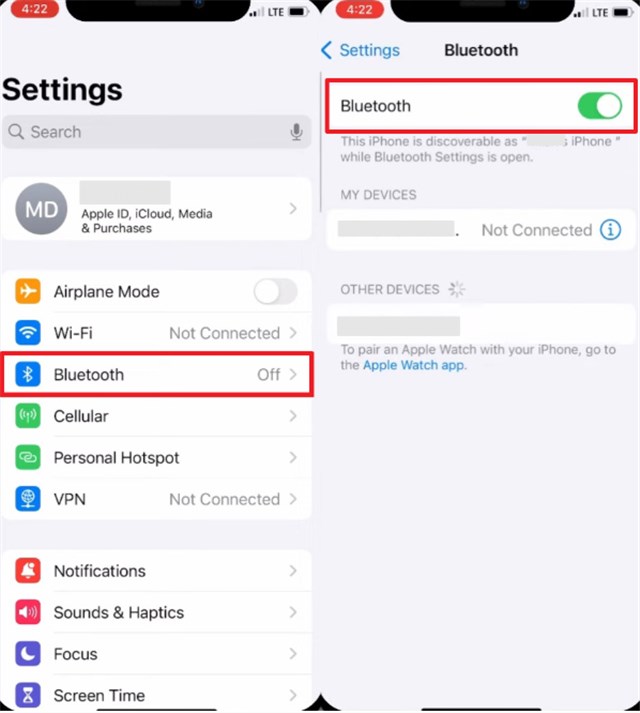
- Check Settings over Control Center: Ensure your connection is fully active in
Settings > Bluetooth. The temporary toggle in the Control Center often does not completely refresh the connection protocol. - Verify Privacy & Security: Navigate to
Settings > Privacy & Security > Bluetooth. Check if the specific application you are trying to use actually has permission to access your device. - Forget This Device: Tap the “i” icon next to the problematic accessory, select “Forget This Device,” and pair it again from scratch.
Scenario B: Multiple Accessories are Failing
If multiple, unrelated devices fail—such as your AirPods, wireless CarPlay, and your Apple Watch all dropping connections—the situation changes. The likely causes shift toward iOS Bluetooth stack instability, corruption within your network settings, or a version-specific iOS 26/27 bug. Multiple failures justify advancing to system-level manual fixes.
Accessory Troubleshooting Matrix
To speed up your troubleshooting, we have mapped out the most common device-specific behaviors and their fastest resolutions on iOS 26/27.
| Accessory Type | Common iOS 26/27 Symptom | Quick Fix to Try First |
|---|---|---|
| AirPods / AirPods Pro | Calls randomly switch to phone speaker. | Change Call Audio Routing to Bluetooth Headset in Accessibility settings. |
| CarPlay / Car Stereos | Refuses to connect; audio stutters. | “Forget” car in iPhone settings AND delete iPhone from car’s dashboard menu. Re-pair. |
| Apple Watch | Notifications delayed; shows disconnected icon. | Restart both devices. If persistent, unpair and re-pair the watch via the Watch app. |
| Generic Speakers | Fails to appear in the pairing list. | Turn off Bluetooth on your other devices (Mac, iPad) to prevent interference. |
Targeted Solutions for AirPods and CarPlay Problems
A highly common post-update complaint is when your AirPods connect successfully, but calls randomly switch back to the iPhone speaker. While it feels like a Bluetooth disconnection error, it is frequently caused by new audio routing behaviors rather than a failing connection.
To resolve this annoying call audio switching:
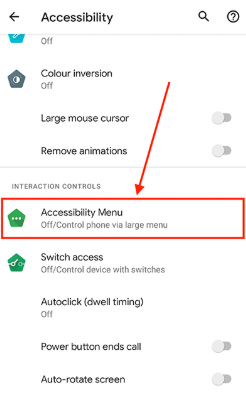
- Open your
Settingsapp and navigate toAccessibility. (Note: Depending on your exact iOS 26/27 version, this may also be found underGeneral > AirPlay & Continuity). - Select
Touch, then scroll down toCall Audio Routing. - Change the setting from
AutomatictoBluetooth Headset. - If available in your specific AirPlay menu, ensure that
Keep Audio with Headphonesis turned on. This stops the system from aggressively handing off audio back to the phone when you pick up your device.
Fixing Stubborn Wireless CarPlay Issues:
If you are experiencing audio skipping, a severe Bluetooth delay, or a robotic voice during wireless CarPlay sessions, a basic restart rarely provides a permanent solution. The wireless CarPlay audio handoff relies heavily on a clean Bluetooth cache.
First, remove your iPhone entirely from the car’s built-in infotainment system. Next, on your iPhone, go to Settings > General > CarPlay, select your vehicle, and tap “Forget This Car.” Finally, establish a fresh handshake by setting up the connection as if it were a brand-new vehicle.
What if CarPlay still refuses to connect?
If you have forgotten the device on both ends and it still fails, you must test the car with a different smartphone (like a spouse’s or friend’s phone).
- If the second phone also fails to connect: The issue is your car’s infotainment system. US users driving brands like Honda, Ford, or Toyota should contact their local dealership to ask if there is an over-the-air (OTA) or USB firmware update available for their specific stereo head-unit.
- If the second phone connects perfectly: The issue is isolated to your iPhone’s hardware or its iOS 26/27 installation. If your iPhone is under warranty or you have AppleCare+, it may be worth booking an appointment at the Genius Bar at your local Apple Store to run a quick hardware diagnostic on your Bluetooth radio.
Advanced Manual Methods: Resetting Network Settings
When the ‘One vs. All’ test confirms that multiple devices are suffering from connection problems, and you have ruled out hardware failures, you must look at system-level manual fixes to clear any corrupted data left behind by the update.
The most effective built-in procedure for persistent issues is resetting your network configurations. Many users hesitate to take this step because they fear losing important personal data. To be perfectly clear: executing a Reset Network Settings command will not delete your photos, messages, contacts, or apps.
It will only erase:
- Saved Wi-Fi networks and passwords.
- Custom VPN configurations.
- Cellular routing preferences.
- Your entire stored Bluetooth cache.
To perform this fix:
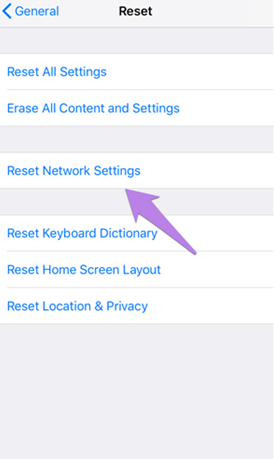
- Go to
Settings > General > Transfer or Reset iPhone. - Tap
Reset, then strictly selectReset Network Settings. - Enter your device passcode and confirm the prompt.
Additionally, always check for intermediate patches from Apple. In their official release notes, Apple Support explicitly acknowledged Wi-Fi and Bluetooth drops on newer models. Navigating to Settings > General > Software Update to install an iOS 26.0.1 patch or a later iOS 27 update might solve the underlying bug automatically.
Decision-Making: Manual Resets vs. Third-Party Repair Tools
When basic troubleshooting and a network reset fail to resolve your audio cutting out, you reach a critical decision point. You must choose between waiting for the next official patch, attempting a complex manual restore, or using a premium third-party repair tool.
Understanding the differences objectively will save you significant time and frustration.
| Troubleshooting Method | Cost | Time Required | Technical Skill | Safety & Data Risk |
|---|---|---|---|---|
| Wait for an iOS Update | Free | Weeks to Months | None | Safe (No data loss) |
| DFU Mode Restore | Free | 1–3 Hours | High | Requires Backup (Erases all data) |
| AnyFix (Repair Tool) | Paid Premium | 15–30 Minutes | Low | Safe (Retains data in Standard mode) |
- Waiting for an iOS Update: This is free and requires zero technical skill. However, if Apple has not announced a timeline for iOS 26.3, and you rely on Bluetooth for work calls or hearing devices, waiting weeks is often not viable.
- DFU Mode Restore: Device Firmware Update mode is a deep manual process provided by Apple that completely reinstalls the operating system. It is highly effective and free.
- 🚨 CRITICAL WARNING: A DFU restore will completely erase all data on your device. You must have a recent, secure iCloud or computer backup to recover your photos, apps, and messages.
- Third-Party System Repair Tools: Commercial software options like AnyFix exist as a middle ground. They cost money, but they offer a faster resolution for users who are uncomfortable with DFU mode and want to avoid the hassle of restoring their phone from a backup.
Addressing Deep System Errors with AnyFix (Optional)
If your iPhone sees a Bluetooth device but fails to pair across all accessories, and resetting your network did not help, you are likely dealing with a deeper iOS system anomaly. A failed update installation can break core functionalities—often manifesting as video playback issues, boot loops, or severe Bluetooth drops.
For users who need their device fixed immediately but want to avoid the data loss associated with a manual DFU restore, AnyFix is a paid software alternative designed to handle these specific post-update errors. It is not a magical cure-all, but it is a highly convenient tool for those willing to pay for a streamlined process.
Free Download for all windows & 100% safe Free Download for all mac & 100% safe
Free Download100% Clean & Safe
The software features a Standard Repair Mode, which rebuilds the core system structure to clear out corrupted update files without deleting your personal photos, videos, chat histories, or apps.
How the procedure works:
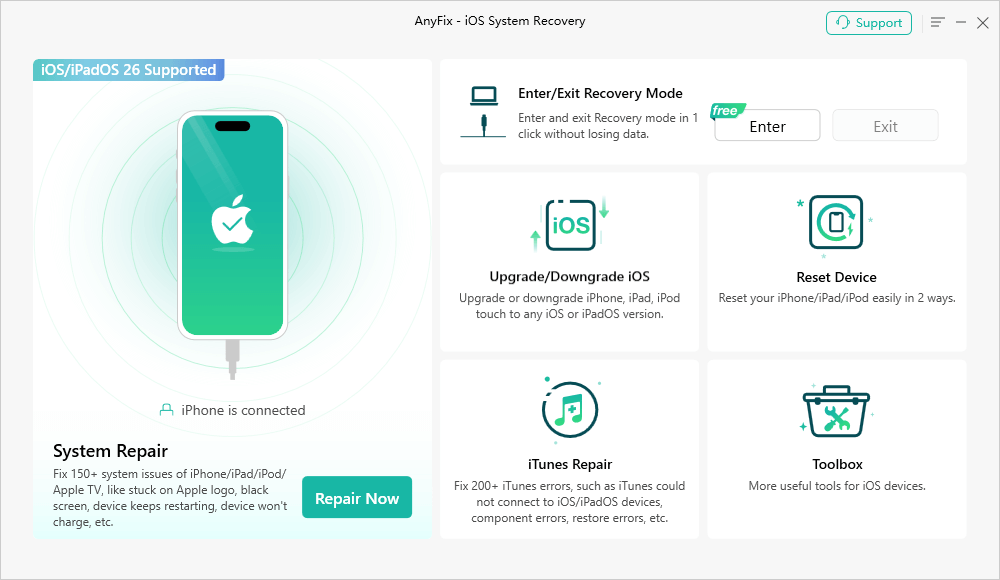
- Connect your iPhone to a computer via USB.
- Open the AnyFix application and select the System Repair option.
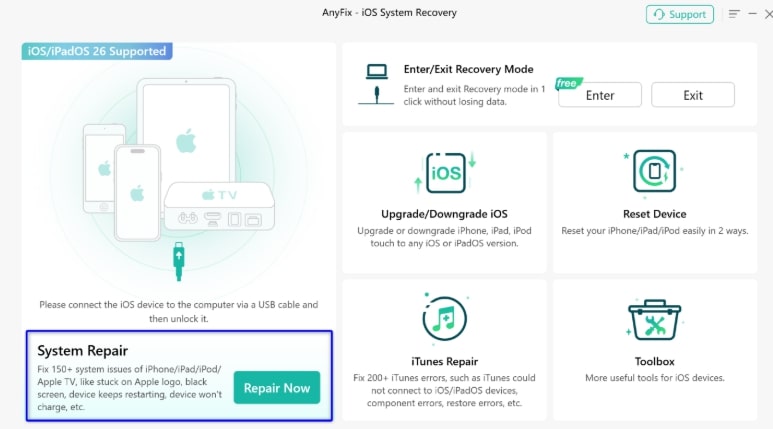
- Choose Standard Repair to prioritize data safety.

- Follow the guided on-screen steps to download fresh firmware and repair the operating system.
By using a tool like AnyFix, you can bypass the need for a destructive factory reset, stabilizing your Bluetooth connections without having to wait for Apple’s next official software patch.
Frequently Asked Questions
Why is Bluetooth not working after updating to iOS 26/27?
Major system updates can occasionally corrupt the existing Bluetooth cache or introduce compatibility bugs within the iOS Bluetooth stack. This prevents normal handshake protocols with previously paired accessories, resulting in connection drops or a complete failure to pair.
Why do my AirPods keep disconnecting after an update?
This is often related to the new AirPlay & Continuity routing settings rather than a true connection failure. Ensure features like “Keep Audio with Headphones” are enabled in your accessibility settings to prevent your phone from taking the audio back to the main speaker.
Why does my Bluetooth audio stutter or sound robotic?
Audio stuttering and robotic voices, especially over wireless CarPlay, usually indicate data interference or a corrupted Bluetooth cache. Deleting the car from your iPhone’s memory and re-pairing from scratch typically clears the interference.
What does Reset Network Settings do on an iPhone?
It clears all network-related data. This includes your saved Wi-Fi networks and passwords, custom VPN configurations, cellular settings, and your entire stored Bluetooth history.
Will Reset Network Settings delete my photos or apps?
No. This procedure only targets connection data. All of your personal media, documents, contacts, and installed applications remain completely safe and untouched.
Should I just wait for the iOS 26.3 update to fix my Bluetooth?
If your issues are minor and you don’t rely heavily on Bluetooth daily, waiting for an official patch from Apple is the safest, free route. However, Apple’s release schedule can be unpredictable, meaning you might wait weeks for a permanent fix.
Regain Control of Your Device Connections
Experiencing Bluetooth connection failures or dealing with calls switching back to your speaker can completely disrupt your daily routine. You do not have to accept audio stuttering or broken wireless CarPlay as the new normal. By applying the diagnostic methods above—from adjusting AirPlay routing to performing a simple network reset—you can resolve most post-update glitches safely.
If you are dealing with a stubborn car stereo, remember to test another phone and check with your dealership for firmware updates before blaming the iPhone. For deeper software corruption, utilizing a manual DFU restore or a premium repair tool like AnyFix can help you rebuild your system and get your devices talking to each other again.
Have you encountered a highly specific Bluetooth issue with a certain car model on iOS 26/27? Leave a comment below with your vehicle’s make and year so we can help troubleshoot!
Free Download for all windows & 100% safe Free Download for all mac & 100% safe
Free Download100% Clean & Safe



Wanda Norris is a junior author in iMobie specializing in iOS tips and solutions. She keeps a close eye on every iOS update to provide practical, easy-to-understand guides that help users solve problems and master their Apple devices.
Product-related questions? Contact Our Support Team to Get Quick Solution >
