Can iPhone X Get iOS 17? 2026 Guide to Compatibility & System Fixes
Wondering if your iPhone X can get iOS 17? Learn why Apple permanently limits the iPhone X to iOS 16, what risks to avoid with unofficial update methods, and the safest ways to keep your device secure and usable.
Purchasing a used smartphone like the iPhone X feels like a smart, budget-friendly decision—until an essential app suddenly demands a newer operating system.
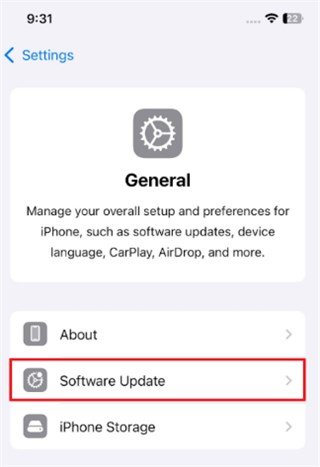
You open Settings > General > Software Update, fully expecting a quick download, but the screen insists that your software is up to date on iOS 16. Frustrated by the missing iOS 17 update, you search online. Instantly, you find a chaotic mix of Apple Community forum threads saying “no,” alongside YouTube videos promising complex workarounds to force the installation.
This guide clarifies exactly why your device cannot install the newest software. We will separate tested facts from dangerous unofficial myths, show you how to keep your current phone useful, and explain what to do if a misguided update attempt has left your device stuck on the Apple logo.
The Bottom Line: No, the iPhone X cannot officially get iOS 17. It is permanently limited to iOS 16 due to the hardware constraints of its older A11 processor chip. If your settings menu says iOS 16 is up to date, your phone is working perfectly.
Why Can’t iPhone X Get iOS 17? The Hardware Cutoff
You might be asking why your iPhone X, which still looks and feels like a premium device, is entirely blocked from iOS 17. The answer relies entirely on internal hardware architecture.
Apple designed iOS 17 to require the advanced computational power and neural engine capabilities of the A12 Bionic chip. Because the iPhone X is powered by the older A11 Bionic chip, it simply lacks the specific processing architecture necessary to run modern features smoothly.
To make this clear, here is a visual breakdown of where Apple drew the compatibility line:
iOS Compatibility Cutoff Table
| iPhone Model | Processor Chip | Maximum Supported iOS | Can it get iOS 17? |
|---|---|---|---|
| iPhone 8 & 8 Plus | A11 Bionic | iOS 16.x | No |
| iPhone X | A11 Bionic | iOS 16.x | No |
| iPhone XR | A12 Bionic | iOS 17 / iOS 18 | Yes |
| iPhone XS & XS Max | A12 Bionic | iOS 17 / iOS 18 | Yes |
| iPhone 11 (All Models) | A13 Bionic | iOS 17 / iOS 18 | Yes |
The Danger of IPSW Firmware Workarounds
If you search long enough, you will encounter unofficial videos or forum posts claiming you can bypass this strict hardware cutoff by manually downloading a custom iOS 17 IPSW firmware file and installing it via your computer.
These claims are entirely false and inherently dangerous to your device.
The most important technical distinction users miss is that an iOS update has two separate, distinct gates: installation mechanics and Apple update eligibility.
Tools like Recovery Mode, Finder, iTunes, and manual IPSW firmware files are mechanical installation tools. They can reinstall or repair firmware that Apple officially supports for your exact iPhone model. However, they cannot magically transform an iPhone X into an iOS 17-supported device.
Apple relies on a strict server validation system known as “signed firmware.” When you attempt an update using iTunes or Finder, your computer must securely contact Apple’s servers to verify the digital signature of that specific firmware. Because Apple does not sign iOS 17 for the iPhone X, the authentication server instantly blocks the procedure.、
🚨 WARNING: DO NOT FORCE UNSIGNED UPDATES 🚨
Forcing an unsigned iOS 17 IPSW file onto your iPhone X will never successfully install the operating system. Apple’s servers will reject it, typically throwing iTunes Error 3194 or Error 17. Worse, attempting this will likely crash your smartphone, trapping it in a boot loop or Recovery Mode and causing complete data loss.
Maximizing iOS 16: Are Your Apps Still Safe?
A common anxiety among owners is that their apps will immediately stop working if their iPhone X stays on iOS 16. Fortunately, this is largely a misconception.
Operating an iPhone X strictly on iOS 16 remains incredibly practical today. Major software developers typically ensure app compatibility for two to three years following a major Apple iOS release. You can continue to install and enjoy most of your daily applications without interruption.
How to Verify App Compatibility on Your iPhone X
Instead of guessing, you can easily check if your most important apps (like banking, WhatsApp, or social media) still support iOS 16.
- Open the App Store on your iPhone X.
- Search for the specific app you are worried about.
- Tap the app to open its description page.
- Scroll down to the Information section.
- Tap the drop-down arrow next to Compatibility.
- Look for the text that says: “Requires iOS [Version Number] or later.”
If it says iOS 15 or iOS 16, your app will continue to update and function perfectly.
Maintaining Device Security
Furthermore, Apple consistently provides vital security updates for previous operating systems. The iOS 16.7.x framework actively receives targeted patches designed to defend against newly identified vulnerabilities.
Navigate to Settings > General > Software Update regularly to install the newest iOS 16.7.x security patches, and generate an iCloud backup regularly to protect your digital life from unexpected hardware issues.
Decision Tree: Should You Keep or Upgrade Your iPhone X?
If your daily routine relies on a specific application that strictly demands iOS 17, relying on your current device is no longer viable. For users seeking a budget-friendly iPhone upgrade, there are several highly capable, compatible iPhone models priced closely to the iPhone X.
Keep your iPhone X if:
- Your essential apps still list iOS 16 under their compatibility requirements.
- You mainly use the phone for calling, texting, web browsing, and basic photography.
- You want to wait for prices to drop further on newer models.
Upgrade your iPhone if:
- Your primary banking or work apps explicitly demand iOS 17 and block you from logging in.
- You are experiencing severe battery degradation that a simple battery replacement won’t fix.
Recommended Budget Upgrade Choices
- iPhone XR and iPhone XS: As the direct historical successors to the iPhone X, these models are equipped with the A12 Bionic chip. They represent the absolute baseline for iOS 17 compatible devices, offering a familiar physical design at a highly affordable refurbished price.
- iPhone 11: Featuring the powerful A13 Bionic chip, this specific generation delivers tremendous battery improvements and an advanced camera array. It remains an incredibly popular choice for anyone seeking a reliable, long-lasting replacement.
Before purchasing a replacement, investigate an official Apple Trade-In program. Even as an unsupported device for the newest software, the iPhone X retains hardware trade-in value that can lower the final price of your next smartphone.
What to Do If Your iPhone X Is Stuck in a Boot Loop
If you found this article after following a misleading YouTube tutorial—and your attempt to force iOS 17 has left your iPhone X stuck on the Apple logo, frozen, or trapped in Recovery Mode—you need an immediate troubleshooting procedure.
When a forced update fails, your phone’s operating system essentially crashes mid-installation. To fix this, you must reinstall the official, Apple-approved iOS 16 firmware.
You can use iTunes or Finder to execute a factory restore, but this will erase all of your data. If you are worried about losing your local files, text messages, or camera roll, you need a dedicated iOS system repair tool like AnyFix.
Safely Repairing an Unresponsive iPhone X with AnyFix
AnyFix is specialized software engineered to repair iOS system errors. To alleviate the fear of accidentally wiping your smartphone during a complex repair procedure, AnyFix offers a non-destructive Standard Repair mode.
Free Download for all windows & 100% safe Free Download for all mac & 100% safe
Free Download100% Clean & Safe
This specific technique resolves severe system-level errors—such as infinite boot loops or the “support.apple.com/iphone/restore” screen—without deleting your files.
Step-by-Step System Repair Procedure:
- Download and Install: Open the AnyFix software on your Mac or Windows computer.
- Connect the Device: Plug in your iPhone X using a certified USB Lightning cable.
- Select System Repair: Choose the primary repair option from the dashboard.
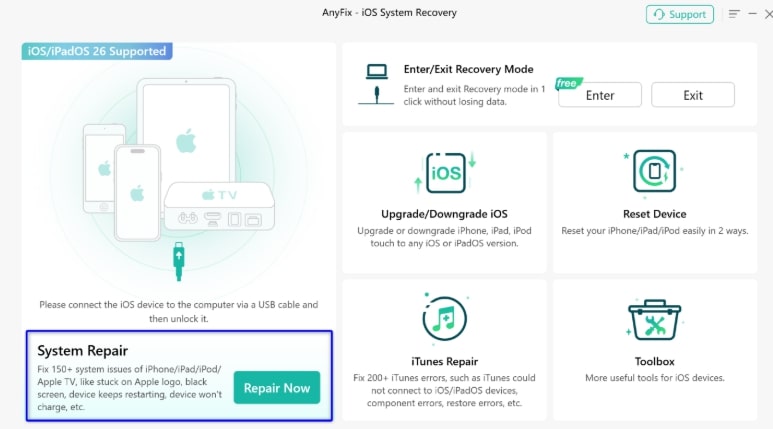
- Choose Standard Repair: Select this exact mode to guarantee your personal data remains intact.

- Follow Automated Prompts: The tool will safely download the correct, Apple-signed firmware (iOS 16.7.x) and restore your smartphone to working order.
While AnyFix is incredibly effective for rescuing an unresponsive device, it is important to reiterate: it will seamlessly restore your hardware to perfect working order on its maximum supported version (iOS 16), but no tool can force iOS 17 on an iPhone X.
Frequently Asked Questions About iPhone X iOS 17 Compatibility
Navigating Apple update eligibility guidelines can quickly become confusing. Here are straightforward answers to the most common questions regarding the iPhone X.
Can my iPhone X get iOS 17?
No. The iPhone X is mechanically limited by its internal A11 Bionic chip and cannot officially install iOS 17. Its highest supported operating system is the iOS 16 series.
Why is iOS 17 not showing on my iPhone X?
If the Settings > Software Update menu shows that iOS 16 is up to date, your device has reached its permanent software ceiling. Apple’s servers will not display an update for a firmware generation that the hardware cannot run.
Is my iPhone X broken if it only shows iOS 16?
No. This is the correct and perfectly normal behavior for this specific hardware model.
Can I force install iOS 17 on iPhone X with iTunes or Finder?
No. Both iTunes and Finder rely on digitally signed firmware validated directly by Apple’s servers. If you attempt to force it, iTunes will likely display Error 3194, and the installation will fail.
Can a recovery tool install iOS 17 on an unsupported iPhone X?
No. While advanced iOS system repair tools like AnyFix can perfectly rescue an iPhone stuck in DFU Mode or Recovery Mode, they cannot magically bypass Apple’s strict hardware restrictions to run newer software.
Is it still safe to use an iPhone X on iOS 16?
Yes. Apple actively continues to release vital iOS 16.7.x security updates, ensuring your device remains highly secure for everyday tasks and web browsing.
Why do some YouTube videos say iOS 17 can run on iPhone X?
These videos often rely on misleading titles to generate views. They either showcase jailbroken devices that are highly unstable, utilize visual themes that mimic iOS 17, or falsely represent the software version in the video.
Regaining Control of Your iPhone
Understanding the strict hardware boundaries of your smartphone is the first step to avoiding disastrous technical errors. The iPhone X remains a highly capable device, securely capped at iOS 16, and equipped to handle your daily tasks with consistent security updates. By accepting these limits, you successfully protect your personal data from the severe risks of forced firmware installations.
If a misleading online tutorial has already left your device frozen, stuck on the Apple logo, or trapped in Recovery Mode, you can quickly regain control. AnyFix resolves the root cause of severe system errors, safely restoring your exact compatible iOS 16 firmware. Regain peace of mind and rescue your device today—download AnyFix to securely solve your system issues and get back to your digital life.
Free Download for all windows & 100% safe Free Download for all mac & 100% safe
Free Download100% Clean & Safe



Wanda Norris is a junior author in iMobie specializing in iOS tips and solutions. She keeps a close eye on every iOS update to provide practical, easy-to-understand guides that help users solve problems and master their Apple devices.
Product-related questions? Contact Our Support Team to Get Quick Solution >
