Why iPhone Data Cannot Be Recovered Without the Passcode
Forgot your iPhone passcode? Apple’s encryption makes data recovery impossible without a backup. After checking iCloud or iTunes backups, you must erase the device and restore access through a factory reset.
Quick Answer: No. If you have forgotten your iPhone passcode, it is impossible to recover the data currently stored on the device without erasing it first. While it is incredibly frustrating to lose precious photos and memories, Apple’s security design forces a mandatory factory reset to make the phone usable again. This reset will erase all existing data. Your data can only be recovered if you already have a previous backup saved in iCloud or iTunes.
Why Apple’s Encryption Makes Data Recovery Impossible
It’s natural to wonder why Apple forces a complete wipe, or why you can’t simply take the device to an Apple Store to have them unlock it. The answer lies in a dedicated security chip inside your iPhone called the Secure Enclave.

Think of your iPhone’s lock screen not just as a locked door, but as a paper shredder. Your photos, messages, and files are protected by hardware encryption—essentially scrambled into unreadable noise. Your passcode is the exact decryption key needed to put those shredded pieces back together into files you can view. Without the correct passcode, the data isn’t just hidden; it physically cannot be read by anyone.
Because Apple designed the iOS ecosystem without a “backdoor” to protect user privacy from hackers and thieves, there is no secret override code. Apple Support cannot recover it for you because they face the exact same encryption limits.
This is also why you must be extremely cautious of software claiming to bypass the passcode with “no data loss.” Whether you are researching an iunlocker review or looking at other desktop utilities, you must remember that tools promising to magically save your photos without a passcode are scams. All third-party desktop utilities are bound by the exact same Apple hardware encryption reality. Paying for software that promises to magically save your photos without a passcode is unfortunately just throwing your money away.
Checklist: How to Find Your iPhone Backups Before Wiping
Before you accept the hard truth and proceed with a factory reset, you should verify if your data is safely backed up elsewhere. Wiping your phone only means losing data if it isn’t saved in the cloud or on a computer.
Here is a practical checklist to help you safely hunt for existing backups before you commit to erasing the device:
- Check iCloud.com from another device: Log into iCloud.com using your Apple ID on a computer, iPad, or even a friend’s phone. Click on Photos, Contacts, or iCloud Drive. If you see your files there, they are safely synced and will immediately return when you sign back into your newly erased iPhone.
- Check for an automatic iCloud Backup: If your iPhone was recently plugged into power, locked, and connected to Wi-Fi overnight, it likely backed itself up to iCloud automatically. You won’t know for 100% sure until you begin the restore process, but it’s a strong safety net if you pay for extra iCloud storage.
- Check your Mac (Finder): Connect your iPhone to a Mac you’ve synced with before. Open Finder, select your iPhone from the sidebar, and look under the “Backups” section to see the date and time of your last local backup.
- Check your Windows PC (iTunes): Open iTunes on your PC, click Edit > Preferences > Devices, and check the list for a recent device backup.
Your Decision: If you found a backup on this checklist, you can proceed to wipe your phone with complete peace of mind. If you cannot find a backup, you must accept that the data currently on the device is permanently lost before moving forward to make the phone itself physically usable again.
Understanding “iPhone Unavailable” and the Need to Reset
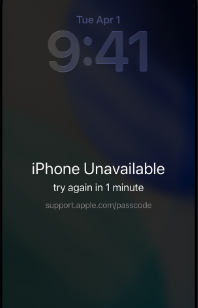
Once you enter the wrong passcode too many times in a row, your screen will display an “iPhone Unavailable” or “Security Lockout” message. At this stage, your iPhone has itself to prevent brute-force hacking attempts. Practically speaking, your device is now a “brick.” It cannot make calls, send texts, or open apps until a full factory reset is performed.
Your goal must now shift from saving the data to regaining physical access to your expensive device.
Apple provides official methods to perform this mandatory reset. You might see an “Erase iPhone” option directly on the lockout screen. Alternatively, you can put the device into Recovery Mode and use iTunes or Finder.
Many users search for solutions such as Forgot iPhone passcode without restore, How to unlock iPhone passcode without Apple ID, I forgot my iPhone passcode How do I unlock it, or How to unlock iPhone passcode without computer. However, Apple’s security system requires the device to be erased before access can be regained if the passcode is forgotten.
The manual Recovery Mode process can also be frustrating. It requires precise button combinations, and iTunes frequently throws confusing error codes or gets stuck during lengthy firmware downloads. If the official route leaves you stranded, you may prefer a more straightforward, guided way to complete the reset process.
How to Regain Access to Your Locked iPhone (Guided Reset)
If you are struggling with iTunes errors, confusing manual button combinations, or scattered instructions, AnyUnlock provides a clear, guided desktop toolkit to handle the “iPhone Unavailable” screen.
Crucial Safety Note: AnyUnlock removes the screen passcode but ERASES ALL DEVICE DATA in the process. It does not magically save your photos—because, as explained above, Apple’s hardware encryption makes that impossible. Its core value is providing a reliable, visual workflow to bypass the lockout screen and make your phone physically usable again when official manual methods fail.

AnyUnlock – One-stop iOS Unlocker
What if you get locked out of your iPhone? Or what if you forgot your Apple ID and its password? No worries, AnyUnlock unlocks any iOS lock for you with 1 click. No technology required. Only 3 steps.
If you own or are authorized to handle the device and are ready to proceed with the mandatory factory reset, here is how the guided workflow works:
1. Download and open AnyUnlock on your Mac or Windows PC.
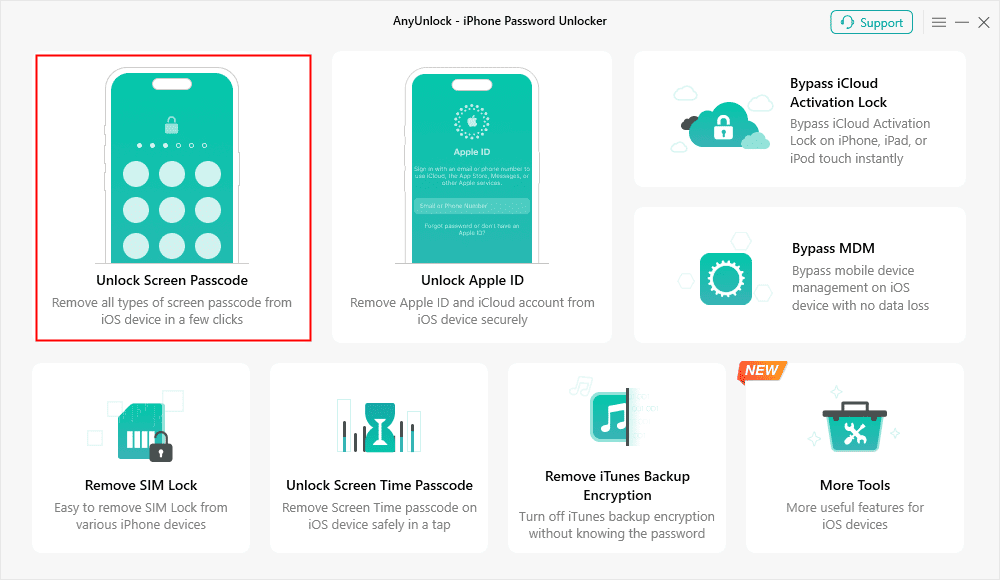
2. Select the “Unlock Screen Passcode” module from the main dashboard.
3. Connect your iPhone to the computer using a USB cable.
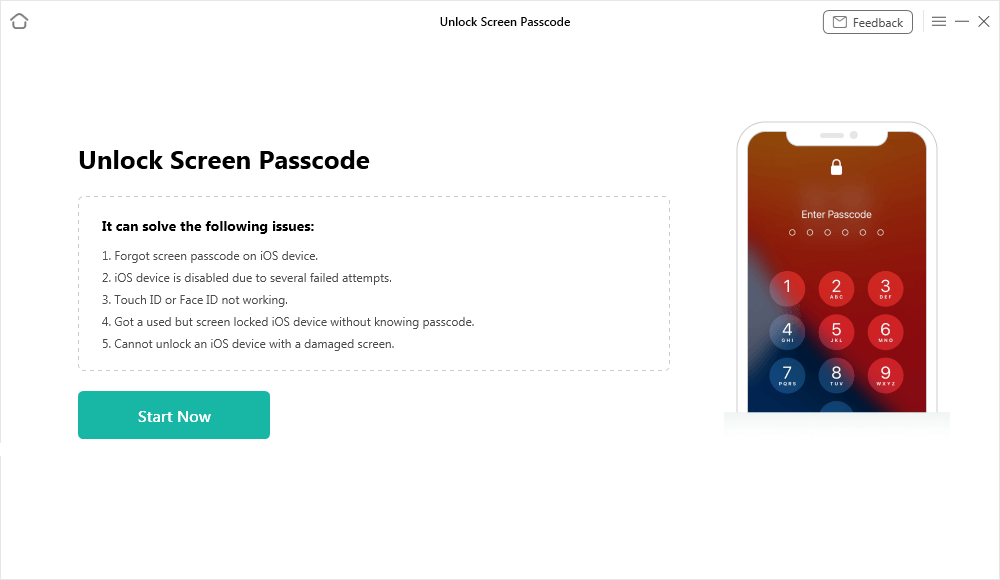
4. Review the clear warning: Acknowledge the on-screen prompt stating that this process will erase all device data and update your iPhone to the latest supported iOS version.
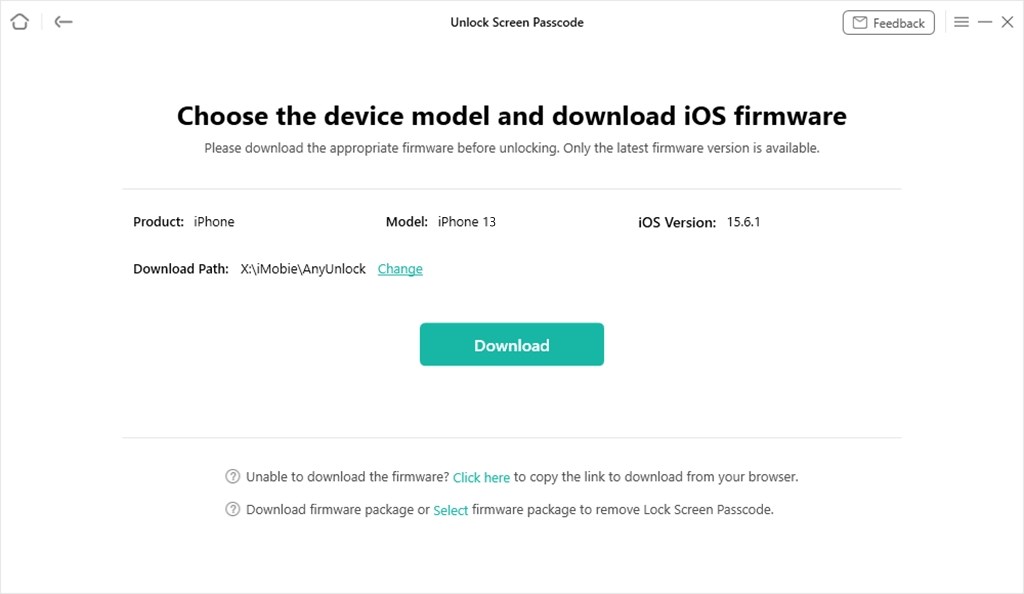
5. Follow the on-screen steps to let AnyUnlock automatically download the matching iOS firmware and execute the reset.
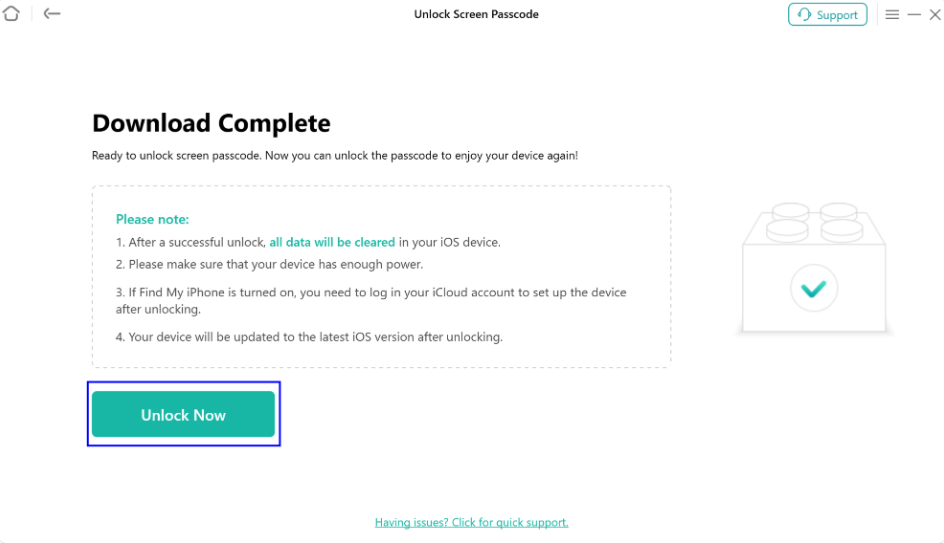
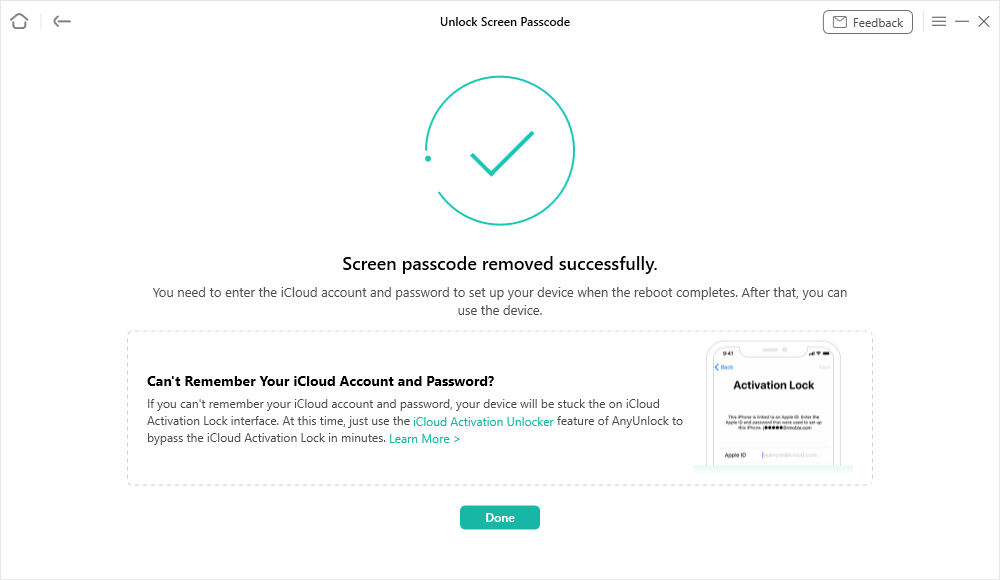
6. Wait for completion: Once the process finishes, your iPhone will restart on the standard “Hello” setup screen, unlocked and ready to be used again.
What to Do After Resetting Your iPhone
Once the reset is complete—whether you used Apple’s official method or a guided tool like AnyUnlock—your iPhone will reboot and display the classic “Hello” screen. Here is how to get your device set up and attempt to recover whatever data was backed up:
- Follow the initial setup prompts: Swipe up, choose your language, select your region, and connect the iPhone to a stable Wi-Fi network. (Note: You will be asked for your Apple ID to clear Activation Lock. If you forgot this too, you may need an frpfile icloud bypass tool or official Apple account recovery.)
- Navigate to the “Apps & Data” screen: After setting up Face ID or Touch ID, you will reach this crucial screen where data restoration happens.
- Restore from iCloud Backup: If you verified an iCloud backup in our earlier checklist, select this option. Sign in with your Apple ID and choose the most recent backup file.
- Restore from Mac or PC: If you found a local iTunes or Finder backup, plug your iPhone back into the computer, select this option on your phone, and follow the computer prompts.
- Set Up as New iPhone: If you did not have any backups, select this option. While your old data is unfortunately gone, you now have a clean, fully functional device ready to make new memories.
Frequently Asked Questions
Can I save my photos if I forgot my iPhone passcode?
No. Unless you already have an iCloud or iTunes backup saved prior to getting locked out, your photos cannot be recovered. Removing the forgotten passcode requires a factory reset, which erases everything.
Is there any software that can bypass iPhone passcode without data loss?
No. Any software claiming to bypass an iPhone passcode without data loss is a scam. All legitimate desktop unlocking tools, including AnyUnlock, explicitly state that removing the screen passcode will erase all device data due to Apple’s uncrackable hardware encryption.
Why does Apple force a wipe for a forgotten passcode?
Apple forces a factory reset to protect user privacy and security. If your phone is lost or stolen, this forced wipe ensures that a thief cannot endlessly guess your passcode to access your banking apps, private messages, and personal photos.
How does the Secure Enclave work?
The Secure Enclave is a dedicated hardware security chip inside the iPhone. It uses complex encryption to scramble your files. Your passcode is the specific mathematical key that decrypts those files. Without it, the data remains permanently unreadable noise.
Will Apple Store employees unlock my phone for me without data loss?
No. Apple Support and Apple Store Geniuses face the exact same encryption limits as you do. They do not have a secret “backdoor” to your data and can only assist you in performing a factory reset.
Final Thoughts: Moving Forward with Your Device
The hard truth about Apple’s encryption is tough to swallow: data recovery is completely impossible without your passcode or a previous backup. While many users search for solutions like Forgot iPhone passcode without restore, How to unlock iPhone passcode without Apple ID, I forgot my iPhone passcode How do I unlock it, or How to unlock iPhone passcode without computer, Apple’s security system does not allow access without erasing the device first.
At this stage, the best path forward is to check for a backup, accept the loss, reset the device, and make your phone useful again. If Apple’s manual Recovery Mode or iTunes instructions are giving you trouble or throwing error codes, AnyUnlock provides a clear, guided method to execute the mandatory factory reset. By using its Screen Unlock module, you can bypass the lockout screen smoothly and regain physical use of your iPhone today.
AnyUnlock – Unlock Any iOS Password
Quickly and easily unlock your iPhone/iPad/iPod touch from various locks such as screen lock, MDM lock, iCloud activation lock, Apple ID, iTunes backup password, and more.
Free Download for all windows & 100% safe
Free Download for all mac & 100% safe
Free Download 100% Clean & Safe
Related Articles:
* 007 Ramdisk Tool Review: Features, Pros, Cons, and Alternatives
* Broque Ramdisk Pro Latest Version Free Download and Review



Wanda Norris is a junior author in iMobie specializing in iOS tips and solutions. She keeps a close eye on every iOS update to provide practical, easy-to-understand guides that help users solve problems and master their Apple devices.
Product-related questions? Contact Our Support Team to Get Quick Solution >
