How to Fix Instagram Story Stuck Uploading in 9 Ways
To fix a stuck Instagram Story upload, check your internet, restart the app, re-upload the Story, or clear the cache or update Instagram and iOS. Or use AnyFix to repair your iPhone and restore Instagram to normal performance within clicks.
Instagram users often encounter frustrating glitches, especially when stories freeze midway during upload. Many mixed user reports describe confusing behavior, particularly on iPhones, such as stories staying stuck even after closing the app or restarting the device. On Apple Community, one user mentioned that Instagram kept trying to upload the same story despite multiple restarts, showing how widespread and persistent this issue can be.
Fortunately, this guide walks you through reliable, proven fixes to resolve the Instagram Story stuck uploading problem so you can get back to posting smoothly.
Why Is My Instagram Story Stuck at Uploading?
Instagram Story stuck while uploading is usually caused by small errors or simple device settings, not a major system problem. Before jumping into the fixes, it helps to understand the most common triggers behind this issue:
- Weak Signal: Poor or unstable internet can stop your story from uploading properly.
- App Glitch: Temporary bugs or small app errors may interrupt your upload process.
- Full Storage: Low phone space prevents Instagram from saving data needed for uploading.
- Cache Overload: Too much stored cache data can slow the app and block uploads.
- Data Restriction: Limited mobile data or low‑data mode can stop larger media uploads.
8 Regular Solutions for Instagram Story Stuck Uploading
After exploring the common causes, this part covers the 8 ways to help you fix the Instagram story stuck uploading issue:
Way 1. Check Your Internet Connection
A weak or unstable internet connection is a common cause of Instagram story upload failure. Therefore, you should check Wi‑Fi or mobile data to ensure smooth story posting every time. However, it cannot fix the Instagram story stuck uploading caused by server issues. It also cannot help when deeper app problems require steps for repair.
Way 2. Repost Instagram Story
To fix Instagram Story stuck uploading, removing and uploading it again is a simple way to refresh the upload process. Sometimes the story gets stuck due to a temporary glitch during the first upload attempt, such as a brief signal drop, a corrupted temporary file, or a small app hiccup. Reposting forces Instagram to restart the upload from scratch, which often clears these short-term errors. This method is quick, doesn’t require any settings changes, and works well when the issue is caused by minor bugs.
Way 3. Re-Login to Your Instagram Account
Sometimes your Instagram session becomes outdated or corrupted, which can interrupt uploads and cause stories to get stuck. Logging out and back in forces Instagram to refresh your session, reestablish a clean connection to its servers, and reload your account data. Although this method is easy, you’ll need to remember your login details. Follow the given steps to resolve the Instagram story stuck uploading problem:
Step 1. Navigate to your “Profile” section and tap the “Hamburger” icon to choose “Settings and Privacy.”
Step 2. Once you access the new options, swipe up and tap the “Log Out” option.
Step 3. Reenter your account credentials and hit the “Login” button.
Way 4. Clear Instagram Cache
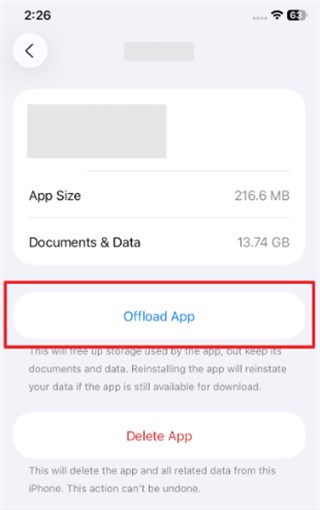
An overloaded cache can slow down Instagram and interfere with story uploads, especially when temporary files become corrupted. Clearing the cache gives the app a fresh start by removing these unnecessary files without deleting your account data, settings, or login information. Review the steps below to perform this process on your phone:
Step 1. Head to the “General” settings on your phone and tap the “iPhone Storage” section.
Step 2. When you access the storage section, locate and choose the “Instagram” app.
Step 3. After selecting it, tap the “Offload App” option and then reinstall it.
Way 5. Update the Instagram App & iOS
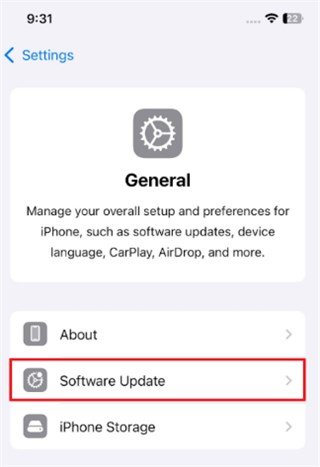
Running outdated versions of Instagram or iOS can lead to performance issues, compatibility conflicts, and upload failures. Updates typically include bug fixes, stability improvements, and new features that help prevent problems like Instagram Stories getting stuck during upload. Keeping both the app and your device’s system up to date ensures that Instagram can function smoothly with the latest server requirements. Here are the steps to update both Instagram app and iOS:
Update Instagram App:
Access App Store > search for the Instagram app to press the Update button.
Update iOS:
Open Settings > General > Software Update, and tap Update Now if an update is available.
Way 6. Change Instagram Data Usage Settings
Instagram limits data usage under certain settings, which can slow down uploads, especially during weak or unstable connections. Adjusting these data settings removes unnecessary restrictions and allows Instagram to use more bandwidth. This helps your Story upload faster and more reliably, reducing the chance of it getting stuck midway. Follow the steps below to modify Instagram’s data usage settings:
Step 1. Once you head to the “Profile” section, tap the “Hamburger” icon and access “Settings” to choose “Media Quality.”
Step 2. Disable the “Use Less Mobile Data” toggle and then enable “Upload At Highest Quality.”
Way 7. Restart Your iPhone
Restarting your iPhone is a quick and reliable way to clear minor software glitches that may interfere with Instagram Story uploads. It refreshes the entire system, shuts down stuck background processes, and frees up resources—often resolving issues that a simple app restart cannot fix. While this method is effective, it is usually a temporary solution, and recurring upload problems may require deeper troubleshooting or app updates. Take guidance from the steps to restart your phone and fix the Instagram story stuck uploading:
Step 1. Press both the “Volume Up” and “Power” keys together for a few seconds.
Step 2. Drag the “Slide To Power Off” slider to turn off your phone. After a few seconds, press the “Power” button to turn it on again.

Power off iPhone
Way 8. Use Another Device to Test Uploading
Sometimes the problem may lie in your phone rather than the Instagram app itself. Trying to upload your story from another device helps you quickly confirm this. If the story uploads successfully on a different device, it indicates that your iPhone’s settings, system glitches, or network conditions may be causing the issue. But if the upload fails on the second device as well, the problem is likely account-related or due to a temporary Instagram server issue.
Fix Instagram Story Stuck Uploading via AnyFix [Easy & Secure]
When standard fixes fail, it usually means your iPhone may have deeper system glitches affecting app performance. In this case, using a dedicated repair tool like AnyFix becomes essential. This tool is a professional iOS system repair utility, capable of fixing over 150 iOS system issues, such as app freezing, iPhone network errors, or system instability that may indirectly cause Instagram uploads to fail. It offers three repair modes designed to handle both persistent and severe problems. With just a few clicks, you can download the required firmware and start repairing immediately. The tool also supports iOS 26, ensuring full compatibility with the latest iPhone models.
Key Features of AnyFix:
- Simplifies system repair steps to avoid complex manual processes.
- Typically completes system fixes within minutes, saving you valuable time.
- Provides a high success rate for fixing iOS system issues reliably.
- Ensures data-safe repair modes, protects your device without risking personal files.
Free Download * 100% Clean & Safe
Comprehensive Steps to Fix Instagram Story Stuck Uploading via AnyFix:
Step 1. Free download and launch AnyFix, choose System Repair, and connect your iPhone to the PC.
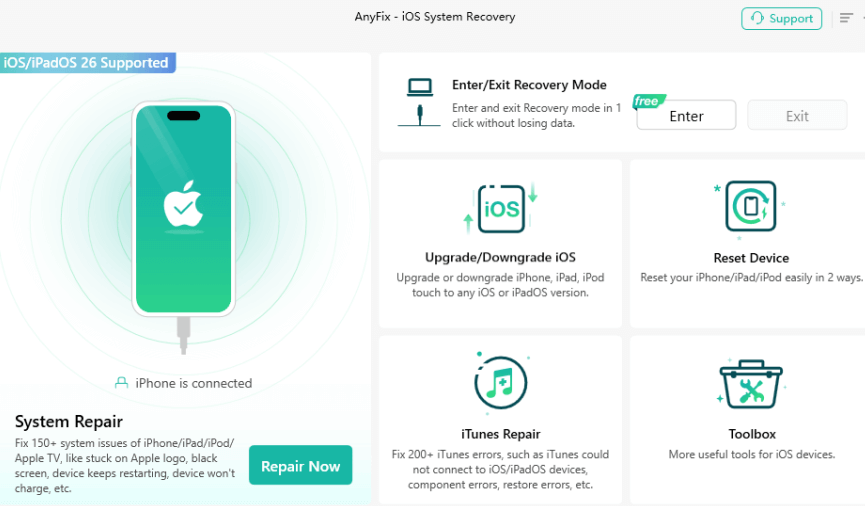
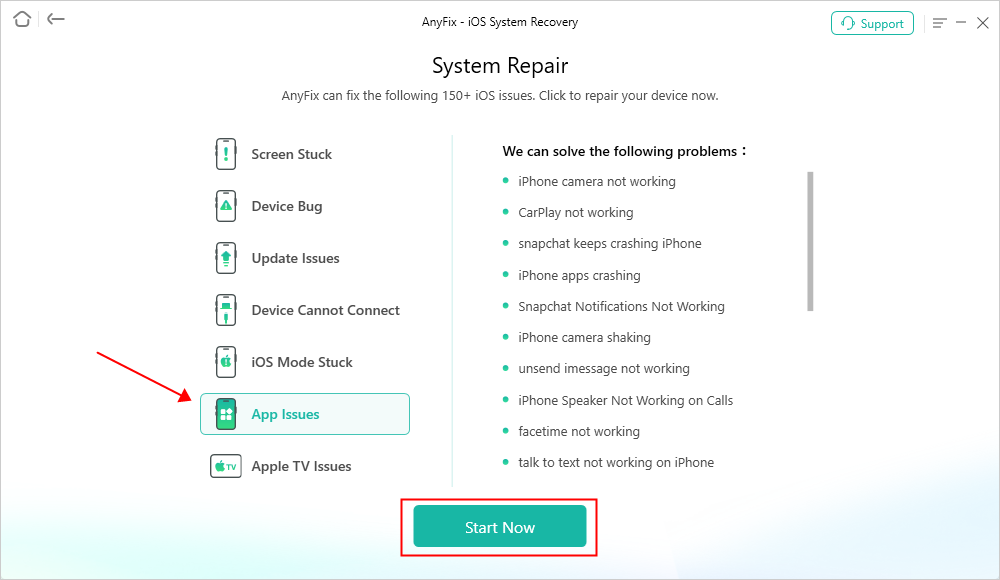
Step 2. Upon detecting your device, choose the corresponding issue and hit the “Start Now” button.
Step 3. Once you see a new screen, select “Standard Repair” mode.

Step 4. Wait until the process finishes. After that, your iPhone will restart, and the issue will be fixed.

FAQs about Instagram Story Stuck Uploading
Q1. How do I cancel an Instagram Story that won’t upload?
To cancel an Instagram Story that won’t upload, open the upload interface carefully. Tap the Story’s upload indicator and choose “Cancel Upload” or “Discard Post” to stop it instantly.
Q2. Why is my Instagram post stuck uploading on my iPhone?
Your Instagram post may get stuck uploading to your phone due to an unstable or weak internet connection. Temporary data can also cause glitches and slowdowns, blocking upload attempts.
Q3. How do I delete an Instagram Story that is uploading?
While the upload is in progress, open Control Center and turn on Airplane Mode. When Instagram shows an upload error, choose Discard or Remove to delete the stuck Story.
Conclusion
In conclusion, this article has explored 9 quick and easy ways to resolve the Instagram story stuck uploading issue. Yet, you may notice that the standard solution may not fix the problem. In this situation, a reliable iOS sytem repair tool becomes essential for such a persistent issue. AnyFix is highly recommended for repairing iOS system problems and preventing uploads. Download and use AnyFix today to ensure smooth Instagram story uploads.
Free Download * 100% Clean & Safe



Joy Taylor is a seasoned technical writer with over a decade of experience in mobile technology. At iMobie, she specializes in producing in-depth content on iOS data recovery, iPhone unlocking solutions, and iOS troubleshooting.
Product-related questions? Contact Our Support Team to Get Quick Solution >
