Blurred Location on Zenly: What It Really Means
Confused by a blurred location on Zenly? This tested guide explains how to figure out whether your friend has enabled Ghost Mode or if it’s simply a technical glitch. Get clear, straightforward answers and understand exactly what’s going on.
Seeing a blurred location on Zenly can immediately make users wonder:
- Is my friend hiding their location?
- Does a blurred location mean Ghost Mode?
- Or is Zenly simply having GPS problems?
In most cases, the answer depends on one important detail: whether the blurred circle includes a question mark icon. After testing Zenly across multiple iPhone and Android devices under weak GPS, battery saver, and restricted permission conditions, we found that:
- A blurred location without a question mark usually means intentional privacy settings.
- A blurred location with a question mark usually indicates a GPS or network issue.
This guide explains exactly how to tell the difference and how to fix Zenly location accuracy problems step by step.

Table of ContentsHide
How to Tell Whether a Zenly Blurred Location Is Intentional
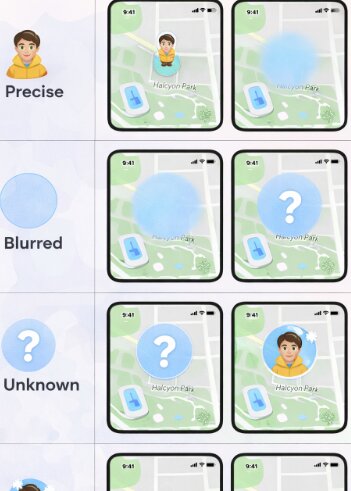
When you encounter a zenly fuzzy location, the first step is to determine the cause. The app provides distinct visual cues to help you differentiate between a deliberate privacy choice made by the user and a technical limitation affecting their device. The key distinction is the presence of a question mark icon.
By comparing what you see on the map to the information in this table, you can quickly diagnose why a friend’s location isn’t precise. This is the key to understanding whether you’re seeing an intentional privacy setting, like Zenly Ghost Mode, or a technical factor like a weak GPS signal.
| What You See on the Map | Most Likely Cause | What It Means for You |
| Precise Avatar on Map | Normal Operation | The user’s device is reporting an accurate, real-time location with a strong signal. |
| Blue, Transparent Circle (Blurred) | Intentional Privacy Setting | The user has enabled ‘Blurred’ in their Ghost Mode settings. They are somewhere within that general area. |
| Blue, Transparent Circle + Question Mark (?) | Technical Issue | The app has low confidence in the location data due to poor GPS, network issues, or device settings. |
| Static Location + Snowflake Icon (❄️) | Intentional Privacy Setting | The user has enabled ‘Frozen’ in Ghost Mode. Their location is fixed at the last precise point reported. |
Does Blurred Location Mean Someone Is Hiding Their Location?
Usually, yes — but not always. If the blurred circle appears without a question mark icon, the user likely enabled Zenly Ghost Mode with the “Blurred” privacy option.
If the blurred location includes a question mark icon, Zenly is usually struggling with weak GPS, low battery mode, poor signal, or restricted location permissions.
Common Misunderstandings About Zenly Blurred Location
- Blurred location does not always mean someone is hiding from you.
- A question mark icon usually means technical problems, not Ghost Mode.
- Low Power Mode can reduce Zenly GPS accuracy significantly.
- Background app restrictions frequently cause delayed location updates.
Why Is My Friend’s Zenly Location Blurred? Unpacking Technical Reasons
If you see a blurred circle with a question mark, the Zenly location blur meaning almost always points to a technical factor, not a deliberate privacy setting. Think of it this way: Zenly won’t show you a sharp, precise pin if it’s not sure about the location. If its data is weak, it would rather show you a fuzzy “general area” than lie to you with a pinpoint that’s actually wrong. This is a user-friendly design choice to avoid being misleading.
Several technical issues can lower this confidence and trigger a blur with a question mark:
- Weak GPS Signal: This is the most frequent cause. If your friend is deep inside a large building, in a dense urban canyon with tall buildings, or underground in a subway, their device may have a GPS signal weak enough to prevent an accurate fix. The app defaults to showing a wider, blurred area to represent the general vicinity.
- Active Battery Saver Mode: Low battery can indirectly cause a Zenly blurred location. When a device’s Battery Saver (Android) or Low Power Mode (iOS) is active, it aggressively limits background processes, including frequent GPS checks. This forces Zenly to rely on less accurate network-based location data (from cell towers or Wi-Fi), which results in a less precise, often blurred, location pin.
- Restrictive Location Permissions: Both iOS and Android offer granular location permissions. For Zenly to work correctly, it needs two things: “Always” or “Allow all the time” access and “Precise Location” enabled. If a user restricts background location access or disables the precise setting, the app cannot update its position consistently when not actively open, leading to outdated data that Zenly displays as blurred.
A Guide to Zenly Ghost Mode and Your Privacy Settings
Many users searching “Zenly blurred location” are actually trying to figure out whether someone intentionally limited their visibility.
In Zenly, this is controlled through Ghost Mode privacy settings.
- Precise: This is the default setting. Your exact, real-time location is shared with chosen friends.
- Blurred: This option intentionally displays your location within an imprecise radius of your actual position. Based on our testing, this radius appears to be random and can range anywhere from 500 meters to over 2 kilometers. It’s a great way to tell friends you’re in the general neighborhood without revealing your exact address or business you’re visiting. This is the intentionally blurred location Zenly setting.
- Frozen: This freezes your visible location at your last live position before you enabled the mode. Your friends will continue to see you at that spot, often with a small snowflake icon (❄️), until you disable it.
So, is a blurred location the same as Ghost Mode? Not quite. “Blurred” is one of the privacy options available within Ghost Mode.
How to Manage Your Zenly Location Accuracy: A Step-by-Step Guide
Whether you want to improve your own Zenly GPS accuracy so friends can find you, or intentionally blur your location for privacy, you have full control through your device and app settings. Here are the procedures for both iOS and Android to manage your location visibility.
For iOS (iPhone) Users
1. Check Location Permissions: Navigate to Settings > Privacy & Security > Location Services. Find Zenly in the list and ensure it is set to Always and that Precise Location is toggled on.
2. Enable Background App Refresh: Go to Settings > General > Background App Refresh. Confirm the main setting is on for “Wi-Fi & Cellular Data” and that the toggle for Zenly is enabled.
3. Disable Low Power Mode: This mode can severely limit background activity. You can disable it in Settings > Battery.
4. Set Ghost Mode in Zenly: Open the app, tap your profile icon, and select the Ghost icon (👻). Here, you can choose ‘Precise’, ‘Blurred’, or ‘Frozen’ for individual friends or for everyone at once.
For Android Users
1. Check Location Permissions: Go to Settings > Location > App permissions. Select Zenly and choose Allow all the time. Make sure the “Use precise location” switch is also turned on.
2. Adjust Battery Settings: Navigate to Settings > Apps > Zenly > Battery. Select the Unrestricted option. This prevents the Android system from putting the app to sleep or limiting its background activity to save power.
3. Disable Battery Saver: Turn off the system-wide Battery Saver mode. This is typically found in the quick settings panel (swipe down from the top) or within Settings > Battery.
4. Set Ghost Mode in Zenly: The process is identical to iOS. Open the Zenly app, go to your profile, tap the Ghost icon, and configure your privacy preferences.
Expert Insight: A Note for Samsung & Other Android Users
Many Android manufacturers, especially Samsung, have an additional, aggressive battery management system (often called “Device Care” or “Adaptive Battery”). Even if you set Zenly’s battery usage to “Unrestricted” in the app settings, this system can still put the app to sleep.
If your location is frequently inaccurate, search your phone’s Settings for “Sleeping apps” or “Deep sleeping apps” and ensure Zenly is not on this list. This hidden extra step is often the key to fixing persistent location issues on these devices.
App interfaces and OS settings change over time. This guide is periodically reviewed and updated to reflect the latest versions of the Zenly app and operating systems.
When You Need More Control Than Ghost Mode
Zenly’s Ghost Mode helps users decide how much of their real location they want to share, but it still works within the app’s own privacy settings. If you want more flexible control over your device-level GPS location, Fonelora Location Changer can be a helpful option.
Fonelora Location Changer lets users change GPS location on iPhone and Android without jailbreak or root, and it now supports the latest iOS 27 system. With teleport mode, route simulation, and GPS joystick control, it gives users more ways to manage virtual location for privacy, app testing, or location-based scenarios.
For Zenly users, this can be especially useful when you want to better understand how GPS accuracy works, test location behavior, or add more flexibility beyond built-in app settings. However, Ghost Mode and Zenly privacy options should still be managed directly inside the app.

Frequently Asked Questions About Zenly’s Blurred Location
Here are clear, concise answers to the most common questions about the zenly blurred location feature.
Q1. What does blurred location mean on Zenly?
A blurred location means Zenly cannot show an exact real-time position. This usually happens because the user enabled Ghost Mode or because the app has weak GPS data.
Q2. Is someone hiding their location when it’s blurred?
They might be. If you see a simple blue transparent circle, the user has likely enabled the ‘Blurred’ privacy setting. If you see that same circle accompanied by a question mark icon (?), it is almost certainly a technical problem and not an intentional act of hiding their location.
Q3. Does Zenly blur location on purpose?
Yes, in two ways. First, a user can purposefully choose to blur their own location using Ghost Mode for privacy. Second, the app is designed to show a blurred location when it has low confidence in the GPS data. This is a deliberate design choice to avoid showing you an inaccurate but seemingly precise location.
Q4. How can I fix a blurred location on Zenly?
If your own location appears blurred to friends, start by checking your device settings. Ensure Zenly has “Precise Location” and “Always” or “Allow all the time” access. Next, disable any active Battery Saver or Low Power Mode and confirm Background App Refresh is enabled for Zenly. For Android users, check for additional battery-saving features like “Sleeping apps” that may be restricting Zenly.
Q5. Is blurred location the same as ghost mode?
No. ‘Ghost Mode’ is the name of Zenly’s suite of privacy features. ‘Blurred Location’ is one of the three settings within Ghost Mode, alongside ‘Precise’ and ‘Frozen’.
Q6. Can low battery cause Zenly to blur location?
Yes, indirectly. A low battery often leads users to enable Battery Saver or Low Power Mode. These modes restrict background app activity, including the frequent GPS updates needed for high Zenly location accuracy, which can cause a location to appear blurred with a question mark.
Q7. Do location permissions affect Zenly accuracy?
Absolutely. For the highest possible accuracy, Zenly requires “Always” access to location services and for “Precise Location” to be enabled. Without these critical location permissions, the app cannot get a strong signal fix or update frequently, especially when it’s running in the background.
Conclusion: Understand the Map, Regain Your Confidence
A blurred location on Zenly usually means either Ghost Mode is enabled or GPS accuracy is being affected by permissions, signal strength, or battery settings. Once you identify the cause, you can adjust Zenly’s privacy settings or device location permissions more confidently.
For greater flexibility over your virtual GPS location, try Fonelora Location Changer and take more control of how your location appears across location-based apps.
More Related Articles



Joy Taylor is a seasoned technical writer with over a decade of experience in mobile technology. At iMobie, she specializes in producing in-depth content on iOS data recovery, iPhone unlocking solutions, and iOS troubleshooting.
Product-related questions? Contact Our Support Team to Get Quick Solution >
