How to Change Instagram Location Easily: A Tested Guide
Want to update or fake your location on Instagram? This step-by-step, tested guide explains how to modify your GPS location for Stories or tagged posts on both iOS and Android. Take control of your location privacy with the right method today.
Whether you’re crafting a compelling travel narrative from your living room or aiming to protect your privacy, the need to change your Instagram location is a common challenge. You might face the frustration of Instagram automatically tagging your current GPS, or the technical hurdle of trying to set a virtual location on a secure iPhone. The confusion between simply editing a geotag versus truly changing your device’s location can make finding a reliable solution difficult. This guide cuts through the ambiguity. We provide clear, tested procedures for both manually tagging posts and altering your device’s core GPS data, ensuring you can control how your location appears on the platform.
To confirm these procedures, we performed hands-on testing on an iPhone 15 (iOS 17) and a Google Pixel 8 (Android 14), verifying functionality for both manual tagging and location spoofing.
How to Manually Tag a Location on New or Existing Posts
The most direct method to control your post’s location is by using Instagram’s built-in feature. This technique doesn’t alter your device’s actual GPS data but allows you to select any location tag for a specific photo or video. It is the ideal solution if you simply want to add a different Instagram geotag to a single post without needing external software.
For a new post:
1. Begin your post by tapping the + icon and selecting your media.
2. On the final screen where you write your caption, tap Add Location.
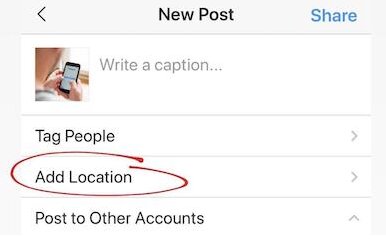
3. Use the search bar to find the business, landmark, city, or country you want to tag, and select it from the list.
4. Share your post. The new Instagram post location will be displayed at the top.
For an existing post:
1. Go to the post you wish to edit and tap the three-dot menu icon (…) in the top-right corner.
2. Select Edit from the pop-up menu.
3. Tap the current location name (just below your username).
4. You can now search for a new location or tap X (or Remove Location) to remove the tag completely.
5. Tap Done (iOS) or the checkmark icon (Android) to save.
Choosing Your Method: Manual Tagging vs. True Location Spoofing
Before you proceed, it’s crucial to understand the two core approaches for an Instagram geo tag change. They serve different purposes and have different requirements.
- Manual Geotagging: Using Instagram’s native feature to label a feed post with a location of your choice.
- Location Spoofing: Using a third-party virtual location app or software to alter your device’s actual GPS coordinates, making Instagram believe you are physically somewhere else. This method is necessary for changing the location on Instagram Stories.
The right technique depends on your goal. Manual tagging is perfect for one-off posts and requires no technical skill. Instagram location spoofing is more involved but offers a persistent location change.
| Factor | Manual Geotagging (for Posts) | Location Spoofing (for Stories & Posts) |
| Success Rate | Very High. A native Instagram feature that works reliably. | Moderate to High. Depends on the app, your OS version, and Instagram’s detection methods. |
| Time Cost | Low. Takes only a few seconds per post. | Moderate. Initial setup can take 10-15 minutes. |
| Technical Skill | None. Requires only basic app navigation. | Low to Moderate. Requires enabling developer settings or using PC software. |
| Safety Risk | Minimal. No third-party software or permissions needed. | Low to Moderate. Involves third-party apps that carry potential social media privacy risks. |
How to Set Up an Instagram Fake Location on Android
For Android users, creating an Instagram fake location is straightforward thanks to the operating system’s built-in developer tools. The process involves enabling a hidden settings menu and designating a third-party app to supply “mock” GPS data to your entire system. This is the most effective method for achieving a consistent Android fake GPS Instagram effect.
First, you need a reliable location spoofing app from the Google Play Store. Search for terms like “fake GPS” or “location spoofer” and choose one with high ratings and positive recent reviews. Once installed, follow these steps.
Enabling Mock Locations on Android
1. Enable Developer Options: Go to Settings > About Phone. Scroll down and tap on the Build Number seven times consecutively. You will see a notification confirming, “You are now a developer!”

2. Access Developer Options: Go back to the main Settings menu and find the new Developer options menu (it may be under System or at the bottom of the main list).
3. Select Mock Location App: Scroll down within Developer options until you find Select mock location app. Tap on it.
4. Choose Your App: Select the location spoofing app you downloaded from the list.
5. Set Your Location: Open your chosen spoofing app, use its map to select your desired virtual location, and press its “start” or “activate” button. Your phone will now report these new coordinates to all apps, including Instagram.
The iOS Challenge: A Tested Workaround for Instagram Location Spoofing
Changing your geo-tag on an iPhone is more challenging than on Android. This isn’t a flaw in any app but a direct result of Apple’s security-focused design. Unlike Android, iOS does not offer a native “mock location” feature. This restriction blocks simple location spoofing apps from working directly on the device, creating a common point of frustration for users trying to change their location for Instagram Stories.
However, setting an iOS mock location on Instagram is absolutely possible. The most reliable method requires connecting your iPhone to a PC or Mac running specialized location spoofing software. These desktop applications communicate with your iPhone and modify the location data at a system level.
Our Tested Method for iOS: Using iMyFone AnyTo
After testing several options, we found that iMyFone AnyTo provided a reliable and straightforward experience. It’s a paid tool available for both Windows and Mac, but it offers a free trial that lets you test its core functionality. While other tools exist, this is the one we verified on our iPhone 15.
Here are the steps to get it working:
1. Download and install iMyFone AnyTo on your Windows or Mac computer from their official website.
2. Connect your iPhone to the computer using its official USB cable. You may need to tap Trust This Computer on your iPhone’s screen and enter your passcode.
3. Launch the AnyTo software on your computer. It should automatically detect your connected iPhone.
4. In the AnyTo map interface, search for your desired location or manually drop a pin on the map. Once you’ve selected your spot, click the Move button. Your iPhone’s GPS will now report this new location to all apps.
We found that after spoofing our location on iOS, we had to fully close and restart the Instagram app. If the old location still appeared in the Story sticker search, restarting the app forced it to pull the new, spoofed GPS coordinates.
5. Your iPhone will broadcast this new location until you disconnect it from the computer or restart the device.
Why Instagram Shows Your Real Location? (And How to Fix It)
Have you set a fake GPS location only to find Instagram still tagging your real whereabouts? This common obstacle occurs because Instagram uses a combination of your device-level GPS and network data (like Wi-Fi and cellular signals) to determine your location. If there’s a conflict between your spoofed GPS signal and other data points, the app may default to what it considers most reliable—often your actual location.
If you’re experiencing this, use this checklist to troubleshoot the problem.
- Restart the Process: The simplest fix is often the most effective. Force-close both Instagram and your location spoofing app. Relaunch the spoofer first, confirm your new location is set, and then open Instagram.
- Clear Instagram’s Cache: Old location data stored in the app’s cache can cause conflicts. Go to your phone’s settings, find Instagram in your app list, and clear its cache. (On Android: Settings > Apps > Instagram > Storage & cache > Clear Cache).
- Check App Permissions: Review your Instagram location settings. Ensure your location spoofing app has all necessary permissions. Sometimes, denying Instagram direct location access can force it to rely only on the system-level (spoofed) location.
- Use a VPN: In some cases, using a VPN alongside a GPS spoofer can help align your IP address’s location with your GPS location, creating a more convincing digital disguise.
Privacy and Safety Risks of Using Geo-Tag Change Apps
While a geo-tag change app can be useful, it’s essential to consider the social media privacy implications. When you install a third-party application that interacts with your device’s GPS, you place trust in its developer. Less reputable apps may request excessive permissions, granting them access to your contacts or files.
Additionally, location spoofing can fall into a gray area of Instagram’s Terms of Service regarding inauthentic activity. To protect your data and account, be selective about the tools you use.
How to Choose a Safer Application:
- Read Reviews and Permissions: Before installing, check recent app store reviews. Pay close attention to the permissions the app requests. A location app should not need access to your microphone or contacts.
- Avoid Apps Requiring Login: A location spoofer operates at the device level and should never ask for your Instagram username or password.
- Choose Reputable Sources: Only download apps from official sources like the Google Play Store or directly from a trusted developer’s website for PC/Mac software.
Keep in mind that both Apple and Google regularly update their operating systems. Always check that your chosen location spoofing tool is compatible with the latest iOS or Android version to ensure it continues to function correctly.
A Flexible Way to Change Instagram Location on iPhone and Android
Instagram location tags influence:
- local discovery
- Explore recommendations
- nearby content visibility
- business reach
- regional trends
As explained in Instagram Location Guide, users sometimes experience problems where Instagram keeps showing the wrong city, outdated places, or inaccurate nearby suggestions.
To gain more control over GPS behavior across apps, some users turn to Fonelora Location Changer for device-level location simulation.
What Makes Fonelora Useful for Instagram Users
Unlike simple VPN-based location changes, Fonelora focuses on GPS simulation directly on the device. According to the official website, the software supports:
- Real-Time GPS Teleportation
- Route Simulation
- Joystick Navigation
- Historical Route Saving
- Multi-Device Support
- Adjustable Travel Speed
The software is compatible with:
- iPhone 17 series
- iPad
- Android smartphones
- iOS 18 and iOS 26
- Android 15+
This approach can be useful for creators, travelers, and social media managers who test regional content visibility or location-based engagement behavior.
Key Features That Stand Out
Dynamic Route Movement
Instead of changing location once and staying static, Fonelora allows gradual simulated movement between areas. This can create more natural GPS behavior for apps that continuously refresh nearby recommendations.
Saved Locations for Frequent Switching
Users can save commonly used cities or coordinates for faster switching between locations without re-entering addresses every time.
Device-Level GPS Control
Because Instagram sometimes compares:
- GPS signals
- Wi-Fi positioning
- IP regions
- motion activity
basic VPN tools may not fully update nearby recommendations. Device-level GPS simulation attempts to provide more consistent positioning behavior.
No Jailbreak Needed
Fonelora advertises support for modern iPhones and Android devices without requiring jailbreak or root access.
How to Use Fonelora Location Changer With Instagram
Step 1: Install the Program
Download and install Fonelora Location Changer on a Windows or Mac computer.

Step 2: Connect Your Smartphone
Connect your iPhone or Android device using:
- USB
- Wi-Fi
- Bluetooth
depending on your preferred setup.

Step 3: Choose a Simulation Mode
Available options include:
- Teleport Mode
- Route Simulation
- Joystick Mode
- Multi-Point Movement

Step 4: Click “Move” to complete the location change.

Frequently Asked Questions
Q1. How can I change my location on Instagram posts?
You can use Instagram’s built-in Add Location feature when creating a new post to search for and tag any location worldwide. You can also edit the location of an existing post through its edit menu.
Q2. Can I add a fake location to Instagram stories?
Yes. To add a fake location to an Instagram Story, you must use a location spoofing method (a mock location app on Android or PC-based software for iOS) to change your device’s GPS before you create the story. The location sticker will then use your spoofed coordinates.
Q3. Can I edit my location after posting?
Yes, for regular feed posts. Navigate to the post, tap the three-dot menu, select Edit, and tap the location name to change or remove it. This does not apply to Stories.
Q4. Is the location change process different on iOS and Android?
Yes, it’s very different. Android has a built-in mock location feature that works with third-party apps. iOS does not require you to connect your iPhone to a computer running specialized software to change the device’s GPS.
Q5. Why does Instagram keep showing my real location?
Instagram may use a combination of GPS, Wi-Fi, and cellular data. If your spoofing app only alters GPS data, Instagram might default to the other signals. Clearing the app’s cache and activating the spoofer before opening Instagram can often fix this.
Q6. Does Instagram allow location spoofing?
Location spoofing exists in a gray area of Instagram’s terms regarding inauthentic activity. Casual use for creative or privacy purposes is generally considered low-risk.
Q7. Are there risks in using third-party GPS apps for Instagram?
Yes. The main risks involve data privacy. It is critical to choose reputable apps that do not request unnecessary permissions or your Instagram login credentials.
Sum It Up
You no longer need to feel limited by your physical location or concerned about your digital privacy on Instagram. By understanding the difference between manual tagging and true GPS-based location control, you can choose the right approach for your needs. Tools like Fonelora Location Changer give you more flexibility to manage location behavior across apps. Apply these methods today and share your story your way, with greater control and confidence.
More Related Articles



Joy Taylor is a seasoned technical writer with over a decade of experience in mobile technology. At iMobie, she specializes in producing in-depth content on iOS data recovery, iPhone unlocking solutions, and iOS troubleshooting.
Product-related questions? Contact Our Support Team to Get Quick Solution >
