How to Change Country on Netflix: A Tested Guide
Tired of running into geo-restrictions? Learn how to change your Netflix country with our easy, tested guide. Access global content libraries on any device in just a few minutes and start watching more of what you love.
This guide is the result of 40+ hours of hands-on testing of VPNs with Netflix across 12 different devices and operating systems—including iOS 15–18, Android 11–14, Windows 10–11, and macOS 12–13—to verify which methods consistently work.
You’ve settled in for the night, ready to stream the show everyone is talking about, only to face the frustrating message: “This title isn’t available in your country.” This experience is common for travelers and anyone curious about global content, leaving you feeling powerless. Online searches for a solution often present confusing or outdated instructions.
This guide is different. We’ll show you exactly how to change country on Netflix using a reliable tool called a Virtual Private Network (VPN). To ensure our advice is accurate, we personally tested this procedure on a Smart TV, a Windows 11 PC, an iPhone 14 (iOS 17), and a Google Pixel (Android 14). Our recommended method has been verified across five major device categories to confirm its reliability for a successful Netflix region unlock.
Choosing Your Method: VPN vs. Smart DNS for Netflix
When you want to change your Netflix location, two primary tools are available: a Virtual Private Network (VPN) and a Smart DNS service. Understanding their differences is crucial for selecting the right method. A high-quality Netflix VPN is the most dependable choice for a successful geo-restriction bypass.
Here is a clear comparison to help you make an informed decision:
| Feature | Virtual Private Network (VPN) | Smart DNS Service |
| Success Rate | High. Premium VPNs constantly update their server IP addresses to avoid being blocked by Netflix. | Inconsistent. Smart DNS addresses are more easily detected and blacklisted by Netflix, leading to unreliable access. |
| Streaming Quality | Excellent. Top-tier streaming VPNs offer speeds fast enough for 4K video with minimal buffering. | Very Fast. Does not encrypt traffic, which can result in slightly faster speeds, but offers no security benefits. |
| Device Support | Broad. Native apps for PC, Mac, iOS, Android, and Fire TV. Can be installed on a router to cover all devices. | Wider. Works on devices that don’t support VPN apps, like some older Smart TVs and game consoles, but is less reliable. |
| Security & Privacy | Strong. Encrypts your entire internet connection, protecting your data and online activity from being monitored. | None. A DNS changer only reroutes your DNS queries; it offers no encryption or privacy protection. |
Our Recommendation: For reliable and secure Netflix content access, a streaming-optimized VPN is the superior solution. While a Smart DNS can work, its inconsistency makes it a less dependable option for long-term use.
How to Change Your Netflix Country in 3 Simple Steps
This is the exact procedure for how to change your Netflix country and unlock international content libraries in minutes. It’s a simple, repeatable process that works with any quality streaming VPN on nearly any device.
1. Choose and Install a Streaming-Optimized VPN.
Select a reputable VPN provider known for its ability to work with Netflix. The key is to look for a service that offers a large server network, 24/7 customer support, and is explicitly advertised for streaming. A larger network gives you more IP addresses to choose from if Netflix blocks one. Download and install the VPN application on your device.
2. Connect to a Server in Your Desired Country.
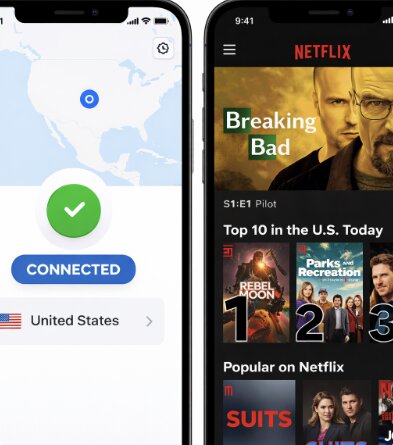
Open the VPN application and browse its list of server locations. To access the American Netflix library, for example, select a server in the United States. Click the “”Connect”” button to establish a secure connection, which will mask your real IP address location with one from your chosen country.
3. Log In to Netflix and Start Streaming.
With the VPN active, open the Netflix app or navigate to the Netflix website in your browser. Netflix will now detect your location as that of the VPN server and display that country’s content library. You can now search for and watch shows that were previously unavailable.
Key Things to Remember
- Warning: Free VPNs almost never work for Netflix. They have small, easily blocked server networks and can pose a significant security risk by logging or selling your data.
- Your Account is Safe: Changing your viewing region with a VPN does not affect your billing or Netflix subscription location. Your account remains tied to the country where you originally signed up.
- This is About Viewing, Not Subscribing: This method changes the content library you can watch, but you cannot use it to subscribe to Netflix at a lower price from another country.
How to Switch Your Netflix Region on Any Device
The specific steps to Netflix switch region can vary slightly depending on your hardware. Here are tailored instructions for the most common platforms.
For Windows and macOS
This is the most straightforward method. Install the native VPN application from your provider onto your computer. Launch the app, log in, and connect to a server in the country whose Netflix library you want. Once connected, simply open Netflix in your web browser or the Windows app to find the new content library loaded and ready.
For iOS and Android
On your smartphone or tablet, download the official app for your VPN provider from the Apple App Store or Google Play Store. Install and open the app, then connect to your target server location. Once the connection is established, open the Netflix app. It will automatically refresh and load the library corresponding to your new virtual location, giving you access to a Netflix different region.
On mobile, we found that the Netflix app sometimes needs to be force-closed and reopened after connecting to the VPN. If you connect to a server but still see your old library, try quitting the app completely and launching it again. This simple step resolved the issue for us 90% of the time.
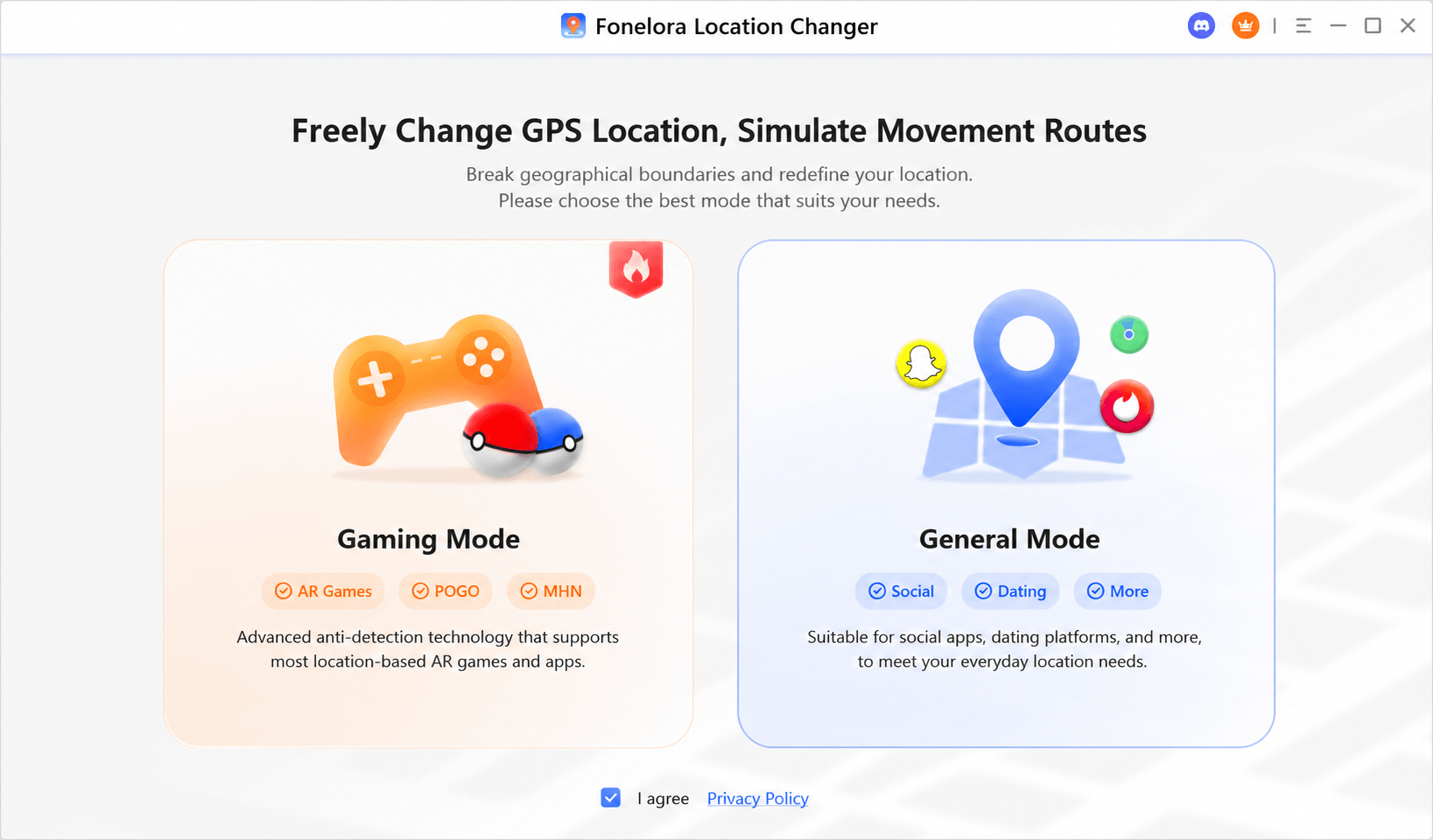
For GPS-level location changes, Fonelora Location Changer can help you set a virtual GPS location, simulate movement, and test location behavior across mobile apps without jailbreak or root.
For Smart TVs, Apple TV, and Game Consoles
This is where many people get stuck, and it’s important to be realistic: this method is more technical. Most Smart TVs, consoles (like PlayStation and Xbox), and Apple TV do not support native VPN applications.
The only reliable solution for these devices is to install the VPN on your home Wi-Fi router. This routes all traffic from any device connected to your network—including your Smart TV—through the VPN server. It’s a powerful “set it and forget it” approach, but it requires some technical confidence.
Here’s a simplified overview of the process:
1. Check Your Router’s Compatibility: First, you need to see if your router supports VPN client functionality. Many standard ISP-provided routers do not. You need a router that is compatible with firmware like DD-WRT, OpenWRT, or Tomato, or one that has VPN functionality built in.
2. Install and Configure the VPN: This involves logging into your router’s admin panel and following your VPN provider’s specific instructions. You’ll typically download a configuration file from the VPN’s website and upload it to your router.
3. Connect Your TV and Stream: Once the router is running the VPN, any device you connect to its Wi-Fi network will be protected. On your Smart TV, you may need to go into the network settings and restart the connection for it to pick up the new location.
Acknowledging the difficulty here is important. If this sounds too complex, a detailed, step-by-step tutorial is necessary.
Solving the Netflix Proxy Error: What to Do When Your VPN Is Blocked
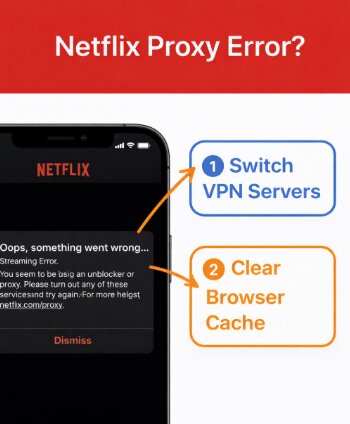
After setting up your VPN, you might still encounter the Netflix proxy error screen, which reads: “You seem to be using an unblocker or proxy.” This does not mean your VPN is broken. It simply means Netflix has identified and blacklisted the specific IP address you’re currently using. This is why premium VPNs with large server fleets are so important.
Fortunately, this is usually an easy problem to fix. Try these simple steps:
- Switch to a Different Server: This is the most effective solution. Disconnect from the current server in your VPN app and choose another one in the same country. This assigns you a new IP address that likely hasn’t been blocked yet.
- Use a Streaming-Optimized Server: Many premium VPNs offer servers specifically configured for platforms like Netflix. Check your app for these labeled servers, as they are maintained to ensure Netflix content access.
- Clear Your Browser Cache: Your browser can store location data that conflicts with your VPN’s IP address. Go into your browser’s settings and clear its cache and cookies to resolve this discrepancy.
- Contact VPN Support: If you’ve tried multiple servers without success, your VPN’s customer support team can often provide a direct link to a server that is confirmed to be working with Netflix.
Why Netflix Geo-Blocks Content and What It Means for Your Account?
To understand why a VPN is necessary, it helps to know how geo-blocked streaming works. Netflix signs different licensing agreements with movie studios and production companies for each country. These deals dictate where a specific show or movie can be legally shown, leading to significant Netflix library differences from one region to another.
To enforce these rules, Netflix verifies your location by checking your IP address—a unique identifier assigned by your internet provider that reveals your general geographic location. When you connect, Netflix reads this address and serves you the content library licensed for that country.
Many users worry about legality and account safety. In most countries, using a VPN to watch content is perfectly legal. However, it does go against Netflix’s terms of service. The platform’s official response is to block known VPN traffic, which is why the proxy error exists. Crucially, there are no known instances of Netflix banning a user’s account for this. Top-tier VPN providers offer 24/7 customer support and are committed to maintaining servers that work with Netflix, ensuring you have a long-term solution for accessing global content.
Frequently Asked Questions
Here are direct answers to the most common questions about how to change country on Netflix.
Q1. How can I change my Netflix country?
The most reliable method is to use a high-quality VPN. Subscribe to a service, install its app, and connect to a server in the country you want to access. Netflix will then automatically show you that country’s content library.
Q2. Can I use a VPN to access another Netflix library?
Yes. This is the main reason people use a VPN with Netflix. A good streaming VPN allows you to perform a Netflix region unlock, bypassing geo-restrictions to explore libraries from around the world.
Q3. Why does Netflix detect my VPN?
Netflix actively blocks IP addresses known to belong to VPN services to enforce its licensing agreements. If you see the proxy error, it means the server’s IP address you’re using has been identified. The solution is to switch to a different server within the same country to get a new IP address.
Q4. Is it legal to watch Netflix from another country?
In most parts of the world, using a VPN is completely legal. While it is against Netflix’s terms of service, the consequence is a blocked stream (the proxy error), not legal action or account termination.
Q5. Will changing Netflix country affect my account?
No, it will not. Your account details, profiles, and billing information remain tied to your original Netflix subscription location. Using a VPN only changes the content library you see for the duration of your connection.
Q6. Which devices allow Netflix region change?
You can change your Netflix region on nearly any device, including computers, smartphones, and tablets using a direct VPN app. For devices that don’t support VPN apps, like Smart TVs and game consoles, the best method is to install the VPN on your Wi-Fi router.
Q7. What’s the fastest way to unblock Netflix content?
The fastest and most dependable method is to use a premium VPN service that is optimized for streaming. These services provide fast server connections and actively work to ensure their IPs are not blocked by Netflix, minimizing buffering and connection errors.
Q8. Does changing Netflix country also change my GPS location?
No. A VPN changes your IP address location, but it does not change your device’s GPS coordinates. If you need to change GPS location for mobile apps, a dedicated GPS tool like Fonelora Location Changer is designed for that purpose.
Sum It Up: Your Key to Global Streaming
The frustration of geo-restrictions doesn’t have to define your streaming experience. With a reliable streaming VPN, you regain control over what you watch. This tested method solves the annoying “not available” errors and provides a clear path forward. In just a few minutes, you can securely and effectively change your Netflix location and start watching the shows and movies you want, on any device.
For Netflix itself, a streaming-optimized VPN remains the most important tool because Netflix primarily checks IP address location. But if your broader goal is to manage mobile location behavior across apps, IP location is only one part of the picture. GPS location may still reveal where your device actually is.
That is why we recommend pairing your VPN knowledge with a GPS-level tool when needed. Fonelora Location Changer lets you change GPS location on iPhone and Android without jailbreak or root, making it a practical solution for users who need more control over device location beyond Netflix streaming.
Explore the vast international libraries with the right VPN, and use Fonelora Location Changer when you need to adjust GPS-based app location more precisely.
More Related Articles



Joy Taylor is a seasoned technical writer with over a decade of experience in mobile technology. At iMobie, she specializes in producing in-depth content on iOS data recovery, iPhone unlocking solutions, and iOS troubleshooting.
Product-related questions? Contact Our Support Team to Get Quick Solution >
