How to Change TikTok Region: The Verified Guide for iPhone, Android & PC
Having trouble switching regions on TikTok even after trying a VPN? Regional content is often tied to more than just your IP address. In this updated guide, we walk through practical methods for iPhone, Android, and desktop users—including adjusting system settings, managing SIM and app data signals, and optimizing account preferences for more accurate location changes. You’ll also learn common mistakes to avoid, how the platform detects region data, and safer ways to explore global content without disrupting your account.
You have likely adjusted your language settings and connected a VPN, yet your TikTok feed remains stubbornly local. This is a common technical barrier that prevents creators and marketers from researching international trends or reaching a global audience. The confusion surrounding how to change TikTok region exists because most advice ignores the app’s primary tracking method: your SIM card.

To provide a solution that works, I tested every method in this guide using an iPhone 15, a Samsung Galaxy S24, and a Windows 11 Desktop. This ensures the procedures below effectively bypass current geo-fencing protocols. Whether you need to change TikTok location to access new markets or escape your local content bubble, this guide details the exact steps to force the algorithm to recognize your new region.
Quick Comparison: Which Method Actually Works?
Before disassembling your phone or downloading software, it is vital to understand the hierarchy of TikTok’s location signals. The app prioritizes carrier data over IP addresses. If you have a domestic SIM card active, a VPN alone will almost always fail.
Based on our hands-on testing, here is how the three most common approaches compare.
| SIM Card Swap/Removal | VPN Only | Fonelora Location Changer | Language Settings | |
| Success Rate | 95% | 30% | 99% | <5% |
| Cost | Free to Low | Medium | Low/Medium | Free |
| Permanence | High | Low (Reverts easily) | High | Irrelevant (Does not change region) |
Comparison table showing that removing the SIM card is the only reliable way to fix TikTok region change not working issues.
The “Burner Phone” Strategy (Recommended)
Because the most effective method requires removing your SIM card, your primary phone becomes unable to make calls or send texts via your carrier while using TikTok.
- The Pro Move: Serious creators and marketers should use a dedicated secondary device (a cheap Android or older iPhone) without a SIM card.
- Why: This allows you to keep the device permanently connected to a VPN and set to a different time zone, ensuring your “Location Profile” never leaks domestic data.
The High-Success Method: How to Change TikTok Region on iPhone & Android
If you are searching for How to change TikTok region iPhone or How to change TikTok region Android, the answer lies in hardware. TikTok assigns the highest trust score to your SIM carrier code (MCC/MNC). As long as a domestic SIM is active, the app overrides your VPN’s IP address.
This method removes that dominant signal, forcing the app to rely on your VPN location.
Step 1: Manage Your SIM Card (The Hardest Part)
This is the critical step most users miss.
- Physical SIM: Use an ejector tool to remove the SIM card.
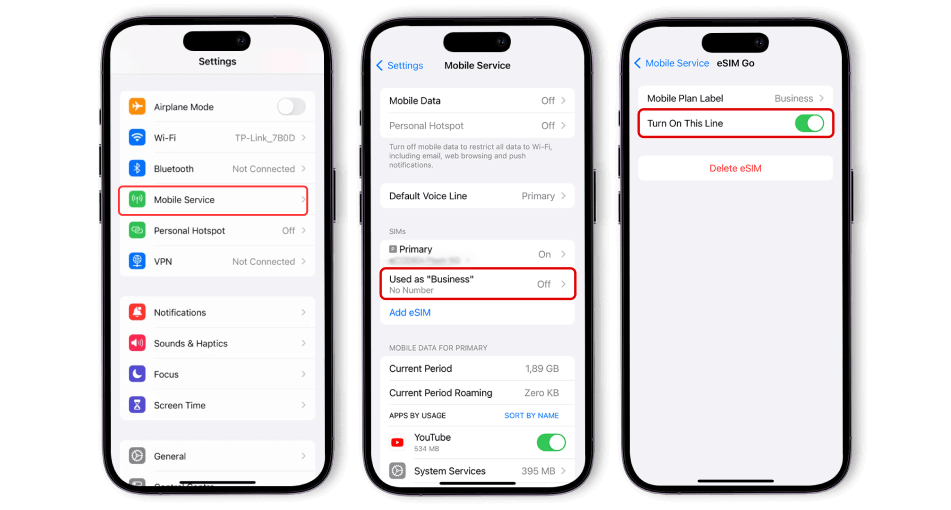
- eSIM: Go to Settings > Cellular/Mobile Data and toggle off your active line. You do not need to delete the eSIM profile; simply disabling it prevents TikTok from reading the carrier code.
Step 2: Clear App Data and Cache
Old location data stored on your phone acts as a “breadcrumb trail” that conflicts with your new VPN signal.
For Android Users:
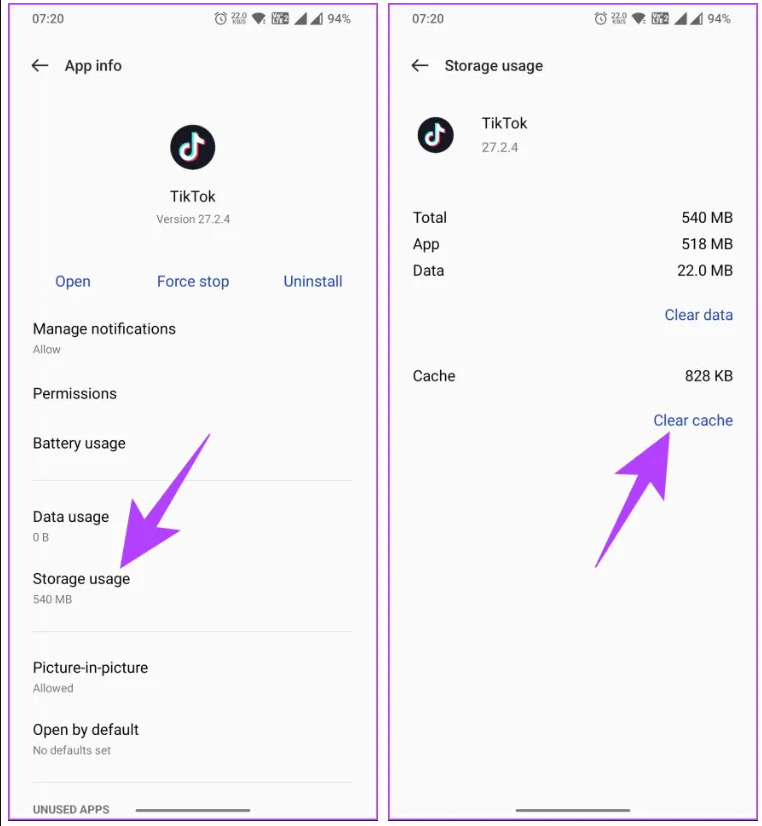
Step1. Navigate to Settings > Apps > TikTok.
Step2. Tap on Storage.
Step3. Select Clear Cache and Clear Data.
For iPhone Users (CRITICAL WARNING):
iOS does not allow a full data clear like Android. The only reliable method is to delete the app and reinstall it.
Deleting the TikTok app on your iPhone will permanently delete all your saved drafts. There is no way to recover them once the app is uninstalled. Before proceeding, you must post your drafts privately or save them to your device.
Step 3: Establish a VPN Connection
Launch your VPN application. Connect to a server in your target country (e.g., London for UK content).
- VPN Choice: Use a reputable service known for obfuscated servers (like ExpressVPN or NordVPN). Free VPNs are often flagged by TikTok’s blocklists.
- Protocol: Ensure your VPN protocol is set to WireGuard or OpenVPN for the best stability.
Step 4: Launch and Verify
Open TikTok (or reinstall and open it on iPhone) and log in.
Visual Proof: Look at the “Create” (+) button or the “Explore” tab. If you see contest hashtags or trends specific to your target region (e.g., Portuguese hashtags if you switched to Brazil), the process was successful.
Pro Tip: The Re-Insertion “Safe Zone”
You can theoretically re-insert your SIM card once the session starts, but this is risky.
Risk: If the app refreshes in the background while your SIM is in, it will revert your region to your physical location.
Best Practice: Always Force Close the TikTok app completely before re-inserting your SIM card or turning your eSIM back on. Never leave TikTok running in the background with your domestic SIM active.
How to Change TikTok Region on PC (Windows & Mac)
Changing your location on a desktop is generally cleaner than on mobile because computers lack SIM cards. However, browser cookies and HTML5 Geolocation can still trap you in your old location.
Here is the workflow to solve how to change tiktok region on pc effectively.
The Desktop Workflow
Step 1: Close All Browser Instances: Ensure TikTok is not open in any tab.
Step 2: Activate Your VPN: Connect to your target region using a desktop VPN client.
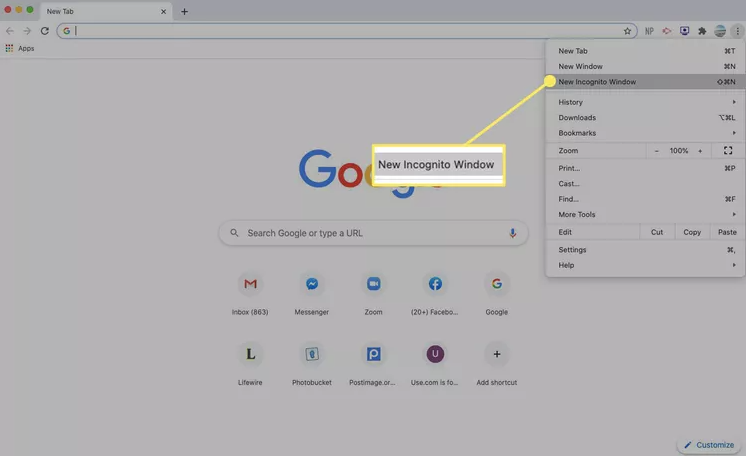
Step 3: Use Incognito/Private Mode: This is crucial. Standard browser windows store location cookies. Opening a fresh Incognito (Chrome) or Private (Firefox/Safari) window ensures a clean slate.
Step 4: Access TikTok: Navigate to the TikTok website. You should immediately see the “Login” button in the local language of your VPN location.
Power User Tip: Browser Sensor Override
If the region still has not changed, TikTok might be reading your browser’s internal “Sensors” via the Geolocation API. You can manually override this in Chrome or Edge without external tools.
Step 1: Press F12 (or right-click and select “Inspect”) to open Developer Tools.
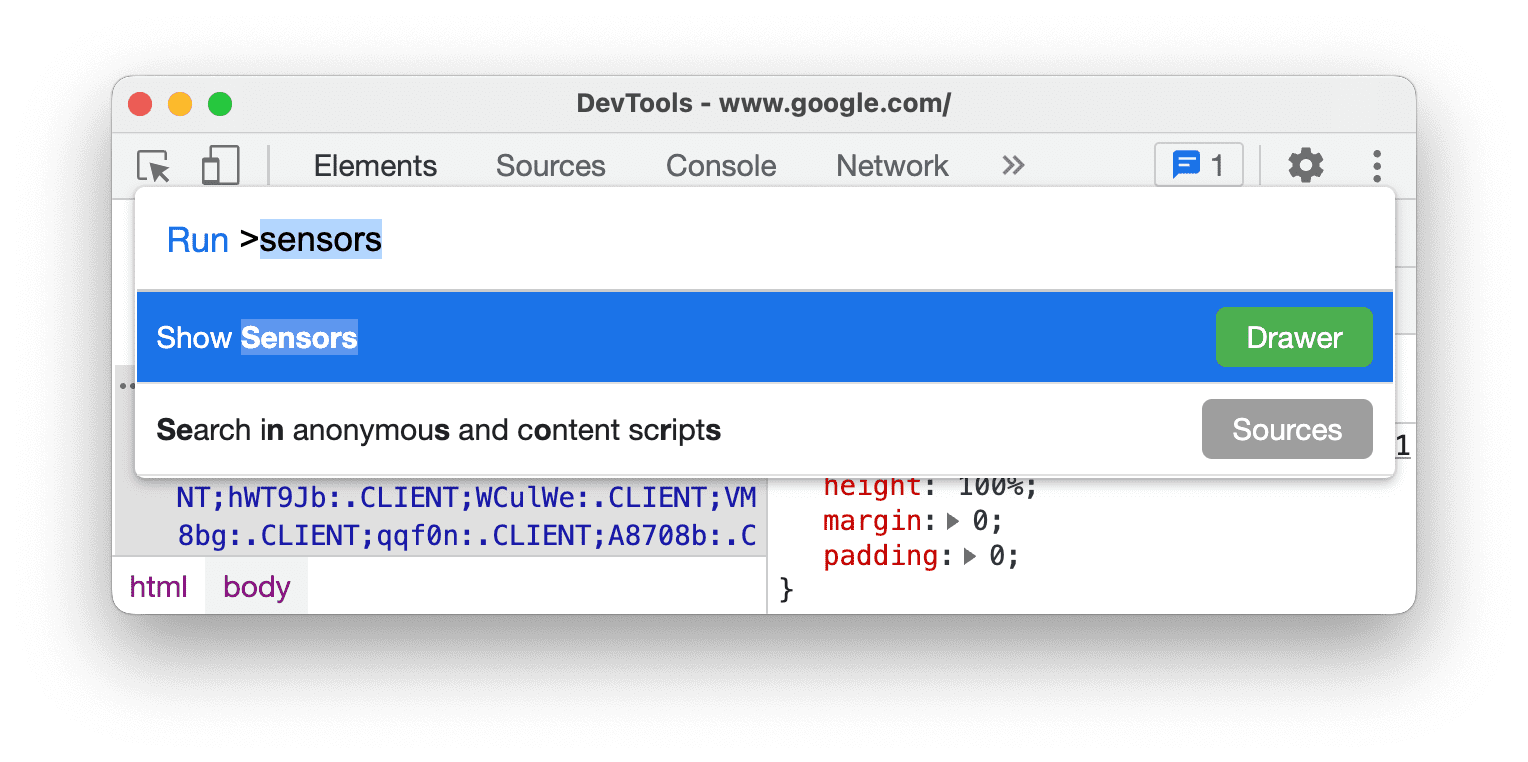
Step 2: Press Ctrl+Shift+P (Cmd+Shift+P on Mac) to open the Command Menu.
Step 3: Type “Sensors” and select Show Sensors.
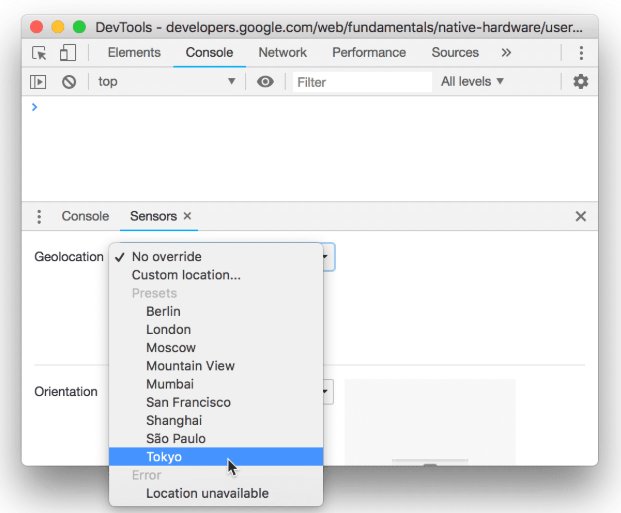
Step 4: In the Sensors pane (usually appears at the bottom), look for the Location dropdown.
Step 5: Select a city that matches your VPN location (e.g., Tokyo).
Step 6: Refresh the page while keeping the Developer Tools window open.
Alternative Method: Using a GPS Location Changer
For users who want additional control over how TikTok detects their location, some also combine VPNs with tools such as Fonelora Location Changer. Since TikTok evaluates multiple signals—including IP address, SIM data, device region, and GPS coordinates—changing only your VPN location may still leave conflicting geographic information visible to the app.
Fonelora Location Changer allows users to modify the device’s GPS location directly on both iPhone and Android. When combined with SIM removal and a stable VPN connection, this helps create a more consistent regional profile for TikTok’s recommendation system.
Here is the basic workflow:
Step 1. Install Fonelora Location Changer on your Windows or macOS computer.

Step 2. Connect your iPhone or Android device via USB and complete the required permissions.

Step 3. Open the map interface and select a target location that matches your VPN region.
Step 4. Apply the new GPS location to the device.

Step 5. Launch TikTok after connecting to your VPN and verify whether the For You page begins showing local trends from the selected region.
For best results, ensure your VPN server, device time zone, language settings, and GPS location all point to the same country. Conflicting signals can still cause TikTok to revert to your original region.
Why Simple VPNs Fail: The Signal Hierarchy
Users often ask why their TikTok region change is not working despite having a VPN. The answer is that TikTok constructs a “Location Profile” based on conflicting data points. If any signal contradicts your VPN, the app defaults to your physical location for legal and advertising reasons.
The Hierarchy of Trust
- SIM Card (The Boss): If your phone reports a US carrier code (MCC), TikTok ignores your UK IP address. This signal is virtually impossible to spoof without removing the hardware.
- IP Address: Used to verify the SIM data. If no SIM is present, the IP address becomes the primary signal.
- Device Locale & Time Zone: A secondary check. If your VPN is in Tokyo but your phone’s system time is New York EST, it raises a flag.
- Interaction Patterns: Who you follow and what you watch eventually refines your region.
By removing the SIM card (Mobile) or overriding the Sensor API (PC), you align all signals to point to a single location, leaving the algorithm no choice but to accept your new region.
Troubleshooting: Myths, Timelines, and Account Safety
A major concern for creators is the fear of account suppression. A common search is How to change TikTok region without Waiting 90 days.
Clarification: The 90-day restriction applies only to changing your registered country for the Creator Rewards Program (monetization). It does not apply to the content feed you view or the audience you target with a VPN.
Timelines and Expectations
- The 24-48 Hour Rule: Even after successfully changing your technical region, the feed may not update instantly. It typically takes 24 to 48 hours for the algorithm to re-calibrate your For You page.
- Speeding it Up: Search for local terms immediately (e.g., “London cafes”) and engage with that content to jumpstart the algorithm.
- Shadowban Myths: Using a VPN does not typically cause a shadowban. However, “teleporting” (e.g., switching from London to Tokyo in 5 minutes) triggers fraud filters. Stick to one region per session.
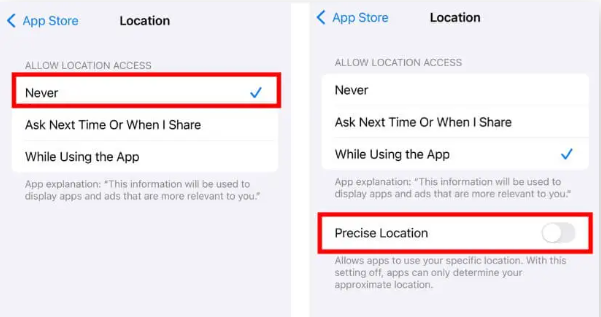
Still seeing local content? Check your phone’s privacy settings. Ensure TikTok does not have permission to access Precise Location (GPS). If you granted this permission previously, revoke it in your OS settings immediately.
Frequently Asked Questions
1.How do I change my TikTok region without deleting the app?
On Android, you can simply clear the app cache and data. On iPhone, because you cannot fully clear the data cache, deleting the app is the only way to ensure 100% success. If you cannot delete the app due to drafts, try the “SIM removal + VPN” method and wait 48 hours, though success is less guaranteed.
2.Does TikTok have a manual region setting?
No, TikTok removed the manual “Select Region” option years ago. The app now automates region detection based on your TikTok SIM country, IP address, and device usage.
3.Why didn’t my TikTok location change after using a VPN?
You likely left your SIM card in. TikTok prioritizes the SIM carrier code over the VPN signal. Remove the SIM or disable the eSIM line, then restart the app.
4.Is it better to change region on PC or Mobile?
PC is easier technically because there is no SIM card to remove. However, Mobile offers a more authentic browsing experience. For heavy research, use PC with the “Sensors” override. For content creation, use a secondary “burner” phone without a SIM.
5.Will I lose my drafts if I change my region?
Only if you are on an iPhone and choose to delete the app to clear the cache. Changing the region itself (via VPN/SIM) does not delete drafts, but the re-installation process required for iOS users does.
Conclusion
Changing your TikTok region is not about finding a hidden setting; it is about aligning the technical signals your device sends to the app. While hardware workarounds like the SIM removal method or strict PC browser workflows can bypass these restrictions, they are often tedious and leave your phone temporarily disconnected.
For a seamless, reliable alternative, Fonelora Location Changer bridges this gap perfectly. By modifying your system-level GPS without forcing you to remove your SIM card or delete your iPhone drafts, Fonelora streamlines the entire process. Whether you choose the hardware route or software precision via Fonelora, aligning your device’s signals is the only definitive way to reliably research international trends and break out of your local content bubble.
More Related Articles



Joy Taylor is a seasoned technical writer with over a decade of experience in mobile technology. At iMobie, she specializes in producing in-depth content on iOS data recovery, iPhone unlocking solutions, and iOS troubleshooting.
Product-related questions? Contact Our Support Team to Get Quick Solution >
